Repository navigation
Chat
Press Enter to send and Shift+Enter for a new line.
Right-click a message, or use its More actions button, to reply, copy its text, edit it or delete it. You can edit and delete your own messages, and moderators can delete other people's. Your server may limit how long after sending you can do this, and Tala shows the server's answer if it refuses.
The search button at the top of the conversation list looks through all your conversations. The one at the top of an open conversation looks through just that conversation. Results appear as you type, and Show more brings in the next ones.
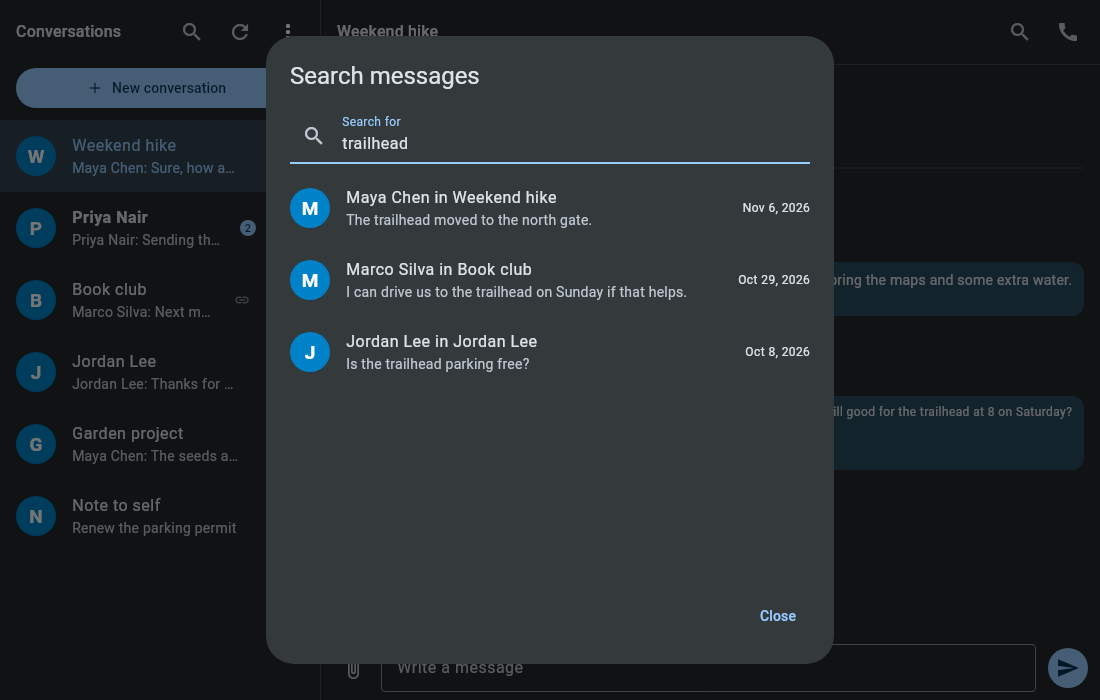
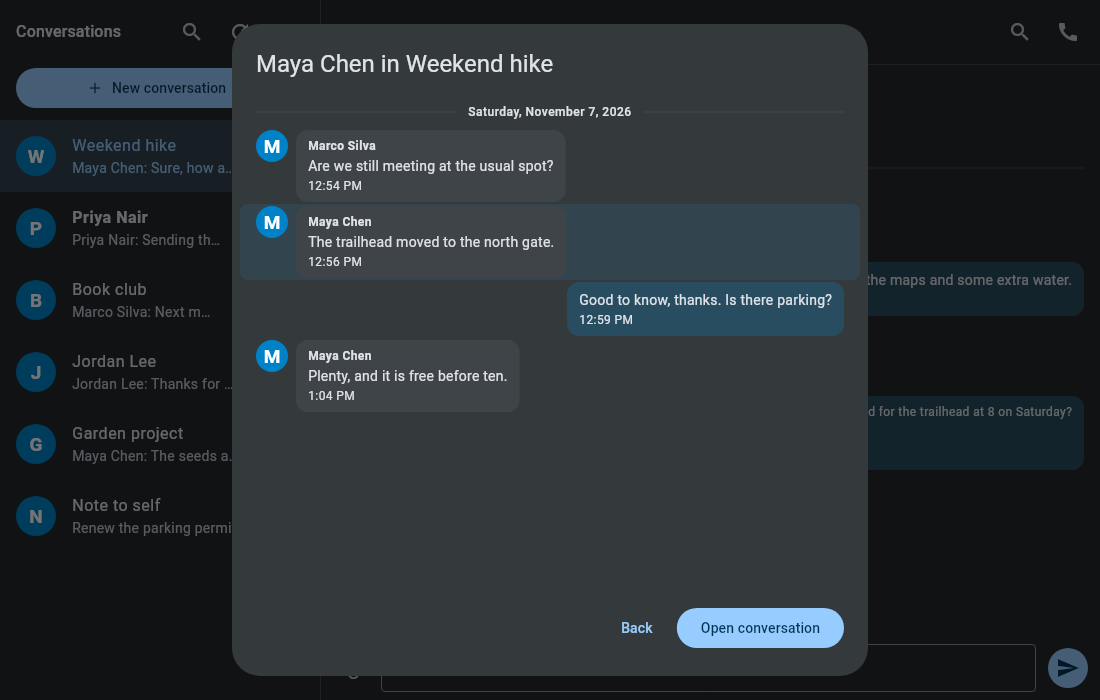
Choose a result to read it among the messages around it, with the date shown. Back returns to your results, and Open conversation goes to that conversation at its latest messages, not at the message you found. Looking at results doesn't mark anything as read.
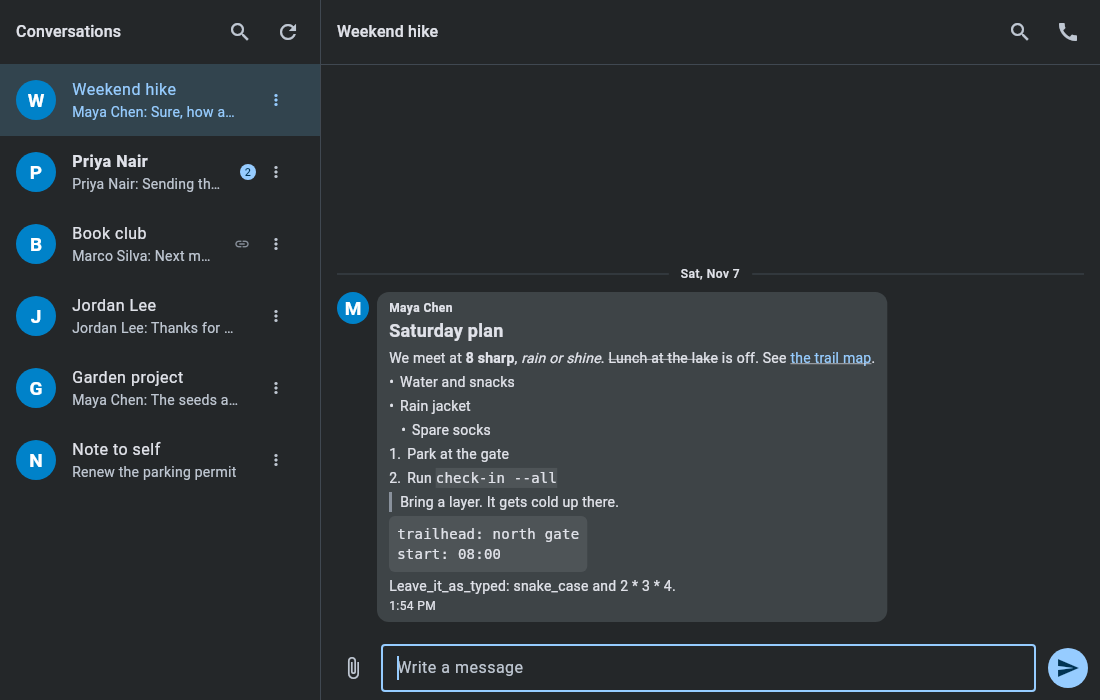
Messages can use Markdown, the same as in Talk on the web:
| Type | To get |
|---|---|
**bold** |
bold |
*italic* |
italic |
~~struck out~~ |
|
`code` |
code |
[a label](https://example.com) |
a link |
# Heading |
a heading (# to ######) |
> quoted |
a quote |
- item or 1. item
|
a list |
- [ ] to do or - [x] done
|
a task list |
| three backticks on the lines around some text | a code block |
--- |
a divider |
Put a backslash before a character to keep it as typed, as in \*not italic\*. Tables stay as typed text, and images in Markdown aren't drawn. Your message shows as you typed it until the server's copy arrives.
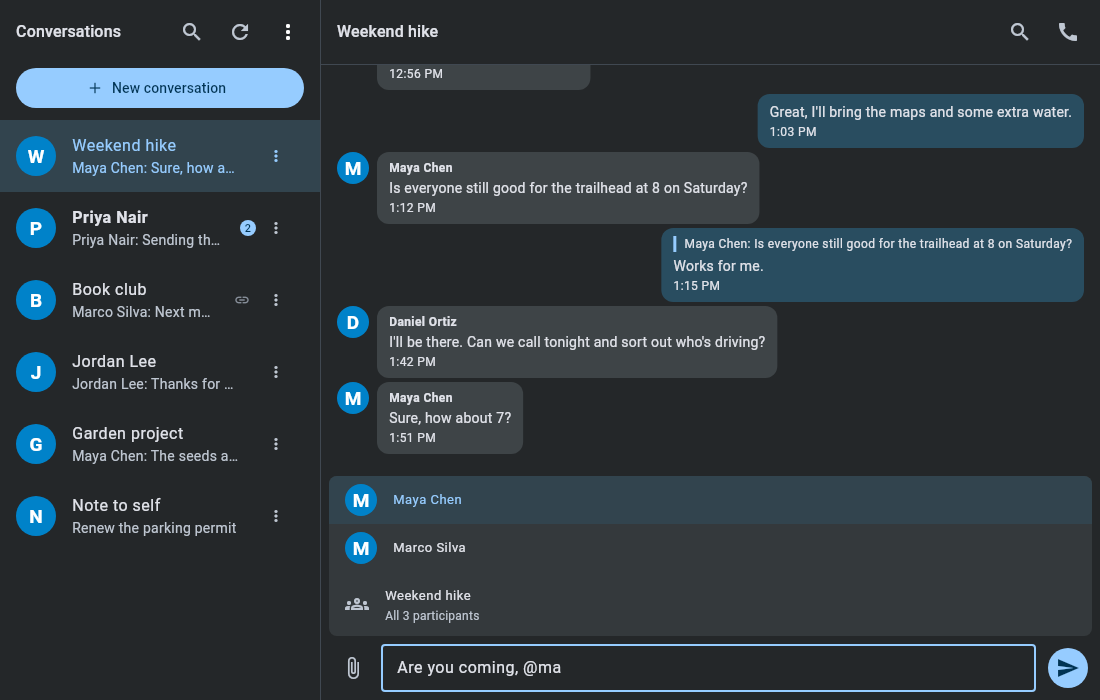
Type @ at the start of a word to see who you can mention. Keep typing to narrow the list, which matches on one word of a name. Use the arrow keys and Enter or Tab to choose, or click. Escape closes the list. The conversation itself is also offered, to mention everyone in it.
The attach button uploads a file to the Talk folder in your Nextcloud files, then shares it into the conversation. Attachments aren't available in conversations hosted on another server.
Right-click a conversation, or use its options button, for these:
- Archive moves it to the Archived section at the bottom of the list. Unarchive moves it back. This only changes your own view and applies on your other devices too.
- Remove chat takes you out of the conversation and you lose access to its messages. It carries on for everyone else.
- Delete for everyone… deletes the conversation and all its messages for everybody, guests included, and can't be undone. It's offered to moderators of guest conversations, and of groups where you're the only moderator and so can't leave.
Tala shows the picture someone chose for their account, and a conversation's uploaded picture. Everyone else gets a letter in your accent color. That includes emoji conversation avatars, guests and people on other servers.
Open Members with the people icon in a conversation's header, or from its options, to see who's in a group or a conversation with a guest link.
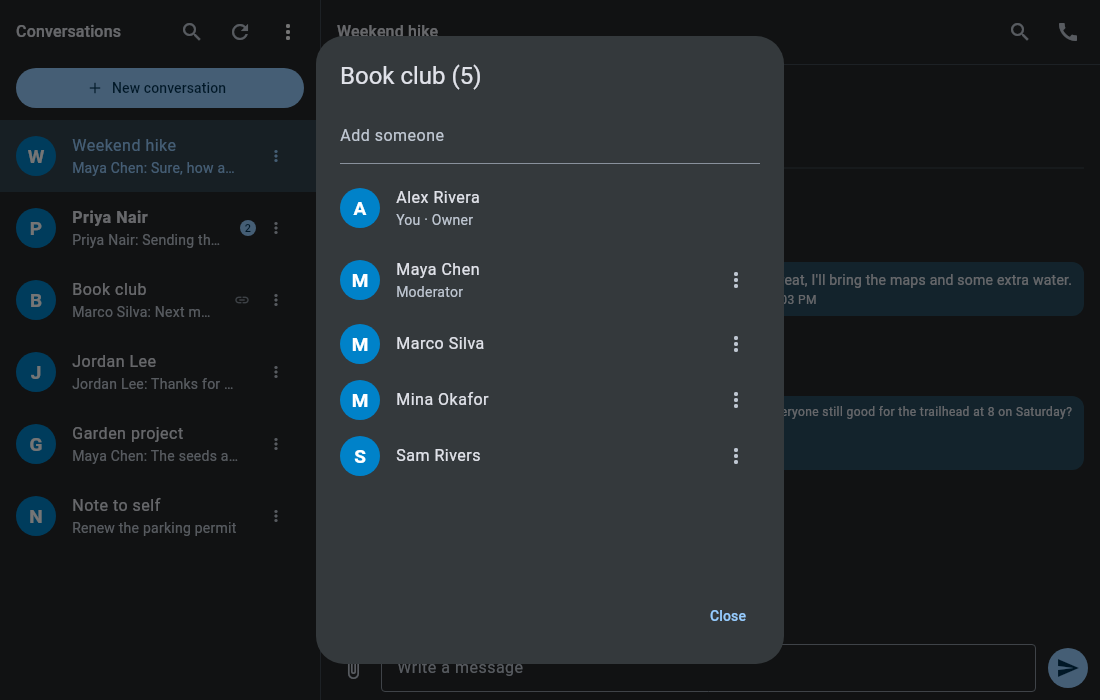
Moderators can also:
- Add someone, using the search at the top.
- Use the options next to a person to remove them, or to make them a moderator or stop them being one.
- Choose Rename… from the conversation's options.
To leave a group when you're its only moderator, make someone else a moderator first. A conversation hosted on another server only shows the list, because that server manages its members.
Untick Show archived in the menu to take the Archived section out of Tala's list. This applies on this computer only. Archived conversations can still alert you and ring, as your server decides.
Popups come from your server's notifications, so its settings decide what alerts you. Nothing pops up for the conversation you have open and focused. Reading a conversation in Tala clears its notifications on your other devices too.
While the window isn't focused, the dock icon shows your unread count, leaving out archived and muted conversations. The dock only has an icon to mark while Tala is open or pinned, so pin it if you keep Tala in the tray.
Invitations to conversations on another Nextcloud server appear above the list with Accept and Decline. Accepted conversations show a globe icon, with their host in its tooltip. Your server may need federation turned on by its administrator.
Federation support is new and hasn't yet been tested against a real federated conversation. Please report anything that doesn't work.