Repository navigation
Getting Started
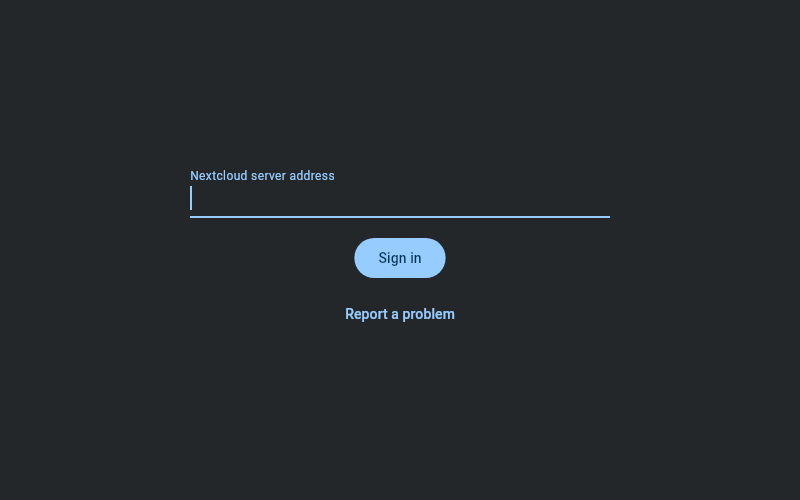
- Open Tala and type your Nextcloud server's address.
- Choose Sign in. Your browser opens your server's login page.
- Approve the login there.
Tala never sees your Nextcloud password. Your server issues an app password for this computer, and Tala keeps it in your desktop keyring.
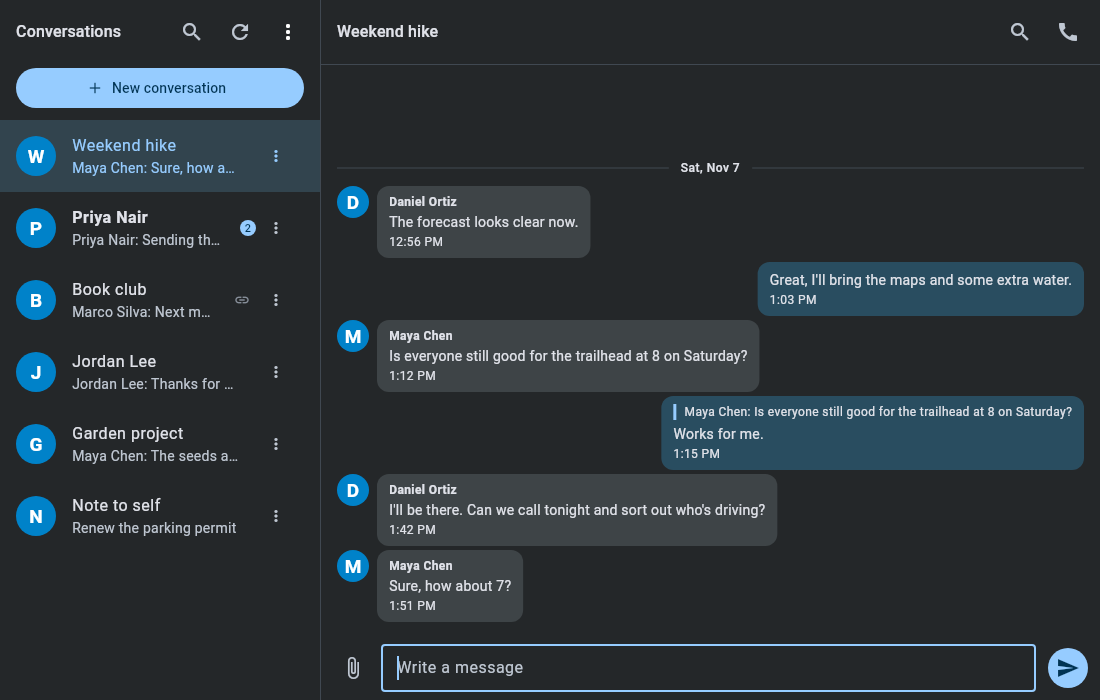
Your conversations are on the left and the open chat is on the right. In a narrow window, only one of them shows at a time.
- Choose a conversation to open its chat. Calls start from the button in its header.
- New conversation, at the top of the list, searches for a person to chat with one-to-one, or starts a group.
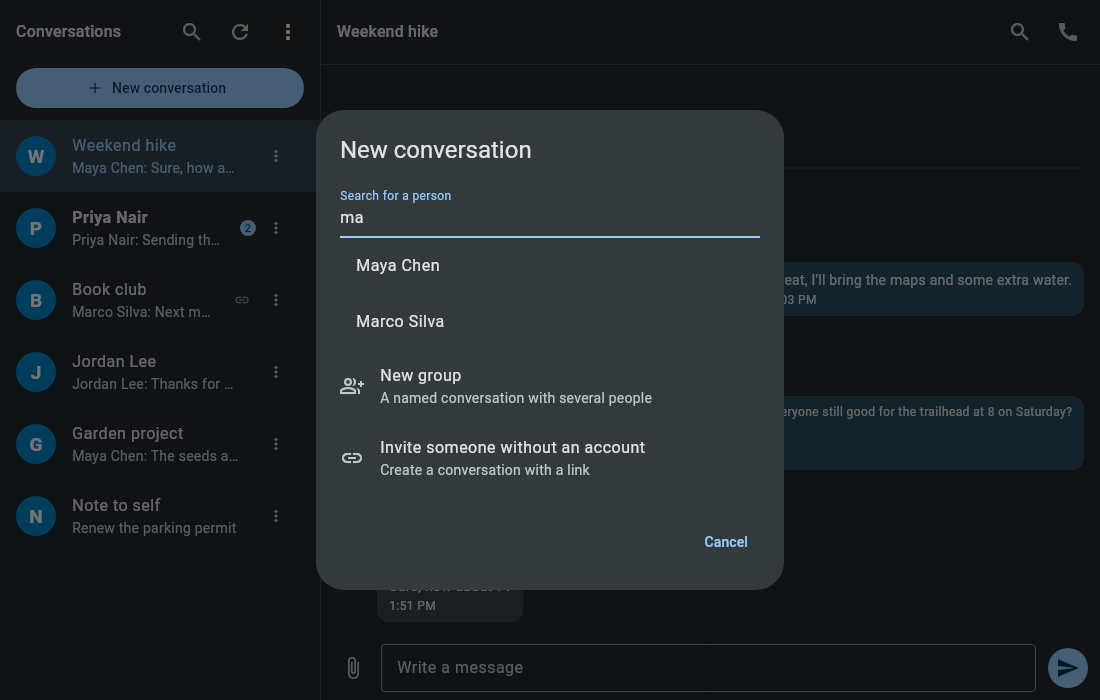
- Choose New conversation, then New group.
- Name the group.
- Search for people and pick each one. You can also add people later.
- Choose Create.
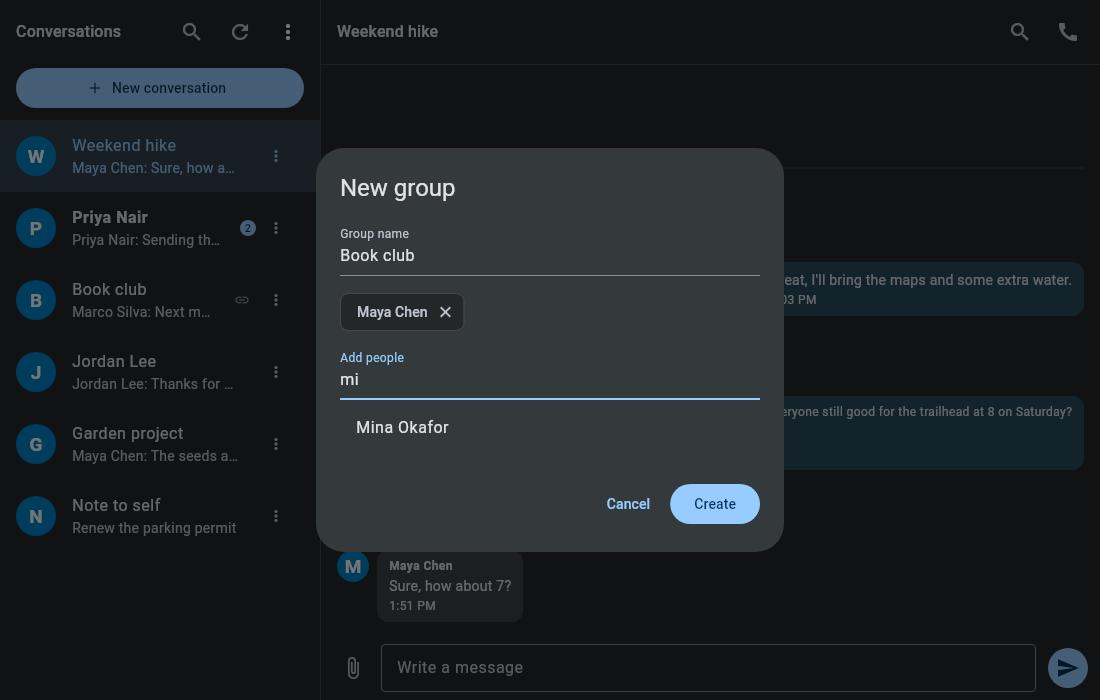
You're the group's owner. See Chat for managing it afterwards.
People who have no account on your server can still chat and call with you, in their web browser.
- Choose New conversation, then Invite someone without an account.
- Name the conversation, and add a password if you want one.
- Choose Copy link and send it to them however you like, or type their email address and have your server send the invitation. Send any password separately.
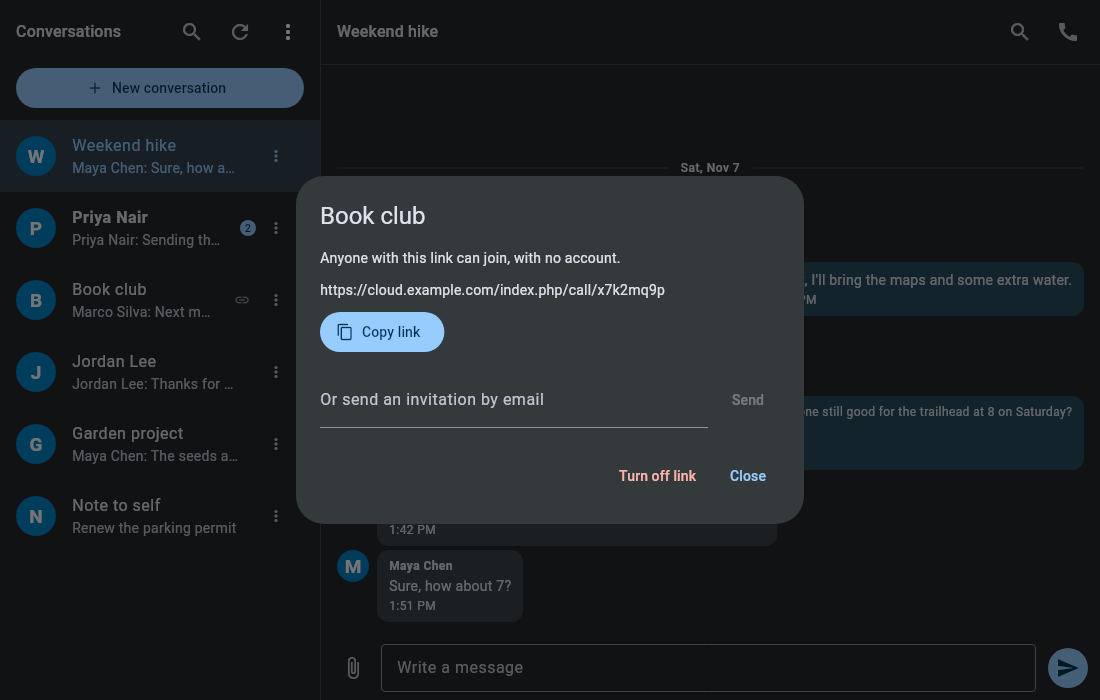
Then start a call from the conversation's header, as usual. Anyone with the link can join until you turn it off, so only share it with people you mean to invite.
These conversations show a link icon in your list. To see the link again, or to choose Turn off link, right-click the conversation, or use its options button, and choose Guest link…. Turning it off removes guests' access and keeps the conversation for people with accounts. When you're finished with a conversation, Delete for everyone… in the same menu removes it entirely, for everyone in it.
Your server's administrator decides whether you can create these, whether they need a password, and whether email invitations work.
While a tray icon is available, closing the window keeps Tala running in the tray, so messages and calls still reach you. To stop it completely, choose Quit Tala from the tray menu.
GNOME needs an AppIndicator extension to show tray icons. Ubuntu's desktop includes one. With no tray available, closing the window quits Tala.