Application configuration
You must configure siguanet-desktop so that users in your organization can run it out of the box. This involves generating an application configuration file named SIGUANETDesktop.prefs which must be included in the build and deployed along with the main executable.
In order to generate the .prefs file, open a console window, go to your build folder (typically bin\Debug) and run the application configuration editor:
> cd SIGUANETDesktop\bin\Debug
> SIGUANETDesktop.exe --configure
from the command line. You'll be presented with a dialogue window that helps you create and update the .prefs file, which is simply a binary serialization of a set of hash tables. Basically, each entry field within a category in the configuration dialogue matches a key/value pair within a hash table. Let's have a look at the configuration keys you can set using the configuration GUI by category.
The siguanet_quest client is one of the main tools inside siguanet-desktop. It uses Npgsql as the data provider, so the application requires the database server parameters, including a user account, to connect to PostgreSQL. The preferred way for standard users is to get their database connection string from an encrypted XML file located on a web server. Files of this kind, also named remote settings files ( .srs ), must be created by application administrators as explained in the Generating remote settings files page. Here you have the configuration keys on database credentials, matched to their corresponding fields in the dialog (see image below):
- [1] AuthUseLocal: When set to "true", the user must manually provide PostgreSQL connection parameters. This is not recommended for standard users.
- [2] AuthUseRemote: When set to "true", the application will download an appropriate .srs file from a web server and will decrypt it in order to build the PostgreSQL connection string.
- [3] AuthDownloadURL: When [2] is set to "true", a string must be assigned to this key which corresponds to the HTTP directory the application will request .srs files from.
- [4] AuthDownloadUsingCredentials: When set to "true", requests to the .srs HTTP directory will be done using HTTP Basic Authentication.
- [5] AuthDownloadWithLogin: User name for accessing the .srs HTTP directory when HTTP Basic Authentication is required.
- [6] AuthDownloadWithPassword: Password for accessing the .srs HTTP directory when HTTP Basic Authentication is required.

Application and database administrators should be considered as root users. Root users (as opposed to standard users) are an specific profile within siguanet-desktop and are always required to manually provide PostgreSQL connection parameters. Hence, the application ignores database credentials configuration. Read the Configuring user profiles page for more information.
Once the user's profile is determined after login, the preferred way for siguanet-desktop is trying to download the corresponding profile definition XML document from a web server. This is what we call the siguanet-desktop document ( .sgd ), which effectively defines which tools and functionality are available for a particular user's profile. As with .srs files, application administrators must create and maintain one .sgd file per profile. Please refer to the Configuring user profiles page for details. These are the .sgd related configuration keys matched to their corresponding fields in the dialogue (see image below):
- [1] SGDUseLocal: When set to "true", siguanet-desktop will try to load an appropriate .sgd file from the application directory. This is not recommended for standard users.
- [2] SGDUseRemote: When set to "true", the application will download an appropriate .sgd file from a web server.
- [3] SGDDownloadURL: When [2] is set to "true", a string must be assigned to this key which corresponds to the HTTP directory the application will request .sgd files from.
- [4] SGDUseLocalCopy: When set to "true" and the .sgd file cannot be obtained from [3], siguanet-desktop will try to load an appropriate .sgd file from the application directory.
- [5] SGDDownloadUsingCredentials: When set to "true", requests to the .sgd HTTP directory will be done using HTTP Basic Authentication.
- [6] SGDDownloadWithLogin: User name for accessing the .sgd HTTP directory when HTTP Basic Authentication is required.
- [7] SGDDownloadWithPassword: Password for accessing the .sgd HTTP directory when HTTP Basic Authentication is required.

siguanet-desktop provides a small utility that allows inspecting PostgreSQL and ORACLE schemas by querying the system catalogue. This database schema viewer is only available for root users and is useful when someone needs to have a quick look at tables, views and column names as well as column data types.
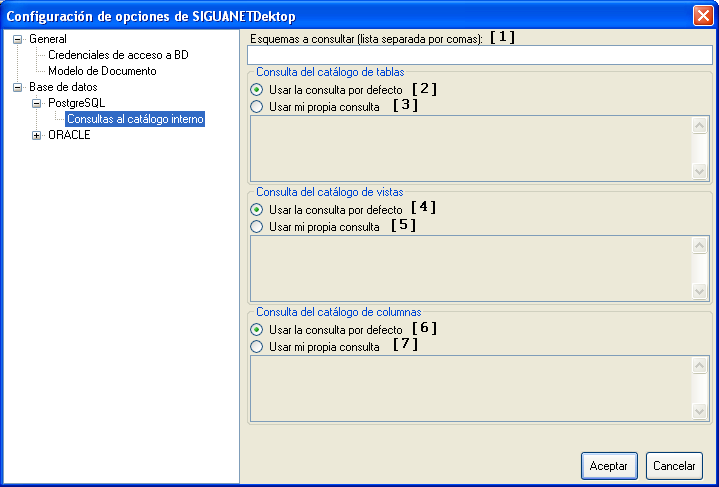
The following configuration keys and their matching dialogue fields (see image below) are related to system catalogue queries on your SIGUANET database:
- [1] PGSQLTargetSchemas: Assign a comma separated list of schema names on your SIGUANET database from which you want catalogue information. You'll typically want to include the public and quest schemas.
- [2] PGSQLDefaultTableSchemaQuery: Enable the corresponding option button if you want to use the default catalogue query for tables that is stored on the PrefsBD.resx resource file.
- [3] PGSQLCustomTableSchemaQuery: If you enable the corresponding option button, the application will store and use the catalogue query for tables that you type in the text field.
- [4] PGSQLDefaultViewSchemaQuery: Enable the corresponding option button if you want to use the default catalogue query for views that is stored on the PrefsBD.resx resource file.
- [5] PGSQLCustomViewSchemaQuery: If you enable the corresponding option button, the application will store and use the catalogue query for views that you type in the text field.
- [6] PGSQLDefaultColumnSchemaQuery: Enable the corresponding option button if you want to use the default catalogue query for columns that is stored on the PrefsBD.resx resource file.
- [7] PGSQLCustomColumnSchemaQuery: If you enable the corresponding option button, the application will store and use the catalogue query for columns that you type in the text field.
Your custom catalogue queries in PostgreSQL should follow the same pattern as the default ones with regard to parameters. This involves using :param1 for database name, :param2 for schema name and :param3 for table/view name.
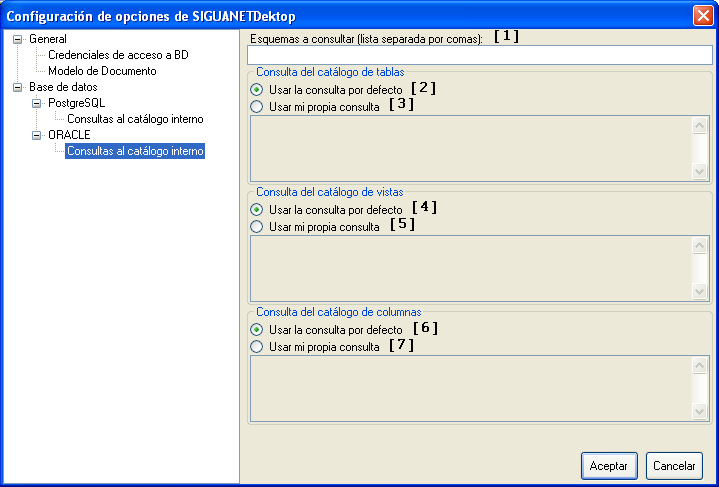
As with PostgreSQL, you can browse schemas in an ORACLE database which your SIGUANET database is fed from. These are the configuration keys (see image below for their corresponding dialogue fields) that apply to system catalogue queries on your corporate ORACLE database:
- [1] ORATargetSchemas: Assign a comma separated list of schema names on your ORACLE database from which you want catalogue information.
- [2] ORADefaultTableSchemaQuery: Enable the corresponding option button if you want to use the default catalogue query for tables that is stored on the PrefsBD.resx resource file.
- [3] ORACustomTableSchemaQuery: If you enable the corresponding option button, the application will store and use the catalogue query for tables that you type in the text field.
- [4] ORADefaultViewSchemaQuery: Enable the corresponding option button if you want to use the default catalogue query for views that is stored on the PrefsBD.resx resource file.
- [5] ORACustomViewSchemaQuery: If you enable the corresponding option button, the application will store and use the catalogue query for views that you type in the text field.
- [6] ORADefaultColumnSchemaQuery: Enable the corresponding option button if you want to use the default catalogue query for columns that is stored on the PrefsBD.resx resource file.
- [7] ORACustomColumnSchemaQuery: If you enable the corresponding option button, the application will store and use the catalogue query for columns that you type in the text field.
Your custom catalogue queries in ORACLE should follow the same pattern as the default ones with regard to parameters. This involves using :param1 for schema name and :param2 for table/view name.