Repository navigation
Getting Started
Download the latest version from the releases page. Scroll down to Assets and pick the file for your system:
| System | File |
|---|---|
| Windows | arnis-windows.exe |
| macOS (Intel and Apple Silicon) | arnis-mac-universal.tar.gz |
| Linux |
arnis-linux.tar.gz or arnis-linux-appimage.tar.gz
|
Only download Arnis from this GitHub page or arnismc.com. Other websites that offer it are not affiliated with the project and may be malicious.
A few things to know per system:
- Windows: Arnis needs the Microsoft Edge WebView2 runtime. It comes with Windows 10 and 11, but if the window stays empty or closes right away, install the Evergreen Bootstrapper from Microsoft.
-
macOS: The app isn't notarized by Apple, so Gatekeeper warns you the first time. Extract the
.tar.gz, try to openarnis-mac-universalonce and close the warning. Then go to System Settings > Privacy & Security, scroll down and click Open Anyway. Or runxattr -d com.apple.quarantine ~/Downloads/arnis-mac-universalin the terminal. -
Linux: The plain binary needs
webkit2gtk-4.1from your package manager. The AppImage bundles what it needs.
If you'd rather build it yourself, see Contributing to the codebase.
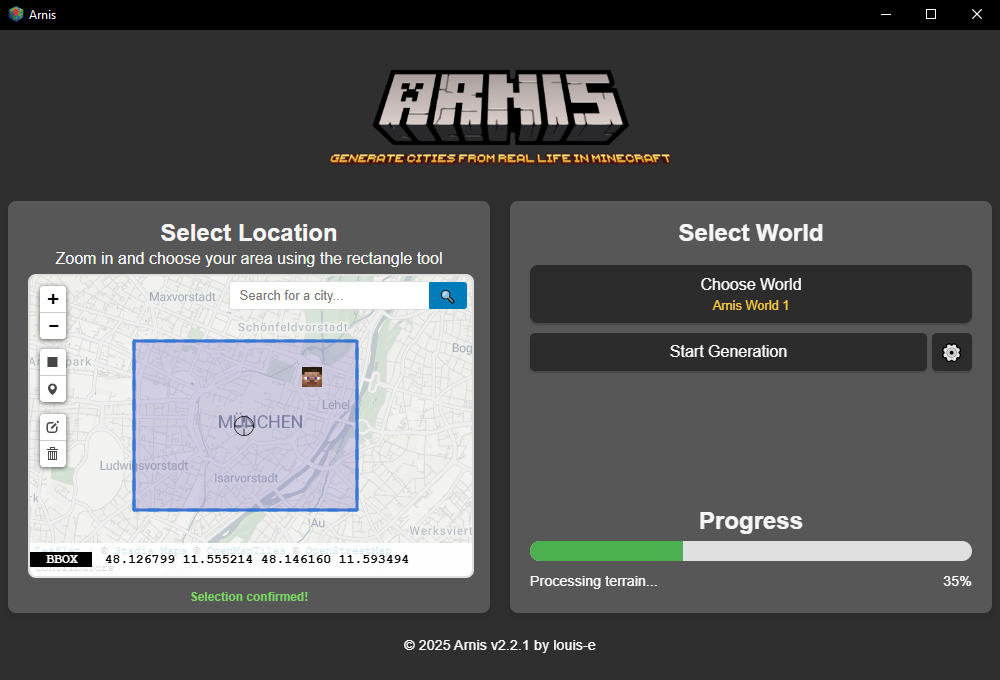
- Find your area. Search for a city with the search field, or just move the map.
- Select it. Use the Select area tool in the map toolbar and drag a rectangle over what you want to generate. Arnis shows you a colour coded hint if the area gets large (see below).
- Pick the format. Java or Bedrock. Luanti shows up here too once you turn it on under Settings > Advanced.
- Check the settings (optional). The gear button opens them. The defaults are fine for a first try. All settings are explained on the Generation Settings page.
- Click Start Generation.
Where the world ends up depends on the format:
- Java: Arnis creates a new world called "Arnis World 1", "Arnis World 2" and so on in your Minecraft saves folder. It finds the folder on its own, and you can change it under Settings > Application. Open Minecraft and the world shows up in your singleplayer list.
-
Bedrock: Arnis writes a
.mcworldfile (to your Desktop by default) and opens it, which imports it into Minecraft. - Luanti: Arnis creates a new world in your Luanti worlds folder that uses the Mineclonia game.
You don't need to have Minecraft installed to generate a world, e.g. if you want to generate one for someone else. Just set the save path to any folder.
Next to the area selection, the map toolbar has a few more tools:
- Spawn point: click where players should start. Without it, Java worlds spawn at the corner of the area.
- Rotation angle: draw a line along a street and the world gets rotated so that street lines up with the block grid.
- Clear selection: removes the area and the spawn point.
- 3D terrain preview: shows the terrain of the selected area in 3D before you generate, with land cover and buildings on top. Works for areas up to 500 km² on Earth, the buildings show up to 10 km².
- World preview: after a generation, lays a top-down image of the generated world over the map.
- Earth / Moon / Mars: switches the planet. The Moon and Mars are generated from NASA elevation data at a fixed scale and have no buildings, since there's no map data for them.
Generation time and memory grow with the area and with the square of the world scale. At scale 1.0 Arnis warns you at roughly these sizes:
| Area | Colour | Roughly needs |
|---|---|---|
| up to 100 km² | green | |
| over 100 km² | yellow | about 4 GB of RAM |
| over 200 km² | light red | about 6 GB of RAM |
| over 500 km² | red | about 13 GB of RAM |
These are only warnings. If you want something bigger, lower the world scale. At scale 0.5 the same area needs about a quarter of the blocks.
- Java worlds need Minecraft 1.21.4 or newer, and the newest version gives the best results. A few extras need 1.21.6 (see Generation Settings). Bedrock worlds need 1.21.0 or newer.
- The first time you join a large world, Minecraft has to load and light a lot of chunks, which can take a while. Lowering the render distance and giving Minecraft more RAM helps.
- By default you start in creative mode at noon, with a map of the whole area in your inventory.
- If you can't find anything, check the FAQ.
- Generation Settings for everything you can change
- One World if you want to build up one big world area by area
- Command Line Usage to run Arnis without the GUI
- FAQ for common problems