Concorde Edition. Quick start
-
Download ESP32-P4 firmware binary into your Concorde Edition. Follow these instructions ;
-
Install ESP32-C6 firmware binary into Wi-Fi/Bluetooth co-processor of the Concorde
-
take the ESP32-C6 firmware binary from this location ;
-
use wires and USB adapter specified in the Recommended List ;
-
connect the adapter to the Concorde Edition as explained there: https://github.com/Xinyuan-LilyGO/T-Display-P4/issues/14

-
use the same online Web flasher tool as in
step 1to program the Wi-Fi/Bluetooth co-processor component.
-
-
Move your Concorde into an area of good GPS/GLONASS/BeiDou/Galileo reception, turn on and leave nearby.
-
Connect your Tablet/Cellphone to SoftRF Wi-Fi Access Point.
SSID: SoftRF-XXXXXX
Key: 12345678 -
Open up a browser then proceed to this URL: http://192.168.1.1
-
A page like this should come up:
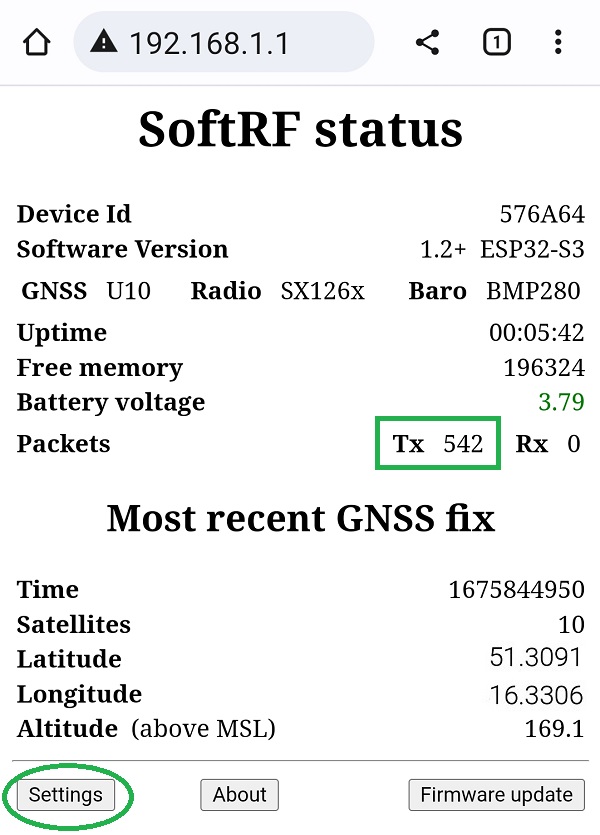
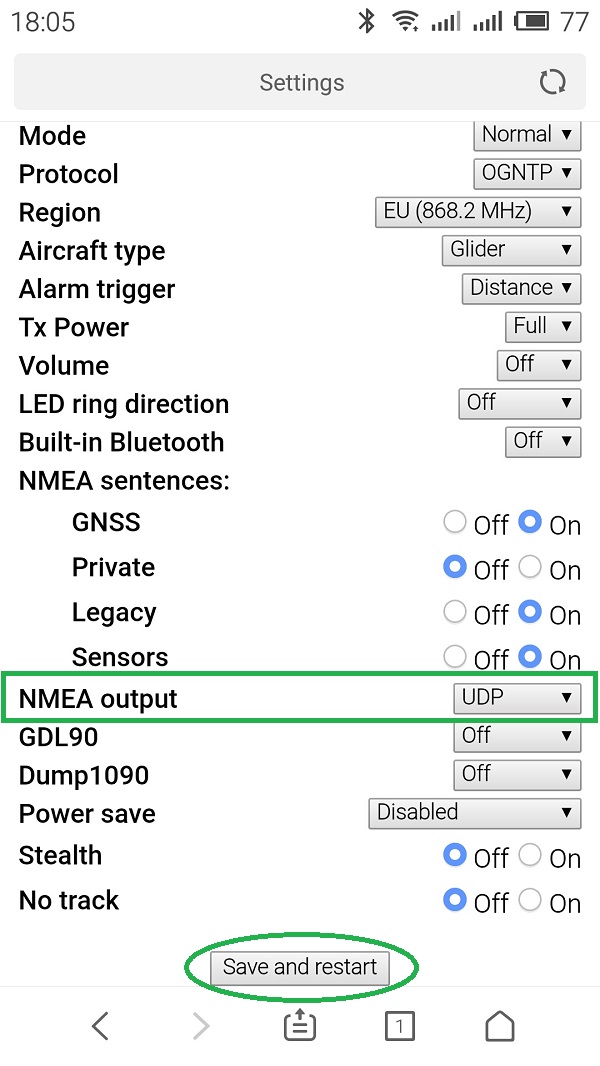
- Open up Settings menu. Select NMEA UDP option. Press Save and restart button.
-
Disconnect from SoftRF AP and connect to internet.
Install XCSoar app from Google Play.
Re-connect to SoftRF AP. -
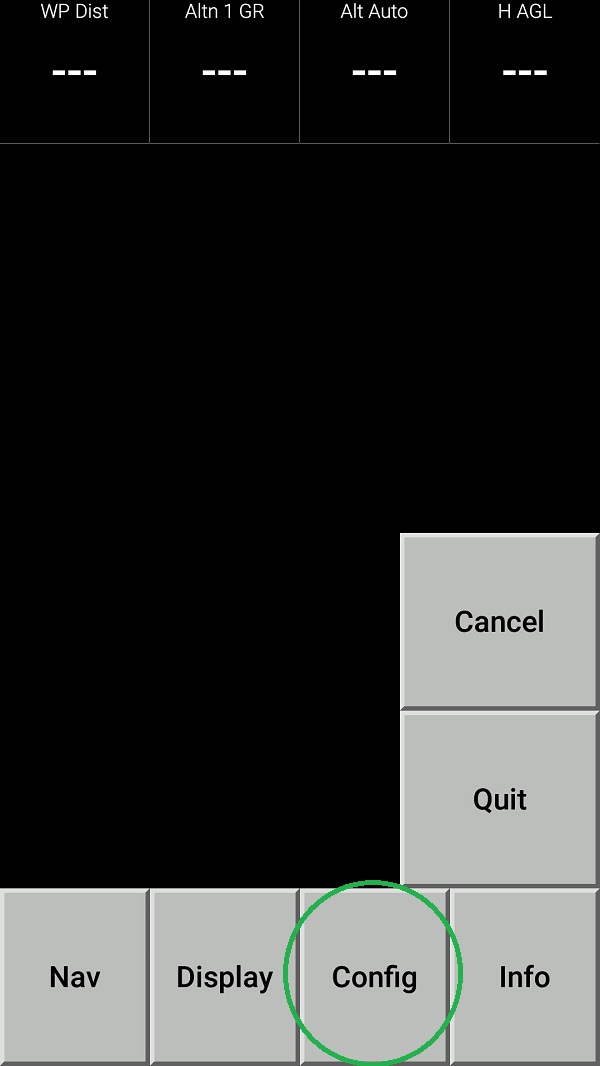
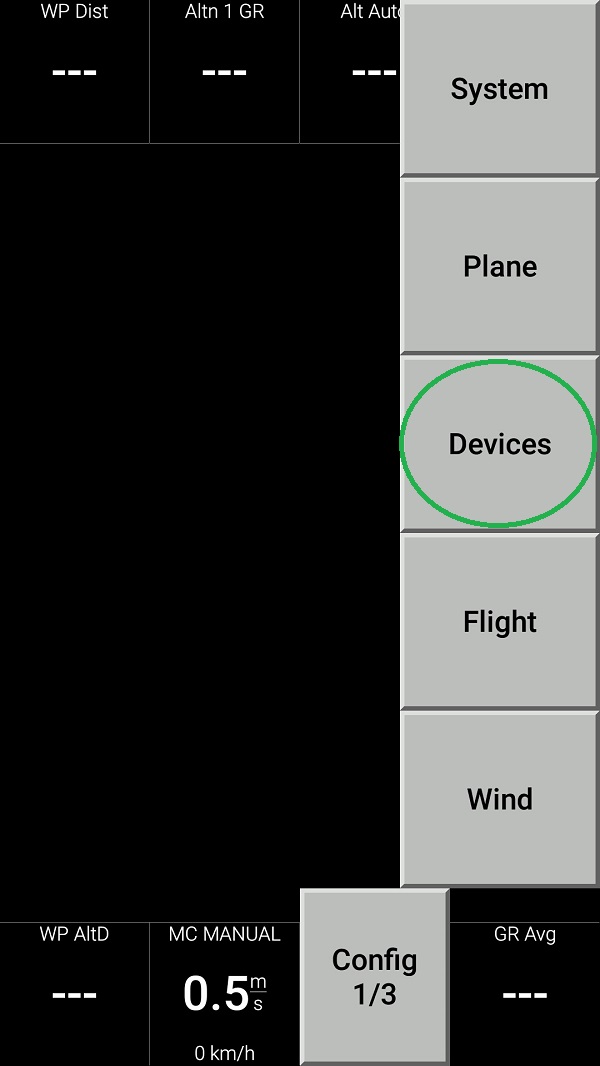
Open the XCSoar app in Fly mode. Double tap the screen then select Config:
- Select Devices:
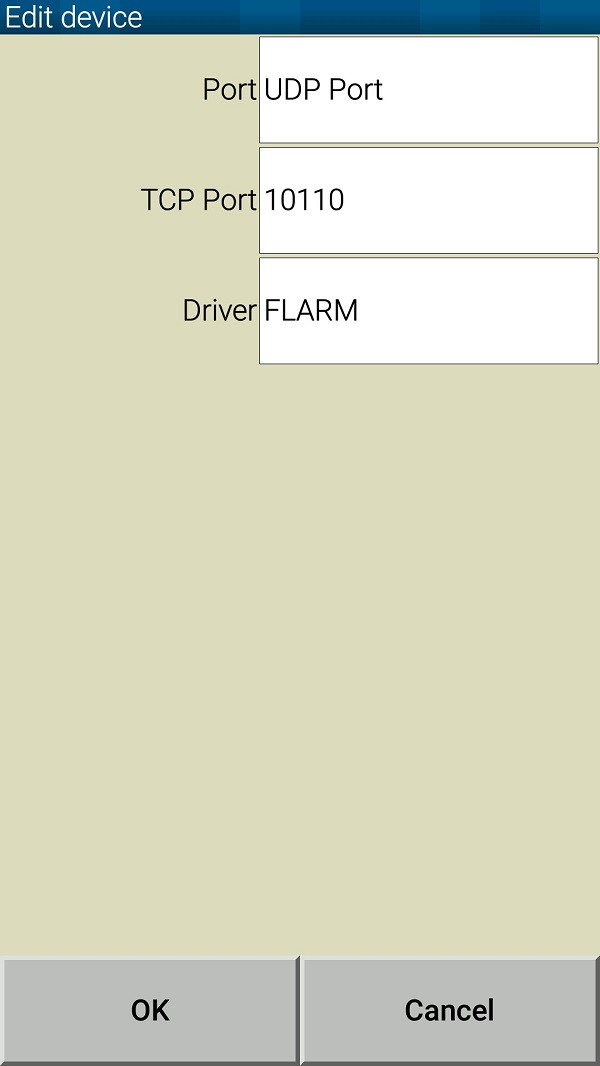
- Push Edit button then configure the device as follows:
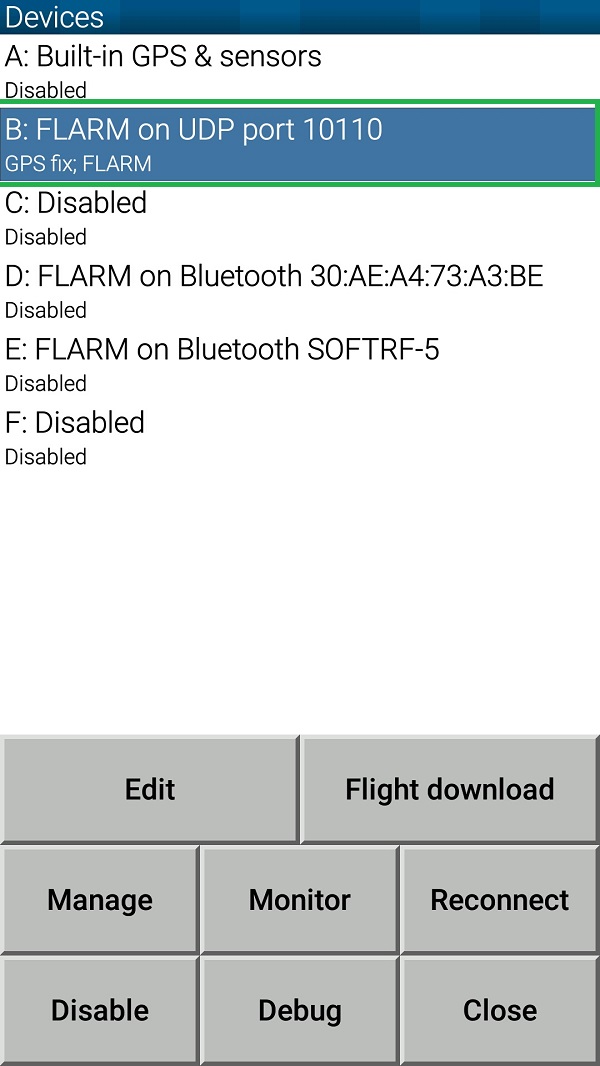
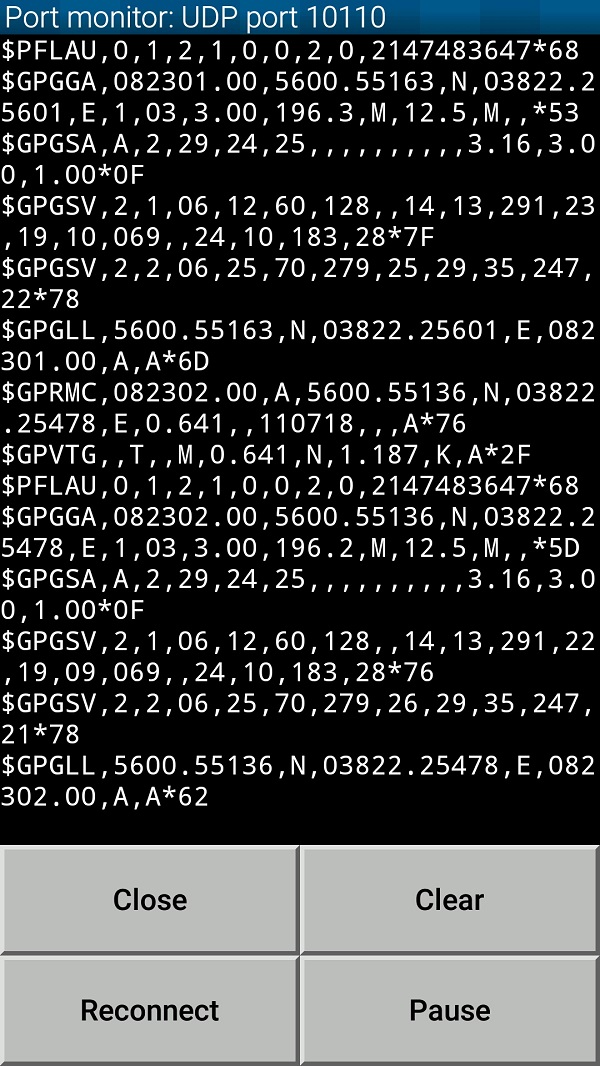
- Push Monitor button and see if your tablet/phone is receiving NMEA data from your Concorde Edition:
- Return all the way back to XCSoar main screen:
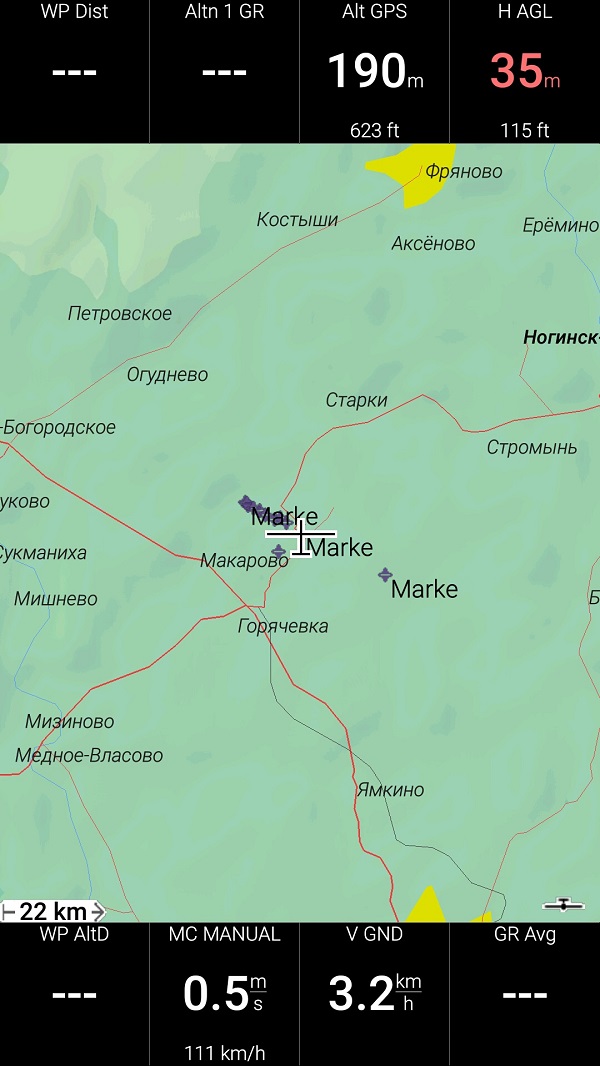
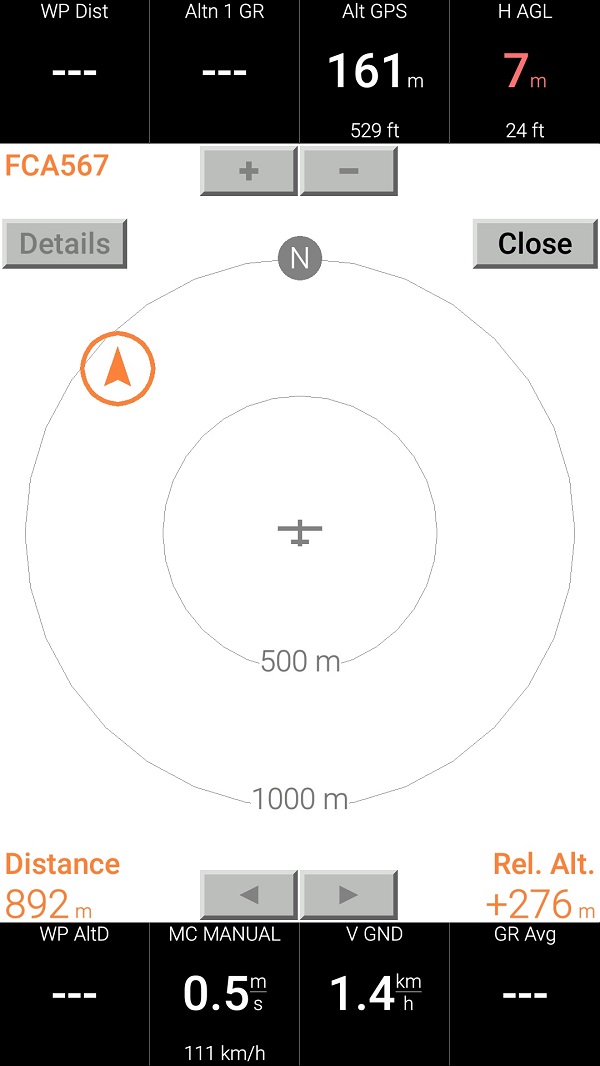
- Swipe three times to the left to reach Radar View. When any other traffic (SoftRF or OGN Tracker) is around - you should see it on this screen: