Configuring the Wheel
Everything G HUB configures on Windows, this project configures on Linux: rotation range, force-feedback strength and filters, TrueForce level, LIGHTSYNC LEDs, onboard profiles, and per-pedal / steering / handbrake response curves.
Most people do all of this from logi-dd-gui, the desktop app, so this page leads with it. If you prefer the command line or run a headless box, the terminal app (logi-dd) has the same feature set and is covered in Prefer the command line? below, along with the raw sysfs files underneath.
Both apps find the wheel automatically and edit settings live. Writing
settings needs your user in the input group (sudo usermod -aG input "$USER", then log out and back in).
Open logi-dd-gui from your applications menu. Every wheel setting is on one page, grouped by category, with live values read from the wheel; change a value and it applies to the wheel straight away. This is the whole workflow: open the app, click through the pages, no terminal needed.
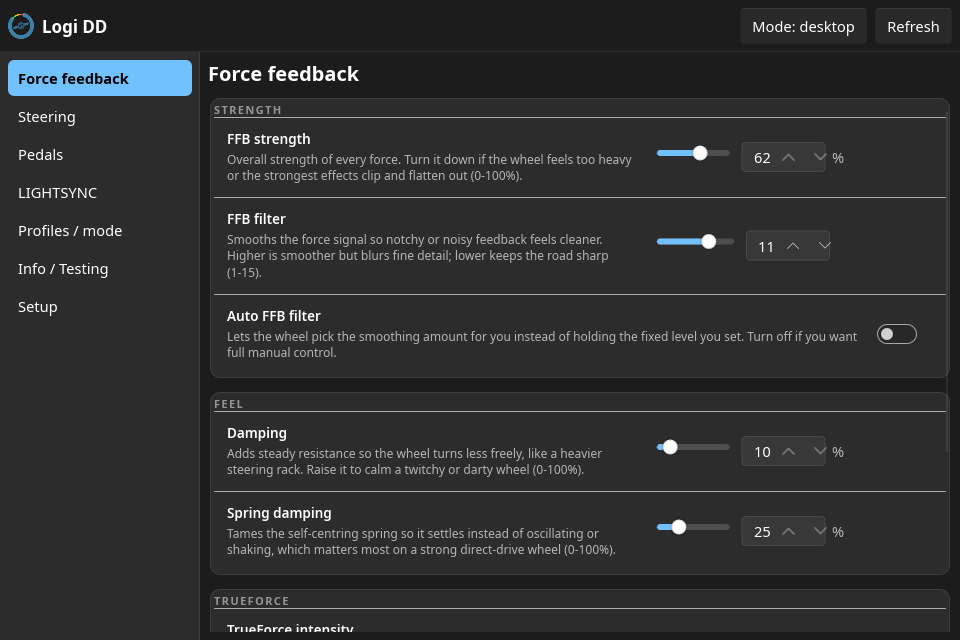
Highlights:
-
G HUB-style curve editor for the pedal, steering and handbrake response curves: drag control points, set deadzones, watch the composed curve, then upload it.
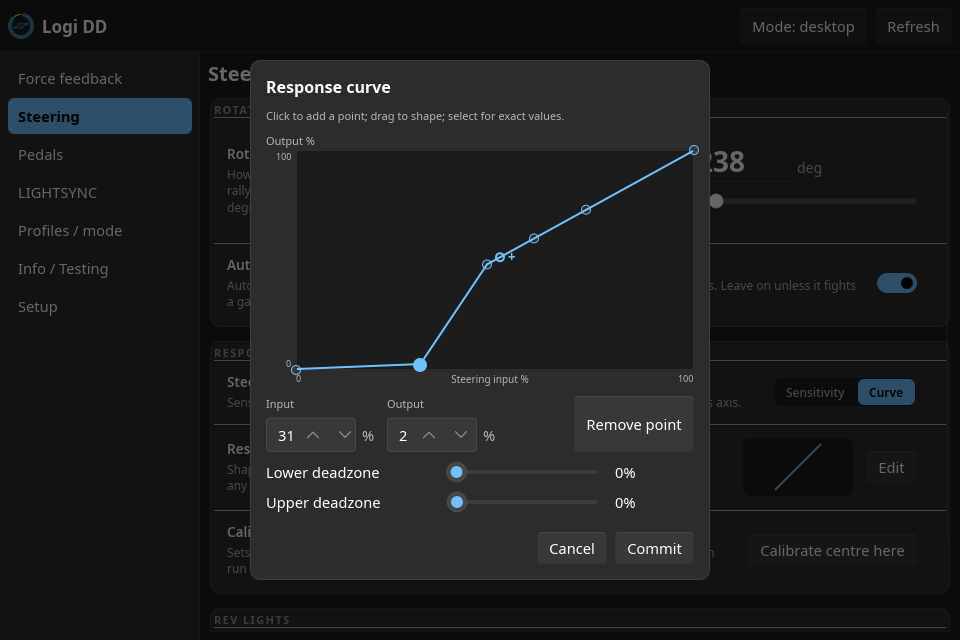
-
LIGHTSYNC editor with per-slot colors (HSV picker), effect, brightness and animation direction. Changes apply to the wheel immediately.
-
Info / Testing doubles as a live input tester: a rotating wheel diagram, button and pedal readouts (does this button reach the computer?), plus guarded, cancelable force simulations.
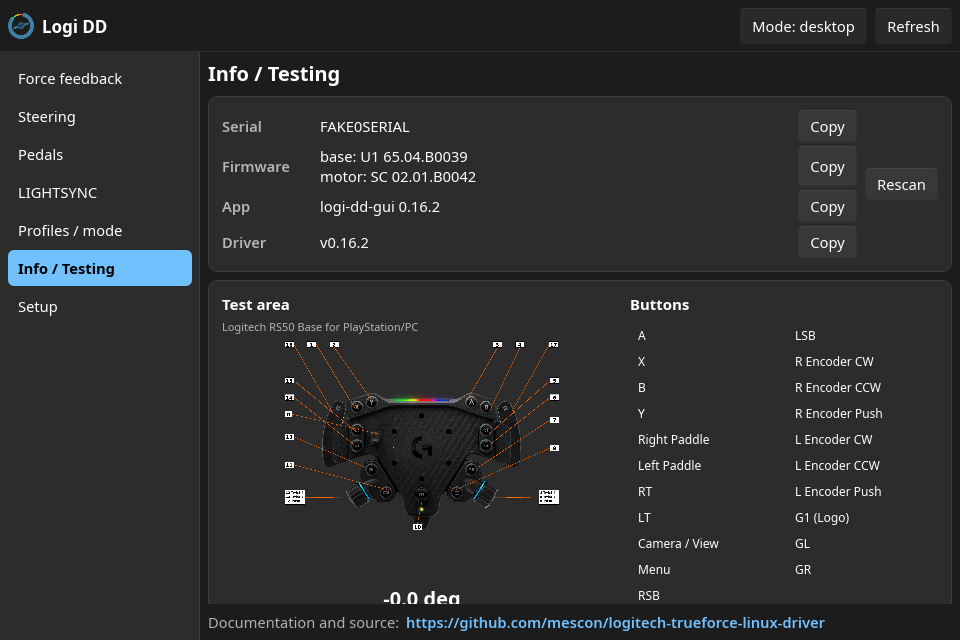
-
Setup is where you turn on the game feel. There are three distinct things here, and it helps to keep them straight:
- Force feedback (always on): the physical force through the wheel, working in every game with no setup. Nothing to switch on here.
- Built-in TrueForce (some games): Logitech's extra vibration and texture layer, for games that ship it. Setup lists the sims it finds across Steam (Proton and native builds), Lutris and Heroic, and installs or removes Logitech's TrueForce files per game, with a folder picker for those files. If you have a racing sim it does not recognise, the Add a game button lets you pick it from your detected games (or point at its Wine prefix) and set it up too.
- Simulated TrueForce (the background helper, for the rest): for games with no built-in TrueForce, the helper builds that texture from the game's live data. Setup has its master switch and per-game switches.
See Force Feedback in Games for the plain-English explainer, and Simulated TrueForce for the helper in detail.
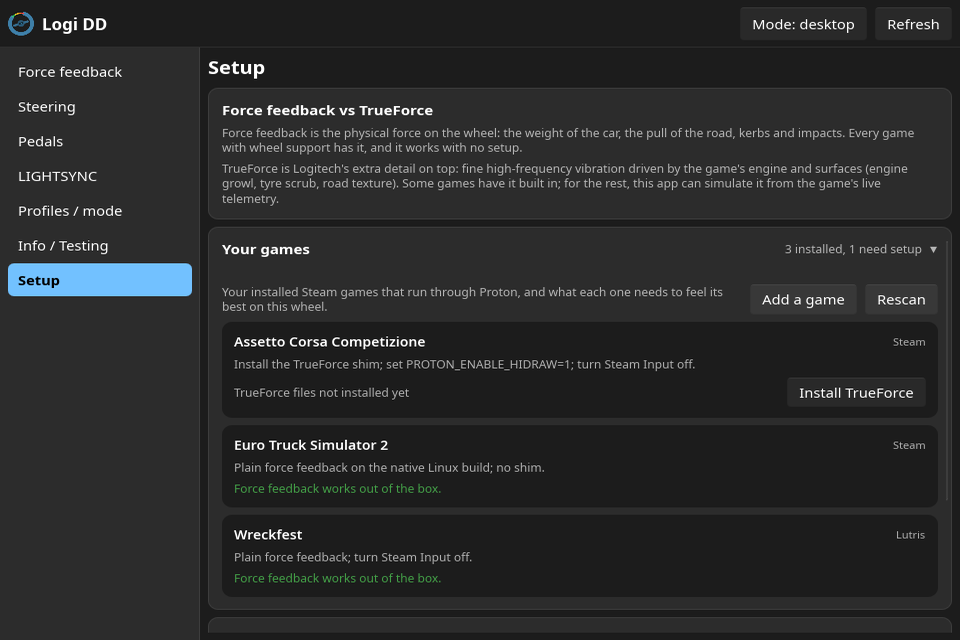
-
Profiles: onboard mode shows the wheel's five named slots (renameable); desktop mode manages computer-side presets you can save, apply and delete.
If you run headless, live in an SSH session, or just prefer a terminal, the rest of this page is for you. The terminal app logi-dd has the same feature set as the desktop app, and everything both apps set is also a plain sysfs file you can script directly (see Sysfs API Reference). Desktop-app users can stop here.
The TUI is a sidebar of views plus a content pane; the number keys jump straight to a view. Values are typed and validated before they reach the wheel, so an out-of-range value is rejected in the UI instead of erroring at the device.
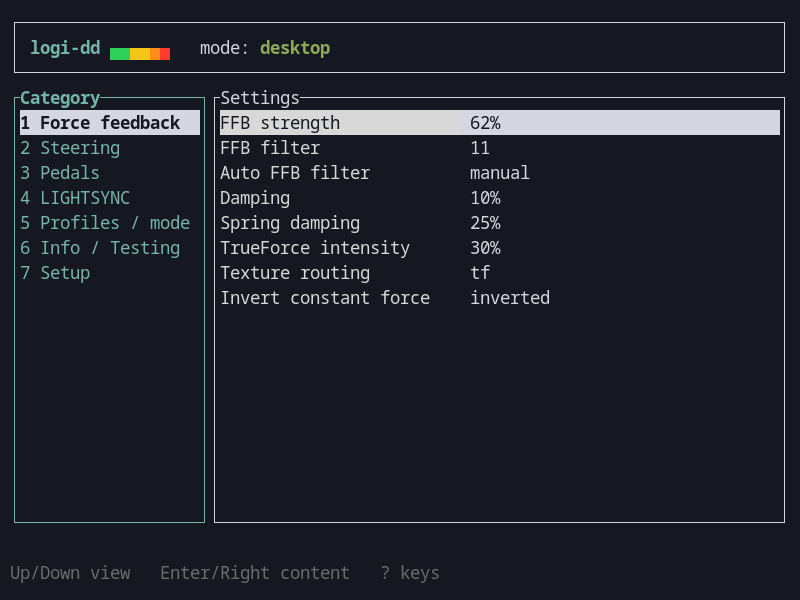
Settings that only apply in desktop or onboard mode are flagged, and the app
can switch the wheel between the two (the d key). A write that needs the
other mode tells you so instead of failing silently.
Press ? at any time for the complete key list of the current context; the
in-app overlay and the footer render from the same table, so they are the
authoritative reference.
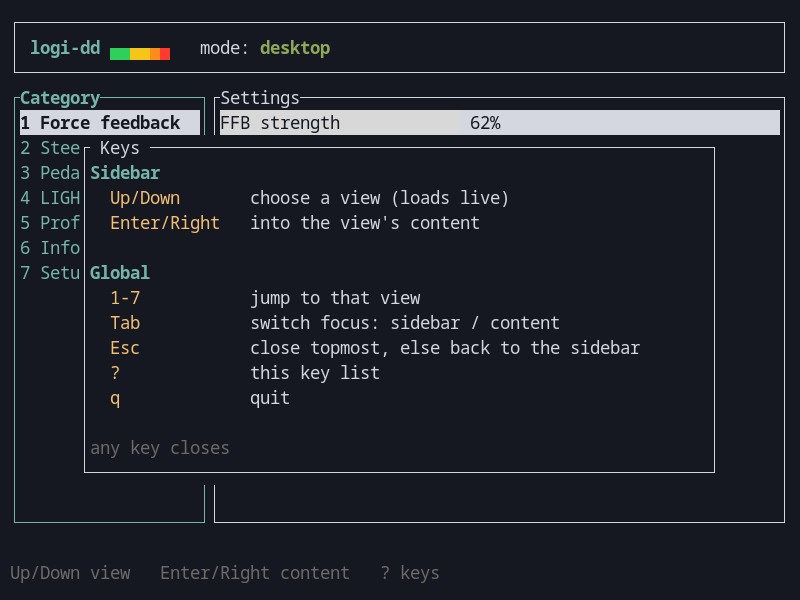
Global (whenever no text entry is open)
| Key | Action |
|---|---|
| 1-7 | Jump straight to that sidebar view |
| Tab | Switch focus between the sidebar and the content pane |
| Esc | Close the topmost editor / overlay, else back to the sidebar |
| ? | The full key list for the current context |
| q | Quit |
Settings views (content focus): Up/Down select, Enter edits (or runs an
action), i explains the selected setting, a toggles sensitivity / full
curve for an axis, d toggles desktop / onboard mode, r re-reads all
values from the wheel.
Editing a value: Left/Right nudge the value (or type, for text fields), Enter commits, Esc cancels.
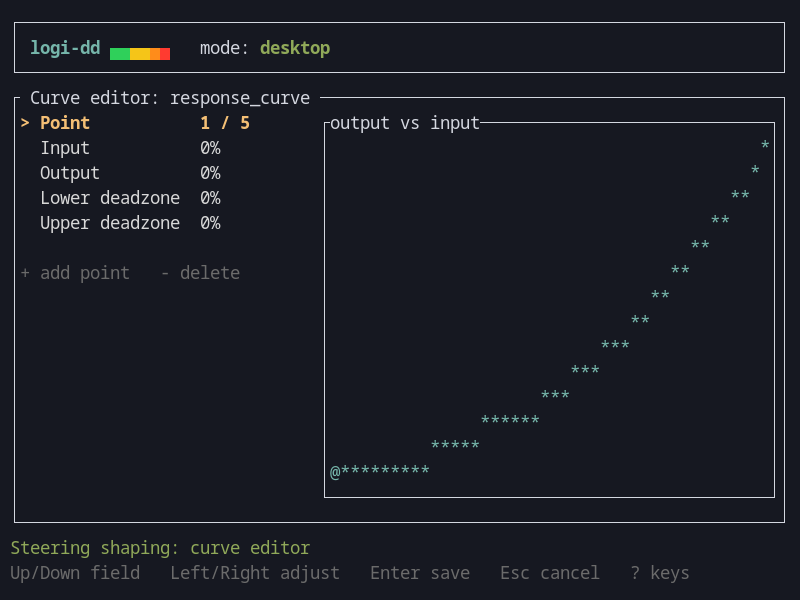
Opens on any curve setting (steering, per-pedal, handbrake). Up/Down move
between fields (point, input, output, lower deadzone, upper deadzone),
Left/Right adjust, +/- add or delete a point, Enter uploads the curve:
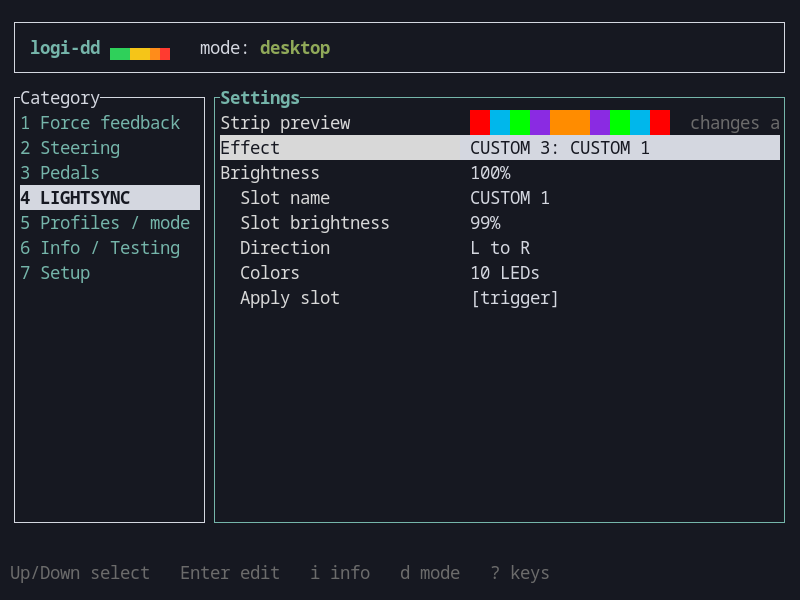
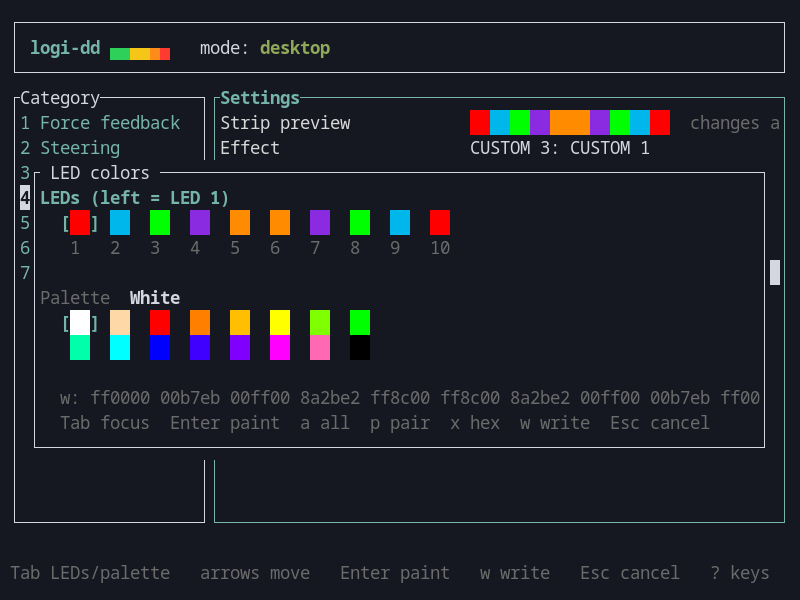
The LIGHTSYNC view composes each custom slot: colors per LED, effect, brightness, animation direction. The strip preview mirrors what the wheel shows, and changes apply live:
The color picker paints individual LEDs from a palette or hex entry. Tab
switches between the strip and the palette, Enter paints the selected LED,
a paints all, p paints the LED and its mirror pair (for the symmetric
directions), x opens hex entry, and w writes the strip to the wheel:
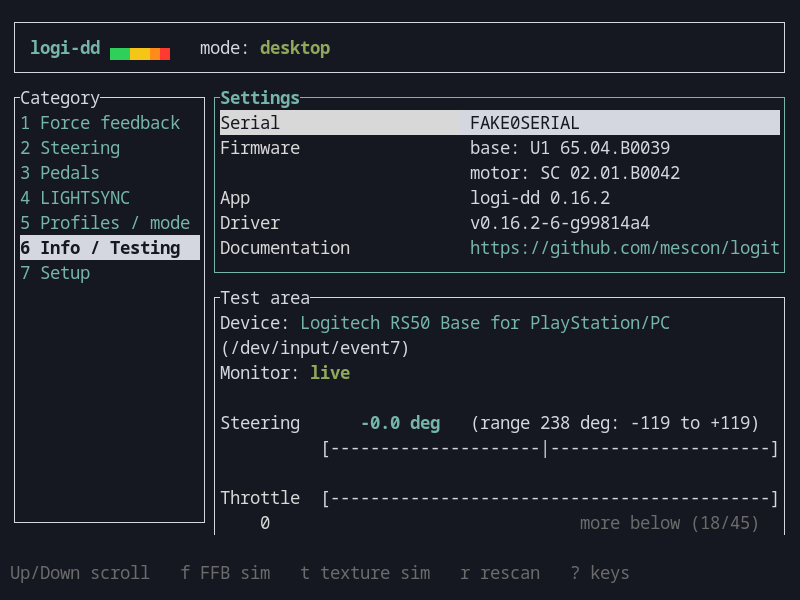
Serial, firmware, app and driver versions (copyable with c, handy for bug
reports), a live input monitor, and guarded force simulations (f for a
force-feedback sim, t for a TrueForce texture sim, both consent-gated):
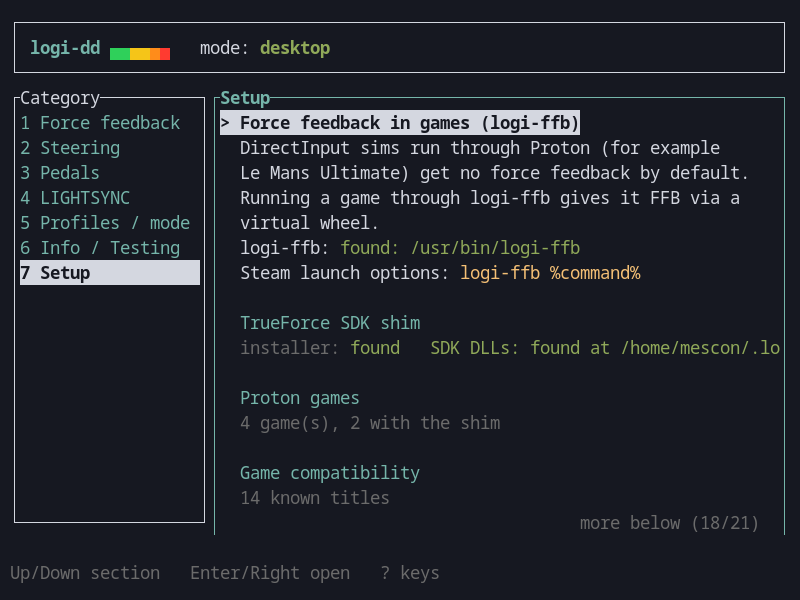
The Setup view manages the game helpers: logi-ffb hints, per-game install and removal of Logitech's TrueForce files across your detected Proton games, the folder those files live in, a game compatibility table, and the simulated-TrueForce helper controls:
Everything the apps set is also available as plain sysfs attributes under
/sys/class/hidraw/hidrawX/device/wheel_*:
H=$(ls -d /sys/class/hidraw/*/device/wheel_range | head -1 | xargs dirname)
echo 0   > "$H/wheel_profile"    # desktop mode
echo 900 > "$H/wheel_range"      # lock-to-lock degrees
echo 65  > "$H/wheel_strength"   # overall FFB strength, percent
The GUI tool Oversteer also recognizes many of them through the driver's compatibility aliases. The complete attribute reference is the Sysfs API Reference.