Widgets
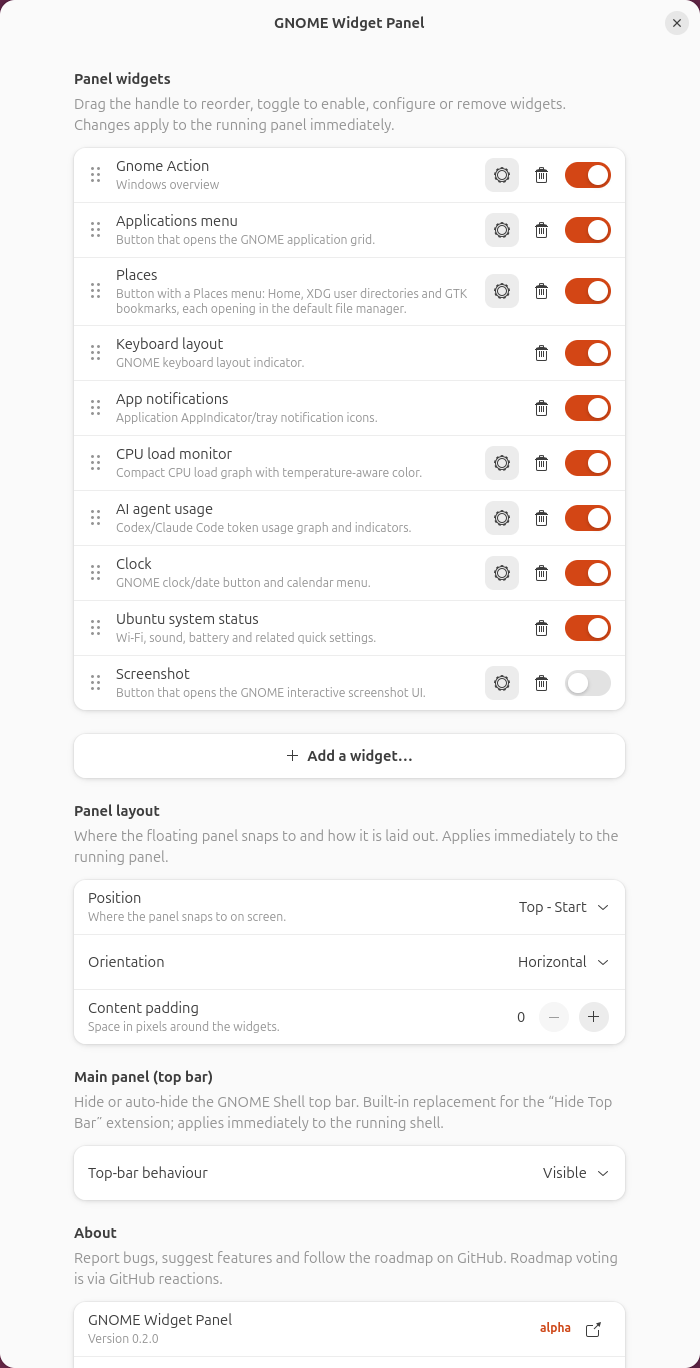
Every item in GNOME Widget Panel is configurable and can be reordered or disabled from preferences.

A panel with the applications menu, Places, CPU load and AI-agent graphs, clock and system-status indicators. The six dots on the left are the drag handle.
- Applications — categorised application menu.
- GNOME Action — configurable Overview, application-grid or show-desktop action.
- Places — Home, common folders and file-manager bookmarks.
- Keyboard layout — current input source.
- App notifications — AppIndicator and tray icons.
- CPU load — compact load graph with temperature colours.
- AI Agent Usage — activity graph for Claude Code, Codex and Gemini CLI.
-
Clock — time plus the GNOME calendar and notifications menu. The time template also accepts a small HTML-like subset for styling:
<b>,<i>,<u>,<small>/<big>and<span foreground="#ff8800">. - System Status — GNOME Quick Settings indicators.
Optional choices include command launchers, screenshot, AI Agent Status for Claude Code attention states, caffeine and break timers.
Open the panel settings, use Add a widget… for anything not in the panel yet, drag the handles to reorder, and press a widget's gear button for its own options.
For icons, interactions and every available setting, see the full widgets catalog.