Home
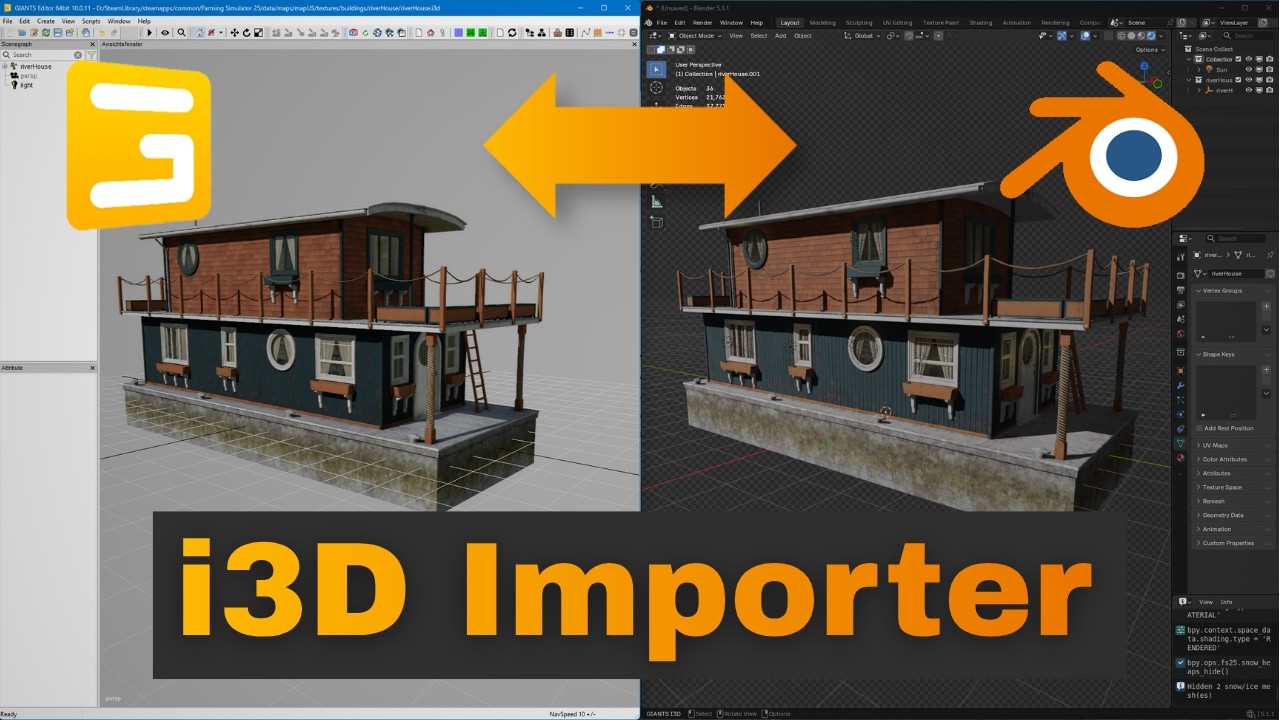
Welcome! This wiki is the step-by-step user guide for the i3d Importer Blender add-on, which imports Farming Simulator 22 & 25 .i3d files directly into Blender - full scene, materials, textures - and prepares them for a clean round-trip back through the official Giants i3d Exporter.
These pages focus on how to use the add-on. You do not need to understand the file format or read any code to follow along.
- Installation - get the add-on into Blender.
- Preferences - the one required setting, plus all the defaults you can tune once.
- Importing a model - the import workflow and every option in the import dialog.
- The N-panel tools - the sidebar workflow tools: material switching, snow/ice, hidden objects, material settings, and the debug view.
- Exporting - how to prepare your scene and send it back out through the Giants i3d Exporter.
- i3dMappings - how to import the Config XML and work with imported i3dMappings.
- Store-Configurations - show and apply the in-game store config options.
Re-exporting to FS22 works too, with a small one-time patch to the FS22 exporter so it runs on Blender 5.1 - see Exporting.
- Menu paths are written as
Edit ▸ Preferences ▸ Add-ons. - Button and option names are written exactly as they appear in the add-on, in bold - for example the Toggle button.
- Blender 5.1 or newer
- Farming Simulator 25 (or FS22) installed locally. Needed so the add-on can find the game's textures and shaders. Your game files are never modified.
- Windows is regularly tested. Linux and macOS are untested but should work in principle.