Preferences
The add-on's preferences live in Edit ▸ Preferences ▸ Add-ons. Find i3d Importer in the list (type i3d in the search box) and click the arrow next to its name to expand it.
The preferences are grouped into three boxes: Paths, Import Defaults, and Terrain.
Most settings here are defaults for the import dialog. You set them once, and every time you import you can still change them just for that one import. Only the game data folder is truly required.
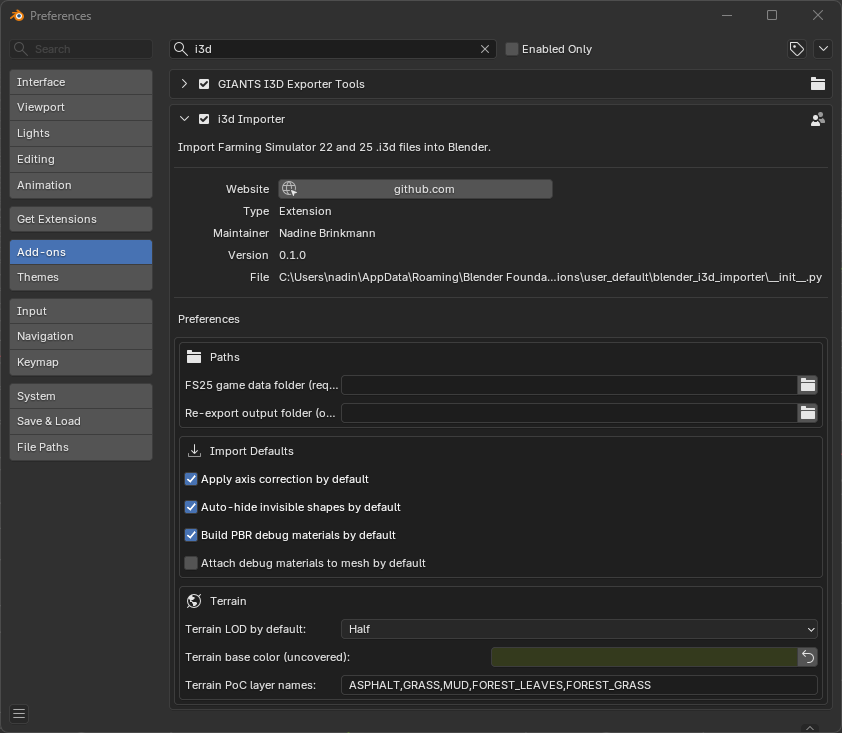
Point this at your Farming Simulator installation root — the folder that contains the data/ subfolder.
This is the most important setting and the only mandatory one.
The add-on uses it to find the game's textures and shader files referenced by the model (paths that start with $data/...). If it is empty or points to a folder that doesn't exist, the import is cancelled with a "Configuration required" message and the preferences open automatically.
As a convenience, this same path is also written into the Giants i3d Exporter's Game Location field on every import, so you don't have to set it there yourself.
The folder you want re-exported .i3d files to be written to. On every import, this is written into the Giants i3d Exporter's Output File field for you. Leave it empty if you prefer to choose the output location manually in the exporter.

These checkboxes configure how import behaves. The first five set the starting state of the matching options in the import dialog — you can override any of them per import. The last one, Load XML with the same name automatically, is a preference only (there is no matching dialog option) and takes effect directly. Each dialog option is also explained in detail on the Importing page; here is what the default does.
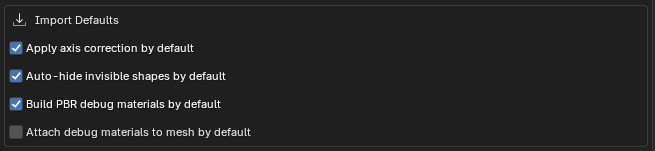
When on, imported models are rotated so they stand upright in Blender's Z-up world (Farming Simulator uses a Y-up world). Leave this on unless you have a specific reason not to.
When on, objects that are invisible in the Giants Editor (for example collision volumes) are hidden right after import, so your viewport isn't cluttered. They are still imported — just hidden — and you can bring them back with the N-panel tools.
When on, each imported material also gets a second, debug version that mimics the look of the material in the Giants Editor and gives you editable sliders. See The N-panel tools and Importing for how the two material versions work together.
When off (recommended), meshes use the clean re-export material, and the debug material stays available to switch to. When on, meshes show the debug material straight after import instead. Re-export only works correctly with the re-export material, so if you turn this on, remember to switch back before exporting.
When on, every imported node name gets a short 4-digit sort-order prefix (e.g. 0010:) so the Giants Exporter reproduces the original Giants Editor scenegraph order on re-export. Blender's outliner sorts alphabetically while the Giants Editor keeps a free order, so without the prefix the node order can change on round-trip and break things that depend on it (animations, references). The Giants Exporter strips the prefix automatically, so it never reaches the .i3d, and skinned-mesh/armature nodes are excluded automatically.
When on, right after importing an .i3d the add-on looks for a config XML with the same name in the same folder (for example vario1000.xml next to vario1000.i3d) and, if it finds one, loads it automatically — assigning its i3dMappings and loading the store-config preview, so you don't have to pick the file by hand. See i3dMappings and Store configurations. This one is a preference only; there is no matching option in the import dialog.
These settings only matter when you import a map that contains terrain. The terrain is imported as a preview only — it cannot be exported back out — and is meant for tasks like snapping a background mesh to the map edge.

Controls how dense the terrain preview mesh is. Lower settings are lighter and faster:
- Off — don't import the terrain at all.
- Quarter — roughly 256K vertices on a 2 km map.
- Half — roughly 1M vertices on a 2 km map (the default).
- Full — one vertex per heightmap pixel (~4M vertices on a 2 km map).
The color shown on the terrain where none of the loaded layers paint anything. The default is a muted dark green. The color picker shows the familiar sRGB hex value. The small arrow button next to the field resets it to the default.
A comma-separated list of terrain layer names to load, up to 5. The limit of 5 is a technical cap (Eevee's per-material texture limit). Names are case-sensitive. If you type a name that doesn't exist it's replaced with a default, and any entries beyond the fifth are dropped with a warning. The default list is:
ASPHALT,GRASS,MUD,FOREST_LEAVES,FOREST_GRASS
Next: 3. Importing a model →