Store Configurations
Farming Simulator vehicles and placeables ship a config XML (vehicle.xml / placeable.xml) that defines their store options - the designs, motor variants, attacher choices, folding presets, colors, and wheels you pick in the in-game shop. Once you load that XML, the importer can preview those store configurations right inside Blender, so you can dress a model up exactly like it appears in the game before you edit or re-export it.
This lives in the Store Config & i3dMappings panel in the i3d Importer sidebar tab. The same Load Config XML button also drives the i3dMappings feature - loading the XML once serves both.
This page only matters for vehicle and placeable mods whose config XML contains store configurations. Plain assets and maps can ignore it.

- Import your
.i3d. - Select any object that came from that import.
- In the i3d Importer sidebar tab, open the Store Config & i3dMappings box and click Load Config XML.
- Pick the matching
vehicle.xml/placeable.xml.
The panel then fills with the model's store configurations. The button stays greyed out until an imported object is active, because the configurations are applied within the import of the selected object - so the right XML lands on the right model even with several imports in one scene.
If the panel says "No store configurations loaded", the XML loaded but had no store configurations (only i3dMappings, or nothing this preview supports).
Each configuration type (design, motor, cabin, attachers, folding, solar panels on buildings, and so on) appears as its own collapsible section. Click a section's triangle to fold or unfold it. Inside, pick an option and the model updates live - visibility, part positions, and material swaps are applied game-exact, mirroring the in-game shop.
- Two-option types (a simple Yes / No, e.g. solar panels) render as a left/right pair.
- Longer lists render as a column of buttons.
- The currently active option is highlighted.
At the top of the panel:
- Show All - reveal every part that a configuration has hidden (handy to see the whole model again).
- Defaults - reset every configuration back to the model's default option.
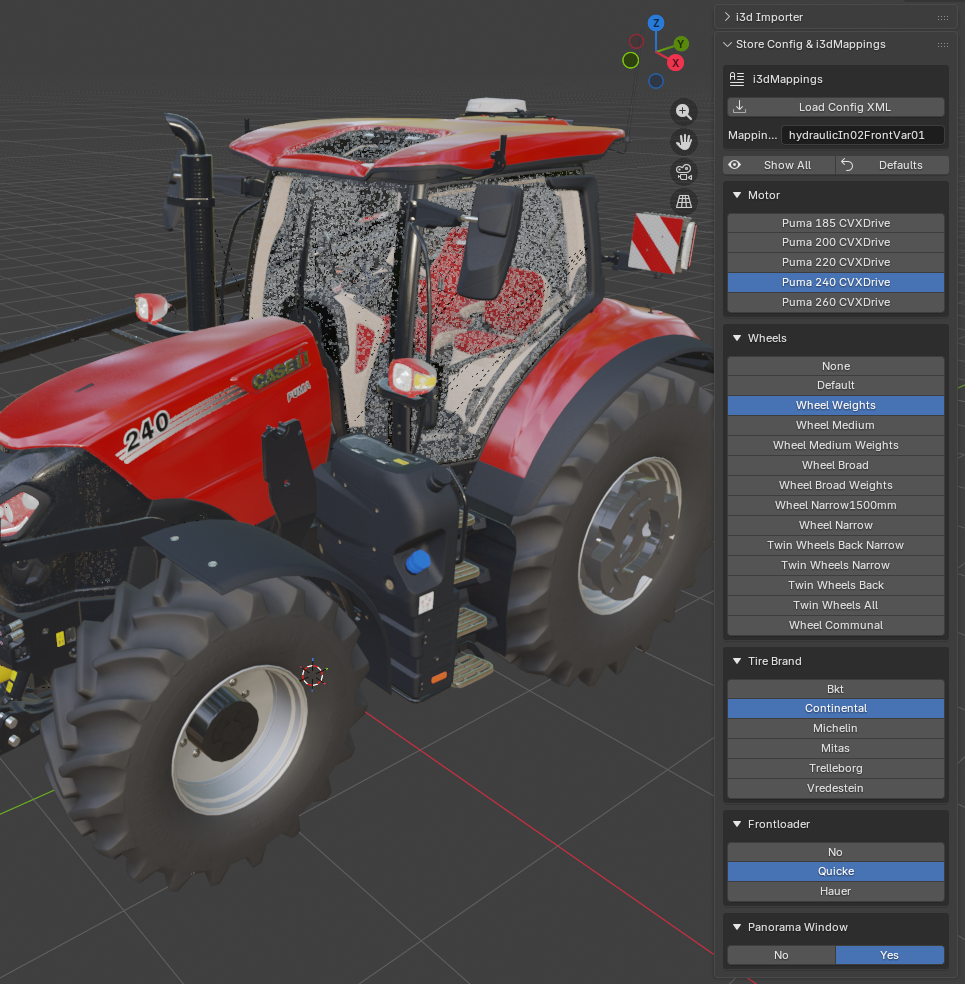
Some vehicles offer a configuration set - the shop's preset chooser (for example a working-width preset) that pins several sub-configurations at once. When present, it appears as its own section at the top; picking a set switches all the configurations it controls together, and those sub-configurations are then driven by the set instead of being chosen individually.
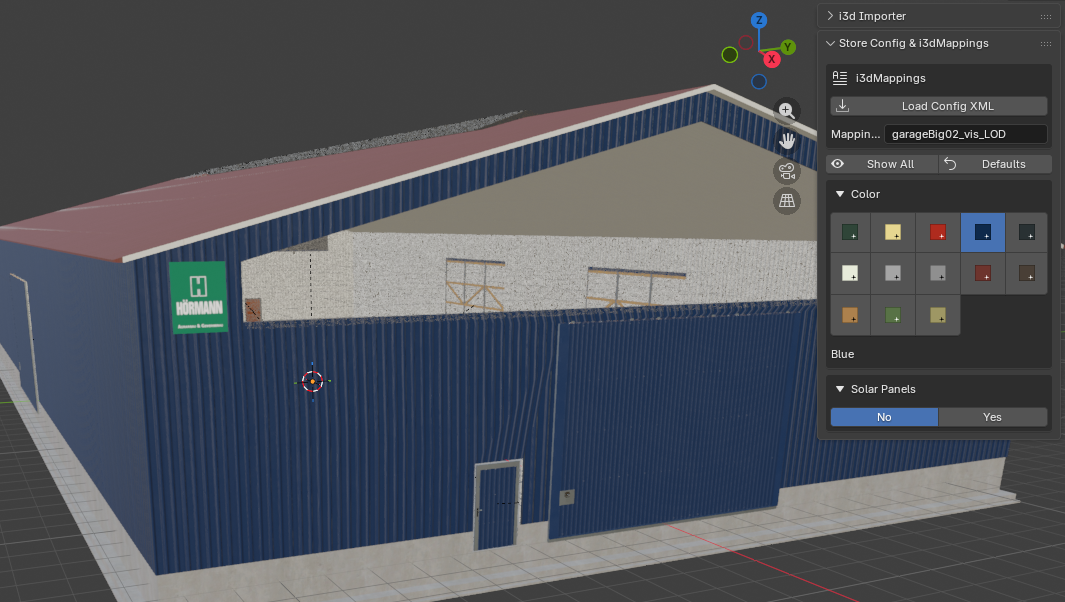
Color configurations render as a swatch grid, exactly like the in-game color picker. Click a swatch to recolor the model live.
- The grid shows the vehicle's own color options plus the game's generated default-color palette.
- Each swatch carries a small finish marker - glossy, metallic, or matte - so you can tell the finishes apart.
- The selected color's name (and price, if any) is shown under the grid.
- Works for vehicles and for colorable placeables such as buildings.
Colors that other parts reference (a useBaseColor / design-color reference) follow your choice, so parts tied to the base color recolor along with it.
Rims and wheel weights have their own Rim Color swatch grid (shown once wheels are loaded). Painting follows the shapes-file material slot names, so parts that stay black in-game stay black here too.
The colors, like the debug materials, are an approximation of the Giants Editor / in-game look - Blender does not have the exact game shaders.
The Wheels section loads the real tires, rims, hubs and wheel weights for a wheel configuration, resolved exactly like the game does it.
- None - the default state: no wheels loaded. The game loads wheels dynamically at runtime, so this is also the cleanest state for a re-export. Clicking None removes every loaded wheel part again.
- Pick a wheel option to load that configuration's tires and rims. Configurations that cover several sizes expand into one option per size.
- Tire Brand - once wheels are loaded, choose the tire manufacturer per configuration.
- Twin wheels load their extra wheels including the discs and both connector types (the rimDual cage and hubDual clamps), with the connector geometry baked shader-exact.
-
Rims are sized and dished procedurally by the FS rim shader from a
widthAndDiamparameter; the preview bakes that deformation into the mesh so the rims look right. Prepare for Export restores the pristine (un-baked) rim mesh and writes the parameter onto the export material, so the Giants Editor and the game deform it themselves.

The store-config preview is exactly that - a preview. Before re-exporting, click Prepare for Export (see Exporting); among other things it resets the config preview, restores the pristine wheel meshes, and switches everything to the re-export materials.
If you loaded wheels only for the preview, clicking None in the Wheels section first is the cleanest choice - the game loads wheels at runtime anyway, and leaving them out keeps the <i3dMappings> index paths identical to the original XML.
- Preview only. Nothing here changes the exported geometry except through the documented export prep; it is for dressing the model up in Blender.
-
Color picker edge cases. The picker covers base/design/rim colors including the generated default palette, but a few cases are not supported yet:
useContrastColormaterials, a free "Custom Color" picker, and mod placeables that declare severalcolorConfigurationsblocks (which share one selection/collapse state). - Wheels are dynamic in-game. The game spawns wheels at runtime, so an export without them is normal and preferred.
Next: Exporting →