Repository navigation
User Guide
This page describes the desktop app. The Android and iOS apps have the same pages as tabs at the bottom of the screen; Android and iOS covers what is different there.
The app has five pages, in the bar at the top: Library, History, Shares, Downloads and Settings. Ctrl+1 to Ctrl+5 open them.
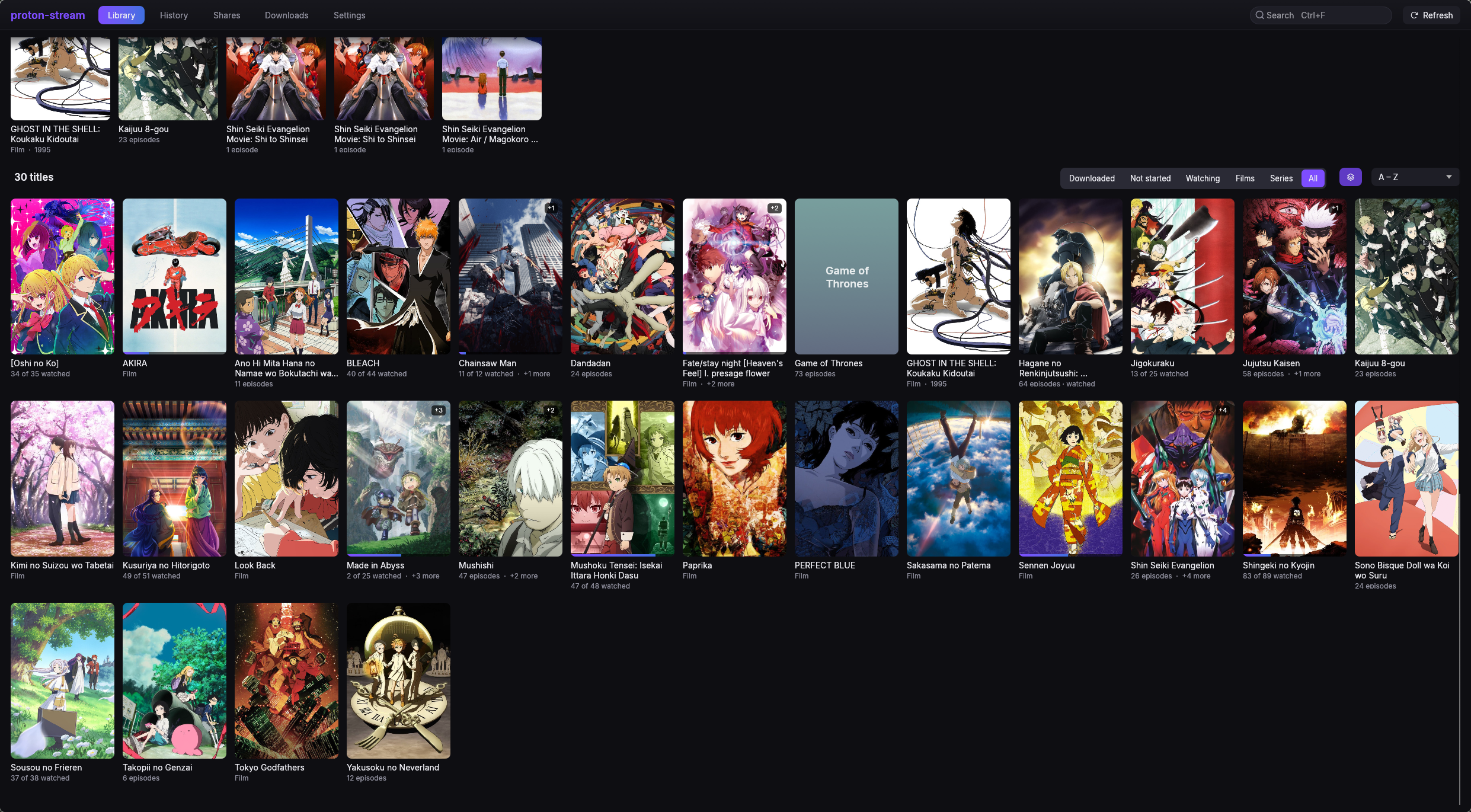
The library shows every title from every share in one place. Two shares that hold the same show show it once.
- The banner at the top shows the title you watched last, with Resume and More info.
- Continue watching has the episode you stopped in for each show, or the next one when you finished an episode. To take a show off this row, right-click it and choose Remove from Continue watching.
- Shelves such as Airing now, Directed by Satoshi Kon or From MADHOUSE appear when posters and descriptions are on. The app shows at most four, and only for a director, studio or genre with at least three titles.
- All titles is the full grid. Choose a filter and a sort order above it.
| Filters | Sort orders |
|---|---|
| All, Series, Films, Watching, Not started, Downloaded | A – Z, Recently watched, Recently added, Newest, Highest rated, Most popular |
Group franchises folds a series, its sequels and its films into one tile with a +N badge. It is on by default, and needs posters and descriptions to know what belongs together.
Search with Ctrl+F or /. It matches every name a title has: the English one, the romaji one and the name of its folder.
Refresh (or F5) reads every share again. The app also does this by itself when a share has not been read for 6 hours.
The folder decides which show a file belongs to. The file name gives the season and episode.
| Layout | Read as |
|---|---|
Frieren/Season 01/S01E05.mkv |
Frieren, season 1, episode 5 |
Frieren/S01E05 - The Hero's Statue.mkv |
The same, with the episode title |
Bocchi the Rock/[Group] Bocchi the Rock - 07 [1080p].mkv |
Bocchi the Rock, episode 7 |
Spy x Family/Season 2 - 06.mkv |
Spy x Family, season 2, episode 6 |
Akira (1988).mkv |
A film, from 1988 |
- Season folders can be called
Season 01,Season 1,S01or3rd Season. - Folders such as
Specials,Extras,OVA,NCOPorSubsare not taken as a show's name; the folder above them is. - An episode title is read only after a dash, as in
S01E01 - Name. - A file with no episode number is a film.
The app plays mkv, mp4, m4v, avi, mov, webm, ts, m2ts and most other common video
containers.
Click a title to open its page. Esc goes back.
- Resume S01E03 · 12:04 continues where you stopped. Start over plays the episode from the beginning.
- Download show keeps every episode on this device. See Downloads.
- Match… opens the matcher, where you choose which AniList or TMDB entry the title is. Use it when the app guessed wrong or did not guess at all. A match you pick is never replaced.
- More on AniList (or TMDB) opens the title's page there.
- Each season has Mark season watched and Download season.
- Each episode shows a tick when you have watched it. Right-click an episode and choose Mark watched up to here to tick it and every episode before it.
- In this franchise lists the other parts of the series, when posters and descriptions are on.
An episode counts as watched once you have seen 90% of it.
The picture plays inside the app's window. Move the mouse to show the controls.
- Skip opening and Skip ending appear when the file's chapters mark an opening, an ending or a preview. Files without chapter names get no skip button. Turn on Skip openings and credits in Settings to skip them without asking.
- Up next counts down 10 seconds when the credits start, then plays the next episode. Choose Play now, Cancel or Watch till the end.
- Subtitles and audio are chosen from the buttons at the bottom right. The app remembers your choice for each show.
- Speed goes from 0.5× to 3×, and stays for the next episode.
Press ? anywhere to see this list in the app.
| Key | Anywhere |
|---|---|
| Ctrl+F or / | Search the library |
| F5 or Ctrl+R | Read every share again |
| Ctrl+1 – 5 | Library, History, Shares, Downloads, Settings |
| Ctrl+, | Settings |
| Ctrl+V | Paste a share link to add it |
| Tab or arrows | Move between titles and episodes |
| Enter | Open or play what is highlighted |
| Alt+← or mouse back | Back |
| Key | Playing |
|---|---|
| Space or K | Pause and play |
| ← / → | Back 10 s, forward 30 s |
| ↑ / ↓ | Volume |
| M | Mute |
| N / P | Next and previous episode |
| [ / ] | Slower and faster |
| S | Skip the opening or the credits |
| E | The list of episodes |
| F or double-click | Fullscreen |
| Ctrl+S | Save the frame to Pictures/proton-stream
|
| Esc | Leave fullscreen, then the player |
Media keys and your desktop's media controls work too.
The app picks up .srt, .ass, .ssa and .vtt files next to a video:
Frieren/Season 01/
  S01E01.mkv
  S01E01.en.srt          English
  S01E01.en.forced.ass   English, "forced"
  Subs/
    S01E01/
      2_English.srt      English
A Subs folder beside the videos works, and so does any subtitle in a folder that holds a single
video. The language comes from the last word in the name that names one.
Many anime releases have two subtitle tracks in one language: the full dialogue, and a short Signs & Songs track that only translates on-screen text. When a file would start on the short track, the app switches to the full one in the same language.
Everything you played, newest first, grouped by day. An entry says Watched, Stopped at 12:04 of 24:00 or Played. Removing an entry marks a watched episode unwatched, or forgets where you stopped in one you had not finished.
A download keeps a full copy of an episode on this device, to play without a connection. Start one from a title's page: a whole show, a season or a single episode.
The Downloads page lists them with Pause, Resume, Cancel, Retry, Play and Delete. Three run at a time. Downloads do not count against the streaming cache.
The Shares page lists every share, with what it holds and when it was last read.
- Crawl reads the share again.
- Rename changes the name shown in the app.
- Re-enter link gives the app the link again, for a keyring that lost it or a password that changed. The library, history and downloads stay.
- Remove takes the share's titles out of the library, deletes its downloads and removes its link and password from the keyring.
The Proton account section on this page is where you sign in. See Account and sync.
Appearance
- Palette: Proton (the near-black default), Catppuccin Latte, Frappé, Macchiato and Mocha, or Persona 5.
- Accent: Mauve, Pink, Sky, Pink → Sky, Lavender, Blue, Teal, Peach or Red. Gradient accent draws it as a gradient.
- Text size: 90% to 150%. This one stays on this computer.
- Library tiles: posters or stills. Title names: as in the share, English or romaji.
Playback
- Audio language and Subtitles: the language to start in, or the file's own default.
- Play the next episode (on by default) and Skip openings and credits (off).
- Hardware decoding (on). Turn it off if the picture shows green blocks or stays black.
Storage
- Streaming cache: 1 to 16 GiB, 4 GiB by default. It keeps the parts of videos you streamed, so watching again needs no network. Clear the streaming cache empties it.
Posters and descriptions
- Off by default. When it is on, the app sends the names of your titles to the provider you pick: AniList (no key needed) or TMDB (needs a free API key). See Privacy.
- Match the library looks up new titles now. Match everything again looks up every title, except those you matched by hand.