Repository navigation
Settings
Press 4 on the welcome screen. Press a row's number, or move with the arrows and press Enter; the line under the list explains the highlighted option.
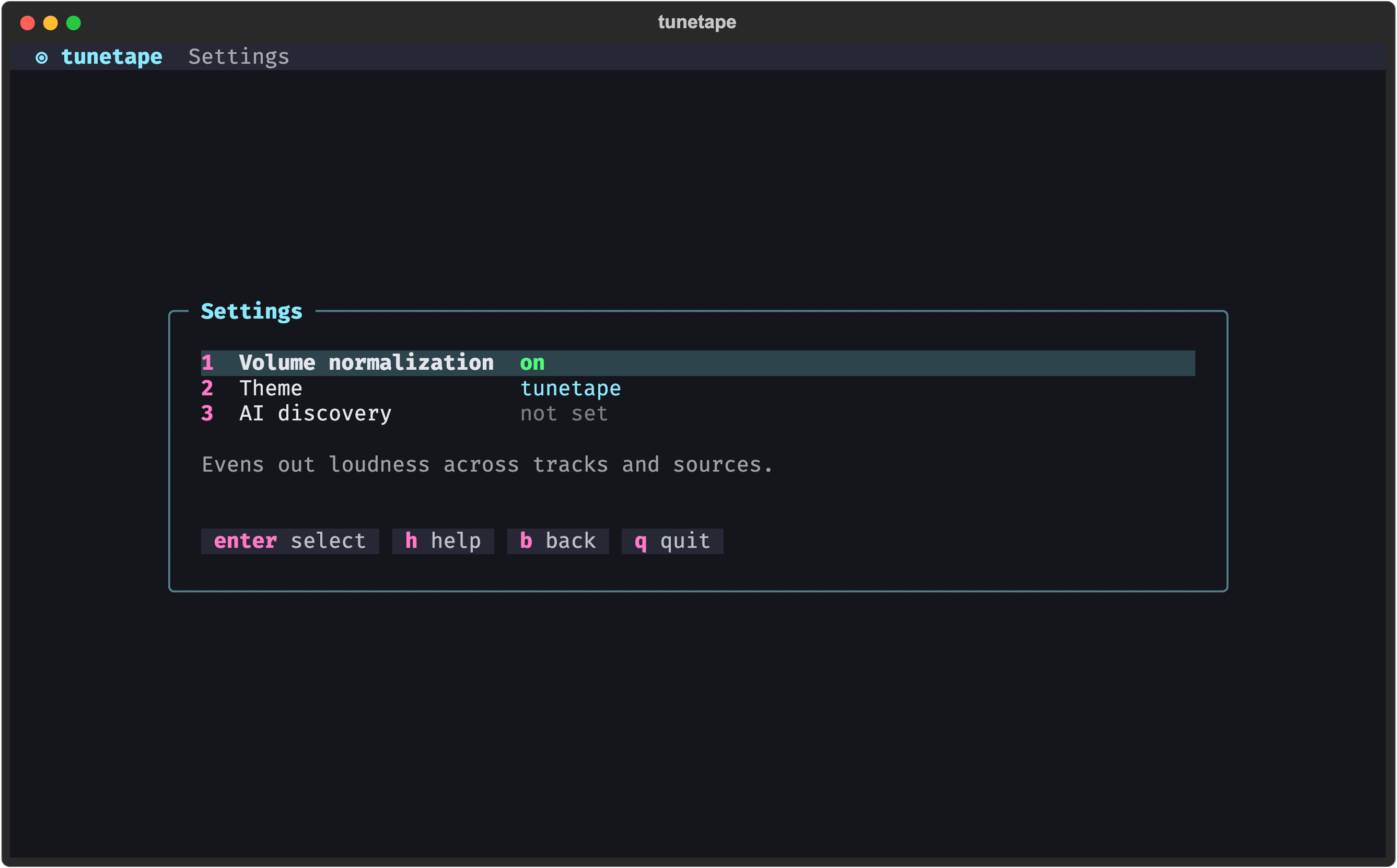
Default: on. Evens out loudness across tracks and sources, so a quiet KHInsider rip and a loud YouTube upload sit at a similar level. It is mpv's built-in dynaudnorm FFmpeg filter, applied live to the stream; nothing is re-encoded. Press 1 to toggle it. The change applies to the next track you play.
Press 2 to open the theme picker. Each theme has a swatch of its main colors, and the whole interface recolors as you move through the list, so you see the theme before you pick it. Enter keeps the theme you're on; esc (or b) puts the old one back.
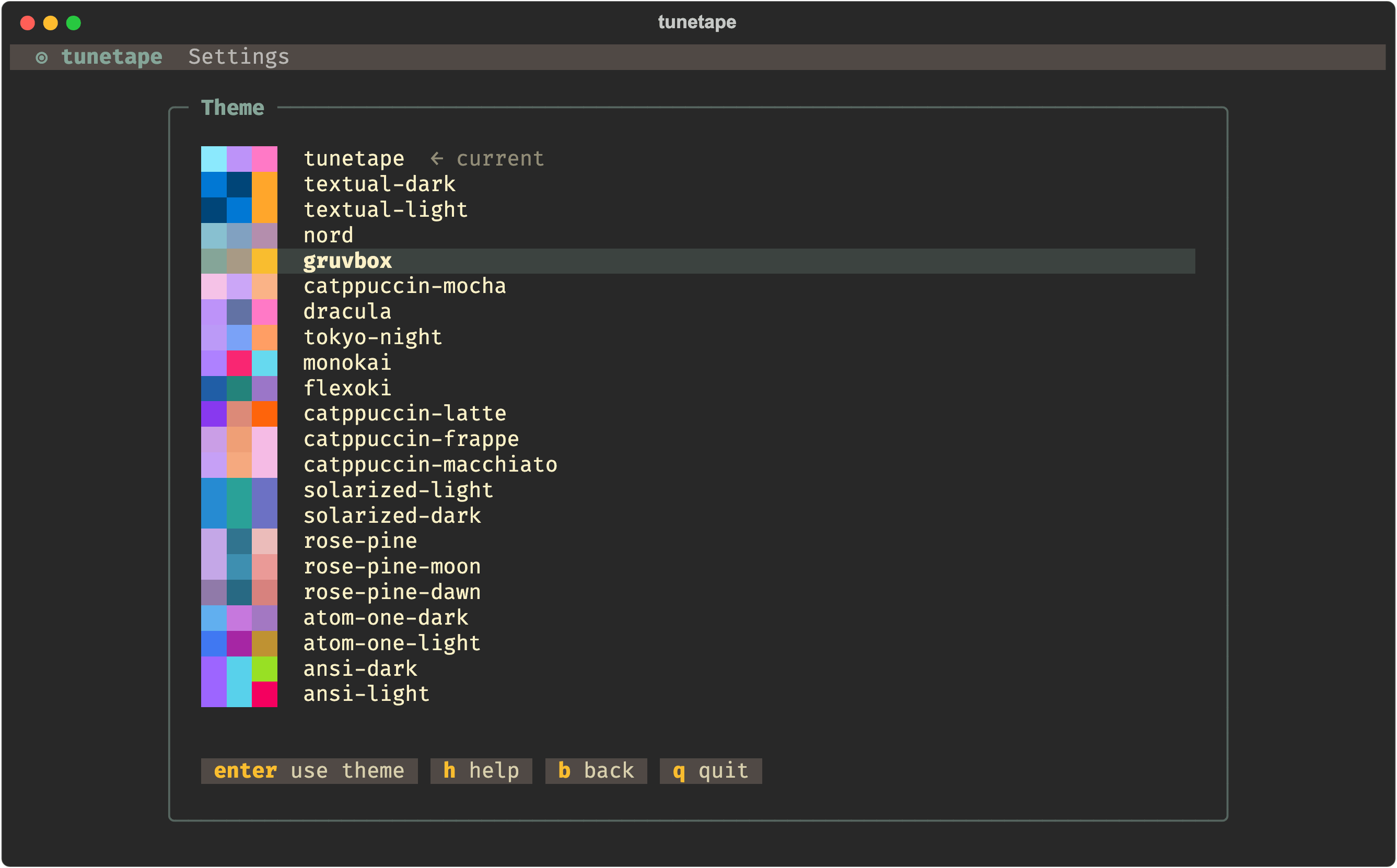
Available themes: tunetape (the default, cyan and pink on navy), textual-dark, textual-light, nord, gruvbox, catppuccin-mocha, catppuccin-latte, catppuccin-frappe, catppuccin-macchiato, dracula, tokyo-night, monokai, flexoki, solarized-light, solarized-dark, rose-pine, rose-pine-moon, rose-pine-dawn, atom-one-dark, atom-one-light, ansi-dark and ansi-light. The two ansi themes use your terminal's own palette.
You can also change the theme from any screen with the command palette: press ctrl+p and pick Theme. Whatever theme is active when you quit is saved.
Press 3 to open the AI settings: provider, API key, model, endpoint and auth mode. This is a page of its own: AI Discovery.
Not a switch, but worth knowing: whatever volume you leave the player at is saved when the track ends or you go back, and restored on the next launch. Inside a playlist the volume carries over from track to track. The range is 0% to 130%.
Older versions had an accent_color setting instead of themes. It is simply ignored now; you start on the tunetape theme.
tunetape keeps its state outside the install location, so it survives upgrades and uninstalls.
| OS | Directory |
|---|---|
| macOS / Linux |
~/.local/share/tunetape/ (honors $XDG_DATA_HOME when it is set to an absolute path) |
| Windows |
%LOCALAPPDATA%\tunetape\ (usually C:\Users\you\AppData\Local\tunetape\) |
The exact path for your machine is printed on the Debug / Logs screen (d on the welcome screen).
Two files live there:
| File | Contents |
|---|---|
config.json |
Your settings (below) |
history.json |
Recently played, up to 50 entries |
Both are plain JSON, written atomically, and a missing or corrupt file just falls back to defaults rather than breaking startup.
| Key | Default | Meaning |
|---|---|---|
normalize_volume |
true |
Volume normalization on/off |
theme |
"tunetape" |
Interface theme (any name from the list above; unknown names fall back to tunetape) |
volume |
100 |
Last playback volume, in percent |
ai_api_key |
"" |
API key for Discover (blank means "use the environment variable") |
ai_provider |
"" |
"anthropic" (default when blank) or "openai"
|
ai_model |
"" |
Model id; blank means the provider's default |
ai_base_url |
"" |
Endpoint base URL; blank means the provider's default |
ai_auth_mode |
"" |
"x-api-key" (default when blank) or "bearer", Anthropic provider only |
Delete config.json to go back to defaults, or history.json to forget everything you have played. Deleting the whole folder does both. The Recently played screen also has c to clear history from inside the app.