Repository navigation
Usage and Controls
A tour of every tunetape screen, with the keys and mouse actions that work on each one.
Navigation is the same on every screen, and each screen's row of buttons ends with the same three: h help, b back, q quit.
| Key | Action |
|---|---|
b or esc
|
Back one screen |
q |
Quit tunetape |
h or ?
|
Help: every key, over any screen |
ctrl+c |
Quit, even while typing or while something is loading |
ctrl+p |
Command palette (switch themes, among other things) |
On screens with a text box (Play and Discover), b, q and h type letters. Use esc to go back and ctrl+c to quit there.
Every button can also be clicked, lists scroll with the mouse wheel, and a click on a list entry picks it.
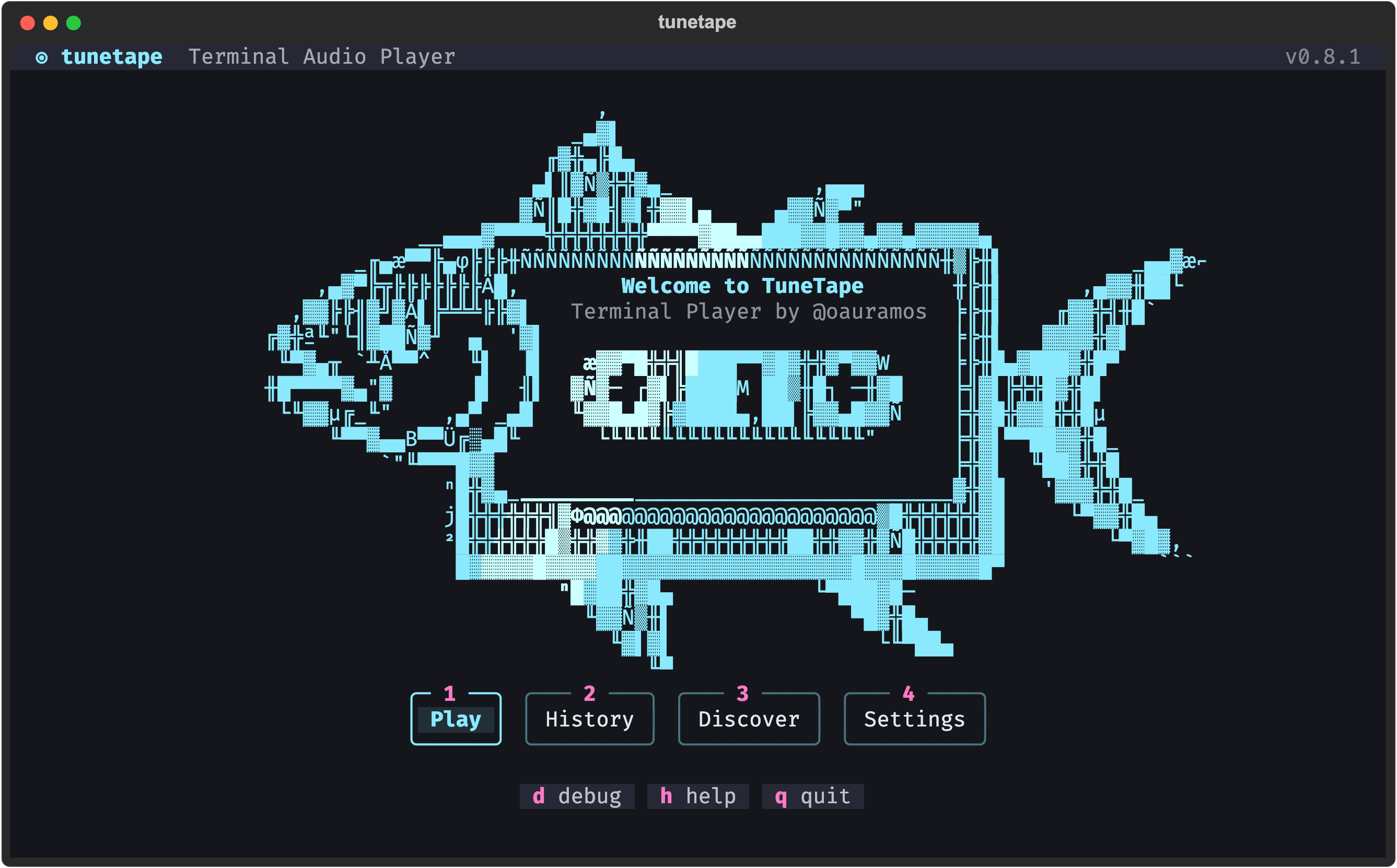
The tuna carrying a cassette is the tunetape mascot (tunetape, tuna + tape). A shine sweeps across it while the menu waits. When the terminal is smaller than 85×30 it is replaced by a pixel-art tuna, and the title moves underneath.
Press a key (no Enter needed), click a button, or move between the buttons with the arrows and press Enter.
| Key | Action |
|---|---|
1 |
Play: paste a link (YouTube, Spotify, KHInsider, an audio URL, a file) or a few words to search |
2 |
History: the Recently played list |
3 |
Discover: describe a vibe and let an AI suggest songs |
4 |
Settings |
m |
MCP: connect an AI agent (see Command Line and AI Agents) |
d |
Debug / Logs for this session |
h |
Help: the full key reference |
q |
Quit |
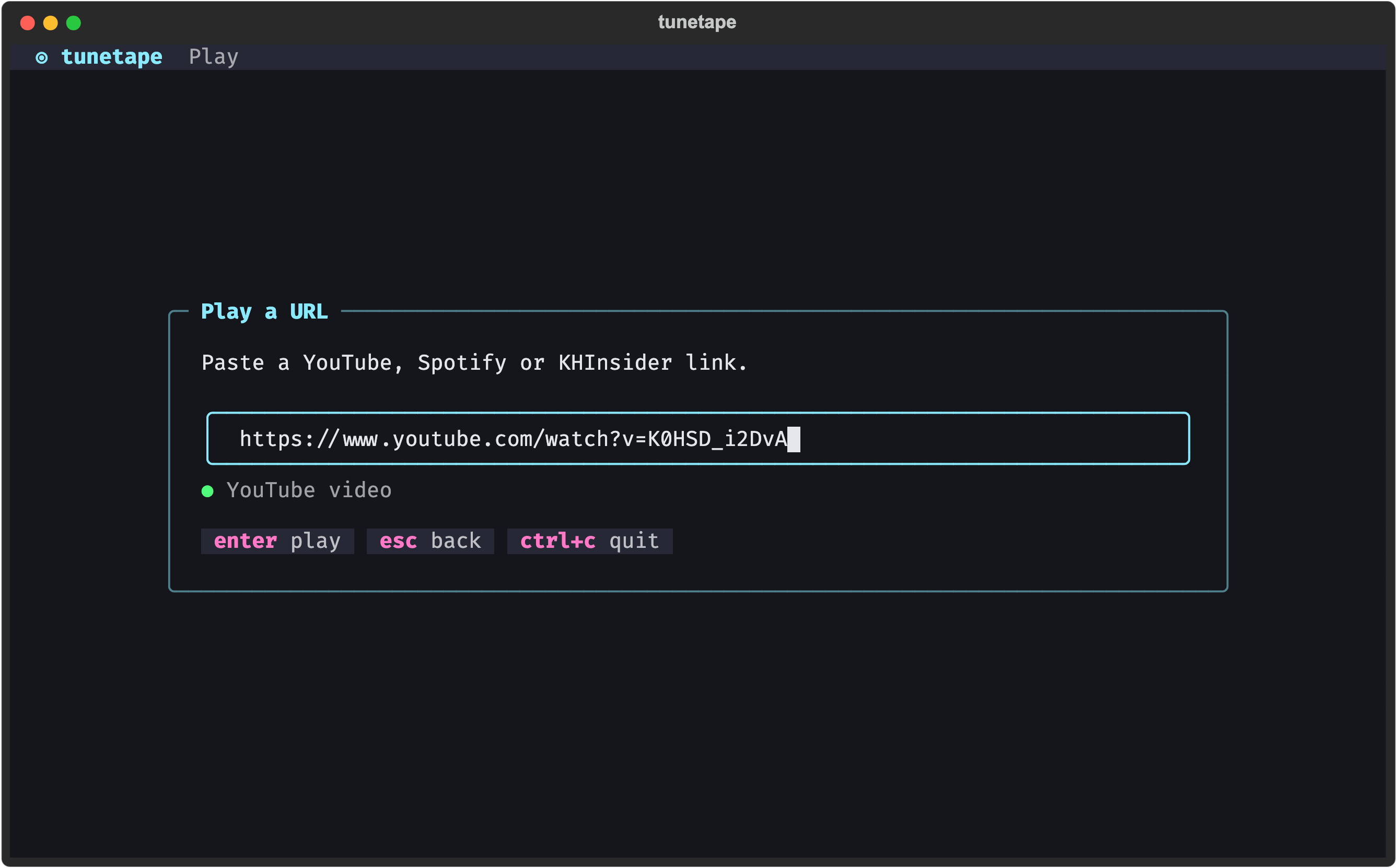
Paste any supported link and press Enter. tunetape tells you which source the link belongs to as you type, so you know before pressing Enter whether it will work. See Sources for the exact URL shapes. esc goes back.
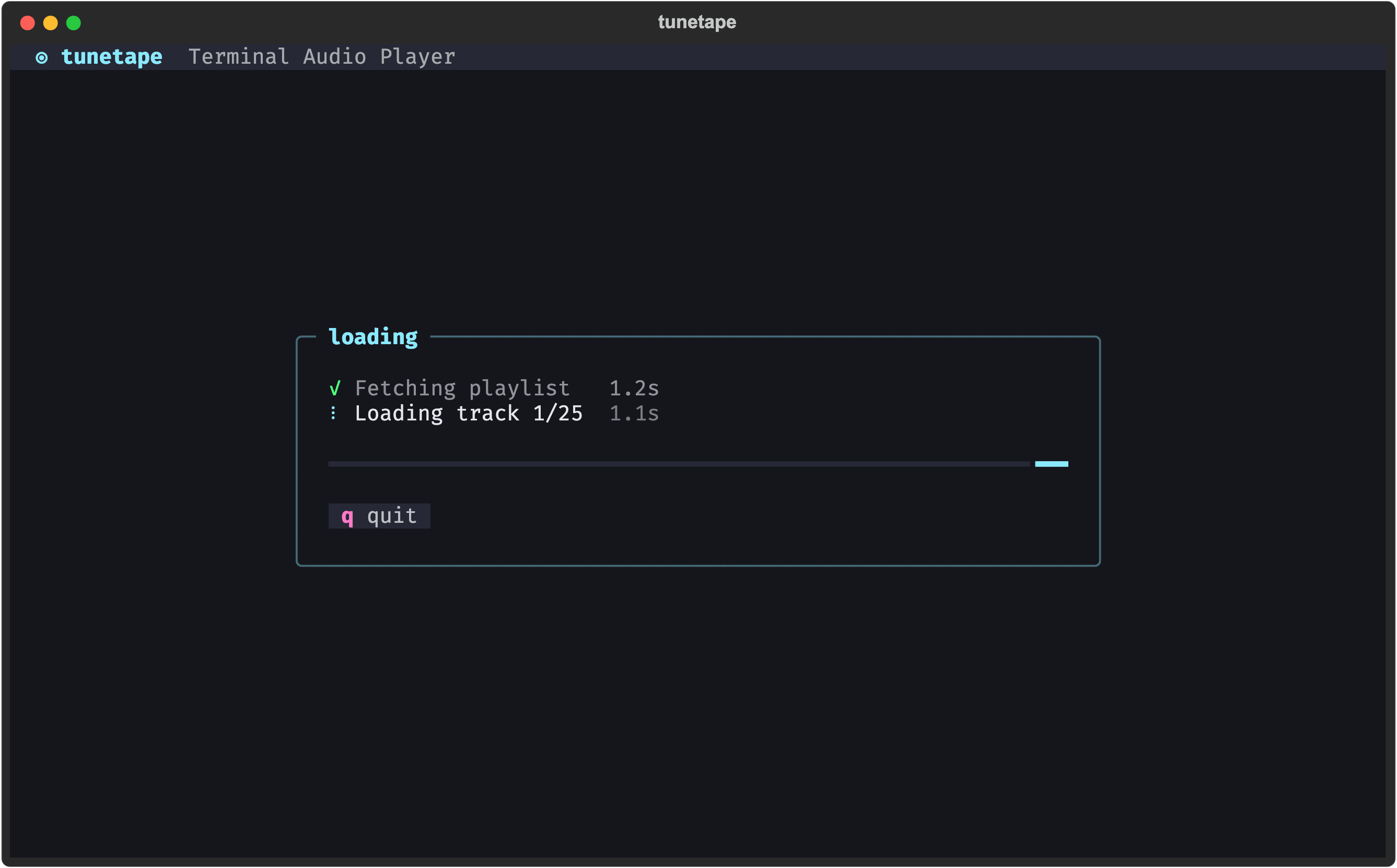
While a link is fetched, a small box lists each step. Steps that are done get a ✓ and how long they took; the current one has a spinner and a running clock. q (or ctrl+c) quits if something hangs.
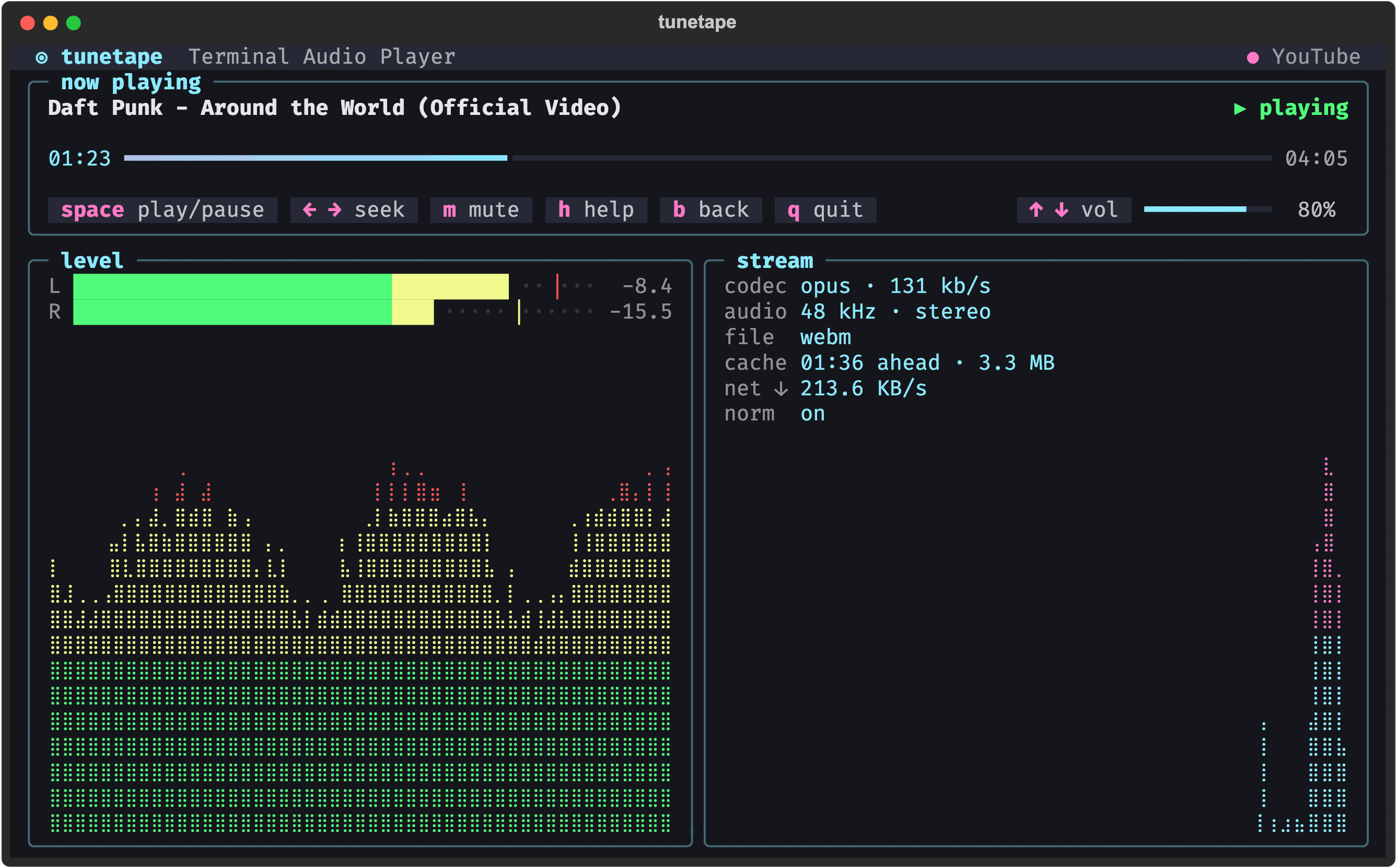
The player is a dashboard in three panels:
- now playing: the title, the status (playing or paused), the album and track number, a progress bar with elapsed and total time, the controls, and a volume gauge at the end of them. A title too long for the panel scrolls across like a car radio display.
- level: live left and right levels in dB, measured from the audio you hear. Each bar has a peak tick that falls back slowly. Underneath, a scrolling graph shows the loudness over the last seconds.
- stream: what is playing and how it arrives: the codec and bitrate, the sample rate and channels, the container, how much is cached ahead, the download speed with its own graph, and whether normalization is on.
| Key | Mouse | Action |
|---|---|---|
space |
click the button | Play / pause |
→ ←
|
click the progress bar | Seek 10 seconds (a click jumps straight there) |
. ,
|
Seek 30 seconds | |
↑ + / ↓ -
|
scroll the wheel, or click the gauge | Volume up / down 5% |
m |
click the button | Mute / unmute |
h |
click the button | Help (the player's keys) |
b esc
|
click the button | Stop and go back to the menu |
q |
click the button | Quit tunetape |
Volume goes from 0% to 130% (mpv's software gain). The gauge is full from 100% up. The level you leave it at is saved and restored next time.
When the terminal is narrower than 96 columns, the buttons drop their labels and keep just their keys: space ← → m p n h b q.
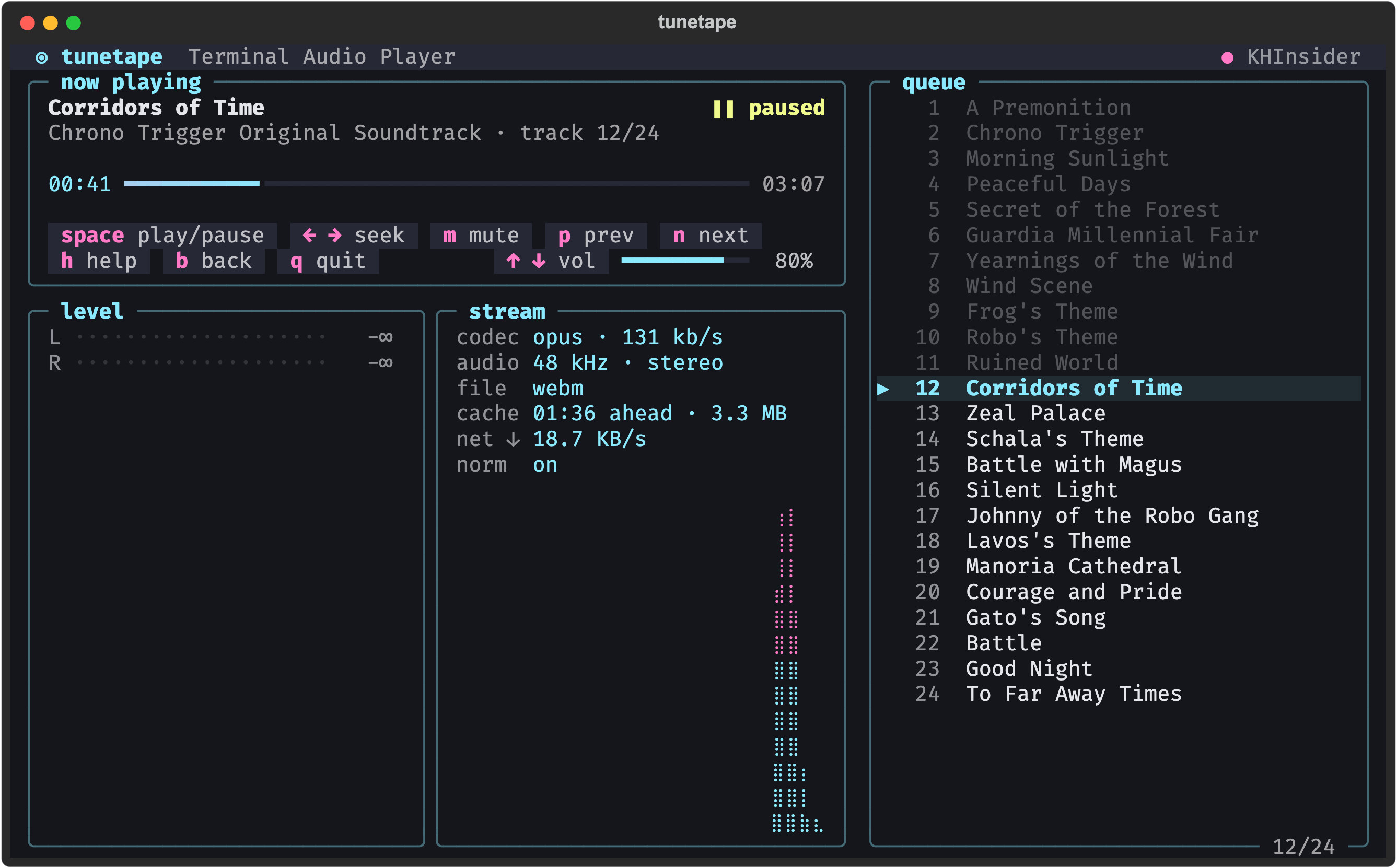
While paused, the level bars drop to −∞ and the status turns yellow.
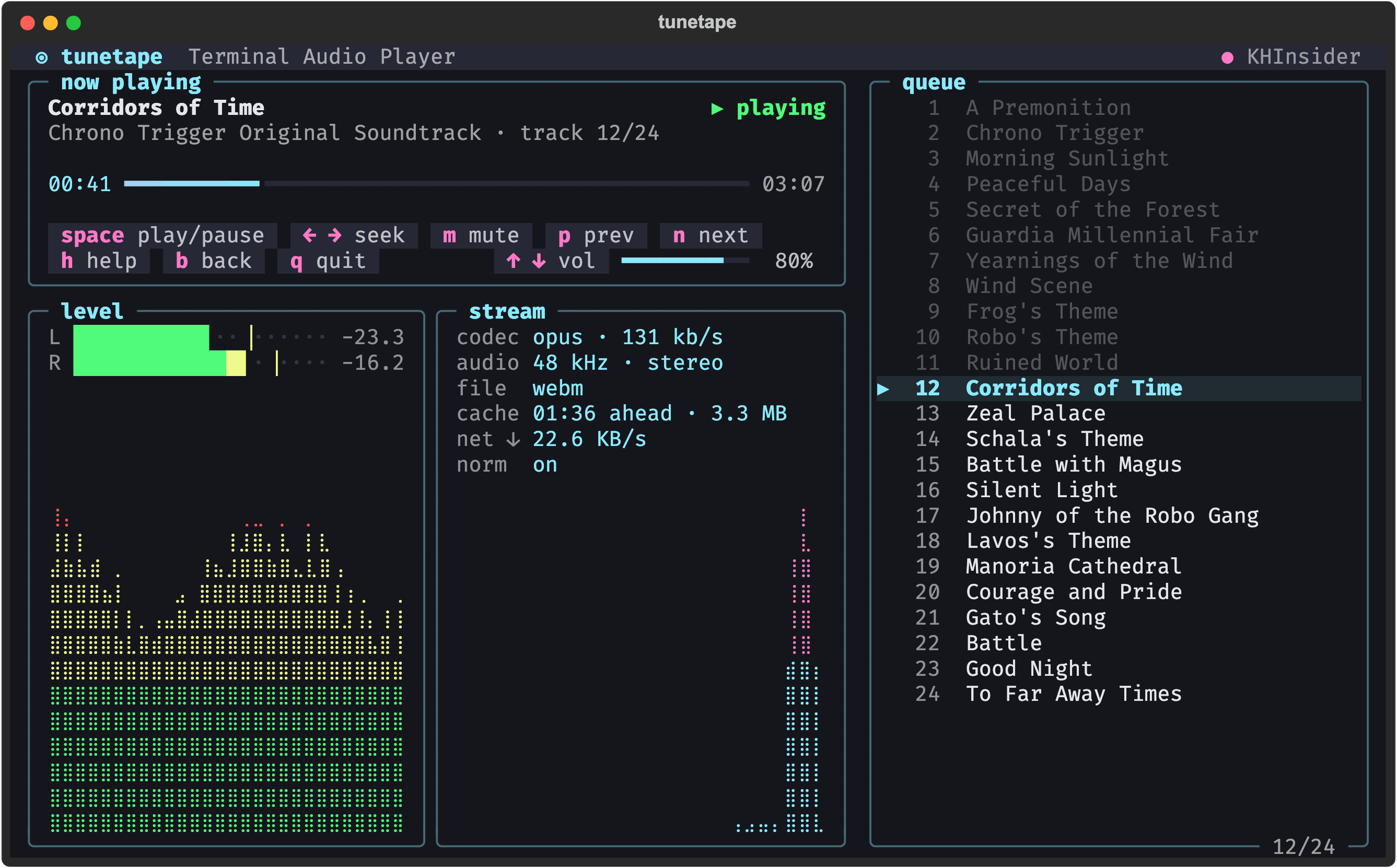
Spotify playlists and albums, YouTube playlists and KHInsider albums all open in playlist mode. The now playing panel shows the album and track 12/24, and two more buttons appear:
| Key | Mouse | Action |
|---|---|---|
n |
click the button | Next track |
p |
click the button | Previous track |
tab |
click a track | Move into the queue; Enter (or the click) plays that track |
esc |
Leave the queue (a second esc goes back to the menu) |
On terminals 108 columns or wider the album's queue sits alongside: played tracks are dimmed, the current one is marked ▶. While the queue has focus, the arrows move through it instead of seeking and changing volume, and the mouse wheel scrolls it.
Tracks advance automatically when they finish, on the same screen, without a redraw. If a track cannot be loaded (a dead link, a region block), tunetape skips forward instead of stopping; after five failures in a row it gives up and returns to the menu. Your position in the playlist is saved as you go, so Recently played can resume it later.
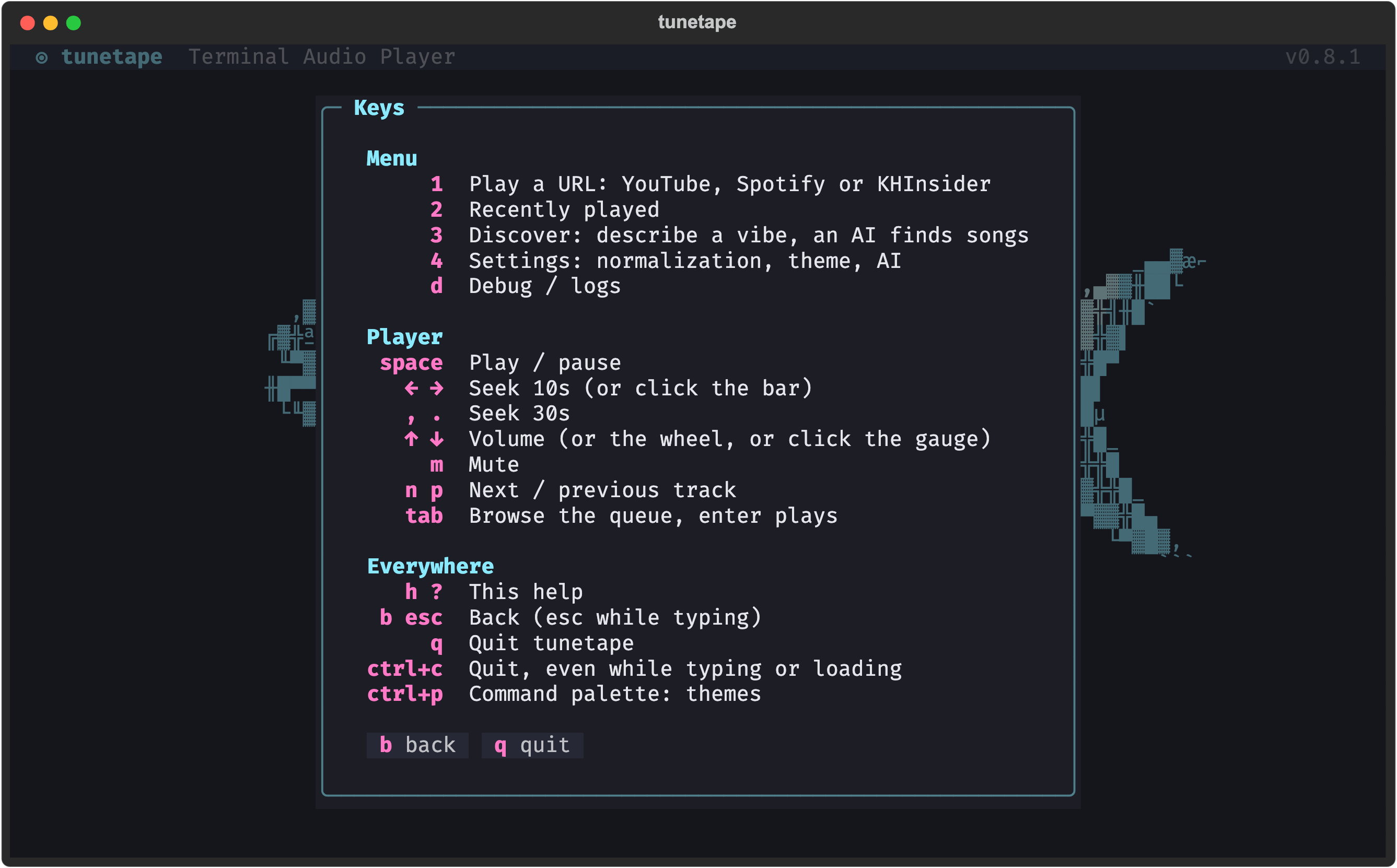
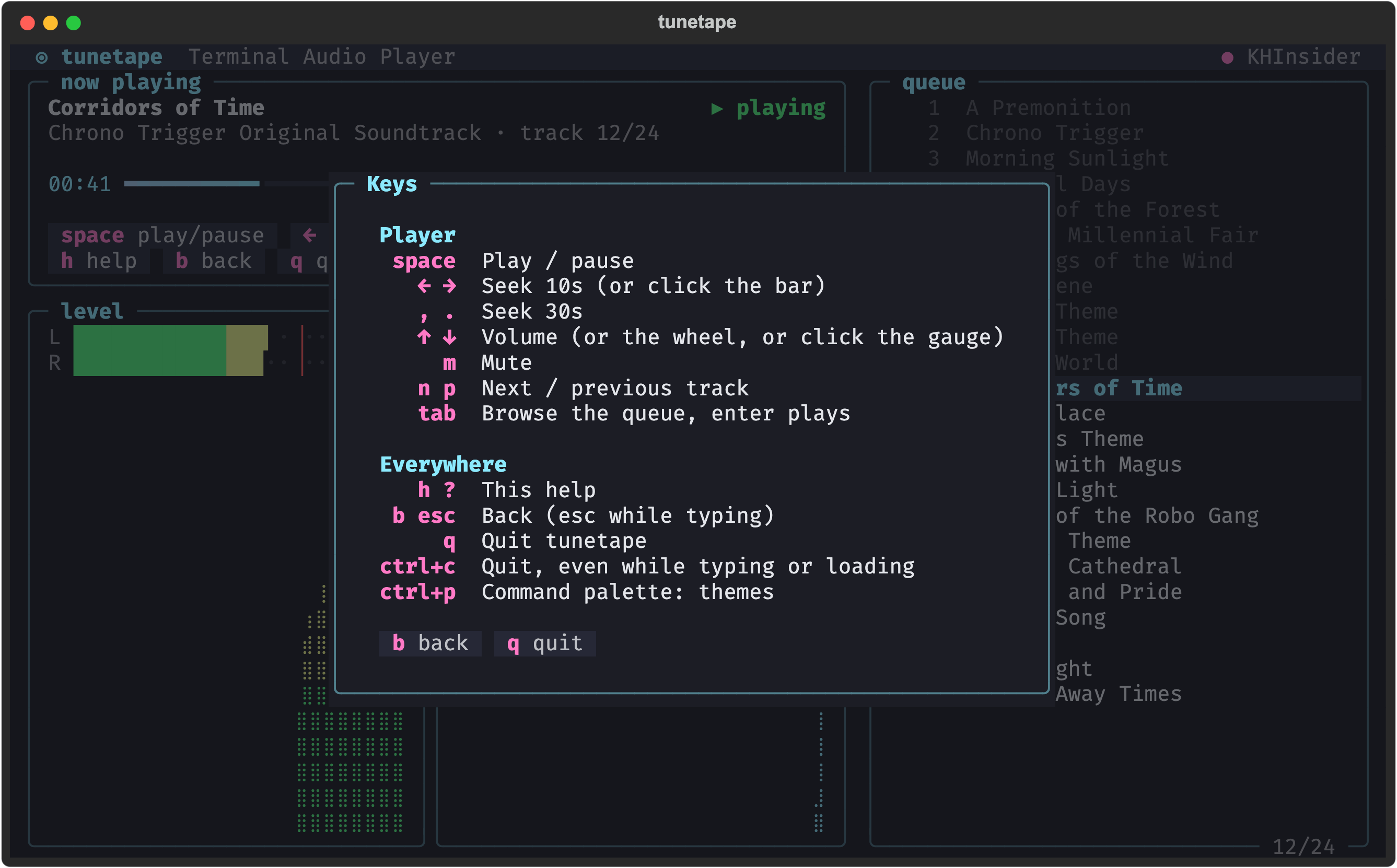
Press h (or ?) on any screen for the key reference. It floats over the screen you were on. b, esc or h closes it, and q still quits. Inside the player it shows only the player's keys:
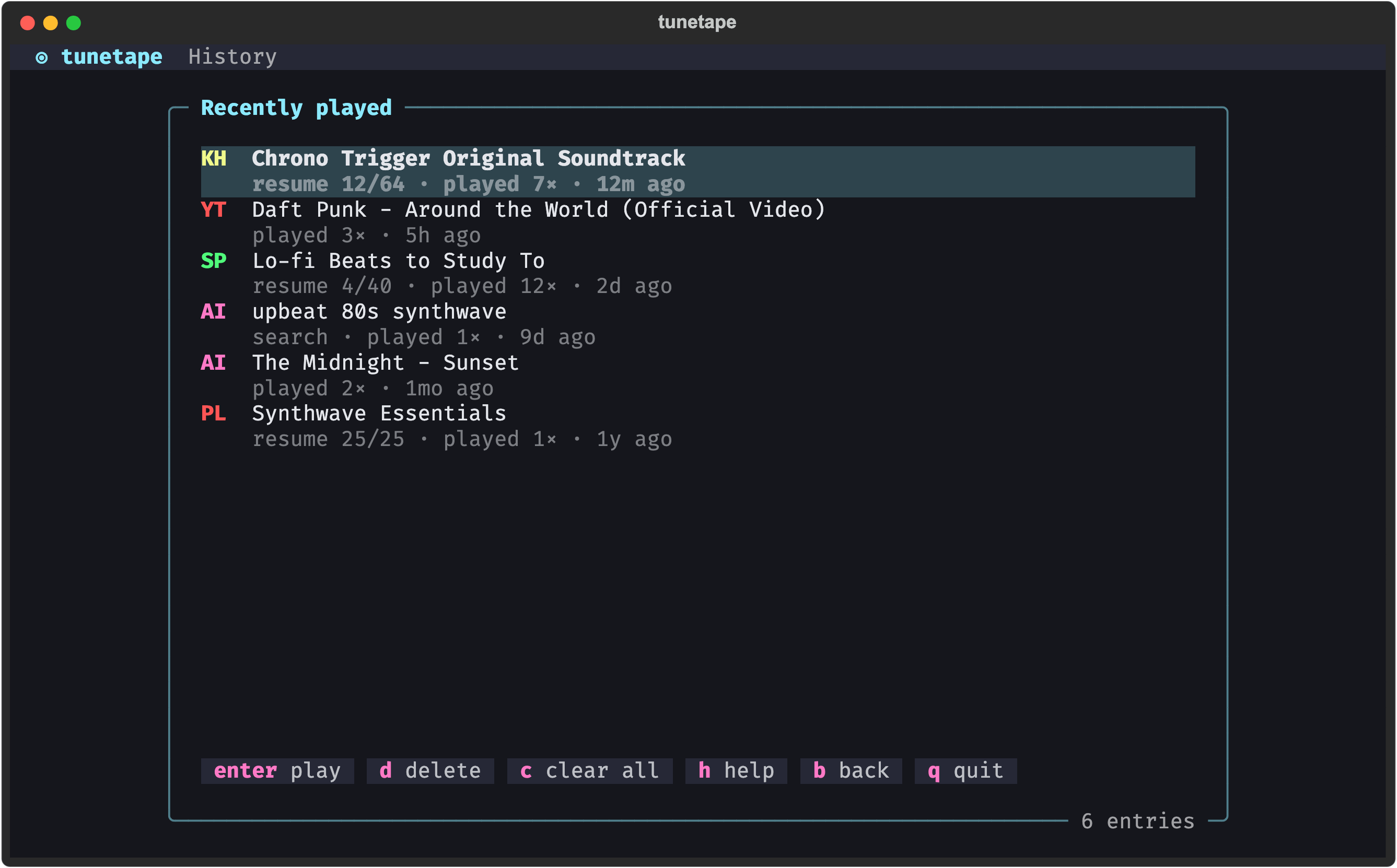
Every track, playlist and album you play is recorded here (most recent first, up to 50 entries). Each entry shows a source tag and the title, and underneath how many times you played it and when.
| Tag | Source |
|---|---|
YT |
YouTube video |
PL |
YouTube playlist |
SP |
Spotify track, playlist or album |
KH |
KHInsider album |
AI |
A song played from Discover, or a saved Discover request (marked search) |
Playlists and albums show resume 4/24: picking them starts at that track. A finished playlist starts over from the top.
| Key | Action |
|---|---|
↑ ↓
|
Move through the list |
enter |
Play the highlighted entry (or click it) |
d |
Delete the highlighted entry |
c |
Clear all history (asks to confirm with y / n) |
AI entries replay in two ways. A played song (Kavinsky – Nightcall) plays that track again. A saved request (upbeat 80s synthwave, marked search) re-runs Discover and gives you a fresh list.
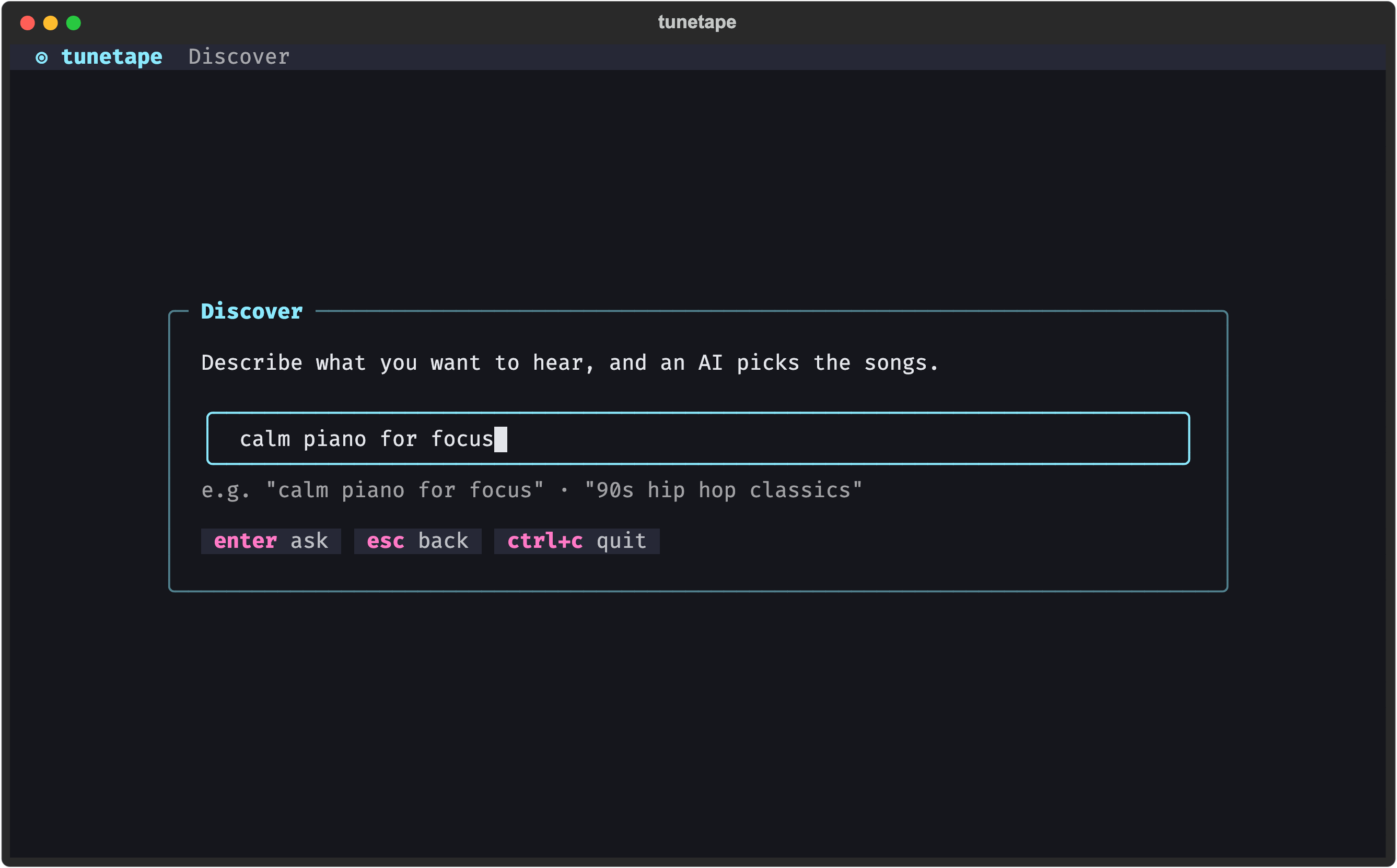
Type what you want to hear in plain words and press Enter. tunetape checks that the AI is reachable before you type, so a bad key or endpoint is caught up front (with a shortcut to the AI settings).
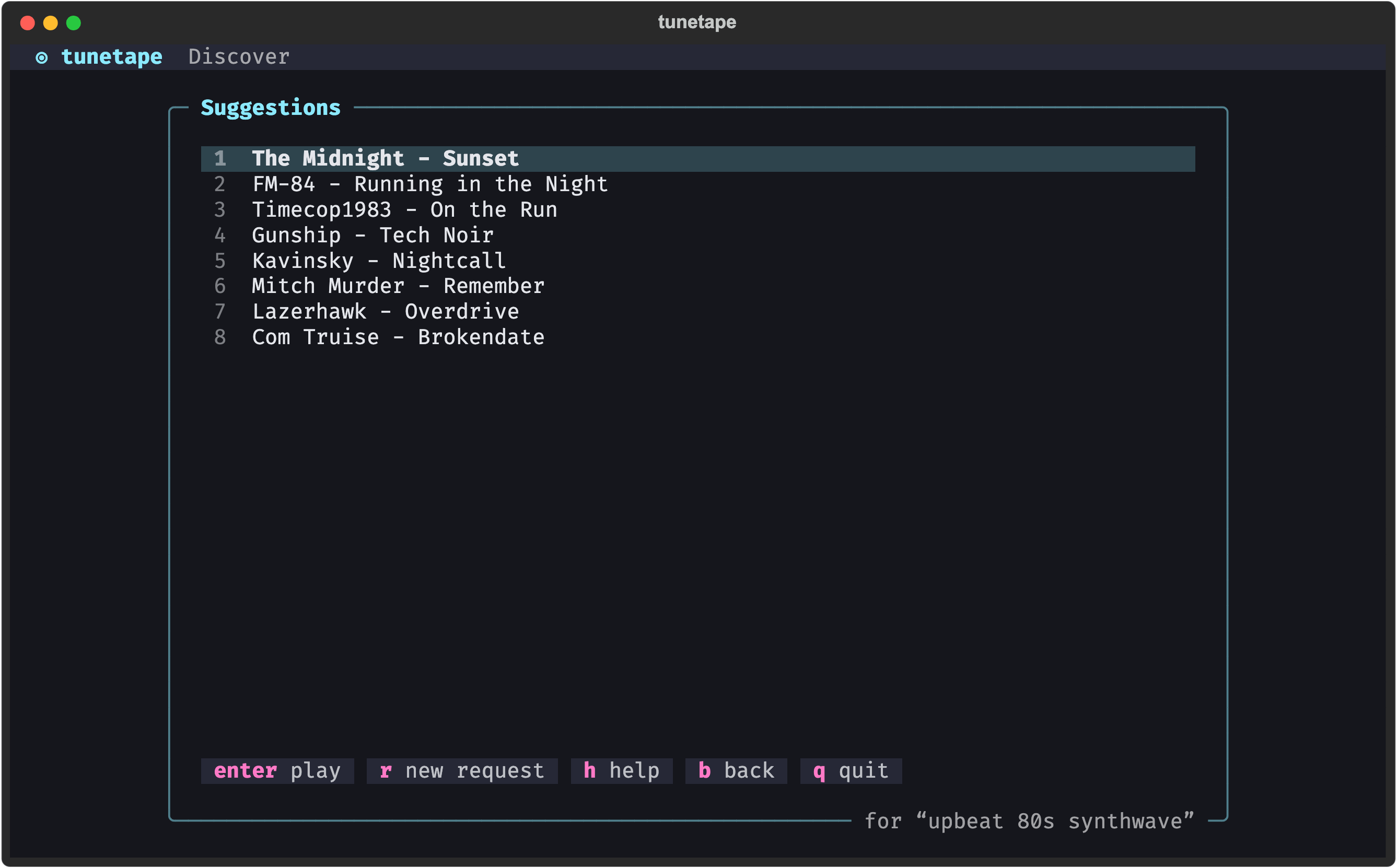
| Key | Action |
|---|---|
↑ ↓
|
Move through the suggestions |
enter |
Play the highlighted song, streamed from YouTube (or click it) |
r |
New request |
After a song ends you land back on the suggestion list, so you can keep exploring. Setup, providers and local models are covered in AI Discovery.
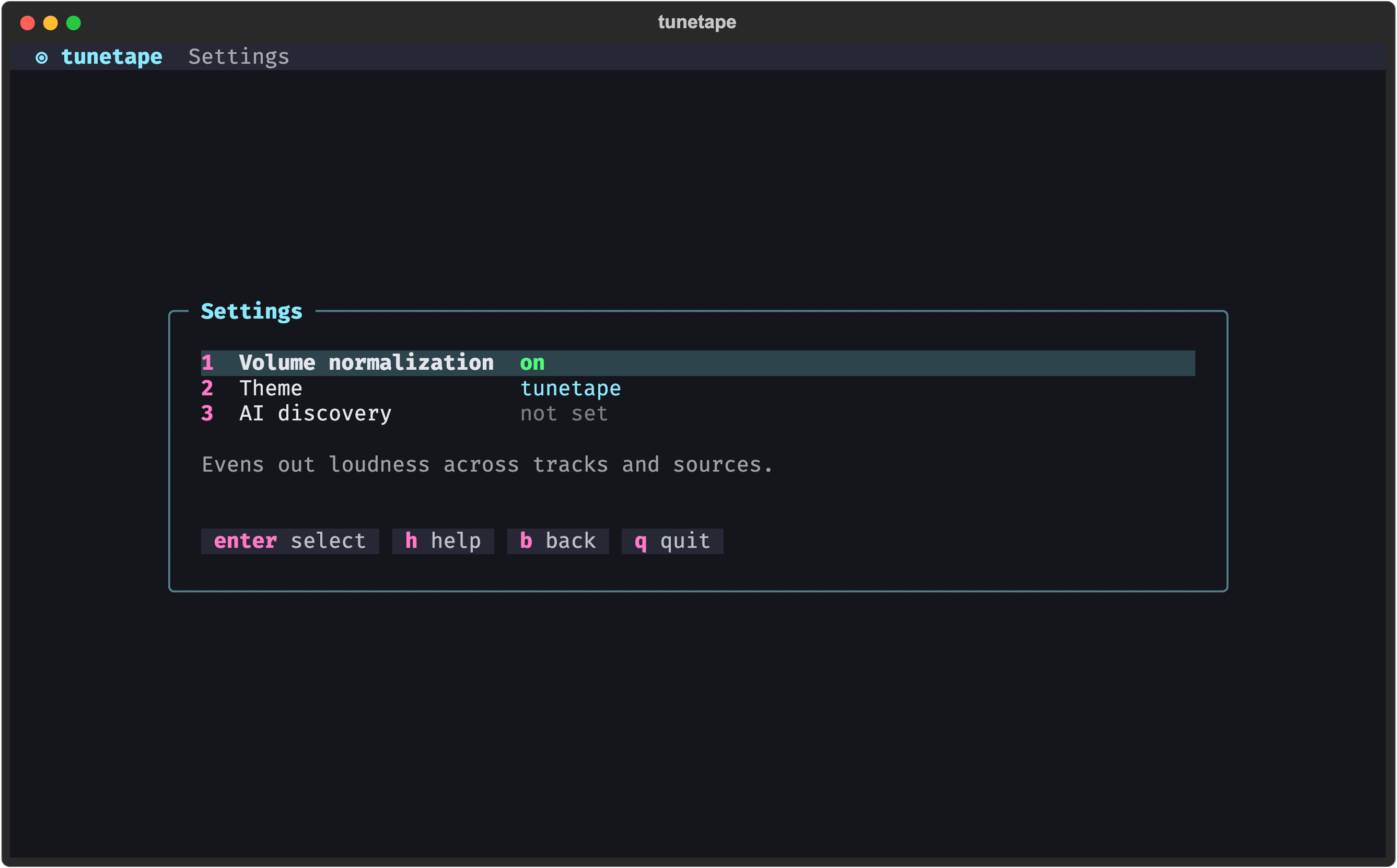
Press a row's number, or move with the arrows and press Enter. The line under the list explains the highlighted option. 1 toggles volume normalization, 2 opens the theme picker, 3 opens AI discovery. Details are on the Settings page.
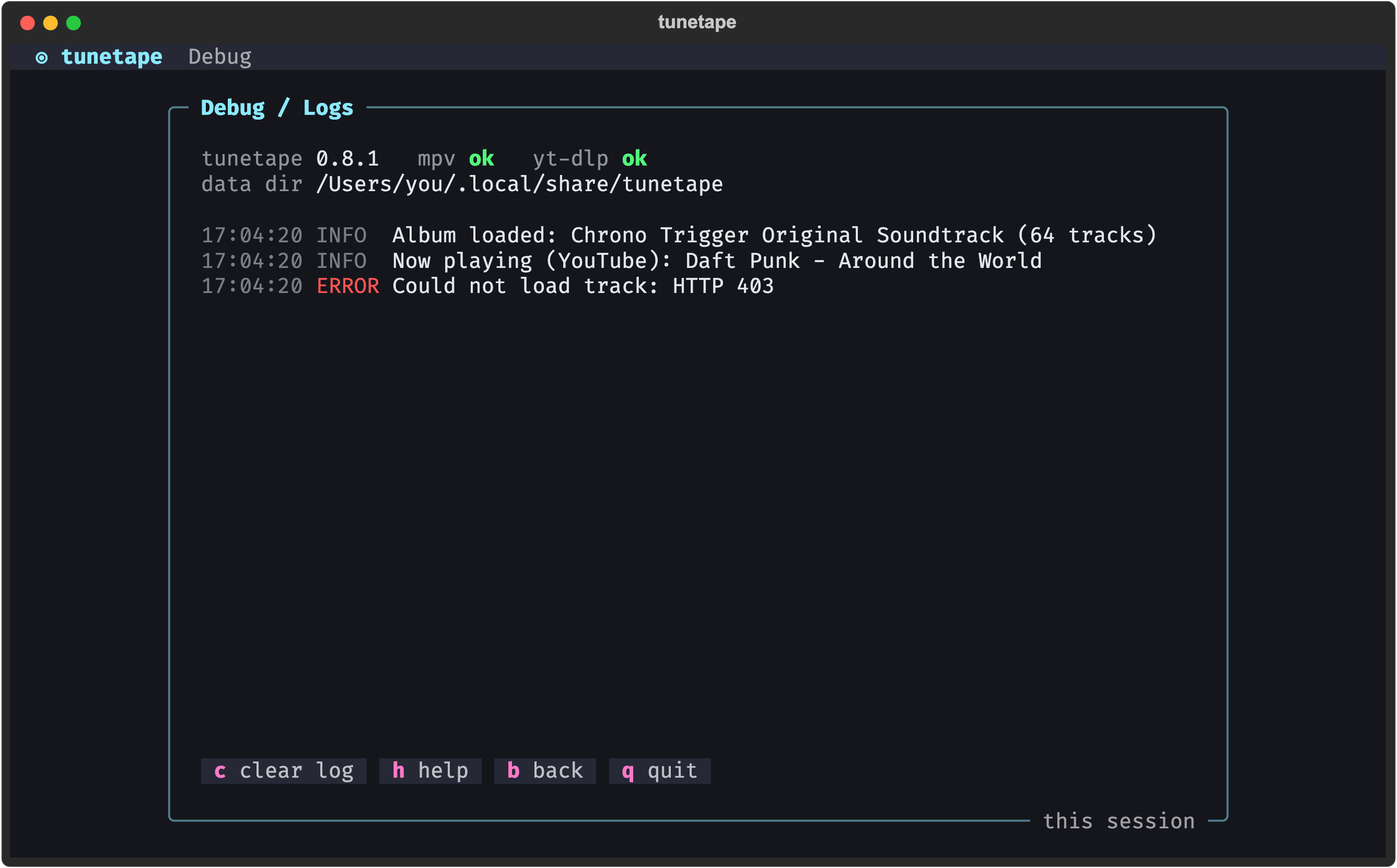
Press d on the welcome screen. It shows the tunetape version, whether mpv and yt-dlp were found, where your data lives, and everything logged this session, including what mpv reported when a stream failed to open. c clears the log. This is the first place to look when something does not play; see Troubleshooting.
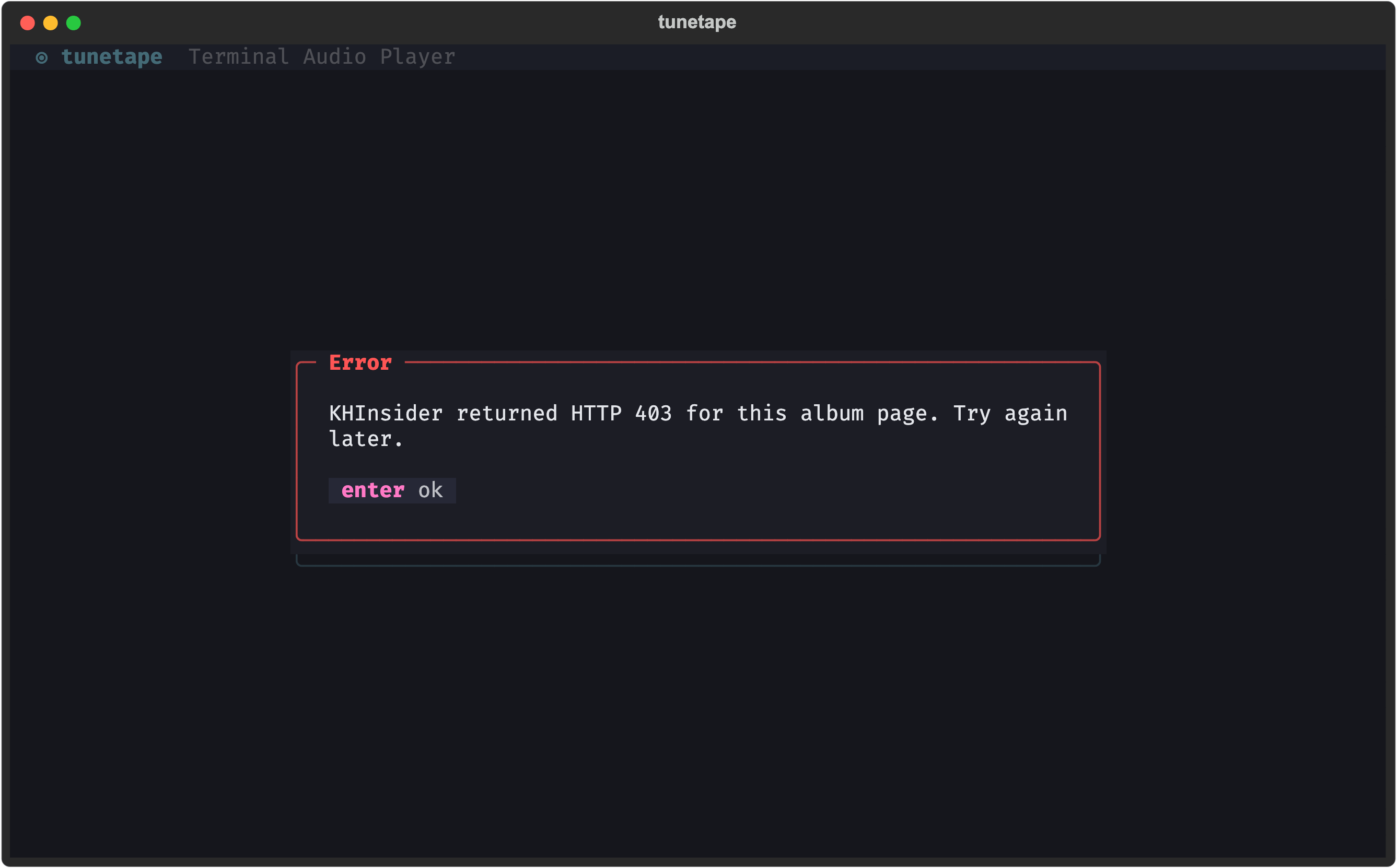
Problems show up in a red box over the screen you were on, with a plain-language message. Press Enter (or esc) to close it and carry on.
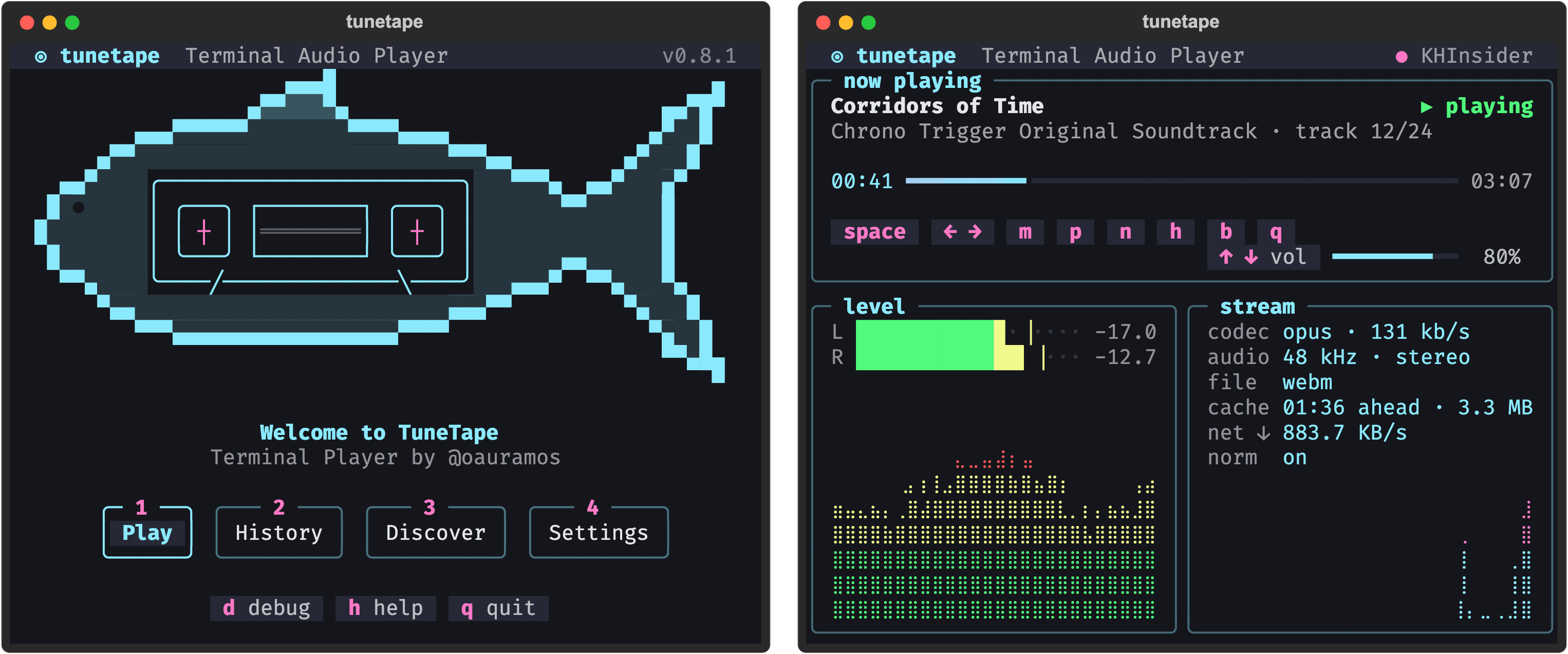
Every screen works down to 60 columns:
- Welcome screen: the ASCII tuna gives way to the pixel-art one.
- Player: the buttons keep just their keys, and the queue hides below 108 columns.
- Short terminals: lists scroll instead of pushing the buttons off screen.