Installation
The same plugin works on real 3DS hardware (via Luma3DS) and on the Citra emulator. Pick your platform below.
Requirements: a Gen 6 game (X, Y, Omega Ruby or Alpha Sapphire) that you legitimately own, and either a 3DS running Luma3DS CFW or a recent build of Citra.
If you have Universal-Updater on your 3DS, you can install and update the plugin without a PC.
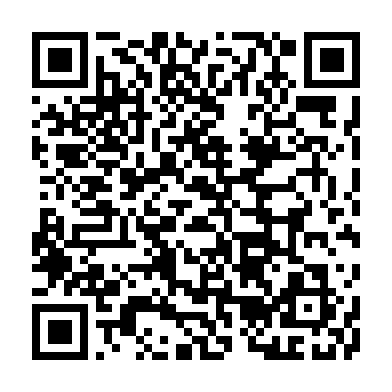
- Open Universal-Updater → tap the gear (Settings) → Select UniStore → + → Scan QR Code, and point it at the code above.
- Open the Gen6 CTRPF Overhauled entry → run Download (latest).
- It downloads the latest release (~90 MB) and extracts everything to your SD card root automatically — all four games plus the language pack.
Re-run Download (latest) anytime to grab the newest version.
🕹️ 3DS hardware only — Universal-Updater isn't available on Citra. For Citra, use the manual steps below.
- Update to the latest Luma3DS.
- Download the latest release.
- Extract the
.zipto the root of your SD card, keeping its folder layout. It adds two folders:-
luma/— the plugin, one folder per game:-
luma/plugins/0004000000055D00/— Pokémon X -
luma/plugins/0004000000055E00/— Pokémon Y -
luma/plugins/000400000011C400/— Omega Ruby -
luma/plugins/000400000011C500/— Alpha Sapphire - The same
Gen6CTRPluginFramework.3gxsits in each; it auto‑detects your game.
-
-
Gen6CTRPluginFramework/— the plugin's data, including the language files. This folder goes at the SD root, next toluma/— not inside it. The plugin loads its language from here, so don't skip it.
-
- Make sure
Gen6CTRPluginFramework.3gxis the only.3gxfile for the title. - Open the Rosalina menu (
L+Down+Select) and set Plugin Loader to [ENABLED]. - Launch your Gen 6 game — Luma3DS loads the plugin on startup. Press SELECT in‑game to open the menu, then open the App Guide.
Citra natively supports 3GX plugins using the same folder structure as Luma3DS. Steps 1–2 are identical (download & extract). Then:
- Open Citra and go to File → Open Citra Folder to find the User Directory.
- Copy the extracted
luma/andGen6CTRPluginFramework/folders into thesdmc/subfolder inside that directory. - In Citra: Emulation → Configure → System → Enable 3GX plugin loader.
- Launch your Gen 6 game — no Rosalina needed, the plugin loads automatically. Press SELECT to open the menu.
The language files must sit inside the Gen6CTRPluginFramework folder at the root of your SD card (or Citra's sdmc/). The exact path must be:
SD:/Gen6CTRPluginFramework/Language/<Language>.txt
for example SD:/Gen6CTRPluginFramework/Language/English.txt. If menu text shows up blank or as keys, this folder is in the wrong place. See Languages.
Trouble? See Safety and FAQ.