Commanding from a Phone
The network page is read-only: it shows the reading and nothing else. This is the other door — the one that lets a phone, a tablet or a spare laptop run the show.
The Control key sits in the Editing footer, next to Monitor. Switch it on and the panel gives you an address ending in /control, a QR code, and a six-digit passcode.
Two things happen with it:
- The reading page comes on with it. The command desk shows a live pane of what the presenter is reading, and that pane is the reading page — so it has to be on the air for the desk to be useful.
- Audio to the network is closed. It stays closed until you open it from the desk. A studio that starts making noise on its own is a problem, not a feature.
Turning Control off again leaves the reading page on. Someone may be reading from it.
On by default, and six digits, drawn fresh every time you switch Control on. Five wrong tries and the door shuts until you turn the switch off and on again.
You can turn the passcode off — the panel says so in red while it is off, because on an open door anyone on the wi-fi who opens the address can command the reading. That is a reasonable choice in a closed studio and a bad one on hotel wi-fi.
Any number of devices can open the link. Only one holds the pen.
Whoever holds it is named on the operator's footer, next to the Control key. The others see the desk — the script, the pace, what is on air — with the keys dimmed, and a button to take over when it is free.
Take back in the panel returns the pen to the desk immediately. The machine in the room with the show on it always wins.
If the phone goes quiet for twenty seconds — screen off, wi-fi drop, walked out of range — the pen is released on its own, so a device that vanished does not lock the show.
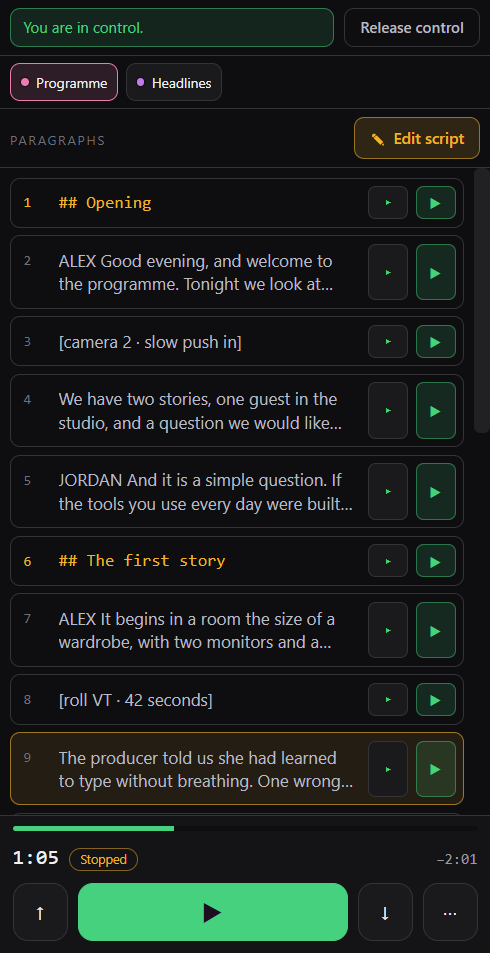
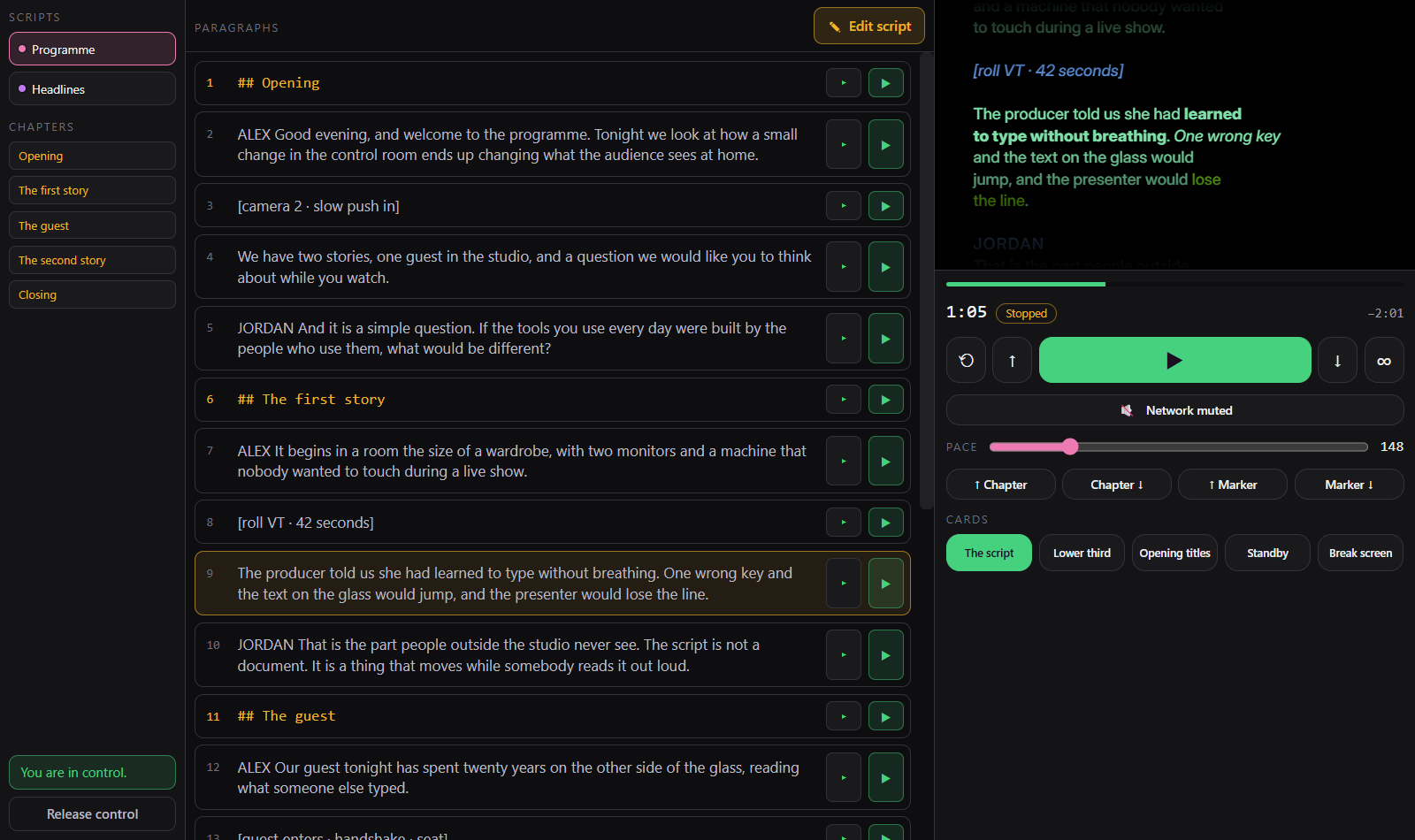
On a phone it is one column: scripts on top, the programme in the middle, transport under your thumb. Only the script scrolls — pause stays where you left it, however long the script is. The ⋯ key grows the rest of the desk: restart, loop, pace, chapter and marker jumps, cards.
From 700 px of width up — a laptop, or a phone held sideways — it opens into three columns: scripts and chapters on the left, the programme in the middle, and on the right the transport with the glass above it.
The glass is the reading page itself, embedded. Not a drawing of it — the same address the presenter is looking at, with the same typeface, the same size, the same presenter colours, the same cards and the same video.
It is there so you can correct a line while watching what it does, instead of correcting it blind and walking over to look.
- ▸ takes the reading to the start of that paragraph.
- ▶ takes it there and starts playing.
Both travel as the paragraph's identity, not as a screen position, so they land where you meant even if the script has moved since your screen last refreshed.
The paragraph being read is lit in amber, and it follows along on its own.
Two ways, and they are for different jobs.
Tap a paragraph to fix a word or a name. The editor opens in place of the list — the transport stays under your thumb, and on a laptop the glass stays live beside it. On a phone, Save and Cancel sit at the top of the panel on purpose: with the keyboard open, anything at the bottom is behind it.
While a paragraph is open, it is highlighted in the operator's editor, so nobody at the desk is surprised by text changing on its own.
Edit script opens the whole programme at once.
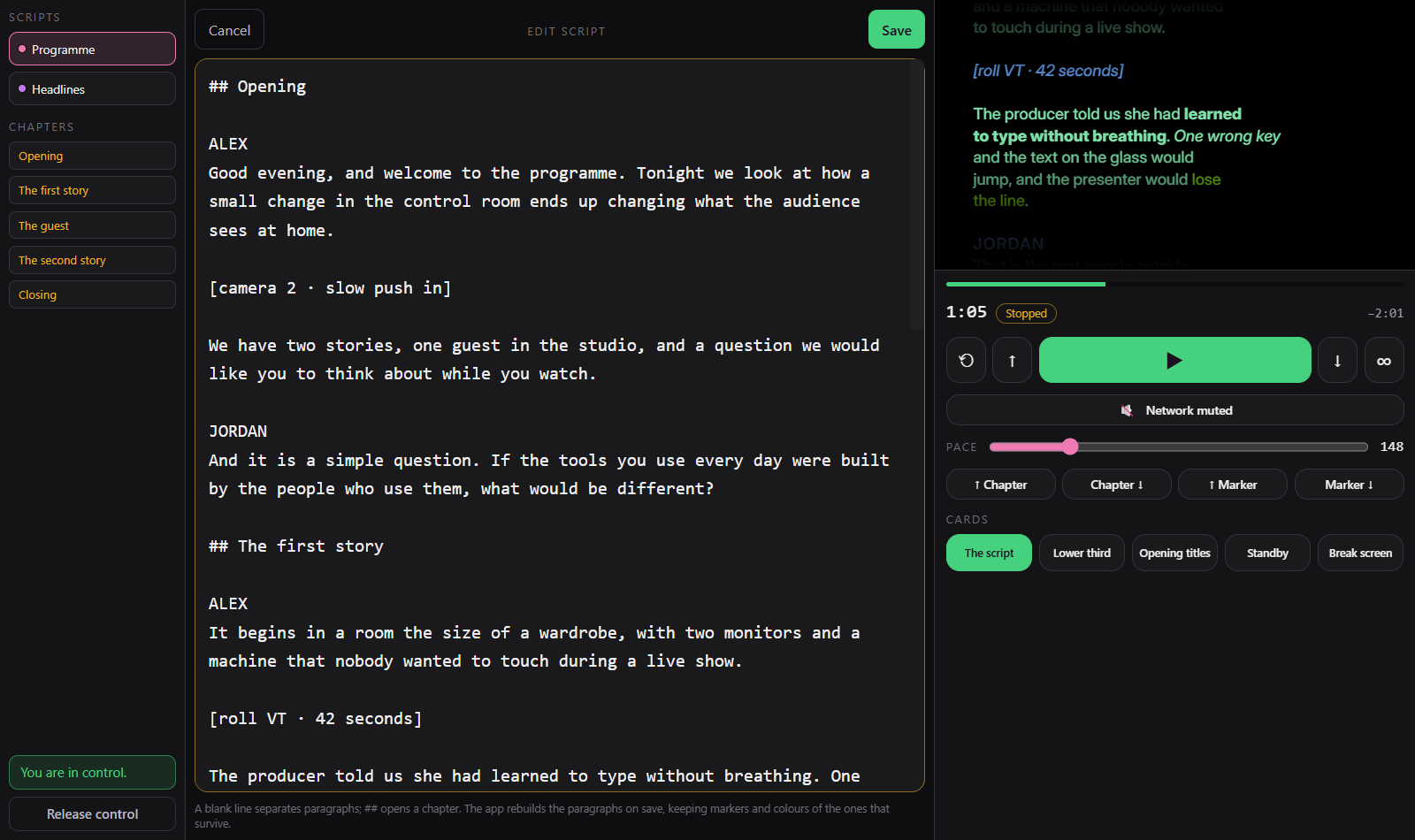
Same grammar as the desk: a blank line separates paragraphs, ## opens a chapter. On save the app rebuilds the paragraphs, keeping the identity of the ones that survive — so markers still point where they pointed, and painted colours stay painted.
This is the only way to create, merge or delete a paragraph from the network; editing one paragraph only ever changes the text inside it.
Editing the whole script is where a remote usually becomes dangerous, so this is the one place the app refuses to be optimistic.
Your copy carries the version it was opened at. If the script changed at the desk while you were typing, the save is refused — the screen stays open with what you wrote, and it tells you. Nothing is overwritten in silence.
Copy what you need, cancel, open it again.
The key under the transport is the app's own Sound on the network switch, not a local mute. That is deliberate: a local mute would quiet your phone and leave the audio running for everyone else who opened the reading page.
It only carries the audio of a video card. Each device still decides whether to actually play it — browsers do not let a page make noise until someone touches it.
Both pages answer on one port — 7777 unless you change it. The field is in either panel, and it writes the same setting: they are two paths of one server.
If something else on the machine is already holding the port, the app walks to the next free one and puts that address on the screen and in the QR. You never meet an error, and the address you are shown is always the one that works.
Changing the port restarts the server, so everyone connected drops and has to reopen the link. The field applies when you leave it or press Enter — never while you are still typing.
By design, not by omission:
- No blackout. Cutting the presenter's screen from another room is a decision for the desk.
- No appearance. Type, size, margin and colours change what the presenter is reading, so they stay on the machine.
- No files. Save, open, export and new project are not on the network.
- Nothing outside the local network. Same as the reading page.
The list of what the network may ask for is written by inclusion, not by exclusion — a new command in the app does not become a network command by accident.