The Operator Console
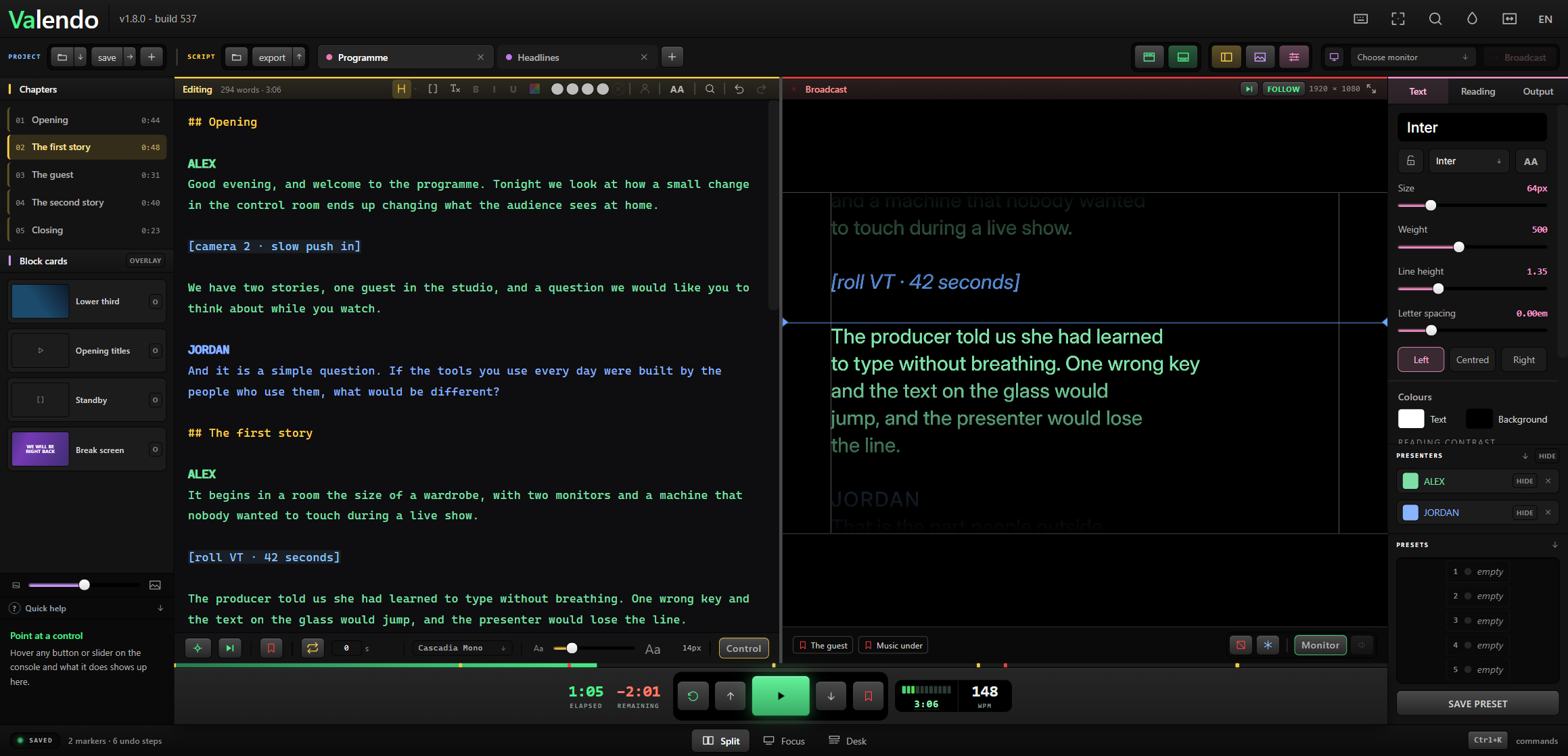
Three whole-screen arrangements, mutually exclusive, on F1 F2 F3.
Editor on the left, an exact replica of the presenter's screen on the right. This is where a show is operated.

Everything except the script and the transport goes away. For the last rehearsal, or for a presenter who wants to read from the operator's machine.

The script becomes a rundown: every block with its word count, duration and on-air status, and a timeline across the top. An arrow beside each block jumps the reading straight to it.
Four panels toggle on top of whichever mode you are in, on F5 through F8.
| Key | Panel |
|---|---|
F5 |
Assets — chapters and the block's cards, on the left |
F6 |
Cards drawer, at the bottom |
F7 |
Settings, on the right |
F8 |
Moves the transport between the top bar and the footer ruler |
The big green button plays and pauses; so does Space, which is the largest target on the keyboard for the same reason the button is the largest on screen.
| Control | What it does |
|---|---|
| Elapsed / Remaining | Two clocks. Remaining counts down to the end of the script. |
| WPM ruler | The pace, in words per minute. The mouse wheel changes it anywhere in the app. |
| ↑ ↓ | Jump back and forward by a few words |
| ↺ | Back to the start |
| ∞ + seconds | Loop: at the end, wait n seconds and start again |
| Go To | Jumps the reading line to wherever the text cursor is |
| CATCH | Keeps the editor scrolled to the reading position while it runs |
| Marker | Drops a marker at the current position — red ticks on the progress line |
Three tabs on the right.
Text — family, size, weight, line height, letter spacing, ALL CAPS, alignment, colours, presets, invert, and a row of reading-contrast swatches for a quick sanity check against studio lighting.
Reading — words per line (minimum and maximum), uniform speed, margin, horizontal position of the text block, the reading line, and the pacing mode.
Output — mirror on either axis, rotation, and what the presenter's screen shows around the text.
Save as default at the bottom stores the current look as how a new tab is born.
| Mode | The clock says |
|---|---|
| Formula | Duration computed from the words and the WPM |
| Stopwatch | Real time since you pressed play |
| Free | Runs without a target |
In Formula and Stopwatch the reading auto-pauses when it reaches the end of the script instead of scrolling into empty space.
A monospaced editor, because it is for working text and not for looking pretty. Chapters are amber, stage directions blue on a tinted line.
| Button | What it does |
|---|---|
| H | Insert a chapter mark |
| [ ] | Wrap the paragraph as a stage direction |
| Tx | Strip formatting from pasted text |
| AA | ALL CAPS in the editor only — display, not content |
| ↶ ↷ | Undo and redo, infinite, and kept across sessions |
The slider in the footer changes the editor's type size; it has nothing to do with the presenter's screen.
Up to ten scripts open at once, each with its own appearance, markers and history. Only the active tab goes to air and to the network page.
Ctrl+K opens a searchable list of every command. Ctrl+, opens the key map, where any binding can be changed. See Keyboard Shortcuts.
Ctrl+Alt+= and Ctrl+Alt+- scale the whole console, for a 4K screen or for tired eyes. Ctrl+Alt+0 goes back to 100%. It is a preference of this machine and never travels inside a project.