Repository navigation
Installation and Quick Start
Home · Install & quick start · Commands & options · Treasure hunt · Troubleshooting · Discoveries & privacy
Download the WaypointTracker zip from the latest GitHub release, or install it with the CurseForge app (World of Warcraft > Forever) or from Wago.
- Extract the ZIP into your Forever Interface/AddOns folder. During the beta this is
World of Warcraft/_classic_beta_/Interface/AddOns/. - Check that these files are directly inside the two addon folders:
Interface/AddOns/WaypointTracker/WaypointTracker.toc
Interface/AddOns/WaypointTracker_Data/WaypointTracker_Data.toc
- Start or restart the game. In the character-selection AddOns list, enable Waypoint Tracker and Waypoint Tracker (database).
- Type
/wpin game. After updating an existing installation,/reloadreloads it.
The data folder supplies Find's database. It loads when you first open Find. Keep both folders from the same release. Your personal settings and discoveries live separately in SavedVariables; keep those when updating.
WowUp's 2.24 beta releases support WoW Forever. Select your Forever installation, open Get Addons → Install from URL, and paste:
https://github.com/sanjaygbhat/wowforever-waypoint-tracker
The official WowUp guide documents GitHub installation from a tagged release with a packaged ZIP. Waypoint Tracker supplies that ZIP with both addon folders. Select the repository URL rather than a direct ZIP URL so WowUp can track releases. Check that both addon folders are enabled after installation.
-
Coordinates:
/way 42 65uses your current zone. For another zone:/way Westfall 56.3 47.1 Sentinel Hill. -
Window: type
/wp, choose a zone, enter X/Y and press Set Waypoint. Pasting45.2 67.8into X fills both boxes. - Map: hold Ctrl and right-click the world map.
-
Where you stand:
/wp here.
The arrow shows your destination and distance. On arrival it can play a sound, remove the waypoint and select the next closest one; adjust these in Show more options.
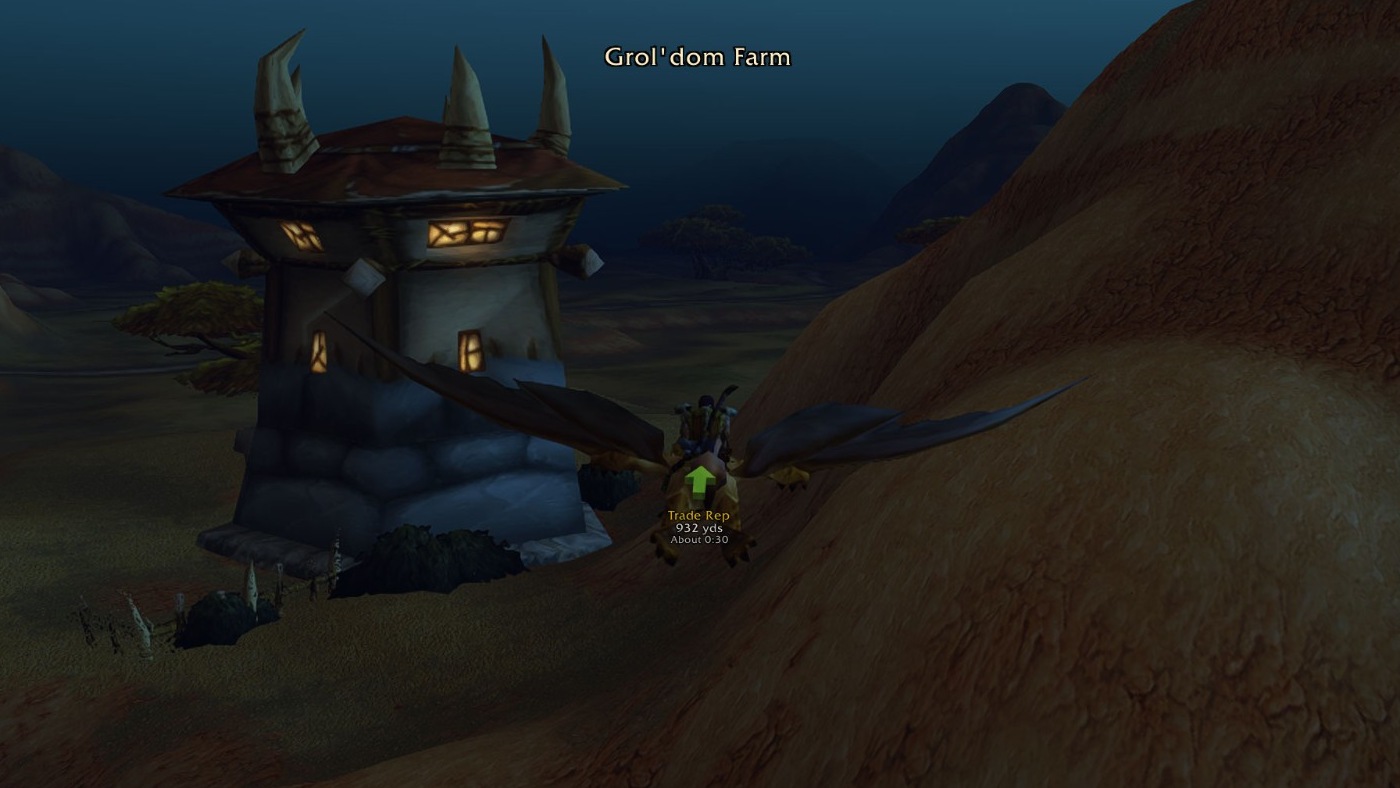
In the game: destination, distance and estimated travel time beneath the arrow. Open the image for a full-size view.
Open the world map, select your zone, then hold Ctrl and right-click the destination. The map pin marks the spot and the arrow points the way.
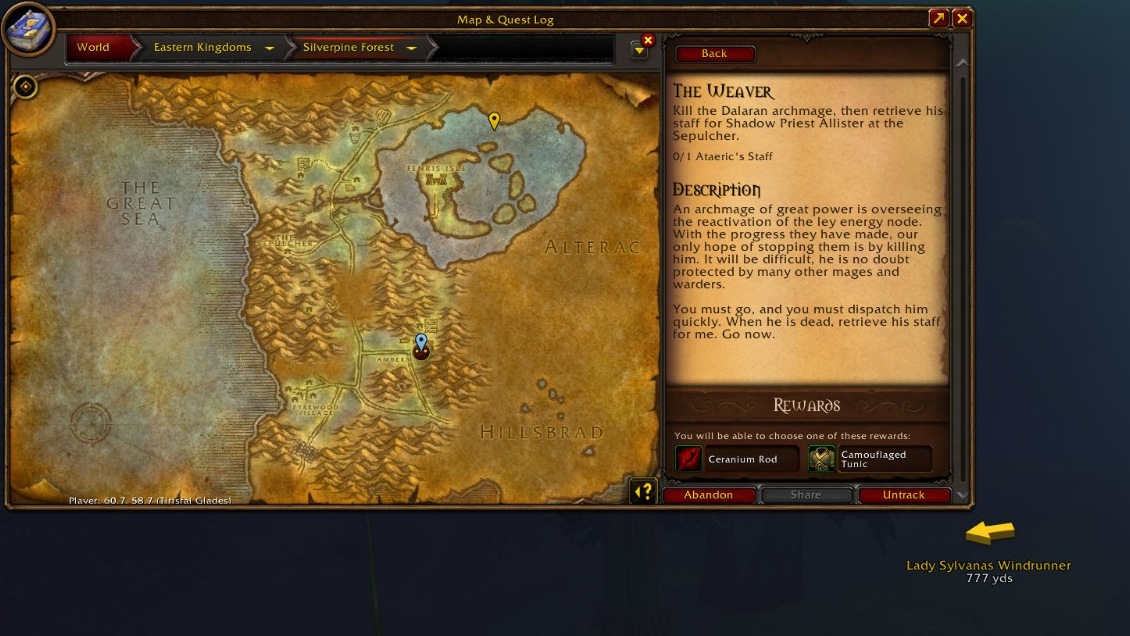
In the game: waypoint pins on the Silverpine Forest world map; the arrow points toward Lady Sylvanas Windrunner, 777 yds away. Open the image for a full-size view.
Open Find with /wp find or the window's Quests, NPCs, Enemies or Objects buttons. Search, select a result and double-click it or press Take me there. Use the faction and zone filters to narrow results. The Nearest buttons find services such as a mailbox, innkeeper or repair vendor.
Press Share beside a waypoint, or use /wp share for your current position. Choose a chat channel; the chat box opens with a message starting with [Waypoint Tracker], then a clickable map pin and the coordinates, ready for you to send. Turn the prefix off under Show more options → General. Friends can use that pin without installing the addon.
Find learns from your observations during play. See Discoveries & Privacy for correcting a location and sharing discoveries.
Next: Commands & Options.