Snapshots parameters configuration
This document describes the implementation of enhanced snapshot parameter configuration on the MOD Dwarf.
The main objective is to provide users with finer control over which parameters are stored in snapshots, increasing flexibility and practicality in real-world scenarios, while maintaining a clean and intuitive UI.
In the standard MOD Dwarf:
- Snapshots capture the state of all plugin parameters by default.
With the improved configuration:
- Users can select specific parameters to include in a snapshot.
- Users can exclude parameters or entire plugins that should remain unchanged across different snapshots.
- Usability is improved during live performance or soundcheck by offering precise, fine-grained control over snapshot contents.
Example Use Cases:
-
Soundcheck adjustments
- You can leave volume controls outside of snapshots, so changing snapshots won’t affect the gain you’ve set during rehearsal.
-
Performance flexibility
- Parameters such as modulation depth or filter cutoff can be snapshot-specific, while global controls like master EQ remain stable.
A new interface has been added to allow configuration of parameters at snapshot level.
- Each plugin parameter can be toggled on/off for snapshot inclusion.
- Excluded parameters will not change when switching between snapshots.
At first glance the contructor is clean as always

But when you hover a plugin you may see an icon that reflect the snapshot configuration of the plugin:
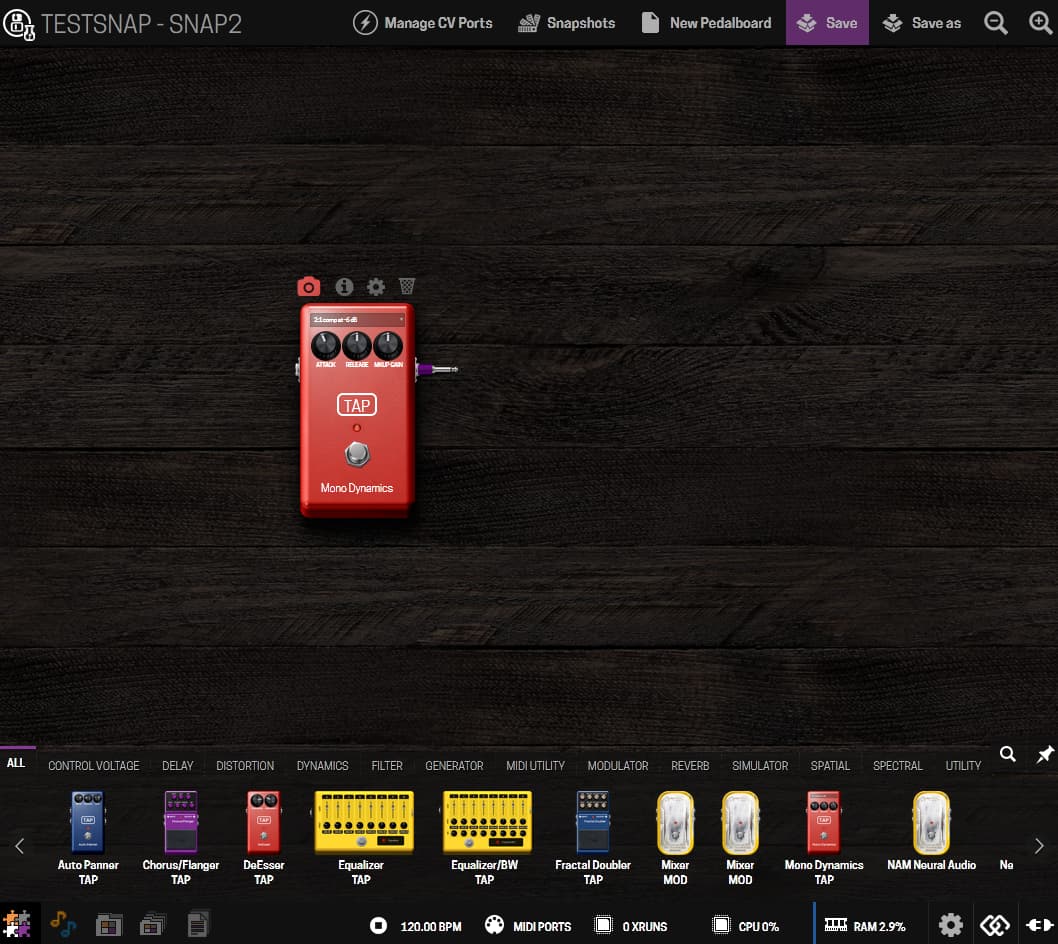
This is useful when you change a parameter from the “stompbox” ui, because you will see that not all the plugin parameters will be included in the snapshot and if you don’t remember which parameter, you can check it on the settings page (the usual gear icon).
This is the icon meaning:
- NO ICON: all plugin parameters will included and be saved / restored from the snapshot
-
 : some parameters are excluded
 -
 : the entire plugin will is excluded

On this dialog you see the plugin icon like on the constructor, by clicking it you will bind/unbind all parameters to snapshots.
For every parameter, you also have a snapshot icon that can be use to just bind/unbind that specific parameter.
After changing any bindings you need to save the pedalboard
In the performance view you will see, but you can’t edit, all the parameters bindings:
