Repository navigation
Getting Started
This page takes you from an empty machine to a local database filled with your Selldone shop data: install a database server, clone the project, run the setup wizard, connect your shop and sync.
| Requirement | Notes |
|---|---|
| Node.js 14+ and npm |
engines.node is >=14.0.0. |
| MariaDB or MySQL | Local or remote. Download MariaDB for Windows, macOS or Linux from mariadb.org. |
| A database user | The user must be allowed to create a database (or the database must already exist) and tables. |
| A Selldone shop | You need access to the shop you want to clone. |
| Git (or GitHub CLI) | To clone the repository. |
git clone https://github.com/selldone/clone-sheet.git
cd clone-sheet
npm install
Alternatives: git clone git@github.com:selldone/clone-sheet.git (SSH) or gh repo clone selldone/clone-sheet
(GitHub CLI).
Run the wizard from the project folder:
node setup.js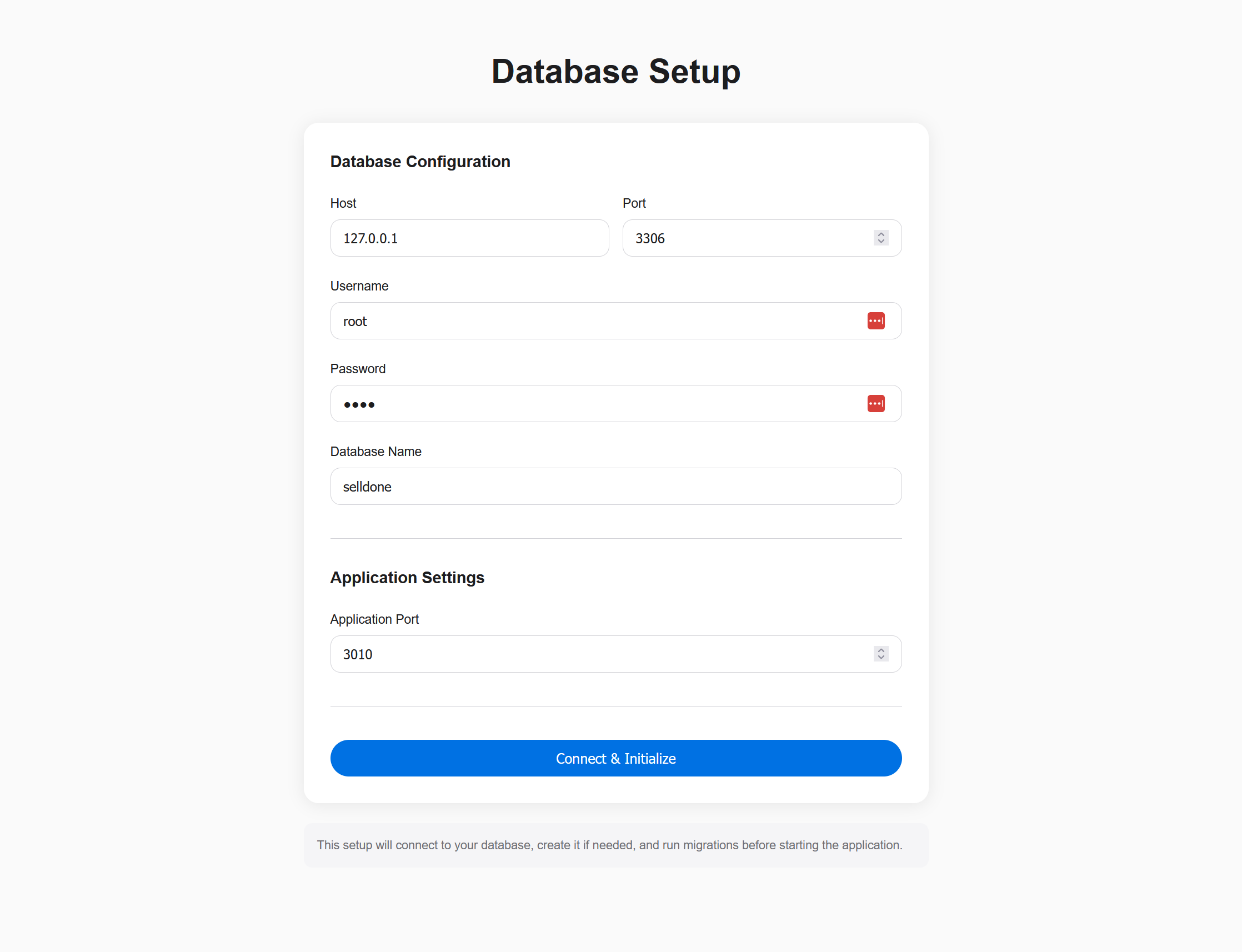
The terminal prints Setup server running at http://localhost:<port> (port 3000, or the next free port). Open that URL
and fill in the form:
| Field | Default |
|---|---|
| Host | 127.0.0.1 |
| Port | 3306 |
| Username | root |
| Password | root |
| Database Name | selldone |
| Application Port | 3010 |
Click Connect & Initialize. The wizard creates the database if it does not exist, writes .env and
config/config.json, runs the migrations and starts the app. After a few seconds the browser moves to the app,
normally http://localhost:3010. Details: Setup and Configuration.
In the Setup tab:
- Click Create Access Token. Selldone opens in a new tab with the required read scopes.
- Select your shop, then copy the Access Token and the Shop ID.
- Paste them into Bearer Token and Shop ID and click Save & Connect.
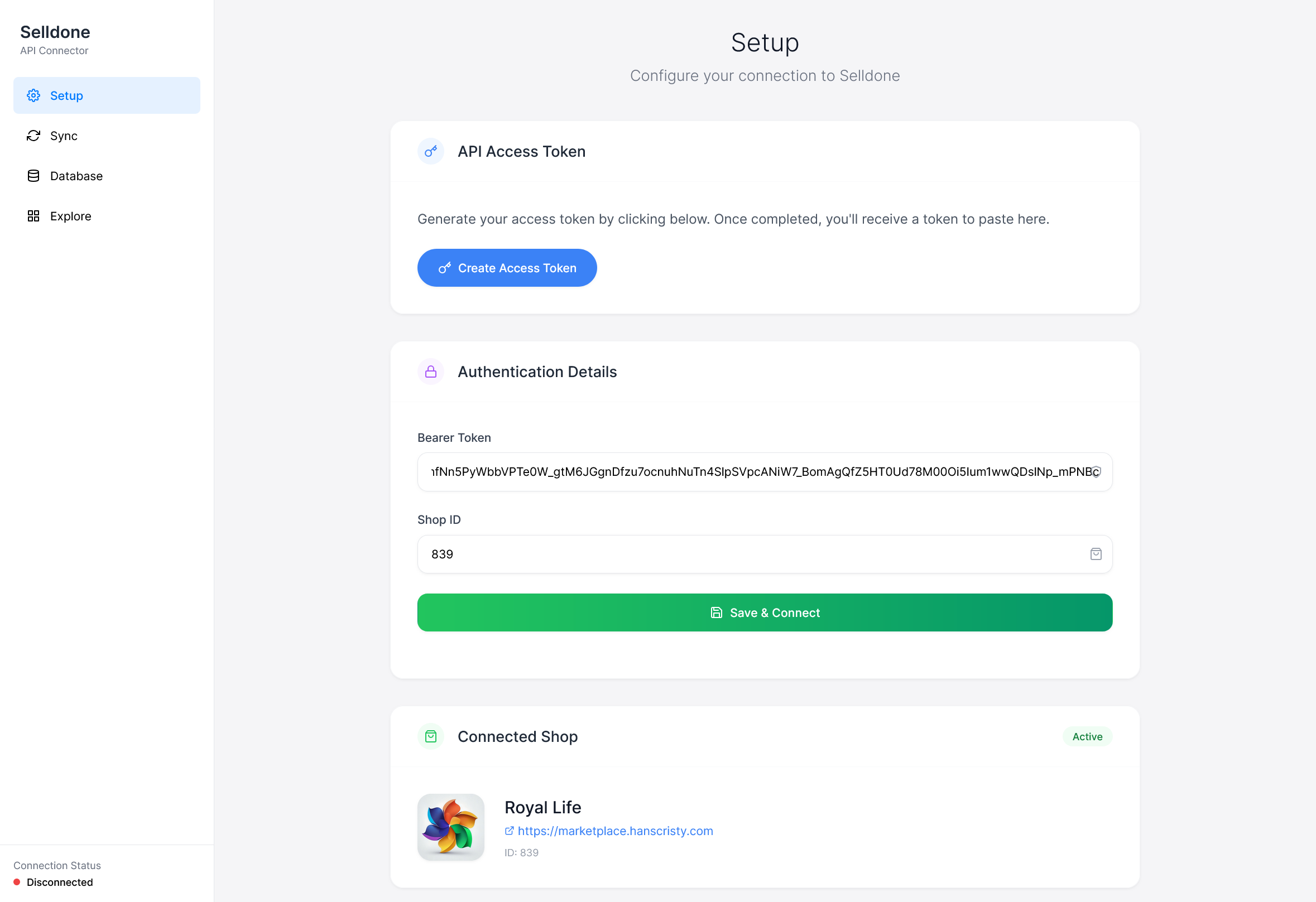
The status line shows Saving token..., Fetching user info..., Fetching shop information... and finally Shop connected successfully. The connected shop is shown below the form.
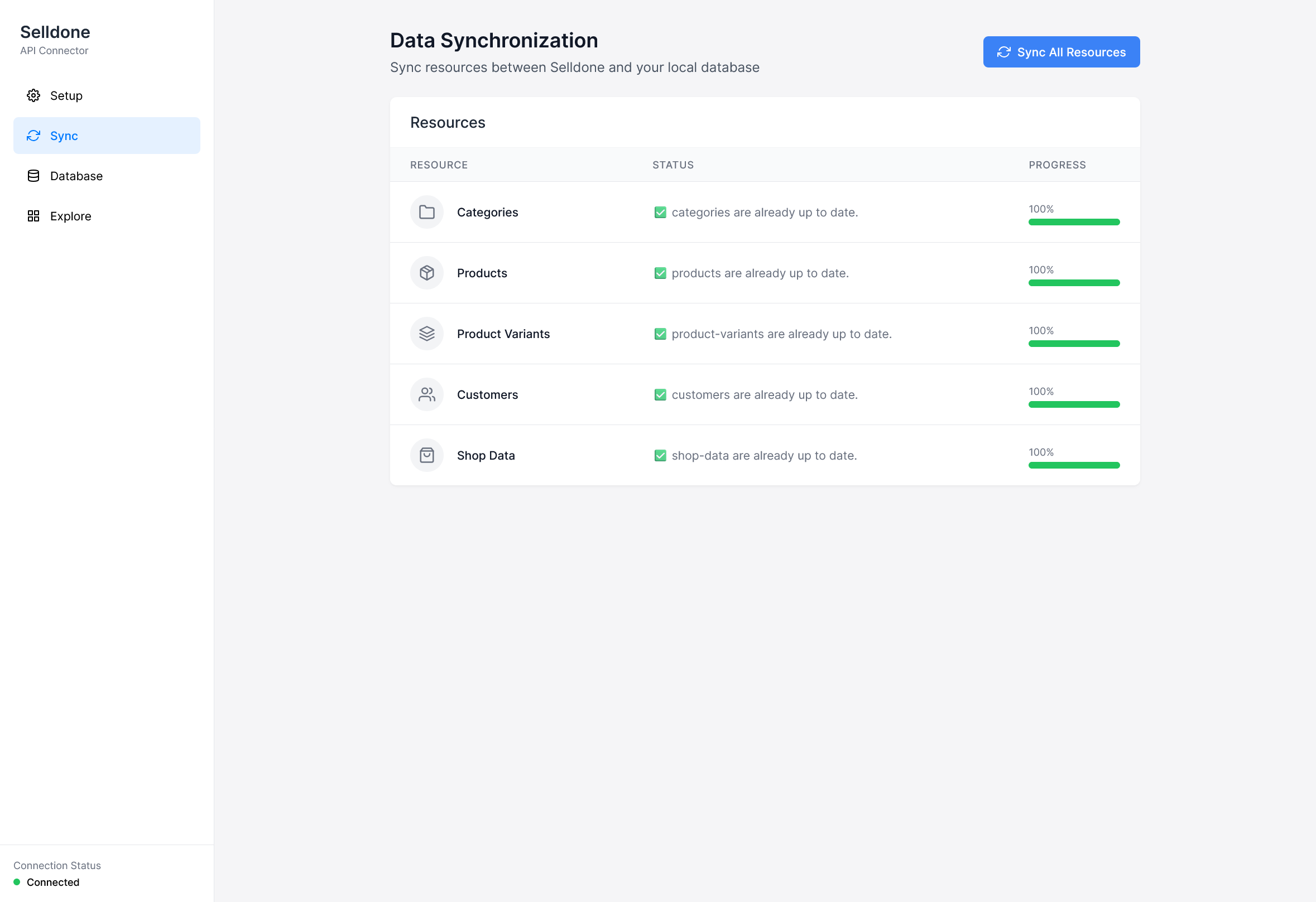
Open the Sync tab and click Sync All Resources. Each resource shows its status and progress.
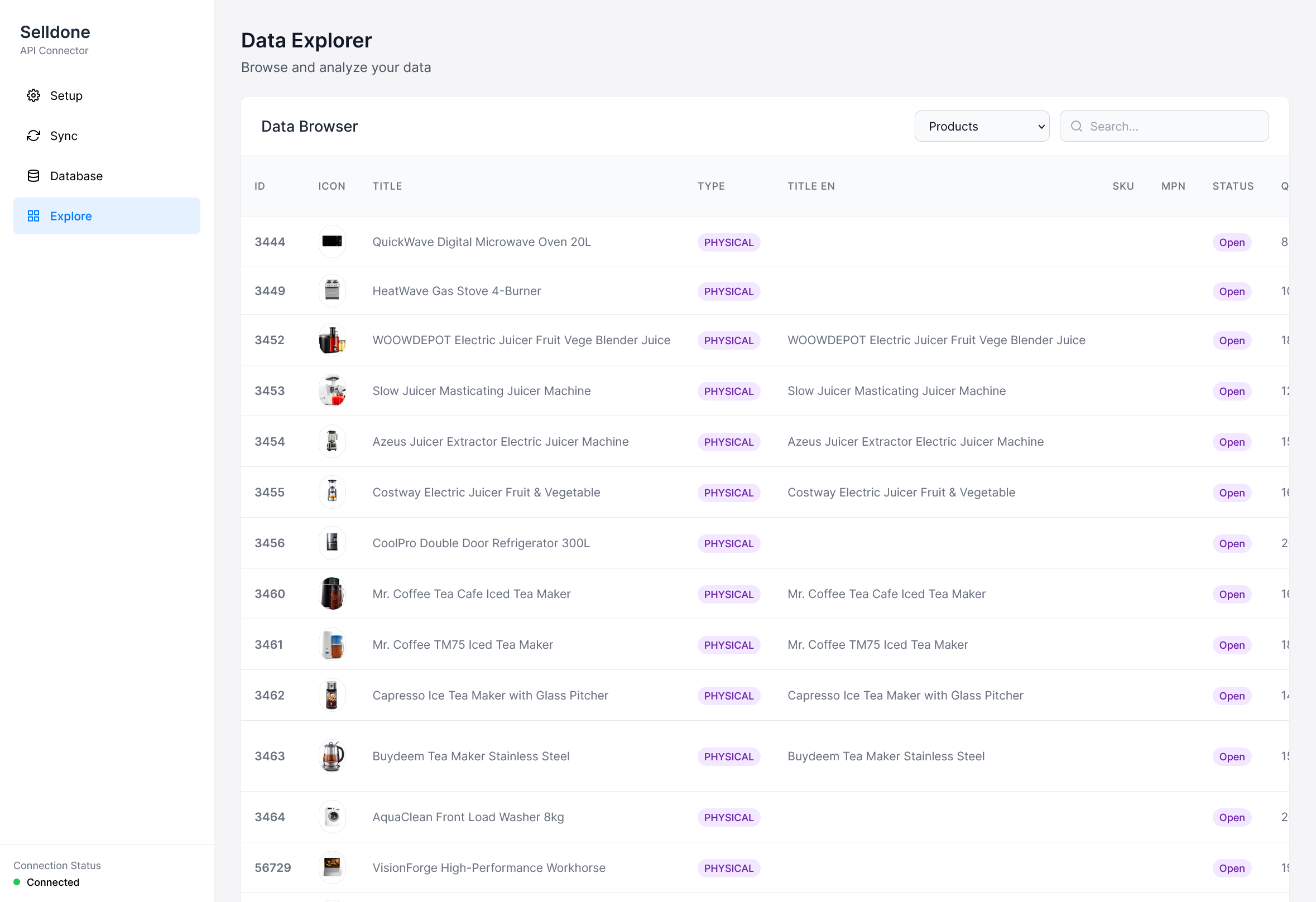
Open the Explore tab, select a table and browse your data.
You only need the wizard once. Start the app with:
npm startand click Sync All Resources to fetch changes since the last sync.