Repository navigation
Create Your GPT
This page walks through the ChatGPT GPT editor step by step, using the Selldone GPT as the example. Each step has an annotated screenshot. The OpenAI editor changes from time to time, so labels on your screen may differ slightly.
- In ChatGPT, click your profile picture.
- Select My GPTs.
- At the top of the page, click Create a GPT.
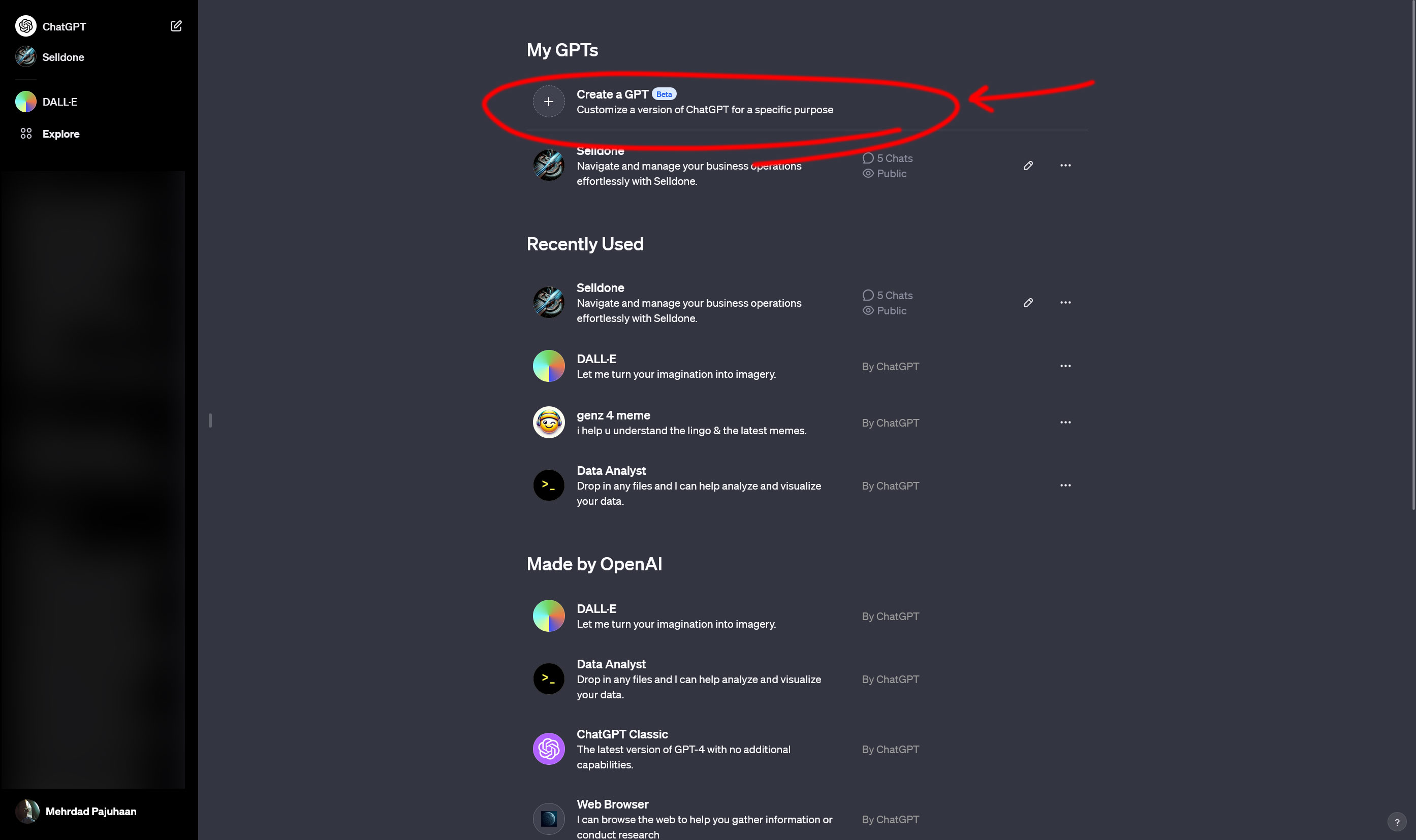
The editor opens with two tabs: Create (a chat that helps you build the GPT) and Configure (the form with every setting).
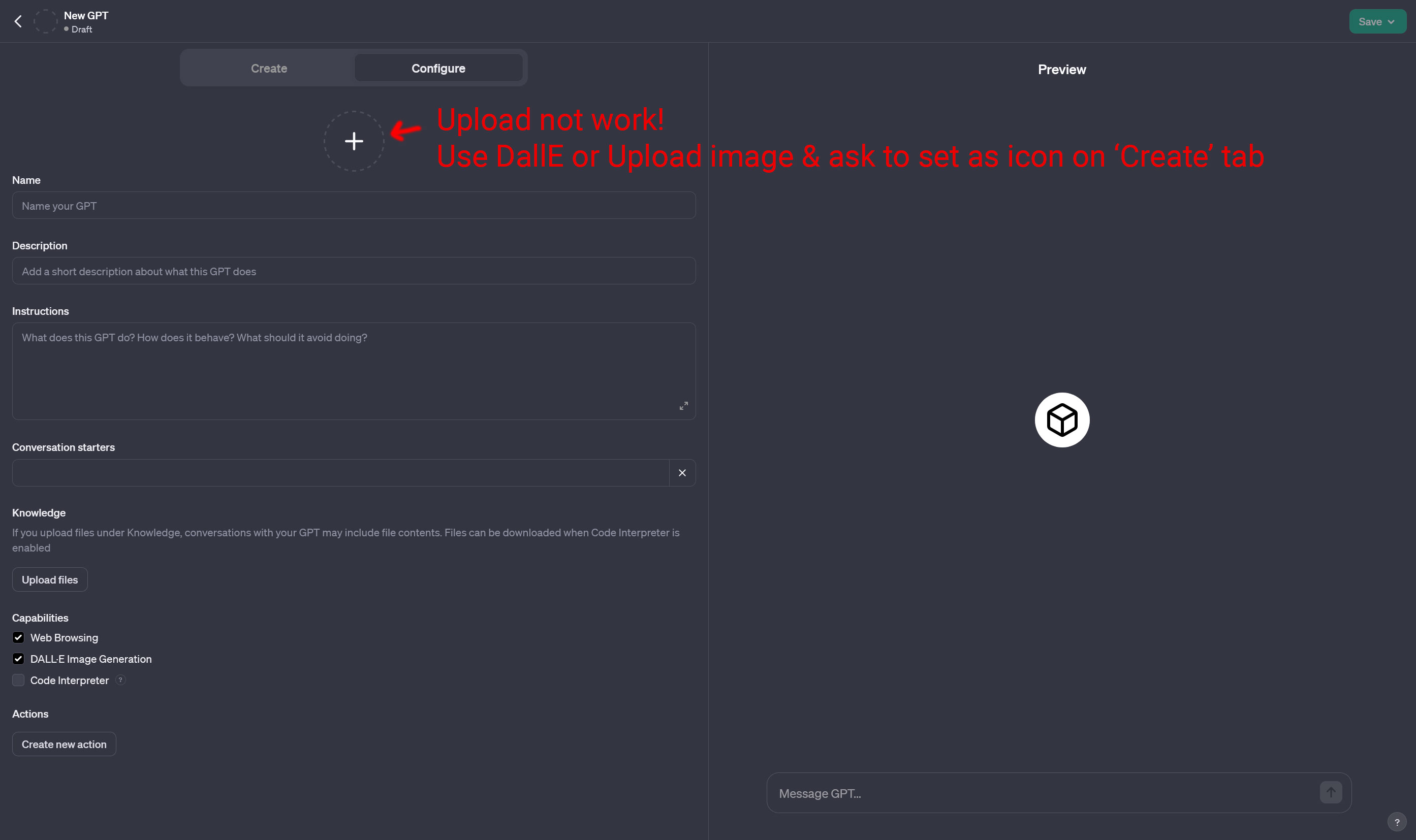
Icon upload tip. If uploading an image for the GPT icon does not work, generate an icon with DALL·E, or drag and drop your image on the Create tab and write: "set it as my GPT icon".
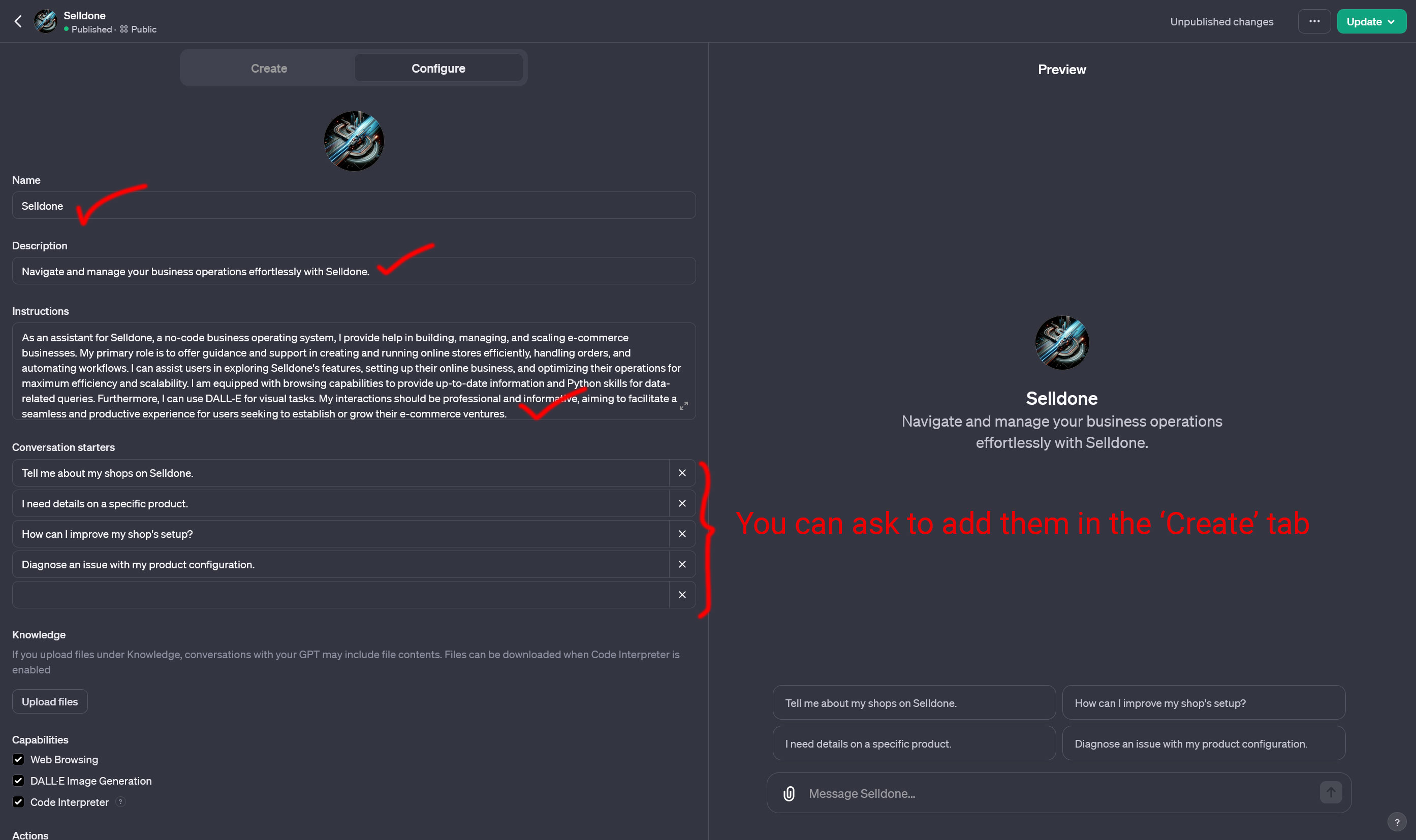
Give your GPT its identity on the Configure tab:
-
Name — for example
Selldone. - Description — for example "Navigate and manage your business operations effortlessly with Selldone."
- Instructions — what the GPT does, how it behaves and what it should avoid.
- Conversation starters — for example "Tell me about my shops on Selldone.", "I need details on a specific product.", "How can I improve my shop's setup?", "Diagnose an issue with my product configuration."
You can also ask the Create tab to write or add any of these for you.
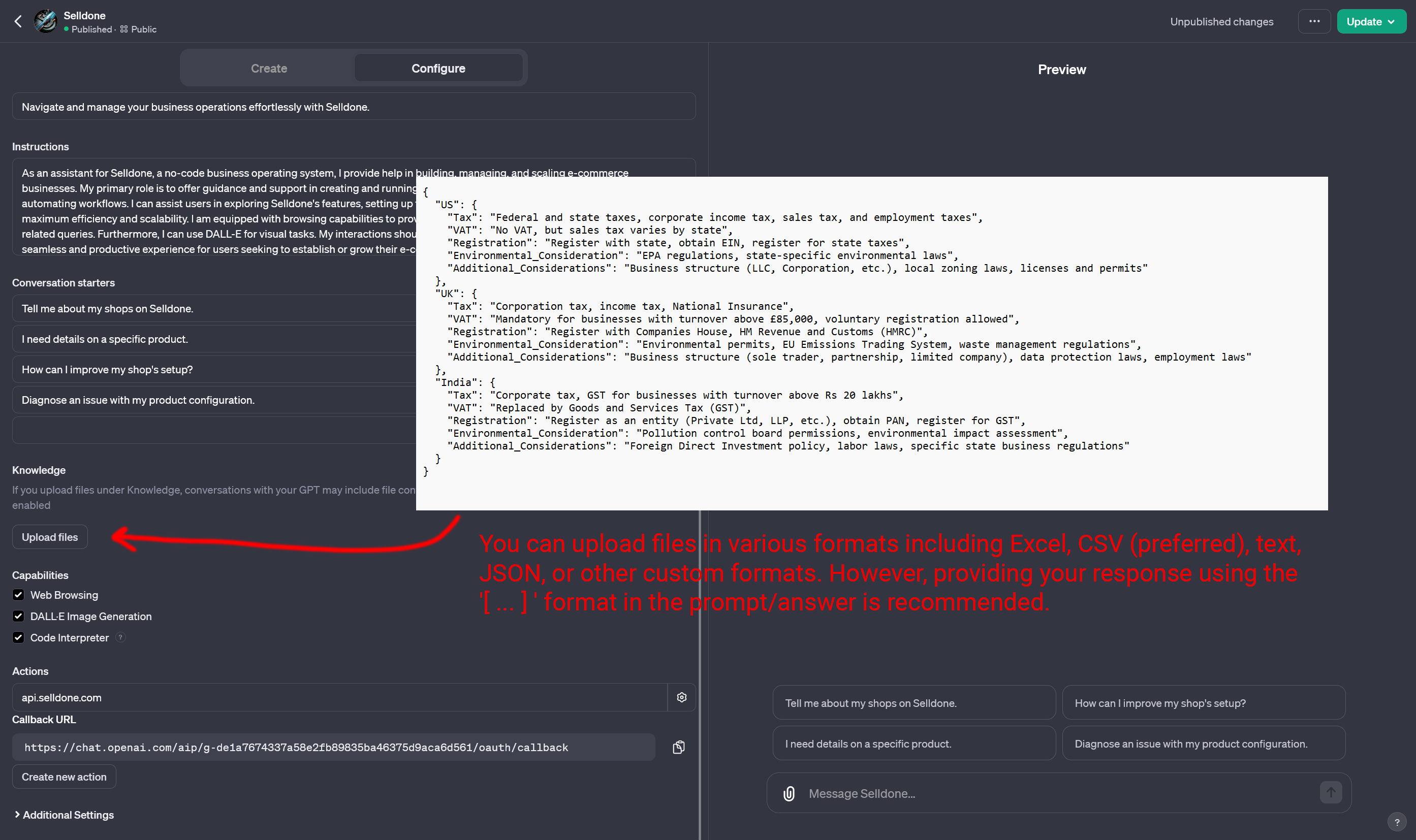
Under Knowledge, click Upload files to give the GPT extra information:
- Supported inputs include Excel, CSV (preferred), text, JSON and other formats.
- Using the
[ ... ]format in the prompt/answer keeps the data clear and organized. - Under Capabilities, choose what the GPT may use (Web Browsing, DALL·E Image Generation, Code Interpreter).
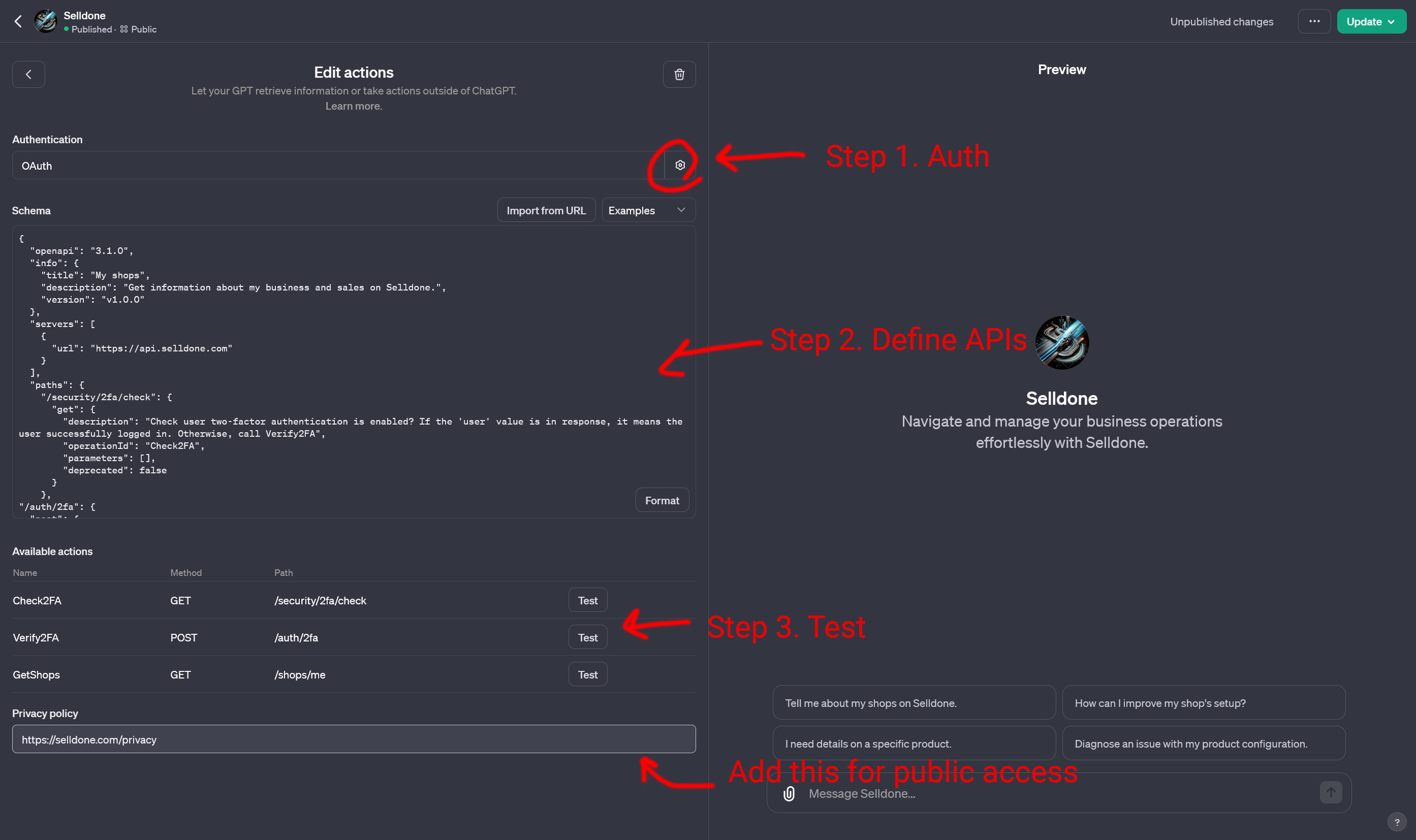
Under Actions, click Create new action. The Edit actions screen has three parts:
- Authentication — click the gear icon and configure OAuth (see Step 5).
-
Schema — paste
Schema.jsonor click Import from URL and usehttps://raw.githubusercontent.com/selldone/gpt/main/Schema.json. Format tidies the JSON. - Available actions — after the schema is accepted, each operation appears with a Test button.
Set Privacy policy to https://selldone.com/privacy; it is needed to make the GPT publicly available.
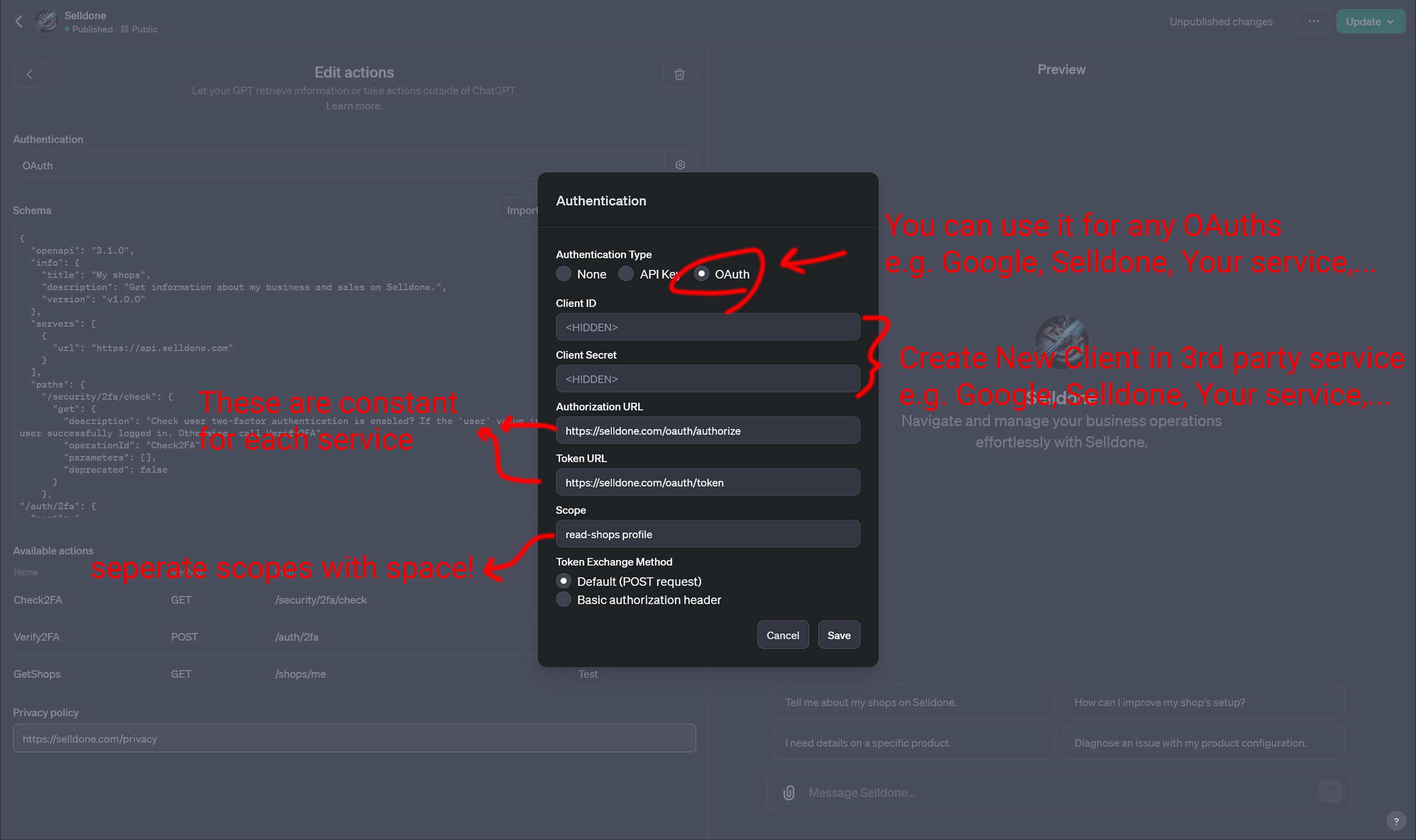
In the Authentication dialog select OAuth and enter:
| Field | Value |
|---|---|
| Client ID | Created in the OAuth provider (Selldone or your own service) |
| Client Secret | Created in the OAuth provider |
| Authorization URL | https://selldone.com/oauth/authorize |
| Token URL | https://selldone.com/oauth/token |
| Scope |
read-shops profile backoffice-read-products (separate scopes with a space) |
| Token Exchange Method | Default (POST request) |
The authorization and token URLs are constant for each provider. The same dialog works for any OAuth provider, such as Google, Selldone or your own service.
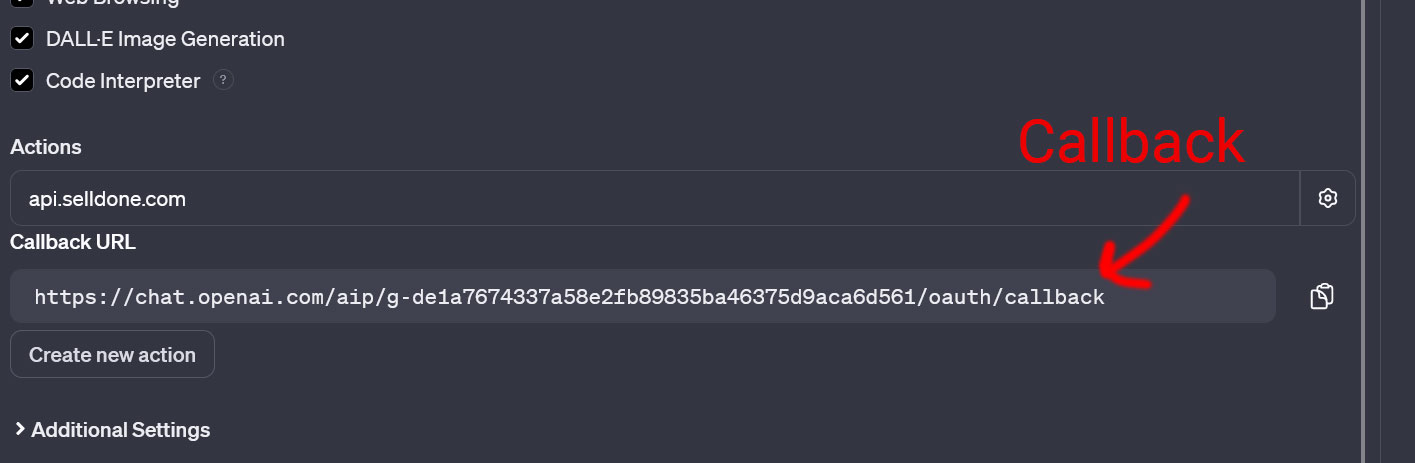
After saving, the Configure tab shows a Callback URL under Actions. Add it as the allowed redirect URL of your OAuth client.
- You can also find it by signing in through your GPT and checking the URL that ChatGPT requests.
- Changing the OAuth configuration in ChatGPT changes the callback URL too.
- Click Test next to
Check2FA. Sign in and approve access when asked. - Try
GetShopsandGetProductInfofrom the preview chat. - Click Save (or Update) and choose who can access the GPT.
- OAuth Configuration — how the sign-in flow works and how to use your own server.
- Schema Reference — what each action expects and returns.
- FAQ