Repository navigation
Provider Setup
This page walks through creating a Connect OS provider and bridge in the Selldone providers panel and pointing it at the sample project. The provider panel has these tabs: Dashboard, Stores, Auth, APIs, Webhooks, Logs and Setting.
Go to selldone.com/shuttle/providers and create a new provider.
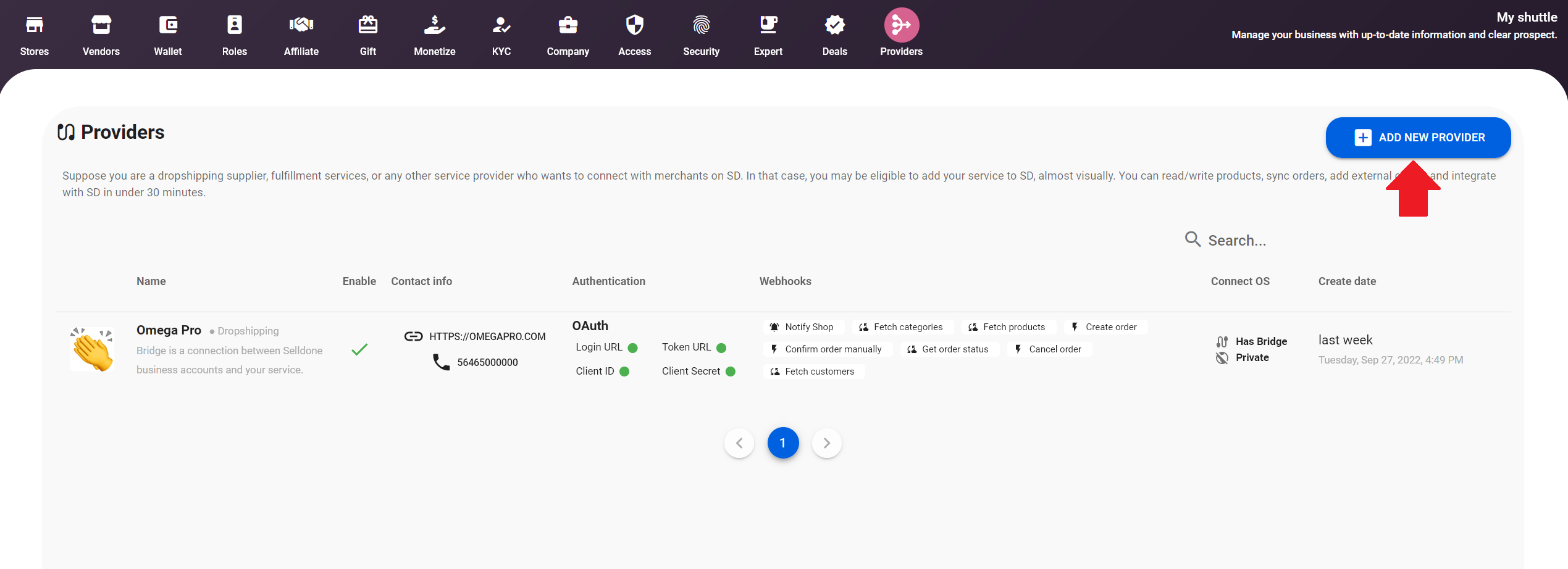
Then open the provider and complete the information about your service on the Setting tab.
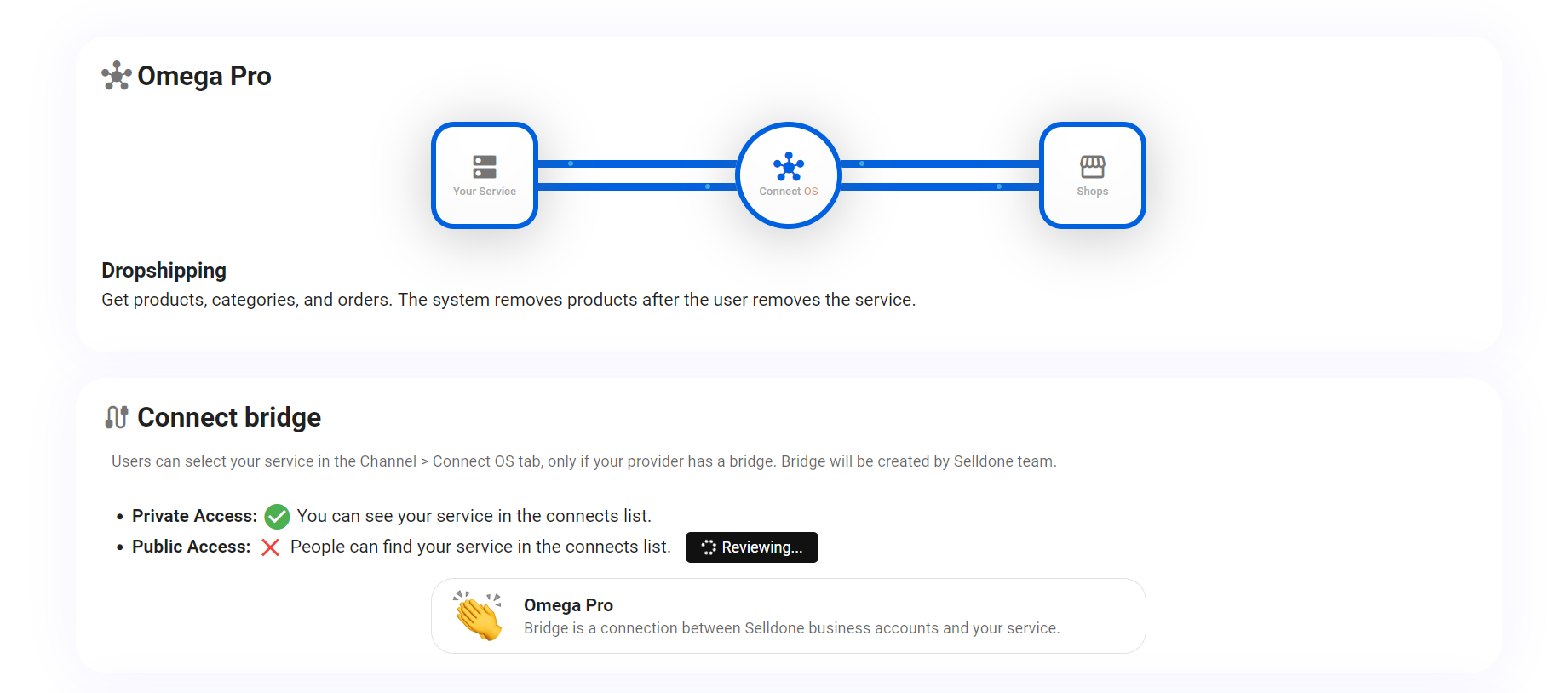
On the Dashboard, click Create connect bridge. To create the bridge you need:
- A wallet in USD (create one if needed).
- A one-time charge of 20 USD.
Merchants can select your service in Channel > Connect OS only if your provider has a bridge. After you implement the needed webhooks, you can request verification; after that your service is listed for merchants.
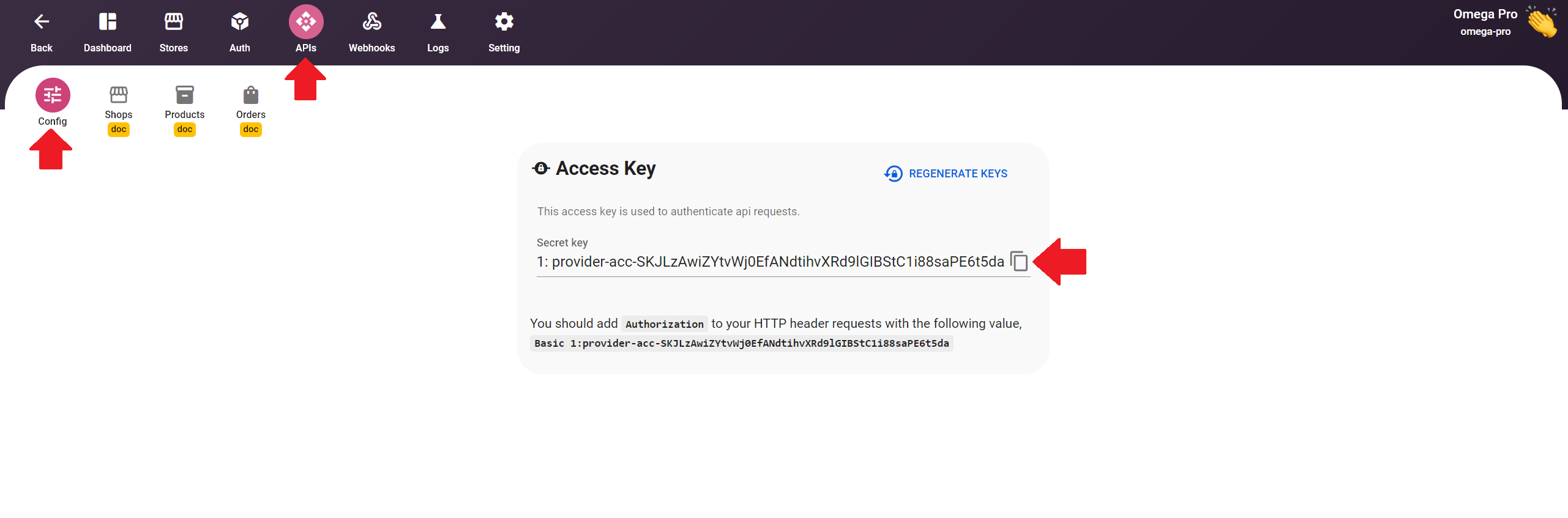
Open the APIs tab and copy the secret key (access token). Put it in .env as SD_PROVIDER_SECRET_KEY. Use it in the Authorization header when your service calls the provider API — see Provider API.
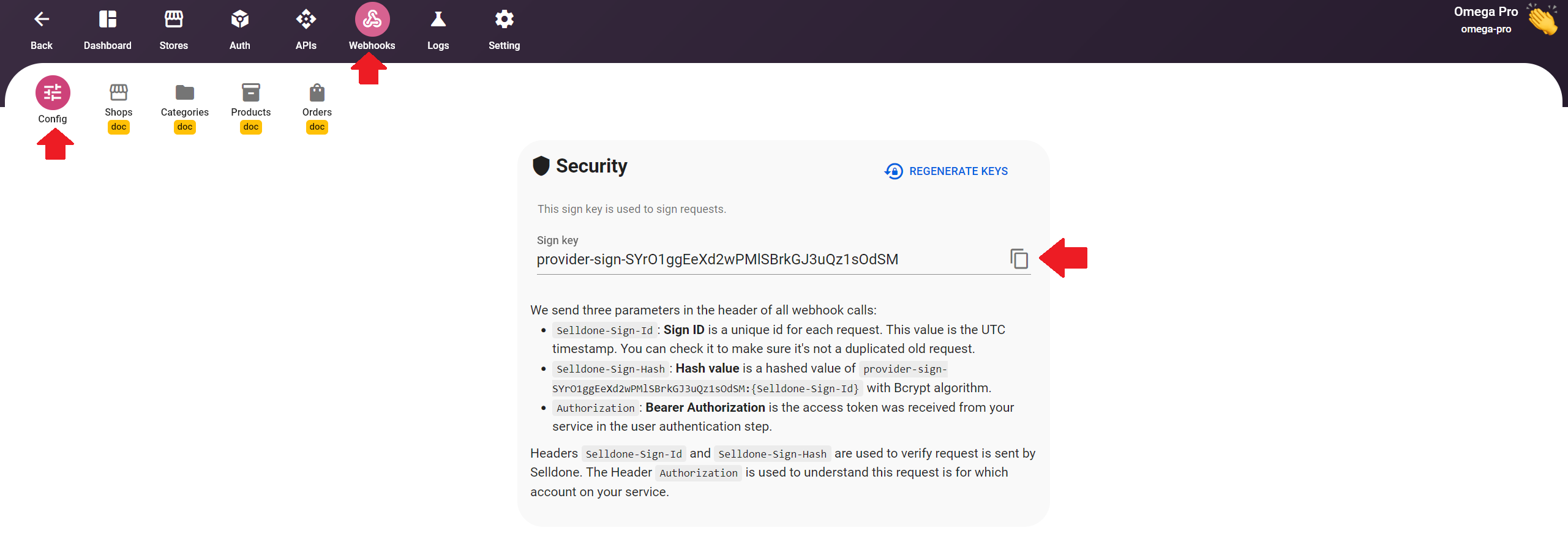
Open the Webhooks tab and copy the sign key. Put it in .env as SD_PROVIDER_WEBHOOK_SIGN_KEY. The bridge uses it to verify that webhook calls really come from Selldone — see Webhooks.
Open the Auth tab and select OAuth 2.0 (Recommended). Then:
| Field | Value |
|---|---|
| Return URL | Generated by Selldone. Copy it to SD_PROVIDER_RETURN_URL in .env. |
| Client ID |
CLIENT_ID from app/Http/Controllers/Controller.php (sample: 100). |
| Client Secret |
CLIENT_SECRET from app/Http/Controllers/Controller.php. |
| OAuth URL |
https://yourdomain.com/auth/login (GET). |
| Token Generation API |
https://yourdomain.com/auth/token (POST). |
You can change the login and token paths in routes/web.php. The sample app's Auth page shows all of these values ready to copy.
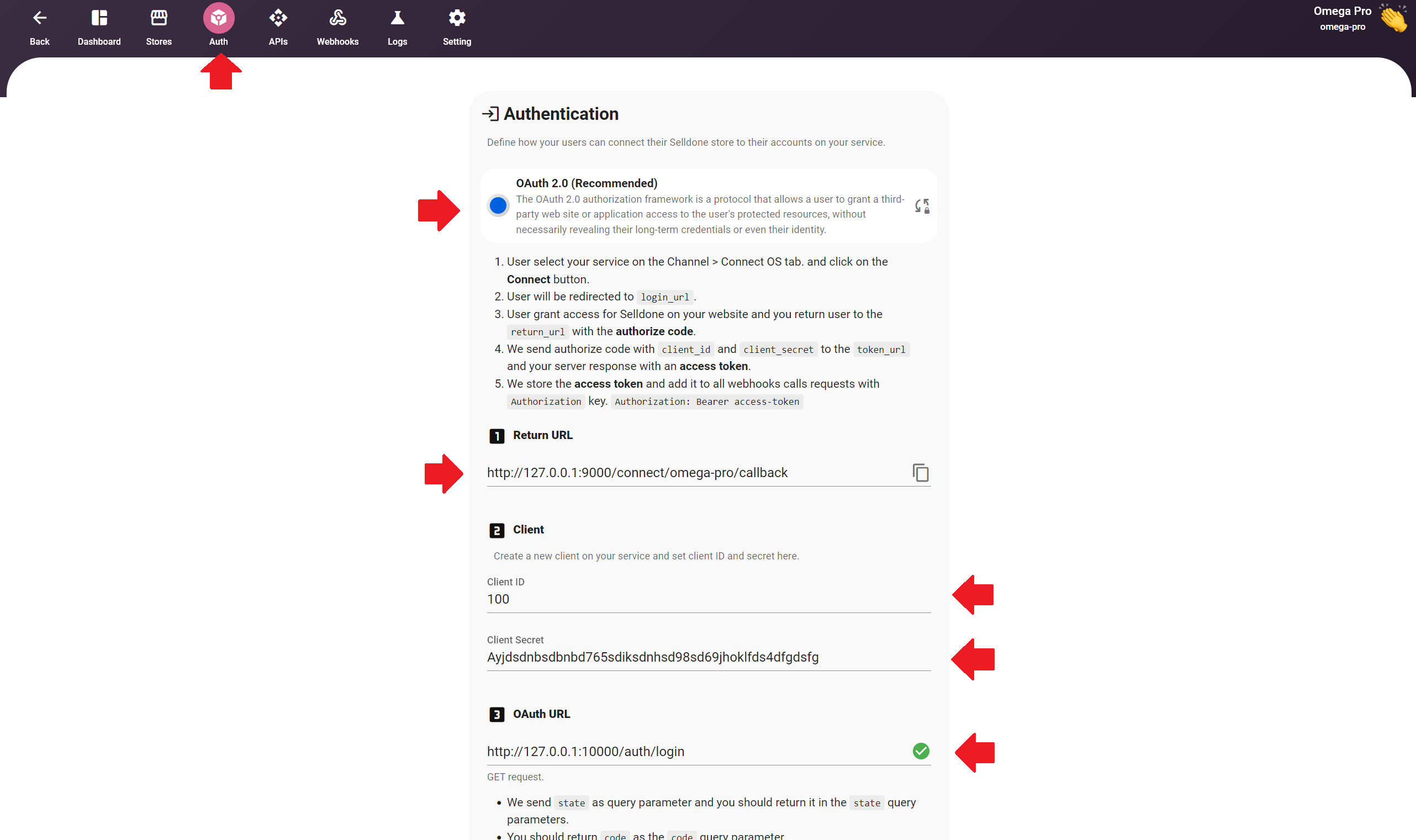
See Authentication Flow for how the redirects work.
On the Webhooks tab, paste the URLs below (the sample app's Webhooks page lists them with your domain):
| Webhook | URL |
|---|---|
| Notify shop | https://yourdomain.com/api/shop |
| Fetch categories | https://yourdomain.com/api/categories |
| Fetch products | https://yourdomain.com/api/products |
| Create order | https://yourdomain.com/api/create-order |
| Confirm order manually | https://yourdomain.com/api/confirm-order |
| Get order status | https://yourdomain.com/api/get-order |
| Cancel order | https://yourdomain.com/api/cancel-order |
Implementing all required webhooks for your mode is mandatory. See Connect Modes for which webhooks each mode uses.
- In a Selldone shop, open Channel > Connect OS, select your service and click Connect.
- You are redirected to the sample login page. Click Grant Access.
- Selldone exchanges the code for a token and starts syncing. The sample returns one category (
Sample Sync) and one product with three variants.
You can edit the sample data in app/Http/Controllers/WebhooksController.php.
When you build your real bridge, regenerate the API key and webhook sign key, replace the sample client credentials and tokens with real ones, and never expose secret keys in the browser.