Repository navigation
Chat
Chat is where you talk with the model you have loaded, entirely on your computer. This page covers the conversation list, the composer, and the controls that shape each reply.
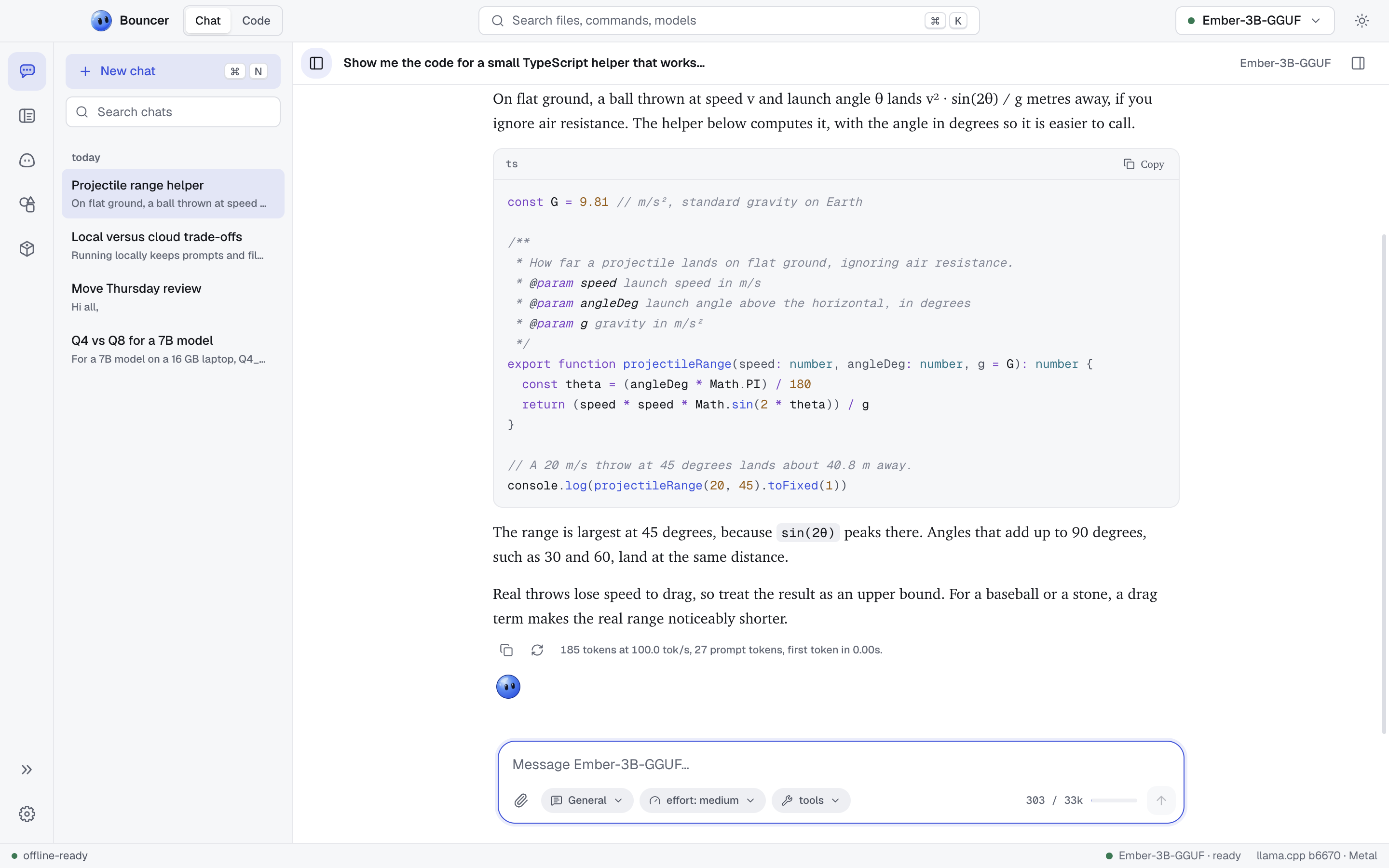
Click New chat at the top of the conversations sidebar, or press ⌘ N (Ctrl N on Windows and Linux). Type in the composer at the bottom and press Enter to send. Press Shift Enter for a new line.
Send stays disabled until a model is loaded. Load one from the model pill in the title bar.
Conversations are titled automatically after the first reply, and they are kept between launches.
The sidebar lists your chats, newest first.
- Search: type in the Search chats field. Results open the chat at the matching message.
- Rename, pin, and delete: hover a chat and use its controls. Delete asks you to confirm first.
- Collapse: click Hide chats in the sidebar header, or press ⌘ </kbd> (Ctrl </kbd> on Windows and Linux). Click Show chats or press the same keys to bring it back. The state is remembered after a relaunch.
The composer has these controls under the text box:
- Attach: add Files…, Images…, or a Folder… to the message. Attachments appear as chips under the composer.
- Preset: choose the preset (system prompt and sampling) for this chat. See presets and system prompts.
- Effort: how hard the model thinks before it answers. See effort levels.
- Tools: turn Web search and Thinking on or off for this chat.
-
Context meter: the estimated prompt size and the loaded context size, for example
3.2k / 8k. See the context meter.
Attach a file or image by clicking Attach, or type a slash command such as /effort high to change the same settings from the keyboard.
Effort, tools, and preset are saved per conversation.
Effort sets how much the model reasons and how long its reply may be. The levels are low, medium (the default), high, xhigh, and max:
| Level | Description |
|---|---|
| low | fast, minimal thinking |
| medium | balanced |
| high | thinks longer |
| xhigh | deep thinking, long answers |
| max | no limits, uses the whole context |
Models that cannot reason ignore the thinking part of this setting.
- Web search lets the model search the web and read pages. It needs an internet connection.
- Thinking lets reasoning models think before they answer. Turn it off to get a direct answer from models that support it.
When the model uses a tool, the reply shows a short trace of the call.
A preset is a named system prompt with sampling settings. Bouncer includes five built-in presets: General (the default), Budget, Sarcastic, Creative, and Explainer.
- To switch presets for a chat, use the Preset chip or
/preset. - To change the text of a preset, open the chat settings panel, choose the preset, and edit its system prompt. Built-in presets can be edited, and Reset to default restores the original.
- To write a system prompt for only one conversation, use
/system <text>.
Click Show chat settings in the chat header to open the panel on the right. It shows:
- model: the loaded model, its quantization, size, trained and loaded context length, and the llama.cpp version and backend.
- preset: the preset for this chat, its system prompt, and whether it is built in.
-
sampling: temperature, top-p, top-k, min-p, repeat penalty, and max tokens. A max tokens value of
0means the reply runs until the model stops.
To set sampling for just the open chat, open the model panel from the model pill in the title bar and use its Inference tab.
While a reply is streaming, the composer shows Stop generating. Press Esc to stop it too. The partial reply is kept and marked stopped.
Under each reply, use these actions:
- Copy reply copies the text.
- Regenerate reply writes a new answer. The old one stays as another branch.
- Previous branch and Next branch move between the replies you have generated.
To change one of your messages, hover over it and choose Edit message. Press ⌘ ↵ (Ctrl Enter on Windows and Linux) to save, or Esc to cancel. Saving creates a new branch with a fresh reply.
If a reply fails, the error appears with a Retry button.
Reasoning models show their thinking in a block above the reply. It reads Thinking… while the model works, then Thought for followed by the time. Open the block to read the reasoning. The composer shows a reasoning tag once the chat has any reasoning.
Each reply shows its statistics under it: the tokens per second, the number of tokens, and the time to first token. The status bar also shows the latest tokens per second while you are in Chat.
A reply that stops at the length limit is marked reached the token limit.
The meter at the right end of the composer estimates how much of the model's context the next message will use. It counts the chat so far, the system prompt, your draft, and your attachments, against the loaded context size.
- Below 70 percent the meter is normal.
- At 70 percent or more it turns amber, and Bouncer suggests starting a new conversation. You can dismiss the suggestion.
- At 90 percent or more it turns red. Replies get worse from here and the next message may not fit, so start a new chat.
The count is an estimate, not the model's exact tokenizer count.
The title bar has a Chat and Code toggle. Chat is for conversations. Code is Bouncer Code, which works on a folder you open and can read and change its files.
- Slash commands for changing settings from the keyboard
- Keyboard shortcuts
- Models for choosing and loading a model
- Troubleshooting if a reply does not start