Repository navigation
Getting started
This guide takes you from a fresh install to your first chat with a model running on your own computer. It takes about ten minutes, plus the time it takes to download a model.
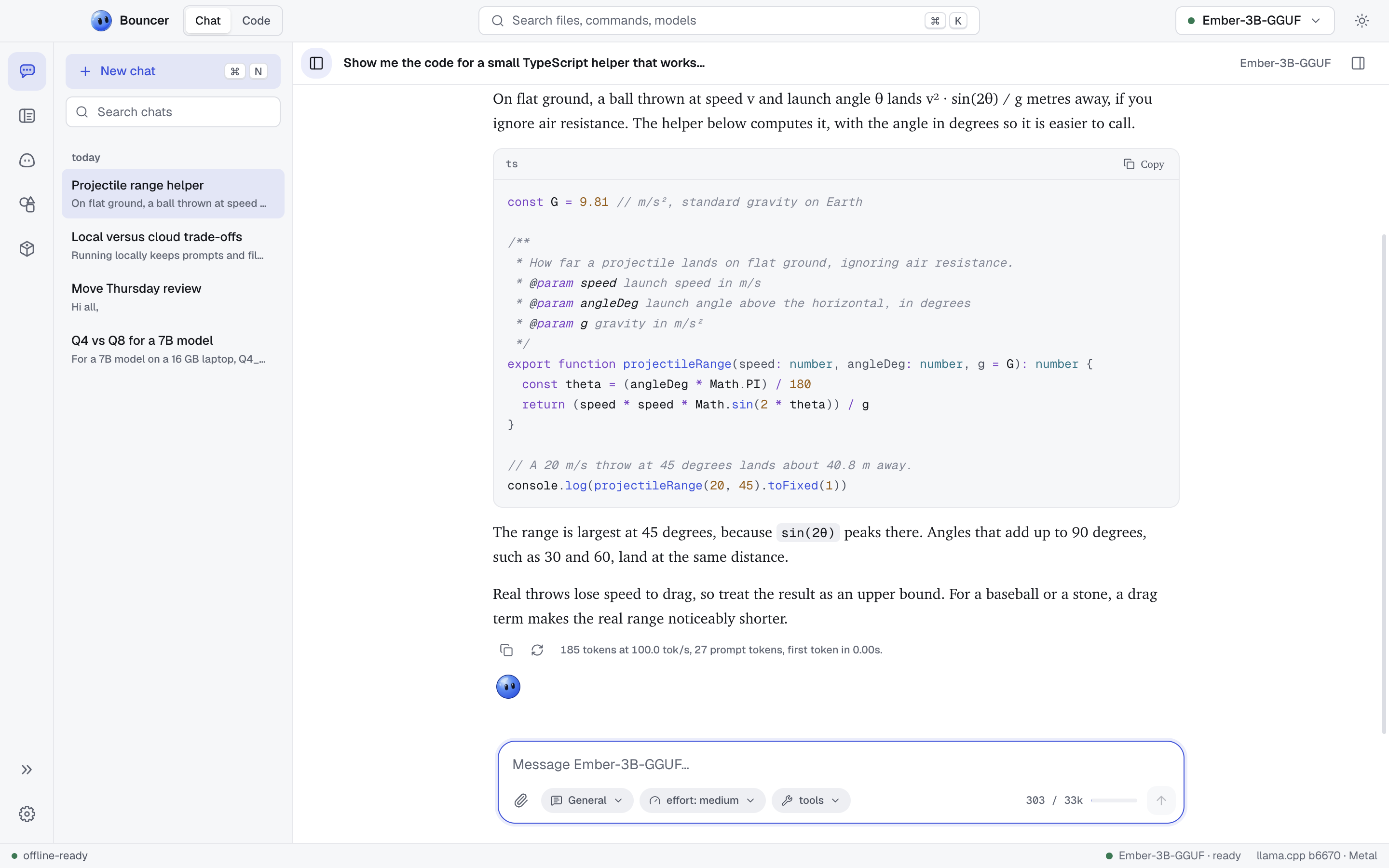
Run the installer for your system, or download the installer yourself. See Install for the one-line commands and the manual downloads for macOS, Windows and Linux.
Builds are not signed yet. The first launch may show a warning from macOS or Windows. Install explains how to get past it.
When Bouncer opens for the first time, a short onboarding dialog walks you through four steps:
- Welcome. A summary of what Bouncer does: chat and code with models that run on this computer.
- Customize your experience. Pick a theme from three cards: Graphite (soft dark gray), Light (paper) or Obsidian (pitch black). Each card previews its theme, and the choice applies at once. You can change it later in Settings.
- Three ways to work. An overview of Bouncer Chat, Bouncer Code and Bouncer Studio, which is coming later.
- Bring a model. A note that Bouncer checks what fits your machine before anything downloads. Use Browse models to go to the Marketplace now, or Later to finish.
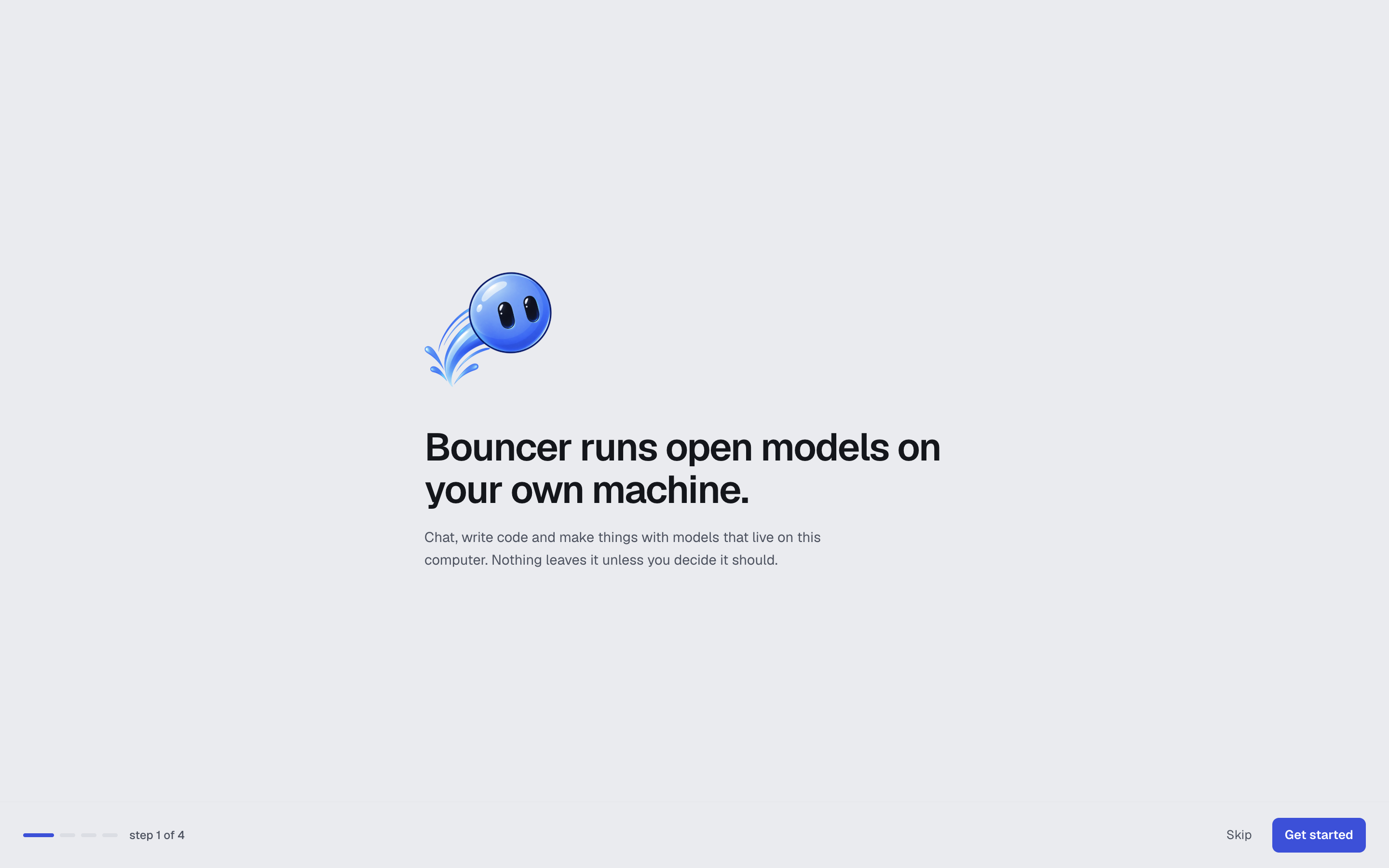
Press Skip at any time to close onboarding. You can open it again from Settings with Replay onboarding.
If you finished setting up Bouncer before the theme step existed, the same choice appears once, in a dialog, the next time you open it. Picking a theme or closing the dialog keeps it from coming back.
Bouncer runs models with llama.cpp. The engine is a separate download, and models cannot run until it is installed.
- Open the Marketplace from the left bar, or press ⌘ 6 (macOS) or Ctrl 6 (Windows and Linux).
- In the this machine panel on the left, the engine card says llama.cpp is not installed. Models need it to run.
- Click Install llama.cpp · Metal (the button names the backend Bouncer recommends for your hardware, such as CUDA or CPU). The card shows the download progress. Use Cancel to stop it.
The backend is the part of llama.cpp that uses your hardware, such as Metal on Apple Silicon or CUDA on an NVIDIA GPU. System requirements lists the options for each platform.
Start with a small model. A model in the 4 to 8 billion parameter range is a good first pick on most laptops.
- In the Marketplace, use the Discover tab to search, or turn on the fits this machine filter to hide models that are too large for your computer.
- Open a model. Its page lists the available quantized files, which are smaller versions of the model.
- Each file has a fit label:
- Runs well: comfortable headroom for your other apps.
- Tight fit: it loads, but other apps may push the system into swap, which makes it slow.
- Too large: it will not load alongside the operating system on this machine.
- Choose a file marked Runs well or Tight fit and click Download, which shows the file size on the button.
- Follow the progress on the Downloads tab. You can keep using Bouncer while it downloads.
When the download finishes, the model is in the Library tab. Click Load to start it. Downloads need an internet connection. Once a model is on your computer, you can use it offline.
Some models are gated on Hugging Face. To download them, add a Hugging Face access token in Settings → Hugging Face and accept the model's license on huggingface.co.
- Press ⌘ 1 (macOS) or Ctrl 1 (Windows and Linux) to open Bouncer Chat.
- Check the model pill in the title bar. It shows the loaded model and its state. The composer says Load a model to start chatting until a model is ready.
- Pick a starter prompt, such as Explain something simply, or type your own message. Starters only fill the composer. Nothing is sent until you press Enter.
- Watch the speed in the status bar, which shows tokens per second while a reply streams.
Everything in the chat stays on this computer.
- Chat: threads, attachments and chat settings.
- Models: the Marketplace, the Library and how fit is estimated.
- Bouncer Code and Bouncer IDE: work on a folder of code with a model that runs on this computer.
- Rebound: make your own bots, each with its own room of chats.
- Settings: themes, the engine, Hugging Face and hardware guardrails.
- Keyboard shortcuts: move around faster.
- Troubleshooting: if a model does not load or a download fails.