3. Scripts
Scripts are used to define how the actor behaves outside of the basic movement and appearance settings found in the GUI. They are typically used to define dialogue trees, change animations and make the actor act differently based on game progression, however, the scripting language has been made versatile enough so that scripts can be used for adding functionality outside of the scope of a typical Zelda NPC.
To add a script to an actor, go into the Scripts submenu and select "Add new script". You can also right click one of the tabs. You will be prompted to input a script name. This can be anything, but can help keep track of what's what.
You can delete a script in the same fashion; the currently selected script tab is the one that will be deleted.
An actor can have as many scripts as you'd like. The actor always executes scripts in the order they appear in the GUI (i.e the first script is executed first, etc.). Scripts can be started and restarted from other scripts as necessary through the use of special commands.
All of the below might look scary, but is generally only necessary to understand if you want to make your actors do specialized things. For the most basic actor that simply displays a message when spoken to, you can use the built-in basic_talk procedure.
Simply add a message with a given name and then add a script with this line: (substituting "message_name" with whatever you named your message)
::basic_talk message_name
That's it! The actor will now talk to you in-game.
If you need something a bit more advanced, the Examples folder contains a few basic actors you can look at to get a grasp on the most common things NPCs can do.
Important - you can find all the functions and parameters by right clicking a script and choosing one from the context menu. It will get added to the script, along with the parameters.
Parameters in [square brackets] are optional
Parameters in asterisks are keywords you can also find in the context menu
Parameters in {curly brackets} are keywords specified within the definition
(The above only applies to the in-game syntax explanations - this documentation hasn't yet been updated to reflect that)
It is possible to define certain constants similarly how you would in C:
#define example 1
And then use them later in the code:
set var.1 = example
The constant defined cannot contain spaces.
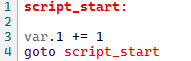
Labels can be defined by adding a unique name ending with a single colon. Other functions can then jump to this label:
One can define blocks of code that can be reused later within the script by encasing the code in a proc..endproc block.
Each procedure requires a name and can require any number of arguments.
For example:
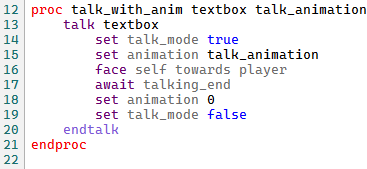
Here we have a procedure named "talk_with_anim", which takes two arguments: "textbox" and "talk_animation". The "textbox" argument is passed to the talk function, and the "talk_animation" argument is passed to the "set animation" function.
To use this procedure within a script, you simply suffix the name with :: and then provide any of the required arguments.
For example:

Where "Message" is the name of the message defined in the Messages tab, and "Wave" is the name of an animation defined for that actor in the General Data tab.
- To use a procedure, you must provide the same amount of arguments as required by the procedure.
- Procedures can call other procedures, but they cannot call themselves recursively.
- A procedure is simply pasted wherever it is used, with appropriate arguments replaced with the values provided.
By going into the Scripts submenu and clicking "Global Headers", one can access a window where global definitions and procedures can be defined. Before compiling a script, all of the global headers are pasted on top of a given script, which lets you use them anywhere without having to redefine them for each actor.
By default, NPC Maker adds a few basic definitions and procedures to this field when creating a new file.
While you can put regular non-procedure non-definition code here, it should generally be avoided, as then it will be included as part of every actor!
Supported operators: `
===><>=<=+=-=!=
Note that unlike most languages, = and == operators are interchangeable.
There are several types arguments that can be passed to functions:
-
Value. A simple number or string within a given function's specified range.
-
Script variable. On the Behavior tab it is possible to set how many of these are allocated in memory. These persist only for as long as the actor exists in memory (meaning, unless "Execute even out of camera" is set, walking away from the NPC far enough will reset them!).
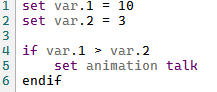
Script variables can take values from -2,147,483,648 to 2,147,483,647, but only with floating point precision. Script variables are referred to with the keyword var, followed by a dot and then a number of the variable:
-
Floating point script variable. Similarly to the above, but able to store floating point values. To access these, use the keyword varf, followed by a dot and then a number of the variable.
-
RNG value. Computed at the moment of execution pseudo-random value. A range for the possible values can be specified between -32768 and 32767. To use this use the keyword random, followed by a dot, and then a range in the form of min->max:
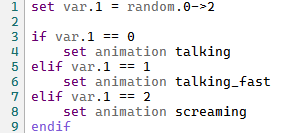
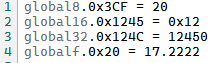
- Global Context/Play State struct value. Floating point, 8, 16 and 32 bit values can be read and written to. To do so, use the globalf, global8, global16 and global32 keywords, respectively, followed by a dot and then the offset:
-
Save struct value. Similarly to above, floating point, 8, 16 and 32 bit values in the savefile can be read and written to. To do so, use the savef, save8, save16 and save32 keywords, respectively, followed by a dot and then the offset.
-
Actor struct value. Similarly to above, floating point, 8, 16 and 32 bit values in any given actor can be read and written to. To do so, use the actorf, actor8, actor16, actor32 keywords, respectively, followed by a dot and then the offset. The actor being read or written to needs to be set before this is used. To do so, use the SET REF_ACTOR function.
Functions are divided into two types: ones that block execution and ones that don't. The former stops executing the script until the condition it describes is met, or until it completes. For example:
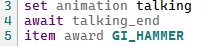
Here, the game switches the actor's animation, and then waits until the player stops talking to them. Once they do, and only then the player will be awarded the Megaton Hammer.
Functions which block execution will be marked with a !
You can run an execution-blocking function without blocking execution by putting it into an ASYNC block.
A list of functions, subfunctions and some of the keywords can be accessed by right-clicking a script.
Used to create an asynchronous block of instructions that will run separately to the calling script. Typically used to run execution-blocking functions without actually halting execution (for example, if you want an npc to move using the POSITION instruction while doing something else at the same time).
The asynchronous block is basically like a little embedded separate script. Thus, async blocks can set their own script_start and use awaits and jumps just like normal scripts. While possible, it is inadvisable to jump into or out of an async block using a goto instruction.
Note that using this will create a new context every time it is called - as such, it should generally not be used in parts of scripts that run every frame (as every new context takes up a little bit of RAM).
The block can be of two types:
-
ASYNC ONCE - runs the block only once. After the final instruction runs, the async context is destroyed (the memory is freed). The block will not be run again unless created again. Note that "final instruction" literally means the last one in the list - if
RETURNis used, the block will run again next frame from the currently setscript_start. If you wish to exit out of and destroy a block sooner, use theASYNC EXITinstruction. -
ASYNC LOOP - runs the block until it encounters an
ASYNC EXITinstruction. After the final instruction or return runs, execution automatically jumps back to the block'sscript_start. After exiting the context is destroyed (memory is freed) and will not be run again unless created again.
Syntax:

Alternate single-instruction syntax:

- FLAG_INF
- FLAG_EVENT
- FLAG_SWITCH
- FLAG_SCENE
- FLAG_TREASURE
- FLAG_ROOM_CLEAR
- FLAG_SCENE_COLLECT
- FLAG_TEMPORARY
- FLAG_INTERNAL
Blocks the script until a savefile flag condition matches. Refer to this documentation for more details on the game conventions of using these flags.
Exception to the above is the FLAG_INTERNAL subtype: This flag is stored within the actor struct, and is meant to be used for NPC logic where it would be wasteful to use an entire script variable. Note that the internal flags will be reset if the NPC despawns.
Syntax:
await [Subtype] [Flag Number] [true/false]
Examples:
await FLAG_INF 2 true
await FLAG_INTERNAL 12 false
- MOVEMENT_PATH_END
Blocks the script until the NPC finishes its path movement. Meant to be used whenever the NPC is meant to do something once it stops moving.
Syntax:
await MOVEMENT_PATH_END
- RESPONSE
Blocks the script until the player provides a response in a textbox. Meant to be used in conjuction with set responses function.
Syntax:
await RESPONSE
- TALKING_END
Blocks the script until the conversation with the NPC ends. Meant to be used at the end of a TALK ... ENDTALK block.
Not the same as AWAIT TEXTBOX_ON_SCREEN false: this actually checks if the NPC we're talking to is done talking, not just whether there's no textboxes on the screen.
Syntax:
await TALKING_END
- TEXTBOX_ON_SCREEN
Blocks the script until the condition of a textbox being or not being on-screen is met.
Syntax:
await TEXTBOX_ON_SCREEN [true/false]
- FOREVER
Blocks the script forever. Can be useful in niche applications.
Syntax:
await FOREVER
- PATH_NODE
Blocks the script until the NPC reaches the provided path node ID on its path movement. Useful if the NPC is meant to do something upon reaching a particular path node, such as changing animations and etc.
Syntax:
await PATH_NODE [Node Id]
- FRAMES
Blocks the script for a given amount of frames.
Syntax:
await FRAMES [Num Frames]
- ANIMATION_FRAME
Blocks the script until the NPC's animation reaches the specified animation frame. Useful if the NPC is meant to do something on a specific frame of animation; for example, can be used to play step sounds on the exact frames the NPC's animation makes their feet touch the ground.
Syntax:
await ANIMATION_FRAME [Operator] [Animation Frame Number]
- CUTSCENE_FRAME
Blocks the script until the cutscene reaches a certain frame. Useful if the NPC is meant to do something on a specific frame of a cutscene.
Syntax:
await CUTSCENE_FRAME [Operator] [Cutscene Frame Number]
- TIME_OF_DAY
Blocks the script until a certain time of day.
Syntax:
await TIME_OF_DAY [Operator] [HH:mm]
- STICK_X
Blocks the script until the control stick is moved horizontally to a specified position. Stick positions range from -127 to 127.
Syntax:
await STICK_X [Operator] [Value]
- STICK_Y
Blocks the script until the control stick is moved vertically to a specified position. Stick positions range from -127 to 127.
Syntax:
await STICK_Y [Operator] [Value]
- BUTTON_PRESSED
Blocks the script until a certain button is pressed. Right click the script menu and go into the keywords submenu to find the possible values for the button field.
Syntax:
await BUTTON_PRESSED [Button] [Controller Num]
Example:
await BUTTON_PRESSED BTN_A
await BUTTON_HELD BTN_L CONTROLLER_2
- BUTTON_HELD
Blocks the script until a certain button is held (as in, pressed for longer than 1 frame). Right click the script menu and go into the keywords submenu to find the possible values for the button field.
Syntax:
await BUTTON_HELD [Button] [Controller Num]
Examples:
await BUTTON_HELD BTN_Z
await BUTTON_HELD BTN_CDOWN
await BUTTON_HELD BTN_START CONTROLLER_4
- TEXTBOX_NUM
Blocks the script until, when showing a multi-box message, the specified box number is shown. Meant to be used so that NPCs can do something, such as changing their expression, on different textboxes, without having to define extra messages.
Syntax:
await TEXTBOX_NUM 2
- TEXTBOX_DISMISSED
Blocks the script until the player closes a textbox.
Syntax:
await TEXTBOX_DISMISSED
- TEXTBOX_DRAWING
Blocks the script until the textbox is being drawn; as in, this condition will only be met while the letters of the message are being unveiled. Useful if you want to play a non-texture talking animation while the text is drawing.
Syntax:
await TEXTBOX_DRAWING [true/false]
- ANIMATION_END
Blocks the script until the current animation finishes. Useful only for animations started using set current_animation ... once.
Syntax:
await ANIMATION_END
- PLAYER_ANIMATION_END
Blocks the script until the current player animation finishes.
Syntax:
await PLAYER_ANIMATION_END
- EXT_VAR
- EXT_VARF
Blocks the script until the specified NPC Maker NPC's script variable matches. Can be used for inter-NPC interactions.
Syntax:
await [Subtype] [NPC Maker Id] [Variable Num] [Operator] [Value]
-
CCALL
Allows the script to wait until the return value of an embedded C function matches.
Syntax:
AWAIT CCALL [Function_Name] [Argument1 .. Argument8] [Condition]
Examples:
await CCALL NpcM_Test > 20
await CCALL NpcM_Test 12 24 > 20
- ACTOR_EXISTS
Halts the script until an actor is spawned.
Syntax:
await ACTOR_EXISTS [SUBJECT]
SUBJECT can be one of the following:
- SELF - Refers to the actor executing the script
- NPCMAKER [id] - Refers to an NPC Maker actor with a given ID
- ACTOR_ID [id] - Refers to the closest actor with a given ID
- PLAYER - Refers to the player actor
- REF_ACTOR - Refers to the actor currently set by SET REF_ACTOR
- CUTSCENE_CUE
Halts the script until the currently set cutscene cue (animation) for a given cutscene slot matches the given condition. Can be used to trigger actions based on cutscene data without needing to rely on hardcoding framecounts.
Syntax:
await CUTSCENE_CUE [slot] [operator] [value]
Unlike when the cutscene system is used for animations, value matches the animation value in tools like SharpOcarina. In other words, to check for a cutscene event like this:

The script syntax would be:
await CUTSCENE_CUE 3 == 0x1A
Typically used if you want the NPC to face Link upon being talked to.
Syntax:
face SUBJECT towards TARGET - Makes SUBJECT rotate until it is facing TARGET
face SUBJECT together_with TARGET - Makes both SUBJECT and TARGET rotate until they face each other
face SUBJECT away_from TARGET - Makes SUBJECT rotate until it's facing away from the TARGET
SUBJECT and TARGET can be one of the following:
- SELF - Refers to the actor executing the script
- NPCMAKER [id] - Refers to an NPC Maker actor with a given ID
- ACTOR_ID [id] - Refers to the closest actor with a given ID
- PLAYER - Refers to the player actor
- REF_ACTOR - Refers to the actor currently set by SET REF_ACTOR
SUBJECT and TARGET cannot be one and the same.
Examples:
face SELF towards PLAYER - Makes the actor turn towards the player.
face NPCMAKER 2 towards NPCMAKER 3 - Makes an NPC Maker actor with the ID of 2 turn towards NPC Maker actor with the ID of 3.
face ACTOR_ID 333 away_from PLAYER - Makes Actor 333 (EN_OWL - Kaepora Gaebora) turn away from the player.
Used to jump to a label.
Syntax:
goto [label_name]
Used to jump to a point in the script designated by a variable. Best used in conjuction with SET LABEL_TO_VAR
This does not need to be used separately from goto. A goto with a variable as an argument is automatically compiled as a goto_var
Syntax:
goto_var [Value]
Conditional block.
General syntax takes the form of
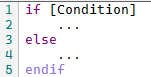
The "else" block can be omitted.
Multiple conditions can be checked by stringing them together with and/or:

You can also put both and and or conditions into a single if condition by wrapping the logical blocks in [] square brackets.
You can substitute a single-line IF/ELSE statement with a ternary statement:

You can string multiple mutually exclusive IF statements by using ELIF:

You can substitute lots of IF/ELIF statements with a switch case statement:

A case statement will continue on (fallthrough) to the next one if 'endcase' is not specified at the end of it.
While blocks execute as long as the specified condition is true. While blocks cannot contain else blocks.
- FLAG_INF
- FLAG_EVENT
- FLAG_SWITCH
- FLAG_SCENE
- FLAG_TREASURE
- FLAG_ROOM_CLEAR
- FLAG_SCENE_COLLECT
- FLAG_TEMPORARY
- FLAG_INTERNAL
Checks if a savefile flag condition matches. Refer to this documentation for more details on the game conventions of using these flags.
Exception to the above is the FLAG_INTERNAL subtype: This flag is stored within the actor struct, and is meant to be used for NPC logic where it would be wasteful to use an entire script variable. Note that the internal flags will be reset if the NPC despawns.
Syntax:
if [Subtype] [Flag Number] [true/false]
Examples:
if FLAG_INF 2 true
if FLAG_INTERNAL 12 false
- LINK_IS_ADULT
Checks if Link is currently an adult. By checking whether this is false, you can check if he's a child instead.
Syntax:
if LINK_IS_ADULT [true/false]
- IS_DAY
Checks if it's currently day (i.e between the Cucco's crow and before the Wolf's howl). By checking if this is false, you can check if it's night instead.
Syntax:
if IS_DAY [true/false]
- IS_TALKING
Checks if the NPC is currently marked as talking to the player.
Syntax:
if IS_TALKING [true/false]
- PLAYER_HAS_EMPTY_BOTTLE
Checks if the player possesses an empty bottle.
Syntax:
if PLAYER_HAS_EMPTY_BOTTLE [true/false]
- IN_CUTSCENE
Checks if a cutscene is currently playing.
Syntax:
if IN_CUTSCENE [true/false]
- TEXTBOX_ON_SCREEN
Checks if a textbox is being displayed on screen.
Syntax:
if TEXTBOX_ON_SCREEN [true/false]
- TEXTBOX_DRAWING
Checks if the game is currently printing out text. This can be used to play talking animations synced with the text drawing.
Syntax:
if TEXTBOX_DRAWING [true/false]
- PLAYER_HAS_MAGIC
Checks if player has obtained magic in the current savefile.
Syntax:
if PLAYER_HAS_MAGIC [true/false]
- ATTACKED
Checks if the NPC has been attacked. This only evaluates to "true" for one frame.
Syntax:
if ATTACKED [true/false]
- REF_ACTOR_EXISTS
Checks if SET REF_ACTOR has succeeded. If used immediately after SET REF_ACTOR, this can be used for checking if an actor is currently spawned.
Syntax:
if REF_ACTOR_EXISTS [true/false]
- PICKUP_IDLE
Checks whether the NPC hasn't yet been picked up.
Syntax:
if PICKUP_IDLE [true/false]
- PICKUP_PICKED_UP
Checks whether the NPC has been picked up.
Syntax:
if PICKUP_PICKED_UP [true/false]
- PICKUP_THROWN
Checks whether the NPC has been thrown after being picked up.
Syntax:
if PICKUP_THROWN [true/false]
- PICKUP_LANDED
Checks whether the NPC has landed after being thrown.
Syntax:
if PICKUP_LANDED [true/false]
- IS_SPEAKING
Checks whether the NPC is currently speaking.
Syntax:
if IS_SPEAKING [true/false]
- PLAYER_RUPEES
Checks the player's rupee count.
Syntax:
if PLAYER_RUPEES [Operator] [Value]
Examples:
if PLAYER_RUPEES > 20
if PLAYER_RUPEES == 100
- SCENE_ID
Checks the scene ID.
Syntax:
if SCENE_ID [Operator] [Value]
- PLAYER_SKULLTULAS
Checks the player's Golden Skulltula count.
Syntax:
if PLAYER_SKULLTULAS [Operator] [Value]
Examples:
if PLAYER_SKULLTULAS > 20
if PLAYER_SKULLTULAS == 100
- PATH_NODE
Checks which path node the NPC is currently traversing.
Syntax:
if PATH_NODE [Operator] [Value]
Examples:
if PATH_NODE > 2
if PATH_NODE == 4
- ANIMATION_FRAME
Checks which animation frame is currently being displayed.
Syntax:
if ANIMATION_FRAME [Operator] [Value]
Examples:
if ANIMATION_FRAME > 2
if ANIMATION_FRAME == 4
- CUTSCENE_FRAME
Checks which cutscene frame is currently being displayed.
Syntax:
if CUTSCENE_FRAME [Operator] [Value]
Examples:
if CUTSCENE_FRAME > 2
if CUTSCENE_FRAME == 4
- PLAYER_HEALTH
Checks current player health. Values directly correspond to health amounts (i.e 1 = 1 heart, 0.5 - half heart, 0.25 - quarter heart)
Syntax:
if PLAYER_HEALTH [Operator] [Value]
Examples:
if PLAYER_HEALTH > 2.25
if PLAYER_HEALTH < 10
- PLAYER_BOMBS
- PLAYER_BOMBCHUS
- PLAYER_ARROWS
- PLAYER_DEKUNUTS
- PLAYER_DEKUSTICKS
- PLAYER_BEANS
- PLAYER_SEEDS
Checks current player ammo.
Syntax:
if [Subtype] [Operator] [Value]
Examples:
if PLAYER_BOMBS > 20
if PLAYER_ARROWS < 10
- EXT_VAR
- EXT_VARF
Checks another NPC Maker NPC's script variable.
Syntax:
if [Subtype] [NPC Maker Id] [Variable Num] [Operator] [Value]
Examples:
if EXT_VAR 2 1 > 20
if EXT_VARF 3 5 == 1.2333
- STICK_X
- STICK_Y
Checks analog stick position.
Syntax:
if [Subtype] [Operator] [Value]
Examples:
if STICK_X > 20
if STICK_Y <= -40
- ITEM_BEING_TRADED
Checks which item Link is attempting to trade.
Syntax:
if ITEM_BEING_TRADED [Trade Item]
Examples:
if ITEM_BEING_TRADED EXCH_ITEM_SWORD_BROKEN
- TRADE_STATUS
Checks whether the trade was successful or not. See the TRADE section for more details.
Syntax:
if TRADE_STATUS [SUCCESS|FAILURE|TALKED TO]
- PLAYER_MASK
Checks which mask the player is wearing. List of masks is available in the script context menu.
Syntax:
if PLAYER_MASK [Operator] [Mask]
Examples:
if PLAYER_MASK == ITEM_MASK_KEATON
- TIME_OF_DAY
Checks the time of day. Time of day needs to be expressed in the format HH:mm (24-hour, "military" time).
Syntax:
if TIME_OF_DAY [Operator] [Time]
Examples:
if TIME_OF_DAY > 2:54
if TIME_OF_DAY == 12:00
- ANIMATION
Checks the currently playing animation.
Syntax:
if ANIMATION [Operator] [Animation name]
Examples:
if ANIMATION == Idle
- PLAYER_HAS_INVENTORY_ITEM
Checks whether player has a particular inventory item. The list of items is available in the script context menu.
Syntax:
if PLAYER_HAS_INVENTORY_ITEM [Item name]
Examples:
if PLAYER_HAS_INVENTORY_ITEM ITEM_HOOKSHOT
- PLAYER_HAS_QUEST_ITEM
Checks whether player has a particular quest item. The list of items is available in the script context menu.
Syntax:
if PLAYER_HAS_QUEST_ITEM [Item name]
Examples:
if PLAYER_HAS_QUEST_ITEM QUEST_MEDALLION_SPIRIT
- PLAYER_HAS_DUNGEON_ITEM
Checks whether player has a particular dungeon item. The list of items is available in the script context menu.
Syntax:
if PLAYER_HAS_DUNGEON_ITEM [Item name]
Examples:
if PLAYER_HAS_DUNGEON_ITEM DUNGEON_KEY_BOSS
- BUTTON_PRESSED
Checks whether a button has been pressed last frame. List of buttons in available in the script context menu, under "keywords".
Syntax:
if BUTTON_PRESSED [Button] [Condition] [Controller]
Examples:
if BUTTON_PRESSED BTN_A
if BUTTON_PRESSED BTN_CUP false
if BUTTON_PRESSED BTN_DLEFT true CONTROLLER_3
- BUTTON_HELD
Checks whether a button is being held. List of buttons in available in the script context menu, under "keywords".
Syntax:
if BUTTON_HELD [Button] [Condition] [Controller]
Examples:
if BUTTON_HELD BTN_A
if BUTTON_HELD BTN_CUP false
if BUTTON_HELD BTN_DLEFT true CONTROLLER_2
- TARGETTED
Checks whether the NPC is being targetted.
Syntax:
if TARGETTED [True/False]
- DISTANCE_FROM_PLAYER
Checks the current distance of the actor from the player in a straight line.
Syntax:
if DISTANCE_FROM_PLAYER [Operator] [Value]
Examples:
if DISTANCE_FROM_PLAYER > 200.0
if DISTANCE_FROM_PLAYER == 1214.0
- DISTANCE_FROM_REF_ACTOR
Checks the current distance of the actor from the given ref_actor, in a straight line. Use SET REF_ACTOR before using this.
Syntax:
if DISTANCE_FROM_REF_ACTOR [Operator] [Value]
Examples:
if DISTANCE_FROM_REF_ACTOR > 200.0
if DISTANCE_FROM_REF_ACTOR == 1214.0
- LENS_OF_TRUTH_ON
Checks if the player is using the Lens of Truth.
Syntax:
if LENS_OF_TRUTH_ON {True/False]
- DAMAGED_BY
Checks what the actor was hit with, allowing for varying responses to different types of damage. Damage types are available from the Script Context Menu. "React of attacked" must be checked for this to work.
Syntax:
if DAMAGED_BY [Damage type]
Examples:
if DAMAGED_BY EXPLOSION
if DAMAGED BY HAMMER_JUMPATK
- ROOM_ID Checks the current room ID.
Syntax:
if ROOM_ID [Operator] [Value]
Examples:
if ROOM_ID == 2
- CCALL
Allows the return value of an embedded C function to be used as a conditional.
Syntax:
if CCALL [Function_Name] [Argument1 .. Argument8] [Condition]
Examples:
IF CCALL NpcM_Test > 20
IF CCALL NpcM_Test 12 24 == 20
- ACTOR_EXISTS
Checks if an actor is currently spawned.
Syntax:
if ACTOR_EXISTS [SUBJECT]
SUBJECT can be one of the following:
- SELF - Refers to the actor executing the script
- NPCMAKER [id] - Refers to an NPC Maker actor with a given ID
- ACTOR_ID [id] - Refers to the closest actor with a given ID
- PLAYER - Refers to the player actor
- REF_ACTOR - Refers to the actor currently set by SET REF_ACTOR
- DEBUG_VAR
- DEBUG_VARF
Checks the debug variables. Actor must be compiled with the debug struct for this to work.
Syntax:
if DEBUG_VAR [operator] [value]
- CUTSCENE_CUE
Checks the currently set cutscene cue (animation) for a given cutscene slot. Can be used to trigger actions based on cutscene data without needing to rely on hardcoding framecounts.
Syntax:
if CUTSCENE_CUE [slot] [operator] [value]
Unlike when the cutscene system is used for animations, value matches the animation value in tools like SharpOcarina. In other words, to check for a cutscene event like this:
The script syntax would be:
if CUTSCENE_CUE 3 == 0x1A
Used to change the player's inventory.
Syntax:
item give [INVENTORY_ITEM] - Gives the player the specified item without any cutscene (i.e silently)
item award [AWARD_ITEM] - Gives the player the specified item with a confirmation cutscene (i.e Link holds the item up in the air, textbox describing the item pops up). The award cutscene cannot happen under certain conditions, such as while another textbox is visible, so keep that in mind.
item take [INVENTORY_ITEM] - Takes away the specified item from the player, if they have it. If the taken item is a bottle item, it gets replaced with a bottle. If this function is executed due to a trade, and the player has multiple of the same bottle item, the specific bottle item that was chosen to initiate the trade will be taken automatically.
You can find the values for INVENTORY_ITEM and AWARD_ITEM by right-clicking the script and going into the appropriate submenu.
Used to destroy actors. If an NPC Maker actor is destroyed, the script execution immediately ends.
Syntax:
kill TARGET
TARGET can be one of the following:
- SELF - The actor executing the script. This stops the script!
- NPCMAKER [id] - An NPC Maker actor with a given ID
- ACTOR_ID [id] - Closest actor with a given ID
- PLAYER - Player actor. This is NOT the way to reduce the player's health to 0 - this will just delete the player actor!
- REF_ACTOR - Actor currently set by SET REF_ACTOR
Does nothing.
Syntax
nop
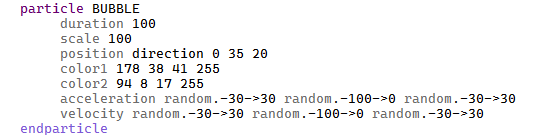
Spawns a particle.
Syntax:
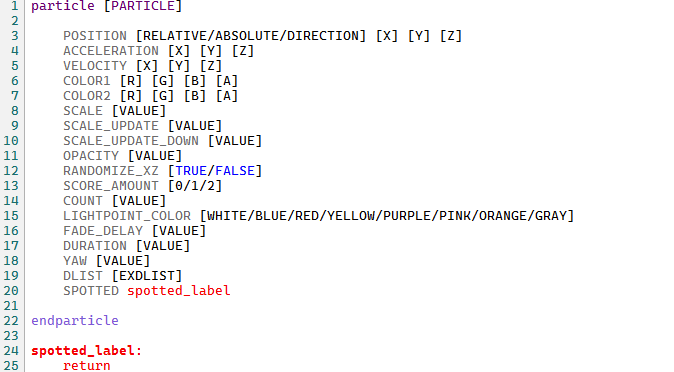
[PARTICLE] types can be found by right-clicking the script.
Note: Not all particle types support all of the below options. The list of supported arguments can be found here.
-
POSITION - The position to spawn the particle at. Has three subtypes:
- RELATIVE - The given coords are added to the actor's, and the particle spawns there,
- ABSOLUTE - The given coords are used directly,
- DIRECTION - The given coords are relative to the actor's rotation and position. So, for example, using this subtype and setting [Z] to 100 will spawn the particle 100 units in front of the NPC.
- RELATIVE_REF_ACTOR - Same as "RELATIVE", but using REF_ACTOR's coordinates.
- DIRECTION_REF_ACTOR - Same as "DIRECTION", but using REF_ACTOR's coordinates.
-
ACCELERATION - How fast the particle will increase its speed in each axis when moving.
-
VELOCITY - Initial particle speed.
-
COLOR1/COLOR2 - Particle color is most often decided by using these two colours in various ways.
-
SCALE - Particle size. Unlike model scale, most particles require scales above 100 to be visible.
-
SCALE_UPDATE - The amount the particle will resize itself each frame.
-
SCALE_UPDATE_DOWN - The amount the particle will resize itself each frame when shrinking.
-
OPACITY - How see-through the particle is. Takes values between 0 and 255.
-
RANDOMIZE_XZ - In bubble particles, it makes them automatically move from side to size to simulate floating.
-
SCORE_AMOUNT - For the SCORE particle, decides the shown number. 0 = 30, 1 = 60, 2 = 100.
-
COUNT - How many particles to spawn.
-
LIGHTPOINT_COLOR - For the LIGHT_POINT particle, which uses colors from a pre-made list.
-
FADE_DELAY - For the DODONGO_FIRE particle, decides how long the particle will stay visible before fading out.
-
DURATION - Amount of time the particle exists before vanishing.
-
YAW - Decides rotation for the LIGHTNING particle.
-
DLIST - For the DISPLAY_LIST particle, the external dlist entry to use for drawing. Note: the "File Start" field is not usable for particles!
-
SPOTTED - Label name to jump to whenever the NPC spots Link for the SEARCH_EFFECT particle (used by Hylian Guards in the Castle Courtyard and the Deku Scrubs in the Woodfall Palace in Majora's Mask).
Certain particles require objects to be loaded:
- LIGHT_POINT requires OBJECT_FHG
- SCORE requires OBJECT_YABUSAME_POINT
- DODONGO_FIRE requires OBJECT_DODONGO
- FREEZARD_SMOKE requires OBJECT_FZ
For the sake of performance, these objects are NOT loaded automatically before an attempt to spawn a particle. They must be loaded separately.
Examples:
This function works in a somewhat similar fashion to the TALK function. When used, it will create an area in which the player's actor icon will change to "Pick Up". The area's radius can be defined by setting the Talk/trade radius on the behavior tab.
Makes the actor pickuppable and able to be thrown. Further actions should be controlled by the IF PICKUP_IDLE, IF PICKUP_THROWN, IF PICKUP_PICKED_UP and IF PICKUP_LANDED functions.
Syntax
pickup
Used to start cutscenes, sound effects and music.
Syntax:
play sfx [SFX_NAME] [VOLUME] [PITCH] [REVERB] - Plays the given sound effect at the actor's position (i.e the sound effect will be louder and quieter and play in a different speaker depending on the actor position relative to the camera).
play sfx_global [SFX_NAME] [VOLUME] [PITCH] [REVERB] - Plays the given sound effect without a position set (i.e the sound effect will be heard even if the actor is far away from the camera).
play bgm [BGM_NAME] - Plays music. The currently playing music is stopped and replaced with the specified one.
play cutscene - Starts the cutscene defined for the current scene's header.
play cutscene [HEADER_ID] - Starts the cutscene defined for the specified header ID.
You can find the values for SFX_NAME and BGM_NAME by right-clicking the script and going into the appropriate submenu. Volume and Pitch should be a float between 0.0 and 1.0 (with 1.0 being the default volume/pitch for that sound effect. Reverb should be between -127 and 127 (with 0 being no additional reverb)
Used to force the player into a conversation.
Syntax:
force_talk [Message]
force_talk [Message_Adult] [Message_Child]
Message_Adult and Message_Child can either be a name of a message defined for the actor in the Messages tab, or an ID of a message from the game's message_static file. If only one is supplied, then it gets displayed regardless of age. If two, the first message is shown when Link is an adult, and the second when he's a child.
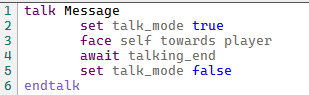
Creates an area in which the player's actor icon will change to "Talk". The area's radius can be defined by setting the Talk/trade radius on the behavior tab. Upon the NPC being talked to, the script moves onto the block of code defined until the endtalk tag.
Syntax:
talk [Message] ... endtalk
talk [Message_Adult] [Message_Child] ... endtalk
Message_Adult and Message_Child can either be a name of a message defined for the actor in the Messages tab, or an ID of a message from the game's message_static file. If only one is supplied, then it gets displayed regardless of age. If two, the first message is shown when Link is an adult, and the second when he's a child.
Examples:
Displays a textbox. If a textbox is already being shown, it gets replaced with this one.
Syntax:
show_textbox [Message]
show_textbox [Message_Adult] [Message_Child]
Message_Adult and Message_Child can either be a name of a message defined for the actor in the Messages tab, or an ID of a message from the game's message_static file. If only one is supplied, then it gets displayed regardless of age. If two, the first message is shown when Link is an adult, and the second when he's a child.
Same as show_textbox, but the textbox is not assigned to the actor showing it - which has some rare applications.
Closes the currently opened textbox if one is open.
Syntax
close_textbox
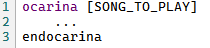
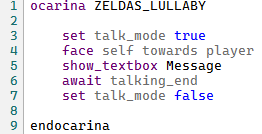
This function works in a somewhat similar fashion to the TALK function. When used, it will create an area in which a song can be played. The area's radius can be defined by setting the Talk/trade radius on the behavior tab. If the specified song is played, the script jumps into the instruction block, where further logic can be defined. The list of possible songs can be found by right clicking the script.
Syntax:
Examples:
Makes the actor move. The script is halted until the NPC reaches the destination. If the NPC being moved is an NPC Maker NPC, which is set as being unable to move, then the script waits until the NPC can move.
Syntax:
position SET [SUBJECT] [X_COORD] [Y_COORD] [Z_COORD]
position MOVE_BY [SUBJECT] [X_COORD] [Y_COORD] [Z_COORD] [SPEED] [Ignore Y: true/false]
position MOVE_TO [SUBJECT] [X_COORD] [Y_COORD] [Z_COORD] [SPEED] [Ignore Y: true/false]
position DIRECTION_MOVE_BY [SUBJECT] [X_COORD] [Y_COORD] [Z_COORD] [SPEED] [Ignore Y: true/false]
position MOVE_BY_REF_ACTOR [SUBJECT] [X_COORD] [Y_COORD] [Z_COORD] [SPEED] [Ignore Y: true/false]
position DIRECTION_MOVE_BY_REF_ACTOR [SUBJECT] [X_COORD] [Y_COORD] [Z_COORD] [SPEED] [Ignore Y: true/false]
- The
SETsubtype immediately moves the actor to the specified position. - The
MOVE_TOsubtype makes the actor move to the specified coordinate in the level, at the provided speed. - The
MOVE_BYsubtype makes the actor move by the specified distance in each axis, at the provided speed. - The
DIRECTION_MOVE_BYmakes the actor move to the specified coordinate relative to the actor's rotation. So, for example, using this subtype and setting the Z_COORD to 100 will make the NPC move forward by 100 units. - The
MOVE_BY_REF_ACTORsubtype makes the actor move to the specified coordinate relative to the REF_ACTOR's position. - The
DIRECTION_MOVE_BY_REF_ACTORsubtype makes the actor move to the specified coordinate, relative to the REF_ACTOR's position and rotation. So, for example, using this subtype and setting the Z_COORD to 100 will make the NPC move to a position 100 units in front of REF_ACTOR.
[SUBJECT] is the actor that's meant to move as a result of this, and can be one of the following:
- SELF - The actor executing the script
- NPCMAKER [id] - An NPC Maker actor with a given ID
- ACTOR_ID [id] - Closest actor with a given ID
- PLAYER - Player actor.
- REF_ACTOR - Actor currently set by SET REF_ACTOR
If Ignore Y is set to true, the NPC will follow collision as it moves instead of strictly adhering to the given Y_COORD.
If the NPC gets stuck on its way, it will stop and the movement will be considered completed.
Stops execution on this frame. On the next frame, the script resumes from the start position.
Syntax
return
Makes the actor rotate. The script is halted until the NPC completes the rotation.
Syntax:
rotation SET [SUBJECT] [X_ROT] [Y_ROT] [Z_ROT]
rotation ROTATE_BY [SUBJECT] [X_ROT] [Y_ROT] [Z_ROT] [SPEED]
rotation ROTATE_TO [SUBJECT] [X_ROT] [Y_ROT] [Z_ROT] [SPEED]
- The
SETsubtype immediately sets the actor's rotation to the specified one. - The
ROTATE_BYsubtype makes the actor rotate by the specified amount in each axis, at the provided speed. - The
ROTATE_TOsubtype makes the actor rotate to the specified rotation, at the provided speed.
[SUBJECT] is the actor that's meant to rotate as a result of this function, and can be one of the following:
- SELF - The actor executing the script
- NPCMAKER [id] - An NPC Maker actor with a given ID
- ACTOR_ID [id] - Closest actor with a given ID
- PLAYER - Player actor.
- REF_ACTOR - Actor currently set by SET REF_ACTOR
The _ROT values should be given in binary degrees. For easy conversion, you can use the DEG_ prefix to convert regular degrees to binary degrees. For example:
rotation SET SELF DEG_0 DEG_180 DEG_0
Makes the actor change size. The script is halted until the NPC completes the change.
Syntax:
scale SET [SUBJECT] [SCALE]
scale SCALE_BY [SUBJECT] [SCALE] [SPEED]
scale SCALE_TO [SUBJECT] [SCALE] [SPEED]
- The
SETsubtype immediately sets the actor's scale to the specified one. - The
SCALE_BYsubtype makes the actor scale by the specified amount, at the provided speed. - The
SCALE_TOsubtype makes the actor scale to the specified scale, at the provided speed.
[SUBJECT] is the actor meant to be resized as a result of this function, and can be one of the following:
- SELF - The actor executing the script
- NPCMAKER [id] - An NPC Maker actor with a given ID
- ACTOR_ID [id] - Closest actor with a given ID
- PLAYER - Player actor.
- REF_ACTOR - Actor currently set by SET REF_ACTOR
The SCALE value applies to all axis.
Stops and starts scripts. Used for making certain parts of the actor not run. For example, you can define different scripts for different game scenarios and only leave on the one applicable for the situation.
Syntax
script stop [SCRIPT ID] - Stops script; the next time the given script is supposed to be executed, it will not be.
script start [SCRIPT ID] - Starts script.
Script ID is zero indexed.
- TARGET_LIMB
- TARGET_DISTANCE
- HEAD_LIMB
- WAIST_LIMB
- LOOKAT_TYPE
- HEAD_VERT_AXIS
- HEAD_HORIZ_AXIS
- WAIST_VERT_AXIS
- WAIST_HORIZ_AXIS
- CUTSCENE_SLOT
- BLINK_SEGMENT
- TALK_SEGMENT
- ALPHA
- MOVEMENT_DISTANCE
- MAXIMUM_ROAM
- MOVEMENT_LOOP_DELAY
- ATTACKED_SFX
- LIGHT_RADIUS
- CUTSCENE_FRAME
- COLLISION_RADIUS
- COLLISION_HEIGHT
- MOVEMENT_LOOP_START
- MOVEMENT_LOOP_END
- COLLISION_YOFFSET
- TARGET_OFFSET_X
- TARGET_OFFSET_Y
- TARGET_OFFSET_Z
- MODEL_OFFSET_X
- MODEL_OFFSET_Y
- MODEL_OFFSET_Z
- CAMERA_ID
- NPC_ID
- RIDDEN_NPC
- UNCULL_FORWARD
- UNCULL_DOWN
- UNCULL_SCALE
- LOOKAT_OFFSET_X
- LOOKAT_OFFSET_Y
- LOOKAT_OFFSET_Z
- CURRENT_PATH_NODE
- CURRENT_ANIMATION_FRAME
- LIGHT_OFFSET_X
- LIGHT_OFFSET_Y
- LIGHT_OFFSET_Z
- TIMED_PATH_START_TIME
- TIMED_PATH_END_TIME
- MOVEMENT_SPEED
- TALK_RADIUS
- SMOOTHING_CONSTANT
- SHADOW_RADIUS
- LOOP_MOVEMENT
- HAS_COLLISION
- DO_BLINKING_ANIMATIONS
- DO_TALKING_ANIMATIONS
- JUST_SCRIPT
- OPEN_DOORS
- MOVEMENT_IGNORE_Y
- FADES_OUT
- LIGHT_GLOW
- PAUSE_CUTSCENE
- INVISIBLE
- TALK_PERSIST
- CASTS_SHADOW
- IS_SPEAKING
- ANIMATION_INTERP_FRAMES
- NO_AUTO_ANIM
- TALK_MODE
- PLAYER_BOMBS
- PLAYER_BOMBCHUS
- PLAYER_ARROWS
- PLAYER_DEKUNUTS
- PLAYER_DEKUSTICKS
- PLAYER_BEANS
- PLAYER_SEEDS
- PLAYER_RUPEES
- PLAYER_HEALTH
- ENV_COLOR
- LIGHT_COLOR
- RESPONSE_ACTIONS
- ANIMATION_OBJECT
- ANIMATION_OFFSET
- ANIMATION_STARTFRAME
- ANIMATION_ENDFRAME
- ANIMATION_SPEED
- FLAG_INF
- FLAG_EVENT
- FLAG_SWITCH
- FLAG_SCENE
- FLAG_TREASURE
- FLAG_ROOM_CLEAR
- FLAG_SCENE_COLLECT
- FLAG_TEMPORARY
- FLAG_INTERNAL
- MASS
- PRESS_SWITCHES
- IS_TARGETTABLE
- AFFECTED_BY_LENS
- IS_ALWAYS_ACTIVE
- IS_ALWAYS_DRAWN
- REACTS_IF_ATTACKED
- EXISTS_IN_ALL_ROOMS
- GRAVITY_FORCE
- MOVEMENT_PATH_ID
- PLAYER_CAN_MOVE
- ACTOR_CAN_MOVE
- ANIMATION
- ANIMATION_INSTANTLY
- SCRIPT_START
- BLINK_PATTERN
- TALK_PATTERN
- SEGMENT_ENTRY
- DLIST_VISIBILITY
- CAMERA_TRACKING_ON
- EXT_VAR
- TIME_OF_DAY
- ATTACKED_EFFECT
- MOVEMENT_TYPE
- GENERATES_LIGHT
- REF_ACTOR
- PLAYER_ANIMATION
- PLAYER_ANIMATE_MODE
- DLIST_COLOR
- DLIST_OFFSET
- DLIST_TRANS_X
- DLIST_TRANS_Y
- DLIST_TRANS_Z
- DLIST_SCALE
- DLIST_ROT_X
- DLIST_ROT_Y
- DLIST_ROT_Z
- DLIST_LIMB
- DLIST_OBJECT
- RAM
- LABEL_TO_VAR
- LABEL_TO_VARF
- DEBUG_VAR
- DEBUG_VARF
- ANIMID_IDLE
- ANIMID_WALKING
- ANIMID_ATTACKED
Allows getting variables from other NPCs.
- EXT_VAR
- EXT_VARF
Gets an external script variable from another NPC and sets it at the destination. Destination can be a memory location (e.g global8, global16, global32, actor8, actor16, actor32, save8, save16, save32) or a script variable of the calling NPC Maker instance.
Syntax:
get EXT_VAR destination npc_id ext_var_num
Example:
get EXT_VAR var.1 22 3
Allows calling embedded C Functions from scripts.
Return value can be set to a destination memory location (e.g global8, global16, global32, actor8, actor16, actor32, save8, save16, save32) or a script variable of the calling NPC Maker instance. You can also skip saving the return value by using "_" in place of the destination.
You can pass up to eight arguments to each function.
Syntax:
ccall Function_Name [Destination] [Argument1 .. Argument8]
Examples:
ccall NpcM_GetValue Var.3
ccall NpcM_GetValue Var.3 12 42
ccall NpcM_GetValue _ 7 global8.0x12
Spawns actors.
Syntax:

All of the parameters inside the spawn..endspawn block are optional and set to 0 if left unspecified.
-
ACTOR ID - internal actor number or name - right click the script and select "Actors" to see a list of retail actor numbers.
-
VARIABLE - 16-bit value containing the settings ("params") for the actor.
-
POSITION - position to spawn the actor at. There are three modes:
"ABSOLUTE" - at the exact coordinates in the level.
"RELATIVE" - coordinates are added to the coordinates of the actor using the spawn function.
"DIRECTION" - coordinates are added to the coordinates of the actor using the spawn function, but aligned to the actor's rotation. For example, spawning withPOSITION DIRECTION 0 0 100will spawn the actor 100 units in front of the spawning actor.
"RELATIVE_REFACTOR" - Same as "RELATIVE", but the coordinates are calculated using REF_ACTOR's position.
"DIRECTION_REFACTOR" - Same as "DIRECTION", but the coordinates are calculated using REF_ACTOR's position and rotation. -
ROTATION - the rotation to spawn the actor with. Value should be given in binary degrees. For easy conversion, you can use the
DEG_prefix to convert regular degrees to binary degrees. For example:
ROTATION DEG_0 DEG_180 DEG_0 -
SET_AS_REF - if used, REF_ACTOR will be automatically set to the actor being spawned.
Example:

Will spawn Epona 100 units in front of the actor.
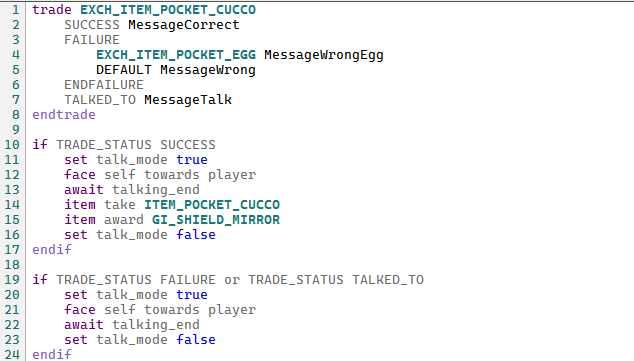
Sets up a trade.
Syntax:

This function works in a somewhat similar fashion to the TALK function. When used, it will create an area in which the player's actor icon will change to "Talk". The area's radius can be defined by setting the Talk/trade radius on the behavior tab. The player can talk to the NPC like normal while in that circle, or present them with a C button item.
[TRADE_ITEM] is the name of a trade item. You can find out the retail game's trade items by right-clicking the script and selecting the "Trade items" submenu.
The trade..endtrade block must contain three sub-blocks:
-
success- Specifies the message(s) shown if the player presents the correct trade item. -
failure..endfailureblock lets one special-case any given item - the actor can say different things depending on which wrong thing he's presented with. [WRONG_TRADE_ITEM] is the name of the trade item and can be found in the same way as [TRADE_ITEM]. The final entry on the list should be named DEFAULT, and specifies the message shown in case of any other wrong item being shown. -
talked_to- Specifies the message(s) shown if the player simply talks to the NPC.
MessageAdult and MessageChild can either be a name of a message defined for the actor in the Messages tab, or an ID of a message from the game's message_static file. If only one is supplied, then it gets displayed regardless of age. If two, the first message is shown when Link is an adult, and the second when he's a child.
After a trade..endtrade block, the trade status may be checked by evaluating TRADE_STATUS followed by the logic to execute based on the results of the trade. Note that this does NOT have to result in an actual trade - you can omit the TRADE_STATUS checks if you only wish for the NPC to say something based on the item being shown to them, for example.
Example:
Allows the actor to warp the player somewhere.
Syntax
warp [ROUTE ID]
warp [ROUTE ID] [TRANSITION TYPE]
warp [ROUTE ID] [TRANSITION TYPE] [NEXT CUTSCENE INDEX]
ROUTE ID is the entrance index in the game's route file.
TRANSITION TYPE decides which transition to use when warping out. A list of transition types can be found in the context menu. Set this to 255 (TRANSITION_TYPE_ROUTE) to use the transition type defined in the route.
NEXT CUTSCENE INDEX is used to define the cutscene to play once the player arrives at the destination.
Saves the game.
Syntax
save
The screen turns fully opaque, selected colour at a given rate.
Syntax
fadeout [R] [G] [B] [RATE]
R, G, B are the colour values, from 0 - 255.
RATE is the speed at which the opacity of the colour should increase, from 1 to 255.
Undoes the effect of FadeOut.
Syntax
fadeout [RATE]
RATE is the speed at which the opacity of the colour should decrease, from 1 to 255.
Stops a sound effect or music
Syntax
stop sfx [SFX_NAME] - Stops the given SFX.
stop bgm [FADE_DURATION] - Stops the currently playing background music or fanfare. Parameter defines how long it takes until the music completely fades out.
Shakes the screen. Rumble Paks also rumble for the duration of this shake.
Syntax
quake [QUAKE_TYPE] [speed] [duration] [x] [y] [zoom] [zrot]
QUAKE_TYPE - List of available types can be found in the script context menu,
Speed - how fast the screen will shake,
Duration - how long the screen will shake,
X - Maximum amount to move on the horizontal axis,
Y - Maximum amount to move on the vertical axis,
Zoom - Maximum amount for the screen to move in and out,
Zrot - Maximum amount for the screen to rotate