Connecting
The connect screen is the whole of the app's setup. There is no account, no pairing code and no QR step — a connection is an address plus a handshake.
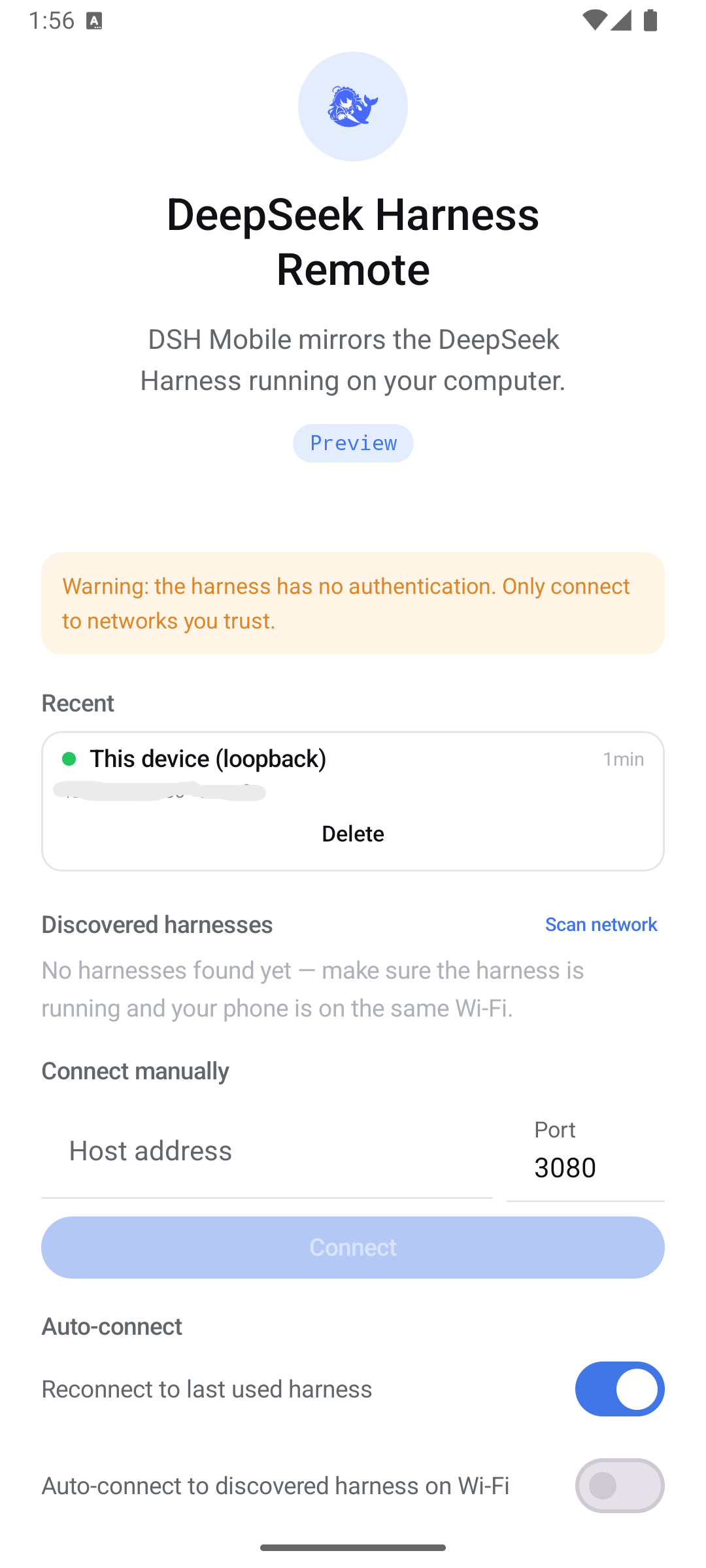
The app considers itself connected only when all three of these succeed:
-
/api/events.muxopens — the session event stream. -
/api/events.hostopens — the session and workspace registry stream. -
host.describeanswers — proof that what is on that port really is a harness.
Both sockets must open within 3 seconds of each other, and both are downlink-only: the app never sends on them. Everything the app asks for goes over ordinary HTTP POSTs.
This is why the progress row has four steps rather than a spinner:
| Stage | What is happening |
|---|---|
| Checking the address… | Validating the host and port, and that the address is on this phone's own subnet |
| Reaching host… | A TCP connect and a first HTTP request |
| Opening event streams… | The two WebSocket upgrades |
| Verifying the harness… | host.describe |
| Connected | All three are up |
You can cancel at any point, including while it is backing off and retrying.
Every successful connection is remembered as host, port, display name, the harness version last
seen, its working directory, and which session you last had open there. Identity is host:port, so
reconnecting to the same address updates the existing entry rather than adding another.
On the way into the screen each remembered entry is probed, so the card tells you what to expect before you tap: Checking…, a session count, Unreachable, or Never connected.
Nothing about your sessions is stored — only addresses and preferences. Clear the list with Settings → Data → Forget remembered harnesses.
The harness advertises nothing on the network — no mDNS, no broadcast — so discovery is an active
sweep of your phone's own IPv4 /24, on the ports the app knows (3080 by default).
How it works, and why it is fast:
- Every address/port pair gets a bare TCP knock with a 300 ms budget. Only where a socket
actually opens does the app pay for a
host.describe. - The fan-out is a flat 128 probes in flight over the whole address list, rather than batching.
-
x.x.x.1is probed early, since a router is the most likely thing to answer. - Results appear as they are found, and the sweep can be cancelled mid-run.
A harness that answers but refuses this device is listed too, as Not trusted, with an
explanation — that is the most recoverable thing a scan can find, so it is not dropped. Fix it with
--trusted-host (see LAN Mode).
The sweep only walks the phone's own subnet. If the computer is on a different network — a guest SSID, a separate IoT network, wired-vs-wireless segments that are isolated — the scan cannot find it, and neither can anything else on the phone. See Troubleshooting.
Enter the computer's IP address and port. Two checks happen before any network traffic:
- the port must be 1–65535;
- the address must be on this phone's subnet, and the app says so plainly rather than timing out against something it cannot route to.
Use the IP address rather than a hostname where you can. The harness's trust fence auto-trusts
the IP literals it derives from its bind address, but a hostname has to be added explicitly with
dsh web --trusted-host.
127.0.0.1:3080 covers two cases: a harness running on the phone itself, and adb reverse tcp:3080 tcp:3080 over USB or on an emulator. Neither needs the LAN patch, and neither exposes the
harness to the network.
Three independent toggles, tried in this order when the app starts:
| Toggle | Behaviour | Default |
|---|---|---|
| Reconnect to last used harness | Goes straight to the most recent entry | on |
| Auto-connect to discovered harness on Wi-Fi | Runs a sweep and takes the first trusted hit | off |
| Auto-connect to harness on this device | Tries 127.0.0.1:3080
|
on |
The LAN toggle is off by default on purpose: it turns opening the app into a network scan.
Sessions run for a long time, and Android is happy to freeze an app that is merely in the background. Two mechanisms cover it:
- Settings → Notifications → Keep connected in background runs a foreground service, which is what keeps events arriving while you are elsewhere. It shows a low-priority Connection status notification, because Android requires one.
- A 15-minute WorkManager job reconnects if the connection was lost while the app was not running.
Reconnection is automatic: 500 ms, doubling, capped at 10 seconds, with jitter so several attempts never line up. After it comes back, the app re-fetches the session list and the tail of each open transcript, so nothing that happened while you were away is missing. Whatever session you had open stays open.
On connect the app compares the harness version from host.describe with the protocol baseline it
was built against. A different version shows a non-blocking warning — you can keep going, and
unknown events and tool cards degrade to generic entries rather than breaking. See
Compatibility.