Feature Tour
DSH Mobile mirrors the harness's own web GUI, so if you know that, you know this. This page walks the app surface by surface.
There are three panes and no tab bar. Gestures move between them:
- Swipe right from the left edge → the chat list. Swipe left to close it.
- Swipe left from the right edge → the session details panel.
- The top bar carries the session title, the Chat / Trajectory tabs, and pills for the current model, agent preset and subagent.
Sessions grouped by workspace, each workspace collapsible.
- Subagents nest under the session that spawned them, to whatever depth the run went, each parent collapsible and carrying a count.
- Needs you marks sessions with an approval, question, or plan waiting.
- Order is by last update or manual, and the control names the order it is in rather than being an unlabelled icon. The choice persists.
- Search matches session titles and workspace names, plus message content where the harness provides it — see Troubleshooting.
- Per session: Rename, Fork, Archive. Per workspace: rename, remove, new session here.
- New session, or New session in… to choose a folder; Archived for archived sessions.
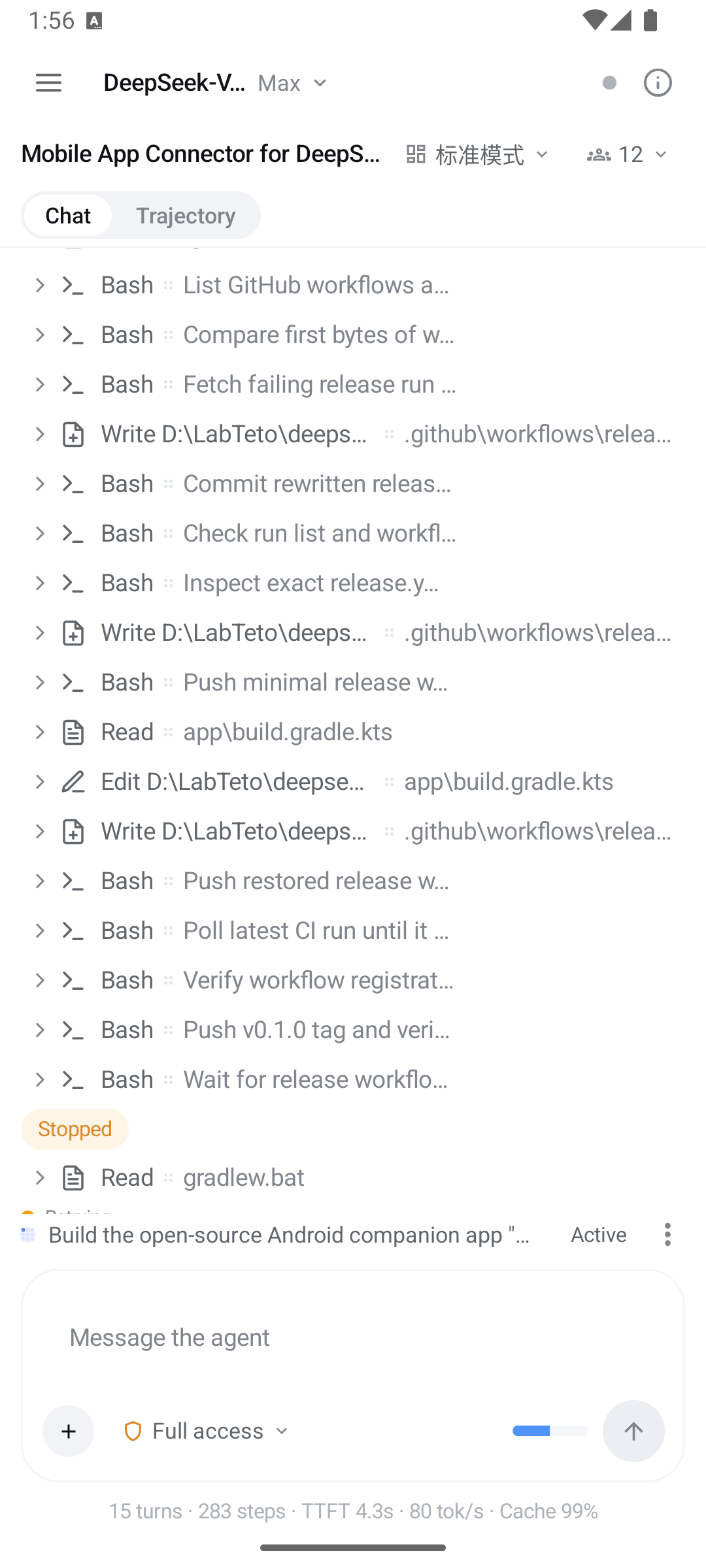
Turns stream as the harness produces them.
- Reasoning arrives in a disclosure you can open; assistant text renders as markdown, with code blocks.
- Tool calls each get a glyph and a one-line summary with paths relative to the session's working directory. Tap to expand the card. Six card types are rendered specially — terminal, diff, read, search, web, and a generic fallback — and a card type this app does not know degrades to the generic one instead of breaking the turn.
- Produced files are listed at the end of a turn where the harness reports them.
- Per message: Copy, Branch from here, and 👍 / 👎 feedback.
- Load older messages at the top of the transcript; scrolling back keeps paging. Only growth at the newest end scrolls the view, so paging back never throws you to the bottom.
- Attach an image from the composer; attachments in the transcript open full-screen.
- The footer line carries turns, steps, LLM and tool time, time-to-first-token, throughput, tokens in/out and cache hit rate.
-
Send starts a turn. While one is running you can:
- Queue — runs after the current turn finishes;
- Steer — interrupts the running turn with your message;
- Stop — cancels it.
- A leading
/is adjudicated against the session's own command catalog — see Slash Commands and Skills. - The permission chip shows the session's current preset and offers the others.
Thin strips above the composer, present only when they have something to say:
- Goal — the active goal, its phase (Active / Paused / Blocked / Complete), round n of m, its blocker if it has one, with pause, resume, edit and clear.
- To-dos — the harness's own todo list with an n/m progress count.
- Queued turns — pending turns you can edit, remove, or steer into the running turn.
Some things need an answer before work continues, so they take over the lower half of the screen:
- Permission requested — what the agent wants to do and why, with Allow once or Refuse.
- Plan ready for review — the plan, with Approve, Decline, or Discuss.
- Question — the harness asking you something: single or multi-select, Other… for free text, optional questions skippable, and multiple questions paged with Previous / Next / Submit.
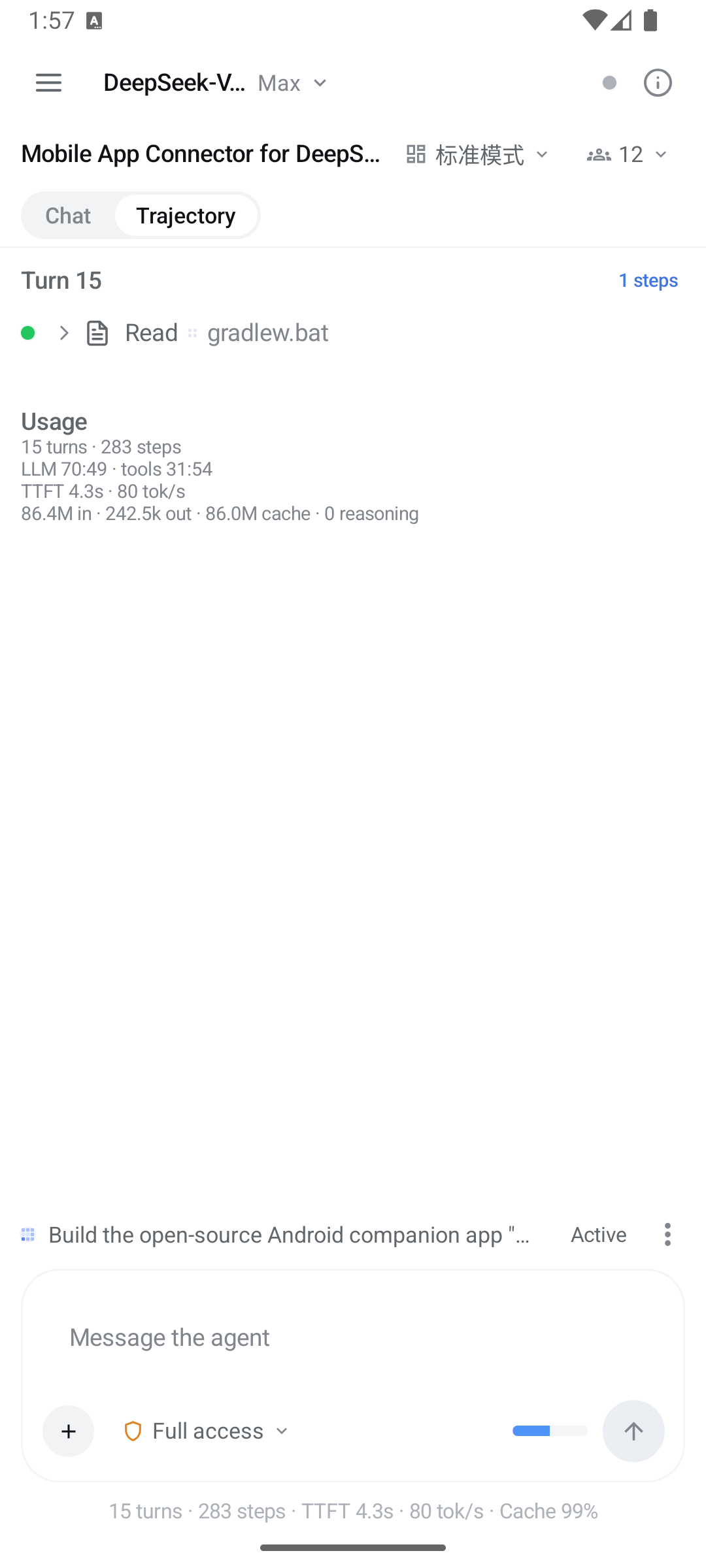
The same session as a ledger rather than a conversation: one row per turn, expandable into its steps and tool calls, with Summary / Raw / Timing / Usage views and totals for tokens in, out, cache and reasoning. This is where you go to see what a long run actually cost.
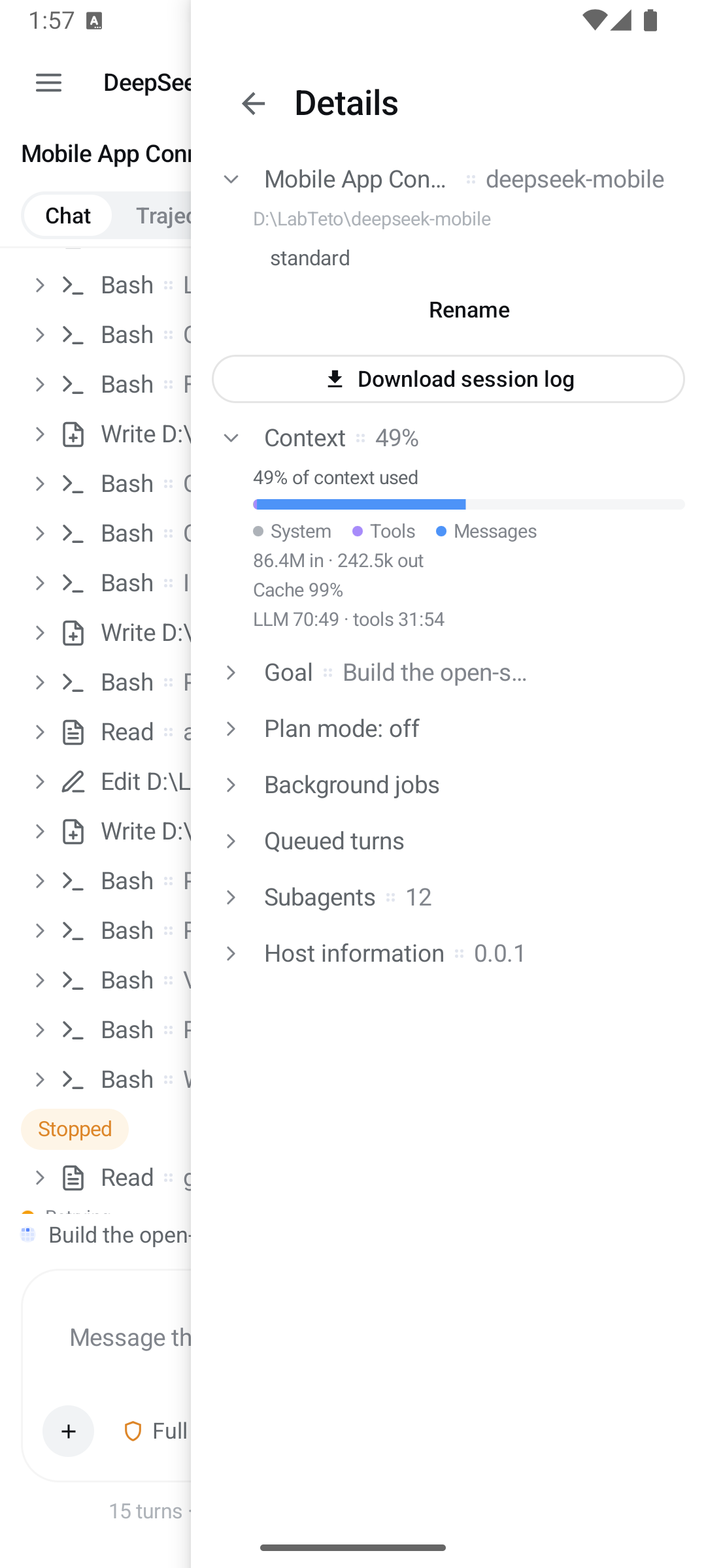
Swipe from the right edge. It holds everything about the session that is not the conversation:
| Card | What it offers |
|---|---|
| Session | Title, working directory, rename / fork / archive |
| Context | How full the context window is, and what fills it — system, tools, messages |
| Model | The current model, with reasoning effort where the model has it |
| Agent preset | The session's preset; fixed once a session has started, so a change means a new session |
| Plan mode | A labelled switch — research and propose before editing anything |
| Goal | The goal in full, with phases and rounds |
| Background jobs | Running / completed / killed / failed |
| Queued turns | The same queue as the dock |
| Subagents | The catalog — see below |
| Workflow | A workflow run and its members, each openable as a session |
| Host | Harness version, working directory, attached session count |
| Export | Download session log as a ZIP, optionally including subagent transcripts, and Copy |
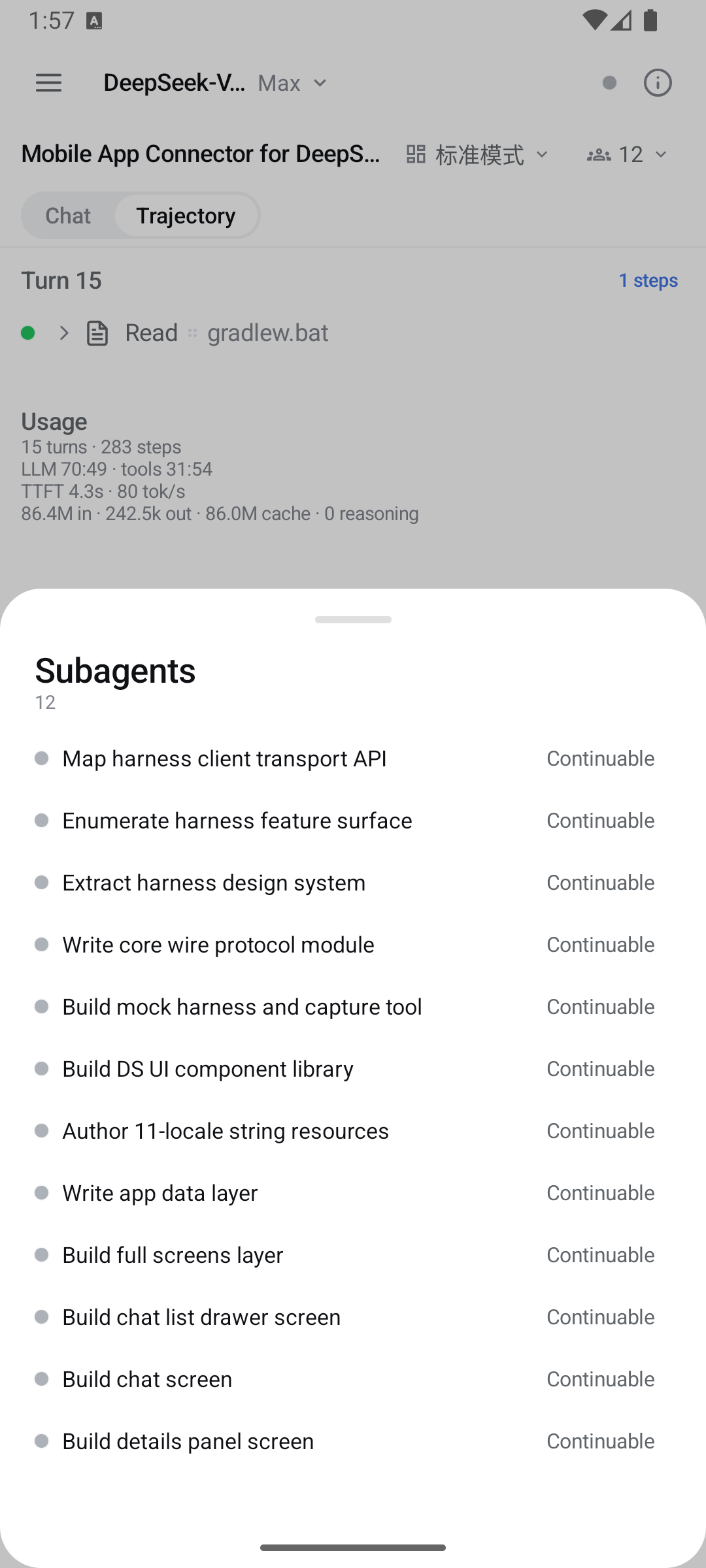
Every child the run spawned, marked Running or Inactive and One-shot or Continuable. Open a child's transcript, send it a follow-up if it accepts messages, or Interrupt it. They also appear nested under their parent in the chat list.
Four ship with the harness, and the app names them in your language rather than showing a raw id:
| Preset | What it is |
|---|---|
| Standard mode | Full coding agent — file editing, shell, file and web search, skills, planning, goals, subagents, workflows |
| Code mode | Standard, with tools exposed through the Code Mode SDK so the model can combine multi-step operations in one TypeScript program |
| Minimal mode | Two-tool coding agent: persistent bash and str_replace_editor
|
| Creator mode | Standard plus runtime inspection, plugin experiments, and preset-authoring guidance |
Custom presets appear alongside them. Authoring is loopback-only.
| Section | Contents |
|---|---|
| General | Language (11, RTL aware) and Appearance — Light / Dark / System |
| Connection | Status, the connected host, disconnect |
| Notifications | Turn complete · goal complete or blocked · action needed · keep connected in background — see Notifications |
| Harness | Host information, and the read-only-over-network banner |
| Plugins | A count row opening a filterable sheet of the harness's composed plugins with enabled state and mount phase. Read-only |
| Data | Forget remembered harnesses · forget which session to open |
| About | App version and protocol baseline · Check for updates |
The app uses the DeepSeek Harness's own design tokens — colours, type, radii, disclosure rows, shimmer, ink buttons — with light, dark and system themes, so a session looks the same on the phone as on the desktop GUI.