Booking a stay
📖 This page is auto-mirrored from
docs/user-guide/booking-a-stay.mdonmain. Please propose changes by pull request — direct wiki edits are overwritten by the next sync.
Audience: Member, Guest
The booking wizard where you choose your lodge nights, add everyone in your
party, and confirm. Members start at Book in the top navigation (/book);
guests without a login can instead request a booking (see
Guests without a login below). The wizard runs in four
steps — 1. Select Dates → 2. Add Guests → 3. Review & Confirm → 4. Pay — and
the last step becomes Admin Review for a booking that needs committee
sign-off (for example one that includes minors).
To book at member rates your membership subscription must be paid up. The
full booking state machine is in
STATE_MACHINES.md.
- You want to stay at the lodge on specific nights.
- You are bringing family or friends — some members, some not.
- You are organising a trip and want others to book their own beds on the same dates (a group trip).
- The nights you want are full and you want to join the waitlist instead (see The waitlist & offers).
-
Click Book in the top navigation (
/book). The wizard opens on Select Dates.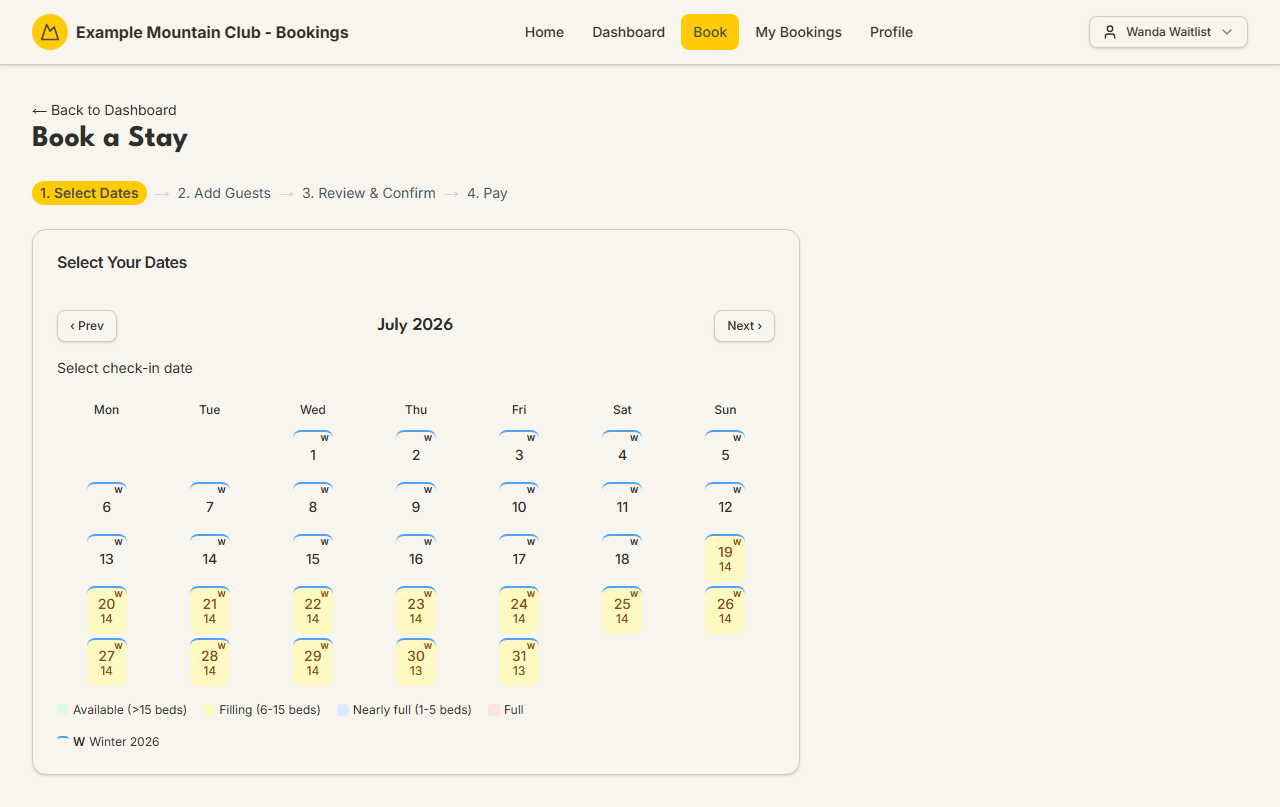
-
Pick your check-in date, then your check-out date. Nights are NZ date-only lodge nights — a stay of "7 Sept — 9 Sept" is two nights (the 7th and the 8th).
-
Each night on the calendar is colour-coded by availability, with a legend below it: Available (more than 15 beds free), Filling (6–15 beds), Nearly full (1–5 beds), and Full. A small season marker (e.g. "W Winter 2026") shows which season's rates apply — rates differ by season.
-
If the nights you want are Full, you can join the waitlist instead of booking — see The waitlist & offers.
- Continue to Add Guests. You are added to the party by default — you can remove yourself if you are booking only for others.
- Add each guest. A guest who is another club member can be added as a member guest (member rate, their own bed held). A guest who is not a member is a non-member guest (non-member rate).
- If you type a non-member guest whose name matches someone in your own family group who can be booked as a linked member, the wizard offers a one-click Add as member guest suggestion — a suggestion only, never forced. Taking it books them at the member rate with a bed held (no provisional hold).
-
Make this a group trip (optional): tick it if you want other people to
book their own beds on the same dates. You choose whether each person pays
their own bill or you pay one combined bill, and you get a join code/link to
share. Full detail is in
UX_FLOW_MAP.md(the "Group trip organiser" journey).
Step 3, Review & Confirm, shows your nights, your party, and the quote in dollars before you commit. What happens to any non-member guests depends on which of two booking policies your club runs. Operators call these policies First Paid, First In and Members First, but you will not see those names anywhere in the wizard — you only see their effect:
- When First Paid, First In applies (or when your stay is already inside the club's hold window): your whole party — members and non-members alike — is booked together and goes straight to normal payment. The submit button reads Continue to Payment when money is due.
- When Members First applies (your stay is far enough out that an enabled Members First hold will actually be created): your member places are booked and charged now, while your non-member guests are held provisionally — no bed is reserved for them yet. The review step spells this out (a "provisional guests" note): which guests are provisional, that today's charge covers only the member places, the separate guest-portion amount, and that it is "because your stay is more than N hold-days away". You also see a "Only book if my guests can come" choice, so you are never forced to take a member-only place if your guests might be bumped.
Under a Members First split, your non-member guests' portion is auto-charged to the same card around the hold deadline if beds remain — otherwise those guests are bumped and only your own place stands. Your booking-confirmed email repeats the same provisional-guests note. See Paying for your stay for the money side, and the booking lifecycle for the states.
- If money is due and you are paying by card, the Pay step takes payment inside the wizard. If you close the wizard before paying, it is safe: your booking page keeps a Complete Payment card and an amber "Payment required" banner so you can finish later.
- If your booking needs committee sign-off, step 4 reads Admin Review instead and no payment is taken until it is approved.
Paying by card versus by internet banking is covered in Paying for your stay.
Your bookings live at My Bookings (/bookings), sortable by start date and
filterable by status.
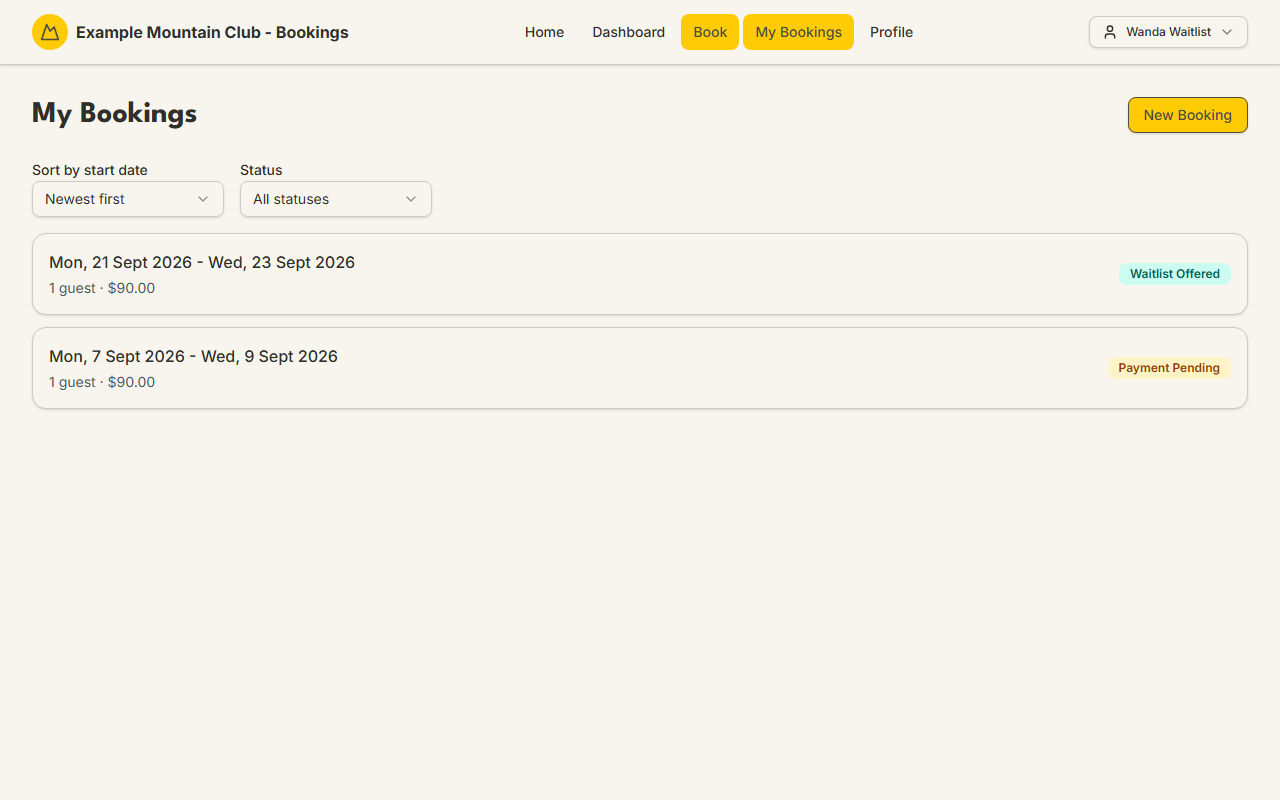
A provisional non-member guest created by a Members First split appears as an indented sub-row nested inside its parent member booking — one card carrying both the parent's and the guest's own status badges. Open the booking to see a Your non-member guests section listing each guest, their status, dates, count, and amount. Your dashboard's Next Stay card also shows a "how full for your dates" occupancy meter.
You do not need to be a member to stay. From the sign-in page (/login) there
are two guest paths:
- Request a booking without an account — sends your request to the club, who reply with a secure quote link. You open it to review the price, options, and expiry, then accept, cancel, ask a question, or request changes. Accepting is how a guest confirms; the quote states when it expires.
- Request a school group booking — for a school or organisation trip. The club prices it and, closer to check-in, emails you a secure link to confirm each attendee's name for the lodge roster.
These flows are the "Public quote requester" and "School contact" journeys in
UX_FLOW_MAP.md; operators handle them with the
Booking Requests guide.
| Thing | What to expect |
|---|---|
| Member rate | Available only while your membership subscription is paid up |
| Nights | NZ date-only lodge nights; the season sets the per-night rate |
| Capacity | A Full night cannot be booked — join the waitlist instead |
| One booking per member per night | You cannot hold two overlapping bookings for the same member night |
| Minimum stay | Some periods enforce a minimum number of nights (a club policy) |
| Non-member guests (Members First) | Held provisionally, charged around the hold deadline, bumped if no bed remains |
| Non-member guests (First Paid, First In) | Booked and paid with the rest of the party |
| Group trip | Each joiner holds their own bed; you choose each-pays-own or you pay one bill |
Prices are shown in dollars (formatted from the cents the club stores). The
policies behind minimum stay, group discount, and cancellation are set by the
club — see the operator Booking Policies guide
and DOMAIN_INVARIANTS.md.
| Symptom | Why it happens | What to do |
|---|---|---|
| The nights you want are greyed out or "Full" | No beds free on those nights | Pick other nights, or join the waitlist |
| You are quoted the non-member rate | Your membership subscription is not paid up | Check your subscription status; pay it, then re-quote |
| "You already have a booking for these nights" | A member cannot double-book the same night | Open the existing booking from My Bookings and change it instead |
| The stay is blocked by a minimum-stay rule | That period has a minimum number of nights | Extend your stay to meet the minimum |
| You paid but the booking still says "Payment required" | The card step was closed before payment finished | Open the booking and use its Complete Payment card |
| Your non-member guests show as provisional | Your club runs the Members First policy (a name you never see in the wizard) and a hold applies to your stay | This is expected — their bed is charged/confirmed around the hold deadline; see Paying |
- Back to the Member & Guest Guide and the documentation hub.
- Sibling guides: Paying for your stay, The waitlist & offers, Changing or cancelling a booking.
- Reference: the booking lifecycle, the booking dates & capacity invariants, and the UX flow map.