Managing your account
📖 This page is auto-mirrored from
docs/user-guide/your-account.mdonmain. Please propose changes by pull request — direct wiki edits are overwritten by the next sync.
Audience: Member
Everything about your login and personal details: your profile, changing
your email or password, two-factor authentication, the alternative sign-in
methods, which emails you receive, and your privacy rights. It all lives on your
Profile (/profile), reached from Profile in the top navigation or the
View User Profile button on your dashboard.
The profile is one long page with an on-page section rail down the left. The
sign-in security lifecycles are in
STATE_MACHINES.md.
- You need to change your email address or password.
- You are setting up (or re-generating recovery codes for) two-factor authentication.
- You want to sign in with an email link or with Google instead of a password.
- You want to change which club emails you receive.
- You want to download your data or request account deletion.
Open Profile. The Account Information section at the top shows your membership at a glance: your email, membership type (e.g. USER) and status (e.g. Active), your Age Tier (Adult / Youth / Child / Infant), Member Since date, and your Subscription status for the current season (for example "Not Required", or a paid/unpaid state). Your subscription status is what decides whether you book at member rates.
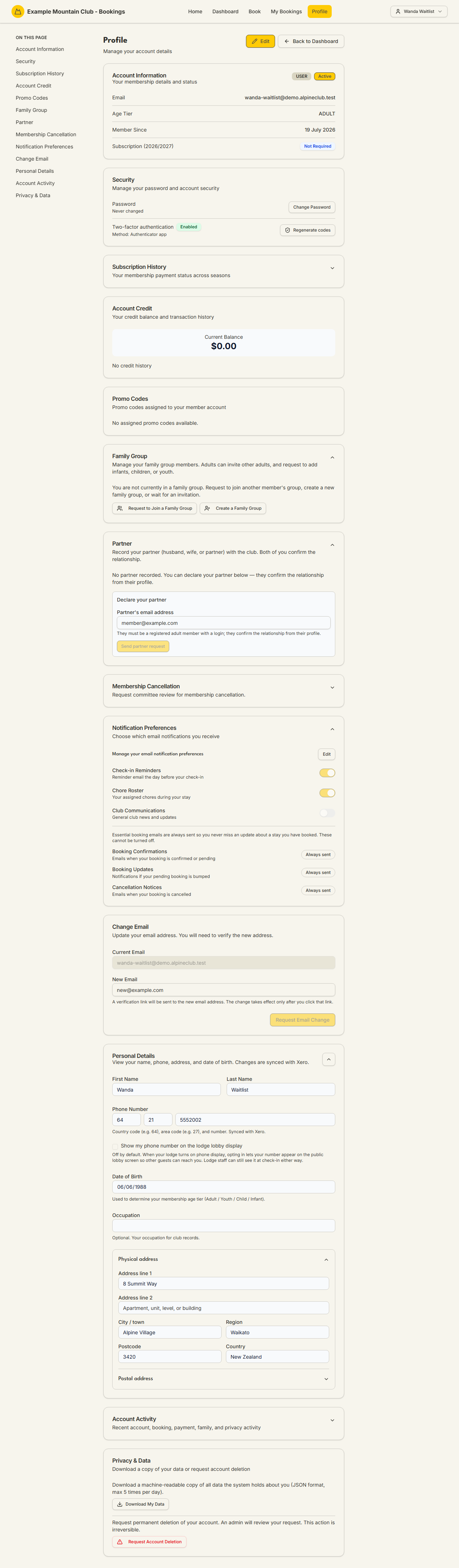
In the Security section, click Change Password. New passwords must meet the club's current password policy (a minimum length and, optionally, required character types), which the change form shows as live hints. The policy applies when you set a password, never at login.
In the Change Email section, enter your New email and click Request Email Change. A verification link is sent to the new address; the change only takes effect after you click that link. Your current email keeps working until then.
In the Security section, Two-factor authentication shows whether it is enabled and by which method (for example "Authenticator app"). Depending on your club's policy you may be required to set it up on first sign-in.
- Authenticator app (TOTP): you scan a setup key into an authenticator app and enter the 6-digit code to enrol. You are shown recovery codes — save them somewhere safe; they are your way back in if you lose the app. Use Regenerate codes to issue a fresh set (the old ones stop working).
- Email code: where the club uses email-based 2FA, a code is emailed to you at sign-in.
The two-factor states are in
STATE_MACHINES.md.
Your club may enable either or both of these in addition to password sign-in.
They appear on the sign-in page (/login) only when the club has turned them on,
so you may not see them:
-
Email me a sign-in link (magic link): requests a single-use link emailed to
you that signs you in at
/login/magic. It is additive to password login, only works for active verified members, and still challenges 2FA. See the magic-link lifecycle. - Continue with Google: signs you in with a Google account you have linked from your profile. You link it yourself in Profile → Security → Connected accounts (Connect Google), which does an OAuth round-trip to pin your Google account without switching your current session; you can unlink it there any time and keep password login. Google sign-in only ever matches a member by the Google account they linked — never by email, and it never creates an account. See the Google sign-in lifecycle.
The Personal Details section holds your name, phone, date of birth, occupation, and physical/postal address. These are synced with Xero, the club's accounting system. Your date of birth sets your membership age tier. The Show my phone number on the lodge lobby display option is off by default — turn it on only if you are happy for your number to appear on the lodge's public display screen (lodge staff can still see it at check-in either way).
The Notification Preferences section lets you turn optional emails on or off — for example Check-in Reminders, Chore Roster, and Club Communications. Essential booking emails (Booking Confirmations, Booking Updates, Cancellation Notices) are marked Always sent and cannot be turned off, so you never miss news about a stay you have booked.
The Privacy & Data section gives you two rights:
- Download My Data — a machine-readable (JSON) copy of the data the system holds about you, limited to a few downloads per day.
- Request Account Deletion — asks the club to permanently delete your account. This is irreversible and an admin reviews it first; on approval you are anonymised, your future bookings are cancelled, and your login is deactivated. You always receive a final privacy receipt when a deletion is approved.
| Action | What to expect |
|---|---|
| Change password | Applies immediately; must meet the club's live password policy |
| Change email | Verification link sent to the new address; effective only after you click it |
| Enrol in 2FA | You save recovery codes; regenerating them invalidates the old set |
| Magic link / Google | Only shown when the club enables them; both still respect 2FA |
| Notification preferences | Optional emails toggle; booking/cancellation emails are always sent |
| Download My Data | JSON export, capped to a few per day |
| Request account deletion | Reviewed by an admin; irreversible on approval; anonymises you and cancels future bookings |
| Symptom | Why it happens | What to do |
|---|---|---|
| Your new password is rejected | It does not meet the club's password policy | Read the live hints on the change form and try a stronger password |
| Your email change did not take effect | You have not clicked the verification link on the new address | Check the new inbox (and spam) and click the link |
| You lost your authenticator app | 2FA cannot generate a code | Use a saved recovery code to sign in, then regenerate codes; if you have none, contact the club office |
| You do not see "Email me a sign-in link" or "Continue with Google" | Your club has not enabled that method | Sign in with your password; ask the club if you expected it |
| "Trouble signing in? Reference: XXXXXXXX" on the login page | A server-side session failure bounced you back | Quote that reference code to an admin so they can find the recorded cause |
| Google sign-in is refused | No linked Google account, or the account is ineligible | Link Google first from Profile → Security → Connected accounts, then retry |
- Back to the Member & Guest Guide and the documentation hub.
- Sibling guides: Joining the club (first sign-in), Managing your family & household.
- Reference: the two-factor, magic-link, and Google sign-in lifecycles, and the membership lifecycle invariants. Operators set the password policy with the Login & Security guide and handle deletion requests with the Deletion Requests guide.