Repository navigation
User Guide
Sessions are grouped by attention, running, and pinned state. Select a saved gateway first, then select the Zed target when a gateway advertises more than one instance. Drafts, event cursors, and uncertain sends remain scoped to that exact gateway, target, epoch, and thread.
The conversation view renders streamed responses, thinking, tool activity, failures, approvals, and current native Agent phase. Active phases can include responding, preparing or running a tool, waiting for approval, and compacting context. Stop cancels only the authoritative active turn.
Use Load earlier conversation to page backward. When you scroll away from the bottom, Latest returns to live following without moving older rows during polling.
The composer keeps a per-session draft. Review attachments and command arguments before sending. If delivery becomes uncertain, ZedLink preserves the request identity and asks you to reconcile or explicitly retry; reconnecting never creates a second submission automatically.
Rewind controls target the displayed checkpoint or turn. Confirm the target before applying them because later conversation state may be discarded by Zed.
Type / or open the command picker. The list comes from the selected native thread and refreshes while connected.
| Source | Behavior |
|---|---|
| Native Zed | Commands such as /compact follow Zed's normal command and queue paths |
| Skills | Scoped skills load through Zed and keep editable instructions |
| MCP | Supported prompts appear with their advertised arguments |
| ACP agents | Codex, Claude Code, and other agents provide their own dynamic commands |
/remote-control |
Stops exposure after confirmation; starting exposure remains a desktop action |
| Feedback actions | Follow Zed's native feedback flow and require explicit confirmation |
Unknown commands are rejected. Local actions are never converted into model prompts. Commands that do not support attachments reject them rather than silently dropping them.
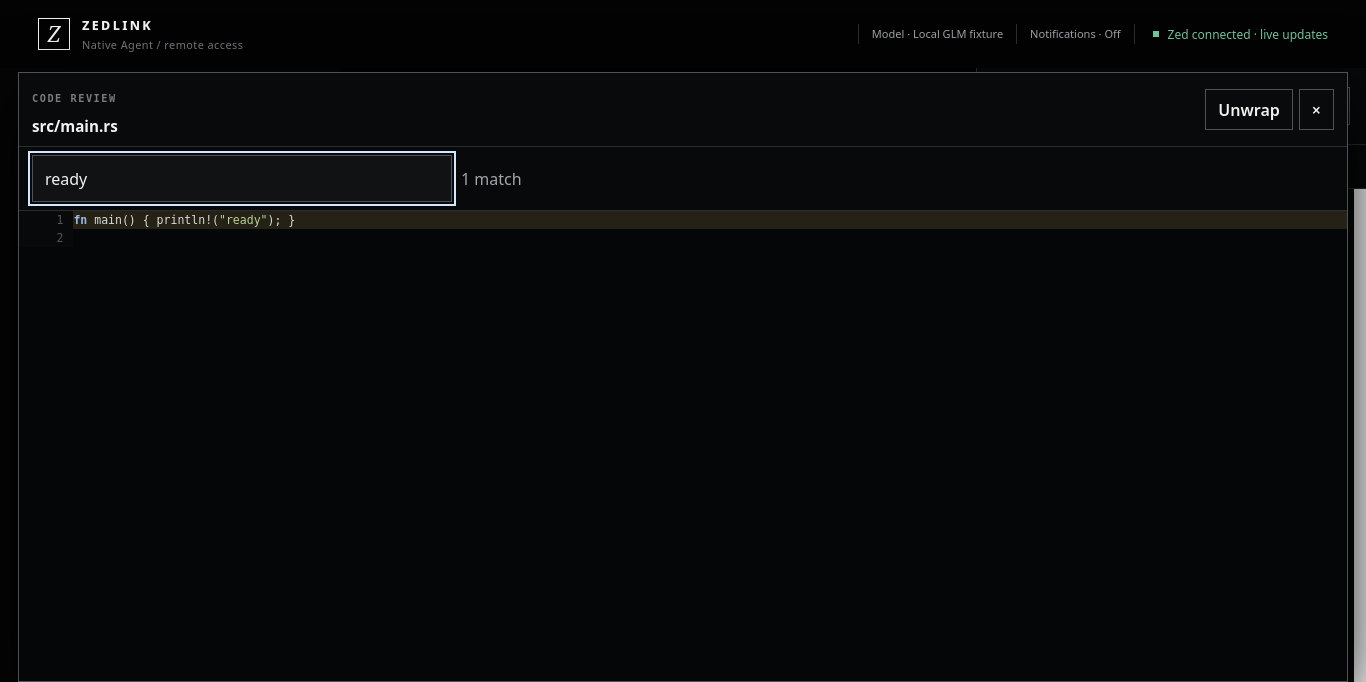
Open Workspace → Files to browse from the configured project root. Folder navigation, breadcrumbs, text previews, wrap, find, and attachment actions remain inside that scope. Binary, unsafe, oversized, and partial files have explicit states. A partial preview cannot be attached as if it were a complete file.
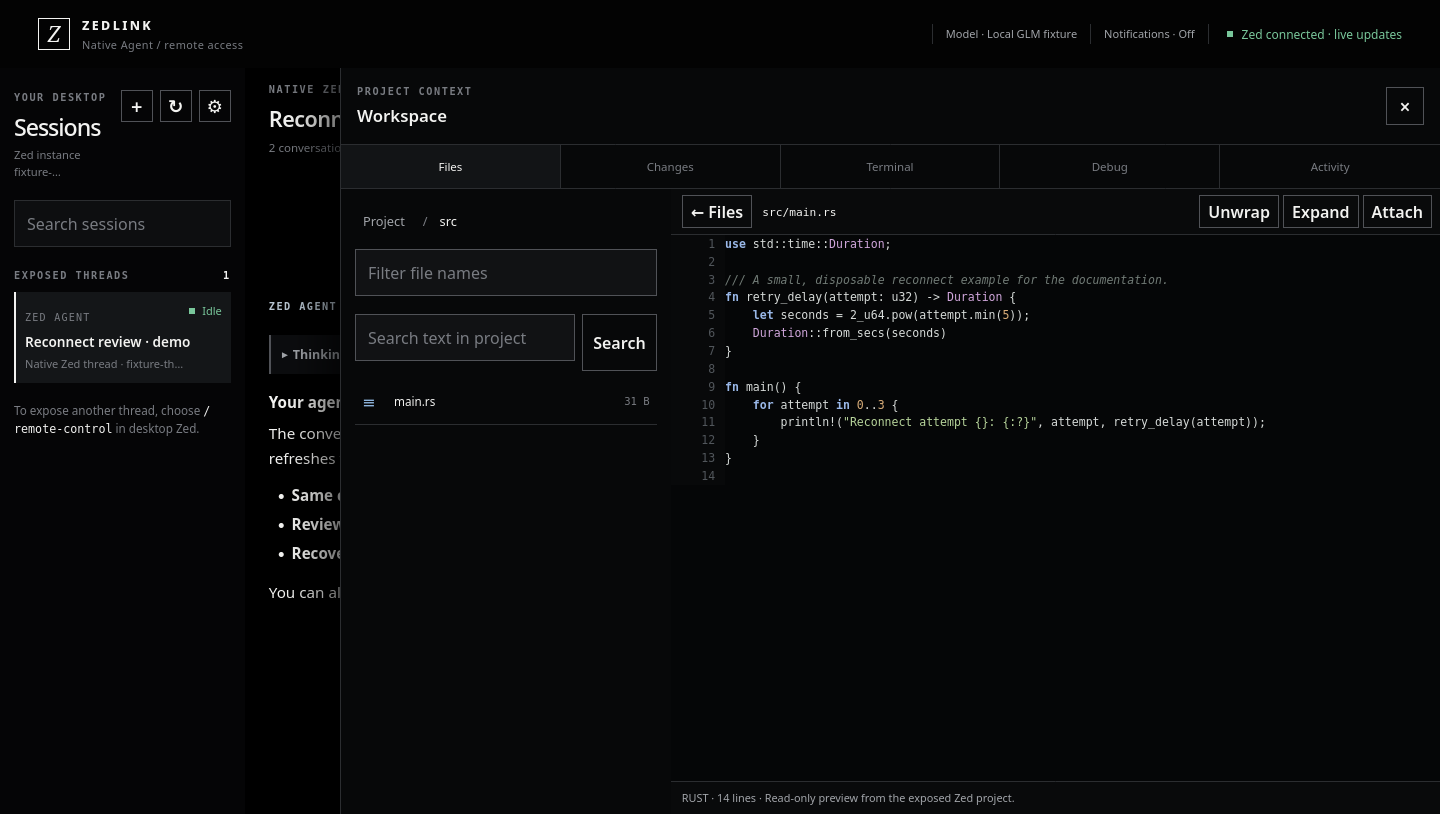
Project search uses the native scoped bridge. It does not expose arbitrary filesystem paths.
Open Workspace → Changes to inspect the native diff and permitted Git actions. Stage and unstage controls appear only when the desktop capability is enabled. Review the target repository and file before applying an action.
Commit, branch, checkout, reset, push, pull, and hunk-level operations are not established as complete remote workflows.
Enable View Project Terminals and Send Terminal Input separately in desktop ZedLink settings. Open Workspace → Terminal to select an existing terminal.
-
New terminal creates a project terminal only when
terminal.createis advertised. - Tap the terminal title to switch without closing other terminals.
- Command mode lets you review a complete line before Return.
- Browser Keyboard mode can stream keys directly.
- Esc, Tab, Ctrl C, arrows, Backspace, Return, and keyboard hide controls use the guarded terminal-input path.
-
List files one per line prepares
ls -1F; it never overwrites or executes an existing draft. - Wrap and original-column modes change presentation only.
ZedLink projects a bounded styled terminal snapshot. It preserves line breaks and supported colors/styles but does not claim full terminal-emulator fidelity for editors, mouse input, or all custom glyphs. A phone-size PTY resize affects output produced afterward; old desktop-width output is not rewritten.
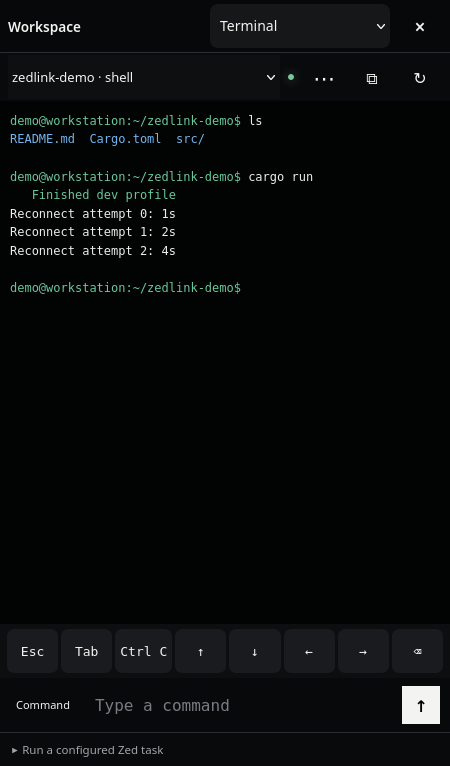
When terminal delivery is unknown, inspect the desktop terminal before retrying.
Use the photo or attachment action to select an image. Native clients can paste an image from the phone clipboard and open an annotation review with drawing, Undo, and Clear. Attachments remain drafts until Send and must satisfy desktop permission, model vision support, and size/count limits.
Dictation fills an editable session or terminal draft. It never sends or executes automatically. Speech may use an on-device engine or the installed speech service; review the privacy notice and result before sending. Clipboard transfer is explicit and previewed.
Active child agents appear as compact rows with status and activity count. Open one to read its own transcript; the parent conversation stays in place. Completed children leave the active stream and remain available under Agent history.
- Latest resumes live following.
- Load earlier activity pages child history.
- Continue agent prepares an editable parent prompt.
- Stop agent appears only when that exact child turn is cancellable.
- Child approvals remain attached to their owning agent.
Zed remains authoritative. Approval cards show the native choices advertised for the current request. A response is accepted only for the matching gateway, target, epoch, thread, and request. A stale or already-resolved approval is rejected.
Never enable blanket mobile approval. Keep destructive project capabilities disabled until needed.
| Location | Use it for |
|---|---|
| Gateway Control | State, start/restart/stop, route, device count, and diagnostics |
| Paired Devices | Create a pairing challenge, list devices, and revoke access |
| Connection Providers | Detect, save, activate, and check private routes |
| Remote Permissions | Enable the smallest required capability set |
Closing the gateway stops remote access without deleting pairings. Closing patched Zed makes its conversations unavailable without deleting them.