Casper-v0.1.5

Casper v0.1.5
Personal firmware for Xteink X3 / X4. One binary for both devices.
Based on CrossPoint Reader 1.5.0 & CrossInk. Huge thanks to everyone for all their hard work!
Bug-fix release: Flash Casper-v0.1.5.bin (one binary for X3 and X4).
Bug Fixes in v0.1.5
Button Remap
- Home no longer double-fires remapped keys (e.g. Bottom 1 = Left no longer opens Menu and scrolls Left / exits the popup).
- Long-press Menu → Settings no longer walks tabs sideways while the key is still held (wait-for-release before Settings input).
- Leaving Remap with Back no longer also moves Settings tabs (e.g. Controls → Reader) after a remap apply.
- Remap Buttons screen is fully locked: footer Back · Select · Up · Down matches physical keys; your live remap cannot desync labels and presses while editing.
- Smarter assign: each function only once; assigning a function that already exists swaps the two slots (no more “two Backs” puzzle).
- X4 remap labels: side slots show Side Up / Side Down (X3 stays Side Left / Right).
Wi‑Fi (shared with CrossPoint / CrossInk)
- Same
/.crosspoint/wifi.jsonformat as CrossInk/CrossPoint: passwords use the sharedCPV1+ salt envelope (MAC-XOR + base64). - Casper reads and writes that style, so you can flash between CrossInk/CrossPoint and Casper on the same device without re-entering Wi‑Fi.
- Still device-MAC-tied (password only works on the chip that saved it). Older bare-password Casper files still load if present.
X3 freezes (RTC / battery)
- RTC I2C timeout so a stuck PCF8563 bus cannot hang the UI forever (especially unplugged / low-power idle).
getDateTimecaching so SD file timestamps don’t hammer the RTC on every write.- Soft-fail: bad I2C poll keeps last good clock instead of blanking.
- Battery gauge I2C also gets a short timeout (same class of hang).
Themes
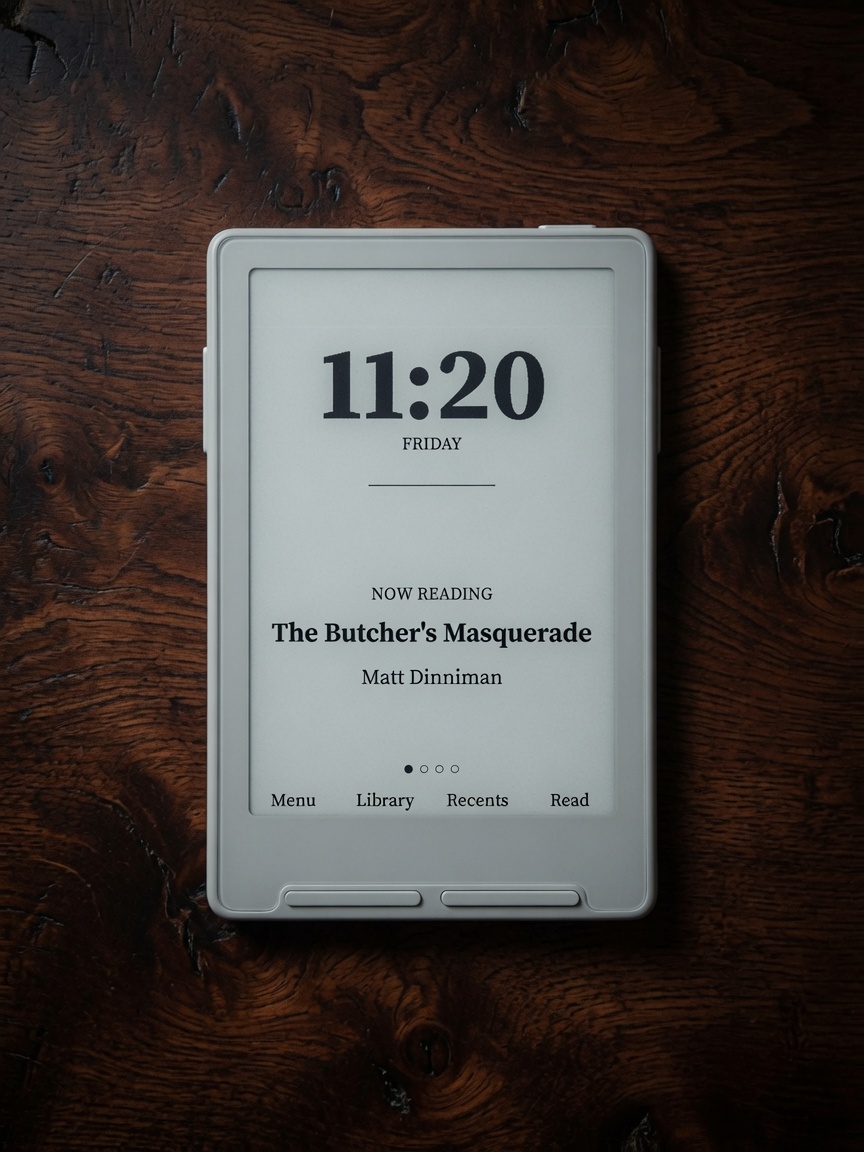
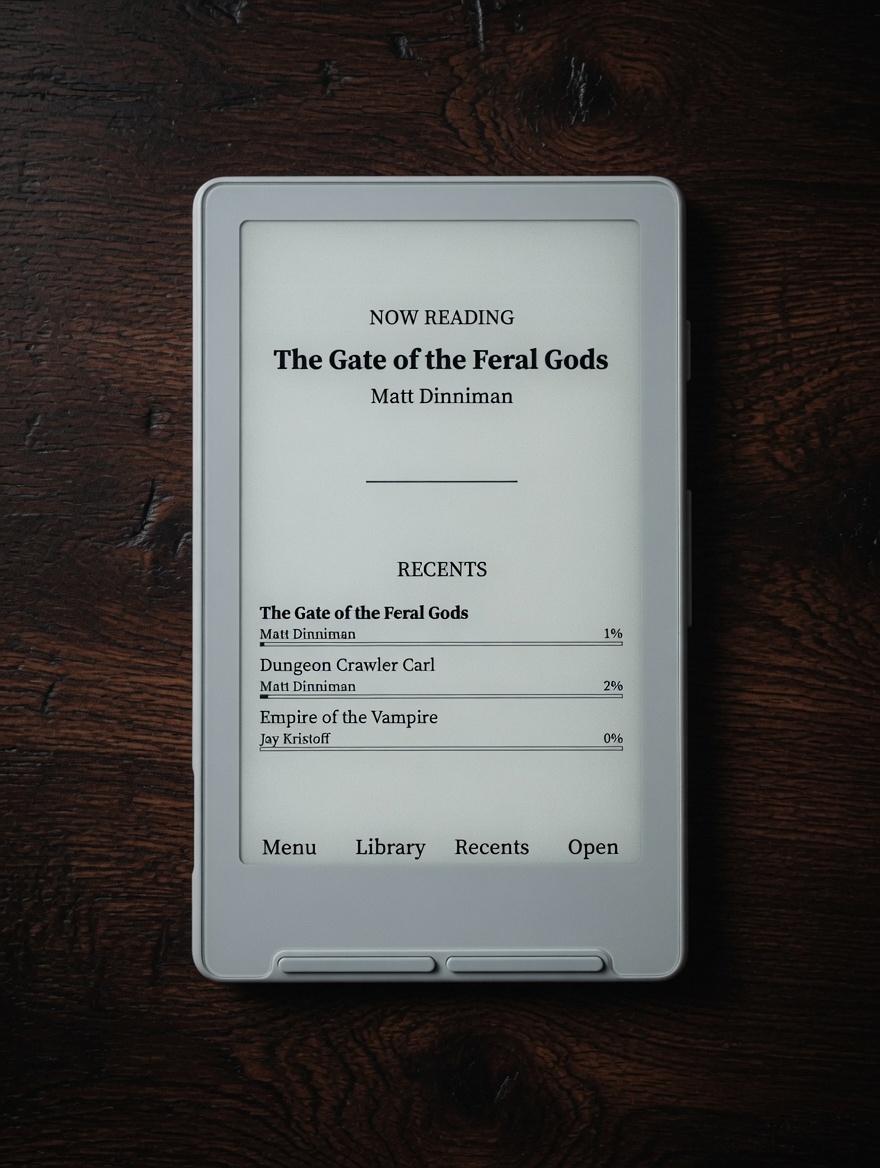
Home skins under Settings → Display → Theme.
| Penumbra (X3) | Penumbra (X4) | Bare |
|---|---|---|
 |
 |
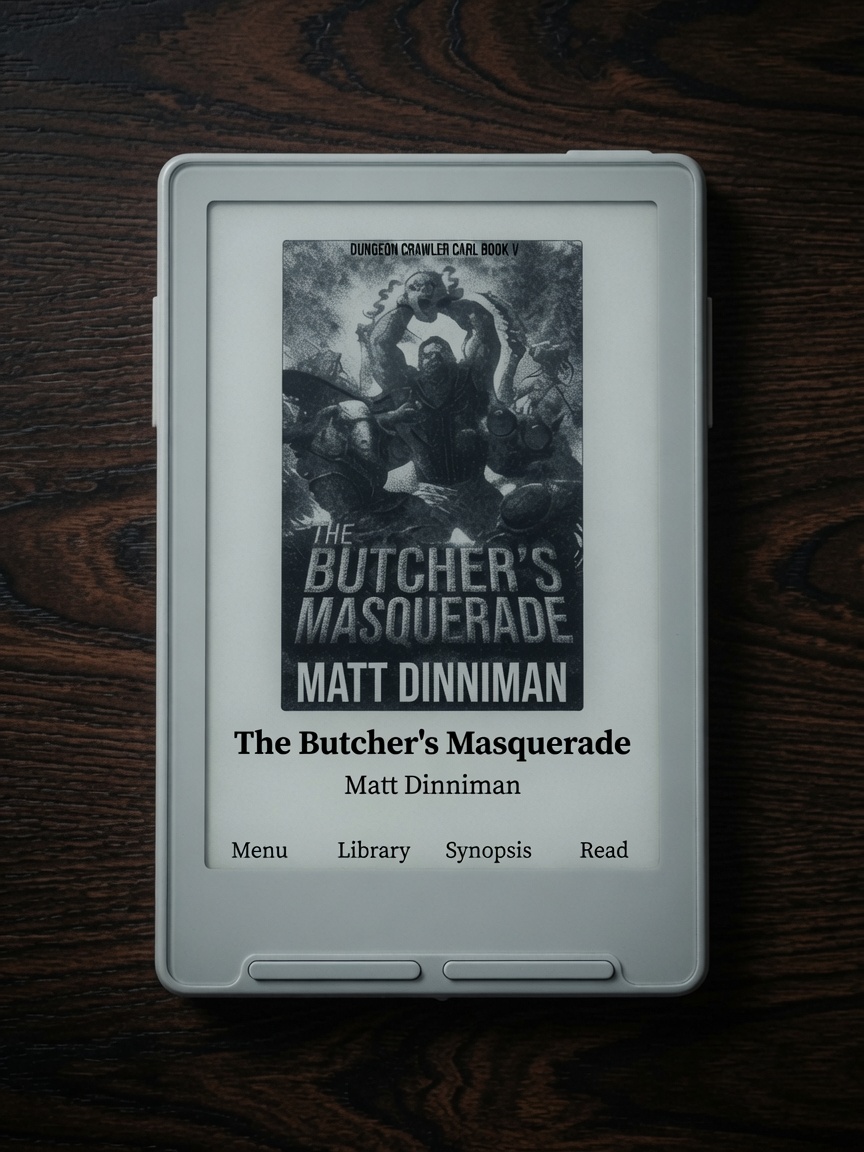 |
Note: Clock, weekday, and other date/time home features need the X3 RTC. The X4 has no real-time clock. Bare looks the same on both devices.
Penumbra
Penumbra was written from the ground up with design and performance in mind — not a reskin of an old home, but a purpose-built reading hub for e-ink.
| X3 | Large clock + weekday, then cycle Title · Recents · Book Stats · Lifetime (side Left / Right). |
| X4 | Last-read title/author on top, Recents list below (side Up / Down scrolls the list). |
Menu · Library · Recents · Read
- Long-press Menu → Settings
- Long-press Read → book quick menu (mark finished, remove from recents, clear cache, synopsis, etc.)
Bare
Designed for readers who simply want to feel as if it is them and their book — a minimal cover theme, same layout on X3 and X4.
Menu · Library · Recents · Read
- Long-press Menu → Settings
- Long-press Read → book quick menu
Gallery
Full photo tour: docs/casper.md
New Features
System + Reader Status Bars
Fully customizable status bars with slot-based placement and live previews.
Choose exactly what appears in the top status bar and position items in any of the 6 available slots (Top/Bottom × Left/Middle/Right) independently for the system UI and the reader.
Battery Display Options
Independent control for system and reader:
- Hidden
- Icon only
- Percent only
- Icon + Percent
Manage Fonts
Completely redesigned with tabs, 50/50 live preview, a Download Fonts row, and improved organization.
Default fonts are now Source Serif 4 and Bitter.
This is where you set font, size, layout, and style for how books are displayed, with a clean preview of every change.
Tabbed Navigation + Button Remapping
Fully customizable button remapping.
Front buttons act as a list; side buttons can be set as tabs (or whatever you prefer).
A popular setup is using the side buttons as left/right controls to scroll through horizontal tabs.
Keyboard / Wi‑Fi password footer labels now follow your remap (Left stays Left, Up stays Up).
System → Stats Folder
New options under Settings → System → Stats:
- Enable / Disable Stat Tracking
- Auto Backup
- Backup Now
You can turn stats off completely if you prefer a distraction-free reading experience. When tracking is on, Penumbra’s Book Stats and Lifetime panels use that data.
Cover Thumbnail Pipeline
Improved cover generation for clearer, higher-quality thumbnails (home multipass greys on Bare).
UI Polish
Unified design language across the interface:
- Black chips instead of grey highlights
- Better title centering
- Cleaner version string
- Fixed long-press behavior in the Library
- Sleep screen options: Casper Dark / Casper Light (alphabetized)
- After flash / cold boot lands on Home (not auto-open last book)
Book Synopsis
Open a short description of the current book from the book quick menu (long-press Read on home, or long-press a book in the library). Requires synopsis metadata — easy to add with Calibre.
Useful for refreshing your memory or choosing your next book without leaving the device.
Reader Shortcuts
- Long-press Select → Dictionary
- Long-press Select again while in dictionary → Multi-word select mode
- Menu button → Reader options menu
Smarter first open (cover-only skip)
- First open no longer always sticks on a heavy title/cover image when it can avoid it.
- Uses the publisher’s OPF text/start when the book provides one.
- Otherwise skips only cover/title-like front spines (name + small size), at most 3, then lands on the first real text section (epigraph, prologue, or chapter 1 as the book defines it).
- Never skips large content spines or deep body chapters.
- Resume is unchanged — if you’ve already read past the start, you go back where you left off.
- Cover stays in the book; page back or use the TOC anytime.
Snappier Home Screen
Returning to the home cover after reading should feel faster and less “busy.”
Faster return from reading
- When you open a book from Home, Home stays in the background instead of being torn down and rebuilt.
- Pressing Back restores that Home instance: progress/stats refresh and the cover greys redraw once, without redoing the full home setup path.
- If cover thumbnails are already on disk (the usual case after you’ve opened a book before), Home skips the intermediate black-and-white shell refresh and goes straight to the grayscale cover pass.
Fewer wasted full redraws
- Cancelling the book action menu (long-press Read → Back/cancel) repaints Home once and no longer forces a full cover re-scan/generation.
- Once the home cover greys have settled, stray repaint requests no longer re-flash the full multipass (Bare, Penumbra, and classic list themes).
- Back from the in-home Menu returns to the cover (no longer stuck until Settings).
Faster cover multipass (panel-aware)
- On X4 and similar panels, the grayscale base step uses a faster refresh mode where appropriate.
- X3 still uses the cleaner half refresh so the previous reader page is less likely to ghost through the cover.
Install
CrossPoint web flasher (recommended)
- Download Casper-v0.1.5.bin from this release.
- Connect your X3 or X4 via USB-C and wake/unlock it.
- Open https://crosspointreader.com/#flash-tools (Chrome / Edge / Firefox on desktop).
- Select Xteink X3 or Xteink X4.
- Click Custom .bin and choose
Casper-v0.1.5.bin. - Flash, then reset/wake the device if prompted.
SD card contents are left alone.
SD card (optional)
Copy Casper-v0.1.5.bin to the root of the SD card → Settings → System → SD Firmware Update
Dictionary
To install dictionaries, extract the .dictionaries folder to the root of your SD card.
Full source & docs: https://github.com/tweakerinc/casper
Previous: v0.1.4