Repository navigation
Installation
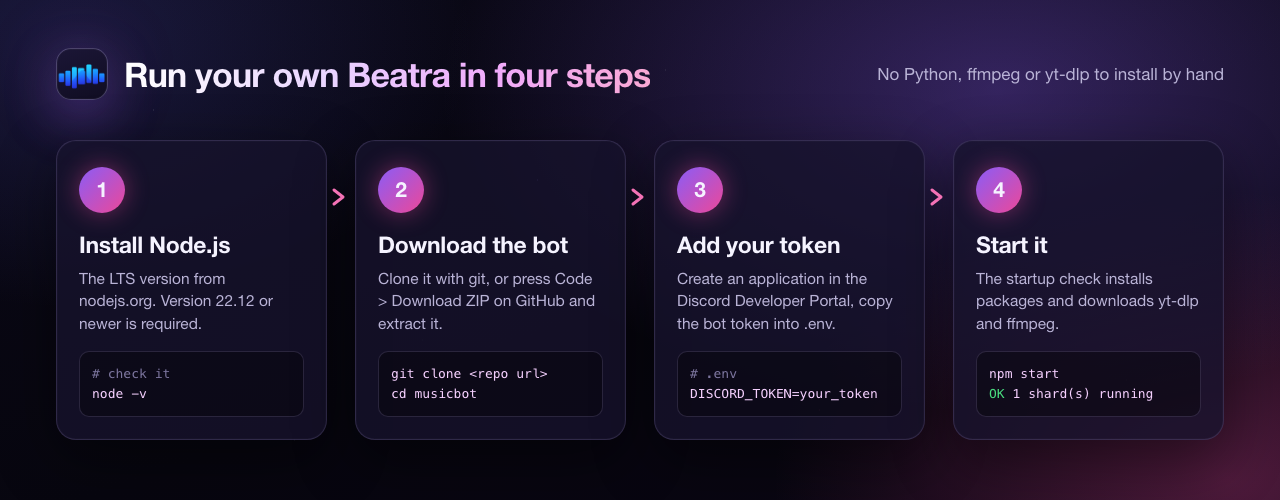
This page takes you from an empty computer to a running Beatra bot. It works the same on Windows, macOS and Linux; where the steps differ, each system is shown separately.
| What | Version / detail | Notes |
|---|---|---|
| Node.js | 22.12.0 or newer | Set in package.json ("engines": { "node": ">=22.12.0" }). The startup check refuses older versions. |
| npm | comes with Node.js | Used once to install the packages. The bot runs it for you. |
| A Discord application with a bot | Created for free in the Discord Developer Portal (step 3). | |
| Internet access | To reach Discord, and on the first start to download yt-dlp (from the official yt-dlp GitHub releases) and ffmpeg. | |
| Write access to the bot folder | Settings and saved queues go to data/, programs to bin/. |
Not needed: Python, a system-wide ffmpeg or yt-dlp, a database, or any "Privileged Gateway Intent". The bot only uses the Guilds and GuildVoiceStates intents.
The bot downloads the official self-contained yt-dlp build (no Python needed) for these platforms:
| System | Processor | Build used |
|---|---|---|
| Windows | x64, x86 (32-bit), ARM64 |
yt-dlp_win.zip, yt-dlp_win_x86.zip, yt-dlp_win_arm64.zip
|
| macOS | all Macs (one build) | yt-dlp_macos.zip |
| Linux (glibc) | x64, ARM64, ARMv7 |
yt-dlp_linux.zip, yt-dlp_linux_aarch64.zip, yt-dlp_linux_armv7l.zip
|
| Linux (musl, for example Alpine) | x64, ARM64 |
yt-dlp_musllinux.zip, yt-dlp_musllinux_aarch64.zip
|
On any other platform, install yt-dlp yourself and either put it on your PATH or set YTDLP_PATH (see Configuration).
ffmpeg is looked up in this order: the program set in FFMPEG_PATH, then the optional ffmpeg-static npm package (its ffmpeg is downloaded automatically), then an ffmpeg found on your PATH.
Note:
npm installalready downloads yt-dlp and ffmpeg through thepostinstallscript. If that step is skipped or fails, nothing breaks: the startup check downloads them on the next start.
| System | How |
|---|---|
| Windows | Download the LTS installer from nodejs.org and run it. |
| macOS | Download the LTS installer from nodejs.org, or with Homebrew: brew install node
|
| Linux (Ubuntu / Debian) | Follow the instructions at nodejs.org/en/download. |
After installing, close and reopen your terminal, then check the version:
node -vIt must print v22.12.0 or higher.
Note: If the terminal says
'node' is not recognized(Windows) orcommand not found: node(macOS / Linux), Node.js is not installed yet, or the terminal was opened before installing it. Open a new terminal.
With git:
git clone https://github.com/umutxyp/musicbot.git
cd musicbot
Without git: open the repository on GitHub, press Code > Download ZIP, extract the ZIP and open a terminal in the extracted folder.
- Open the Discord Developer Portal and press New Application. Give it a name.
- Open the Bot page and press Reset Token. Copy the token.
Warning: The token is a password for your bot. Never share it, never post it in an issue or a screenshot.
- Open the OAuth2 page. Under OAuth2 URL Generator, tick the scopes
botandapplications.commands, then tick these bot permissions:- View Channels
- Send Messages
- Embed Links
- Read Message History
- Connect
- Speak
- Open the generated link and add the bot to your server.
You do not need to turn on any "Privileged Gateway Intents".
Note: Before joining a voice channel the bot checks that it has View Channels, Connect and Speak there; to join a voice channel that is full it also needs Move Members. Before posting the player panel in a text channel it checks View Channels and Send Messages (and Send Messages in Threads inside a thread). Without those text channel permissions the music still plays, but no panel appears.
Tip: These six permissions are the same ones the bot puts in its own invite link (permission number
3230720). Once the bot runs,/helpshows an Invite button with that link. You can also build it yourself:https://discord.com/oauth2/authorize?client_id=YOUR_APPLICATION_ID&permissions=3230720&scope=bot%20applications.commands
In the bot folder, copy .env.example to a new file named .env:
| System | Command |
|---|---|
| Windows (cmd) | copy .env.example .env |
| macOS / Linux | cp .env.example .env |
Open .env in any text editor and paste your token:
DISCORD_TOKEN=paste_your_token_hereThat is the only required setting. Everything else is optional and explained in Configuration.
Note: You can skip the copy step: on the first start the bot creates
.envfrom.env.exampleby itself, then stops and asks you to fill in the token.
Hosting panel? On panels such as Pterodactyl or Railway you can set
DISCORD_TOKEN(and any other setting) as an environment variable instead of using a.envfile. WhenDISCORD_TOKENalready exists in the environment, the bot does not create a.envfile.
On Windows you can double-click setup.bat. It checks that Node.js is installed, runs npm install, creates .env from .env.example if it does not exist yet, and tells you to put your token into .env and run start.bat.
All of these do exactly the same thing. Pick the one you like:
| Where | How |
|---|---|
| Windows | Double-click start.bat (or start-shard.bat) |
| Any system | npm start |
| Any system |
node . or node index.js
|
| Any system |
npm run shard (kept for older start scripts, same as npm start) |
The first start takes a little longer: it installs the npm packages and downloads yt-dlp and ffmpeg. When the console prints 1 shard(s) running, the bot is online. Type /play in your server.
To stop the bot press Ctrl + C. The queue is saved and continues when the bot starts again (see Features).
Note: The bot always runs with sharding. Small bots get one shard, large bots as many as Discord recommends. You do not need a separate command for it.
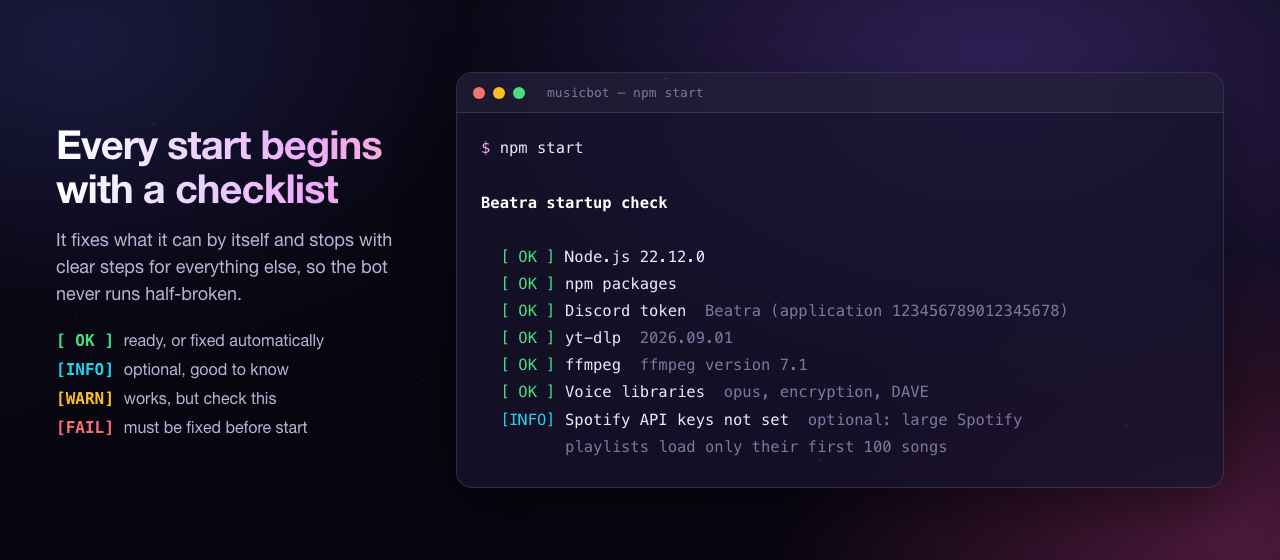
Every start begins with the Beatra startup check. It fixes what it can and stops with numbered instructions for everything else, so the bot never runs half-broken.
| Check | Fixed automatically | If it cannot be fixed |
|---|---|---|
| Node.js version | Stops and tells you to install Node.js 22.12+ | |
| npm packages | Runs npm install when packages are missing, or after an update changed package.json / package-lock.json
|
Stops and shows the commands to reinstall |
.env file |
Created from .env.example
|
Stops and explains how to get the token |
| Discord token |
CLIENT_ID is detected from the token |
Stops when the token is empty, malformed or rejected by Discord, or when Discord cannot be reached (only a warning if CLIENT_ID is set) |
GUILD_ID |
Stops when it is not a server id | |
PROXY_URL |
Stops when an address is not a valid proxy URL | |
COOKIES_FILE / COOKIES_FROM_BROWSER
|
Stops when the file does not exist or the browser is not supported | |
data folder |
Created | Stops when the folder is not writable |
| yt-dlp | Downloaded, and checked for updates once a day | Stops and shows how to install it by hand |
| ffmpeg | Downloaded | Stops and shows how to install it by hand |
| Voice libraries (opus, encryption, DAVE) | Stops and tells you to delete node_modules
|
|
| Spotify API keys | Only an [INFO] line: they are optional |
Before the checklist, the bot deletes the old audio_cache folder from v16 (if there is one) and the leftover data/relay/ files of the last run. After the checklist, it registers its slash commands (only when they changed since the last start) and launches the shards.
An example of a stop:
  [FAIL] Discord rejected DISCORD_TOKEN (wrong or reset token)
         1. Open https://discord.com/developers/applications and select your bot
         2. Go to "Bot" and press "Reset Token", then copy the token
         3. Paste it into the .env file in the bot folder:  DISCORD_TOKEN=your_token

The bot was not started: 1 problem(s) above must be fixed first.
Every [FAIL] line and its fix is listed in Troubleshooting.
Only needed when the automatic download fails (for example, no internet access on first start). These are the commands the startup check suggests:
| System | yt-dlp | ffmpeg |
|---|---|---|
| Windows | winget install yt-dlp.yt-dlp |
winget install Gyan.FFmpeg |
| macOS (with Homebrew) | brew install yt-dlp |
brew install ffmpeg |
| Linux (Ubuntu / Debian) | sudo apt install yt-dlp |
sudo apt install ffmpeg |
If the program is not on your PATH, set YTDLP_PATH or FFMPEG_PATH in .env to its full path.
| Path | Contents | In git? |
|---|---|---|
.env |
Your settings and token | No (ignored) |
node_modules/ |
npm packages | No (ignored) |
bin/yt-dlp-dist/ |
The downloaded yt-dlp program | No (ignored) |
data/guilds/<server id>.json |
The language chosen with /language
|
No (ignored) |
data/sessions/<server id>.json |
Saved queue of a server, for resuming after a restart | No (ignored) |
data/commands.hash |
Remembers which slash commands were registered | No (ignored) |
data/yt-dlp.checked |
Time of the last yt-dlp update check | No (ignored) |
data/relay/ |
Temporary files of the audio relay, cleaned on every start | No (ignored) |
If you downloaded with git:
git pull
npm start
If you downloaded the ZIP: download the new ZIP, extract it, and copy your .env file (and the data folder, to keep server settings) from the old folder into the new one. Then start the bot.
The startup check notices that package.json or package-lock.json changed and installs the new packages itself, so you do not need to run npm install.
v16 kept .env inside the repository; v17 does not (so a token can never be committed by accident). With git, a plain git pull therefore says "Your local changes to .env would be overwritten". Run this once instead:
# Linux / macOS
cp .env .env.backup && git checkout -- .env && git pull && cp .env.backup .env
:: Windows (cmd)
copy .env .env.backup && git checkout -- .env && git pull && copy /Y .env.backup .env- Server languages from v16 (
database/languages.json) are not carried over: pick them again with/language. - All old
.envnames still work, and the volume range (0-100, default 100) is unchanged. - The old
audio_cachefolder is deleted automatically on start. v17 streams music and never downloads songs to disk.
Next: Configuration · Commands · Deployment