Repository navigation
Chat and Channels
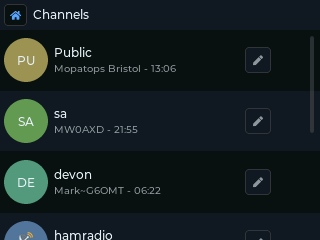
Open Chat from the launcher. The first screen lists your channels, with an unread count and a preview of the last message, and a Direct Messages entry at the bottom.
| T-Deck | Cardputer |
|---|---|
 |
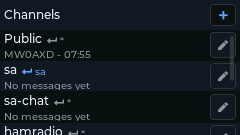 |
A channel is a group chat. Everyone who has the channel's key can read it and post to it.
- Public is always there. Every MeshCore node has its key, so treat it as open.
- You can add up to 9 more channels.
Choose + Add Channel at the top of the channel list (or use Settings > Channels). Fill in:
-
Name. A name starting with
#(for example#Mesh) is a hashtag channel: leave the key empty and it is worked out from the name, so anyone who types the same name joins the same channel. Any other name (for exampleMyGroup) is a private channel: leave the key empty and a random key is made for you. Share it with the people you want in. - Key (PSK). To join a private channel someone else made, paste their key here.
To see a channel's key so you can share it, type channel <n> in the
Terminal. n is the slot, 1 to 10 (1 is Public); channels
lists them. It prints the key in base64.
The ≡ button at the end of a channel's row opens its options:
- Configure Scope: which region this channel's messages are flooded to. See Regions and scopes.
- Channel Icon (Cardputer): initials or an emoji in front of the channel name. The T-Deck shows each channel's initials in a circle instead.
- Clear Messages: empties the conversation.
- Notify: On / Off: popups and sounds for this channel.
- Delete Channel (not for Public).
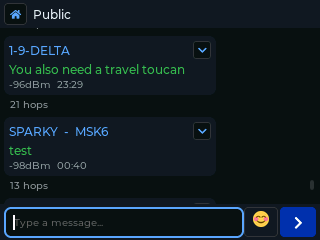
Open a channel to see its conversation as speech bubbles: yours on the right, others on the left with the sender's name. Type a message and press Enter to send.
| T-Deck | Cardputer |
|---|---|
 |
(screenshot to come) |
Under messages you sent to a channel, repeated ×N shows how many times repeaters were heard passing it on: a sign it got out.
Select a message bubble to open its menu (on the T-Deck tap the bubble's menu button; on the Cardputer move to the bubble and press Enter):
-
Reply: starts your message with
@[Name]. - Show Path: the repeaters the message came through.
- Add Contact: saves the sender as a contact, if their advert has been heard.
With Settings > Show Hops and Show RSSI on, each received message also shows how many hops it took and its signal strength.
A DM goes to one contact only, encrypted so that only the two of you can read it.
- Start one: open Contacts, select the person and choose Direct Message, or open Direct Messages in Chat.
- Delivery: a tick appears on your bubble when the recipient's device confirms it. If no confirmation comes back, Saitama resends it: first along the known route, then as a flood (Settings > DM Retries, 5 and 3 by default). If every try fails the bubble shows ✕ Not delivered. See Getting your message through.
- Green padlock = verified. See below.
Every DM is encrypted and checked with a key that only you and that contact can work out: each side combines its own private key with the other's public key. A message that wasn't made with your contact's private key fails the check, so a DM can't be forged in their name.
- T-Deck: a green padlock beside the sender's name on each verified message.
- Cardputer: a green padlock in the conversation's title bar.
Channel messages have no padlock and can't be verified: anyone with the channel key can post under any name. When it matters who sent something, use a DM.
The details: the contact's public key is trusted from the first advert you save for them, and the check is MeshCore's 2-byte message authentication code (MAC), not a full digital signature.
You can only DM someone after you've heard their advert (or saved them from a QR code), and they can only DM you after hearing yours.
With Settings > Save Messages on (the default), every conversation is saved to
the SD card in /ops/msgs/ and reloaded when you open it. The Cardputer keeps
fewer messages in memory per conversation than the T-Deck (10 rather than 20); older
ones stay on the card.
Settings > Notifications turns the new-message popup on or off. Settings > Notification Sound picks the sound (Default, Pluck, Clear or Whoosh) and Settings > Speaker sets the volume. Sounds are muted during Night Mode.