EDTRMNL
EDTRMNL Dashboard displays information about your Elite Dangerous commander directly on your TRMNL device.
It combines commander data from Inara and EDSM to show your current location, active ship, ranks, credits, Powerplay allegiance, and distances to important galactic landmarks.
EDTRMNL Dashboard is an independent community plugin and is not affiliated with Frontier Developments, Elite Dangerous, Inara, EDSM, or TRMNL.
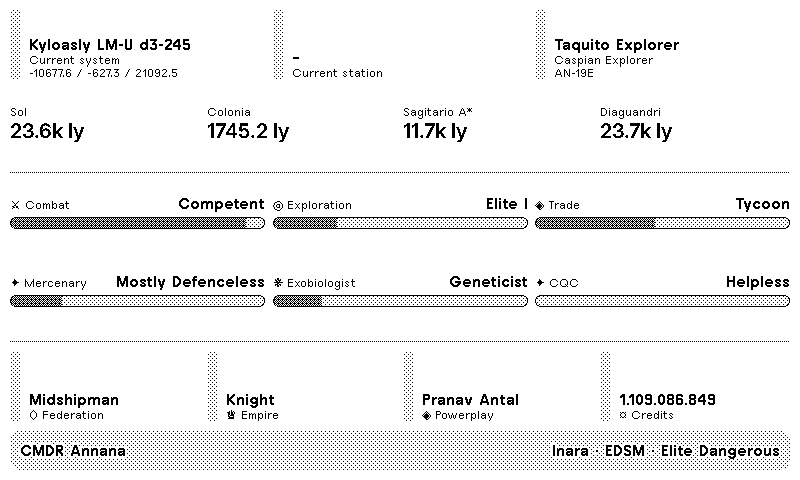
Depending on the selected TRMNL layout, the plugin may display:
- Commander name
- Current star system
- Galactic coordinates
- Current or last reported station
- Active ship
- Custom ship name and identifier, when available
- Credit balance
- Distance to Sol
- Distance to Colonia
- Distance to Sagittarius A*
- Distance to a custom reference system
- Combat rank and progression
- Exploration rank and progression
- Trade rank and progression
- Mercenary rank and progression
- Exobiologist rank and progression
- CQC rank and progression
- Federation navy rank
- Empire navy rank
- Powerplay allegiance
Compact layouts may display a reduced selection of this information.
EDTRMNL Dashboard does not connect directly to Elite Dangerous.
Your journal data follows this process:
- Elite Dangerous writes information to your local journal files.
- EDMC or EDDiscovery reads those journal files.
- EDMC or EDDiscovery synchronizes the information with EDSM and Inara.
- EDTRMNL Dashboard retrieves the latest available information from EDSM and Inara.
- TRMNL displays the resulting snapshot during its next refresh.
Because of this process, EDTRMNL Dashboard is not a live telemetry display. Changes may take some time to appear.
Before configuring the plugin, you will need:
- An Elite Dangerous commander
- An EDSM account
- An EDSM API key
- An Inara account
- An Inara API key
- EDMC or EDDiscovery installed and configured
- Journal synchronization enabled while you play
- A TRMNL account and compatible device
- Open the EDTRMNL Dashboard plugin page on TRMNL.
- Click Add to TRMNL.
- Enter your exact commander name.
- Enter your Inara API key.
- Enter your EDSM API key.
- Optionally, enter a custom reference system.
- Save the plugin.
- Run Force Refresh from TRMNL.
The public installation link will be added here once the plugin is published.
Enter your in-game commander name exactly as it appears in Elite Dangerous.
Do not include:
CMDR- A profile URL
- Additional spaces before or after the name
For example:
Ana Barros
The Inara API key is used to retrieve information such as:
- Active ship
- Custom ship name
- Ship identifier
- Commander ranks
- Rank progression
- Federation and Empire ranks
- Powerplay allegiance
To find your Inara API key:
- Sign in to Inara.
- Open Commander → Settings.
- Locate the API section.
- Copy your API key.
- Paste it into the Inara API Key field in TRMNL.
You can also open the settings page directly:
Inara may require approval before an API key can be used by an external application.
When requesting access, provide the following information:
- Application name:
EDTRMNL - Purpose: Displays Elite Dangerous commander statistics on a TRMNL e-ink display
- API event used:
getCommanderProfile
Until access is approved, information supplied by Inara may appear as –, including the active ship, ranks, and Powerplay allegiance.
Data supplied by EDSM may continue to work normally.
The EDSM API key is used to retrieve information such as:
- Current system
- Galactic coordinates
- Current or last reported station
- Credit balance
- Position used for distance calculations
To find your EDSM API key:
- Sign in to EDSM.
- Open your account settings.
- Open the API Key section.
- Copy your API key.
- Paste it into the EDSM API Key field in TRMNL.
You can also open the settings page directly:
This optional field lets you display the distance between your current position and another star system available in EDSM.
Enter the system name exactly as it appears in Elite Dangerous or EDSM.
For example:
Beagle Point
Leave the field blank to hide the custom distance.
The displayed label may be shortened in compact layouts.
EDMarketConnector, commonly called EDMC, can upload your Elite Dangerous journal data while you play.
- Install EDMarketConnector.
- Open EDMC.
- Sign in with the Frontier account associated with your commander.
- Open the EDMC settings.
- Enable EDSM synchronization.
- Enter your EDSM commander name and API key when requested.
- Configure Inara synchronization.
- Keep EDMC running while playing Elite Dangerous.
After making a jump, docking, changing ships, or gaining rank progress, allow some time for EDMC, EDSM, and Inara to process the update.
EDDiscovery can also synchronize your Elite Dangerous journal.
- Install EDDiscovery.
- Configure your commander.
- Connect your EDSM and Inara accounts.
- Enable journal synchronization.
- Keep EDDiscovery running while playing.
You only need EDMC or EDDiscovery. You do not need to run both.
EDSM provides:
- Current star system
- Galactic coordinates
- Station information
- Credit balance
- Position data used to calculate distances
The plugin uses the current EDSM coordinates to calculate the distance to:
- Sol
- Colonia
- Sagittarius A*
- Your optional custom reference system
Inara provides:
- Active ship
- Ship type
- Custom ship name
- Ship identifier
- Commander ranks
- Rank progression
- Federation navy rank
- Empire navy rank
- Powerplay allegiance
The Full layout provides the most complete commander overview.
It may include:
- Commander identity
- Current location
- Active ship
- Credit balance
- Galactic distances
- Full rank progression
- Navy ranks
- Powerplay allegiance
The Half Horizontal layout displays a condensed selection of commander, ship, location, distance, and rank information.
The Half Vertical layout is optimized for a narrower vertical area and focuses on the most relevant commander statistics.
The Quadrant layout provides a compact summary intended for smaller playlist areas.
The exact amount of information displayed may vary depending on the TRMNL device and screen size.
The displayed information depends on three separate updates:
- EDMC or EDDiscovery uploads your journal.
- EDSM and Inara process the uploaded information.
- TRMNL refreshes the plugin.
A Force Refresh in TRMNL only repeats the final step. It cannot update information that has not yet reached EDSM or Inara.
For the most reliable results:
- Keep EDMC or EDDiscovery running while playing.
- Confirm that synchronization completed successfully.
- Wait briefly for EDSM and Inara to process the data.
- Run Force Refresh in TRMNL.
Check the following:
- Confirm that the commander name is entered exactly.
- Remove
CMDRfrom the beginning of the name. - Remove spaces before or after the name.
- Confirm that the same commander is configured in EDSM and Inara.
- Confirm that both API keys are correct.
- Save the TRMNL configuration again.
- Run Force Refresh.
The current system comes from EDSM.
- Confirm that EDMC or EDDiscovery was running while you played.
- Check that EDSM synchronization is enabled.
- Open your EDSM profile and check whether the latest system appears there.
- Wait for EDSM to process the journal update.
- Run Force Refresh in TRMNL.
If EDSM still shows the previous system, the problem is likely related to journal synchronization rather than the TRMNL plugin.
Ship and rank data come from Inara.
Check that:
- The Inara API key is correct.
- The key has permission to be used with EDTRMNL.
- The commander name matches your Inara profile.
- Inara synchronization is enabled in EDMC or EDDiscovery.
- Your Inara profile contains current commander information.
Credit information comes from EDSM.
Check that:
- The EDSM API key is correct.
- Your EDSM account is connected to the correct commander.
- EDMC or EDDiscovery is uploading your journal.
- The balance appears correctly on your EDSM profile.
A station may not be displayed when:
- Your commander is not currently docked
- EDSM has not received the latest docking event
- The most recent position does not include a station
- Journal synchronization was not running
This does not necessarily indicate an error.
Check that:
- The custom system name is spelled correctly.
- The system exists in EDSM.
- EDSM has coordinates for the system.
- Your current commander position is available.
- The field does not contain additional spaces.
Try searching for the system directly on EDSM and copy its exact name.
Rank information comes from Inara and may update later than the game itself.
Keep EDMC or EDDiscovery running, wait for Inara to process the journal, and run Force Refresh again.
Powerplay allegiance comes from Inara.
Check that:
- The correct information appears on your Inara profile.
- The Inara API key is working.
- Inara synchronization is enabled.
- The plugin has been refreshed after the information updated.
If you are not pledged to a power, the plugin may display None or –.
EDTRMNL Dashboard uses two independent services.
This means that one part of the dashboard may continue working while another service is unavailable:
- EDSM problem: location, station, coordinates, credits, and distances may be missing.
- Inara problem: ship, ranks, and Powerplay information may be missing.
Treat your EDSM and Inara API keys as private credentials.
Never include any of the following in a public GitHub Issue:
- Inara API keys
- EDSM API keys
- Passwords
- Authentication tokens
- TRMNL webhook URLs
- Screenshots containing credentials
If you accidentally publish an API key:
- Remove it from the public message or screenshot.
- Reset or regenerate it on the corresponding service.
- Update the plugin configuration in TRMNL.
- Run Force Refresh.
Commander and ship information is provided by Inara.
Location, coordinates, station, credits, and distance information is provided by EDSM.
The availability, accuracy, and update frequency of the information depend on these external services and on the synchronization of your Elite Dangerous journal.
Before reporting a problem:
- Confirm that EDMC or EDDiscovery is synchronizing correctly.
- Check whether the correct information appears on EDSM and Inara.
- Save the TRMNL plugin configuration again.
- Run Force Refresh.
- Remove all private credentials from screenshots.
Report an EDTRMNL Dashboard issue
When reporting an issue, include:
- Your TRMNL device
- The selected layout
- Which information is missing or incorrect
- Whether the correct information appears on EDSM
- Whether the correct information appears on Inara
- A screenshot with all private information removed
- Whether the issue continues after using Force Refresh
Do not include your EDSM or Inara API keys.