RetroArchTRMNL
RetroArchTRMNL displays your RetroAchievements profile, game progress, and achievement statistics directly on your TRMNL device.
RetroArchTRMNL is an independent community plugin and is not affiliated with RetroAchievements or TRMNL.
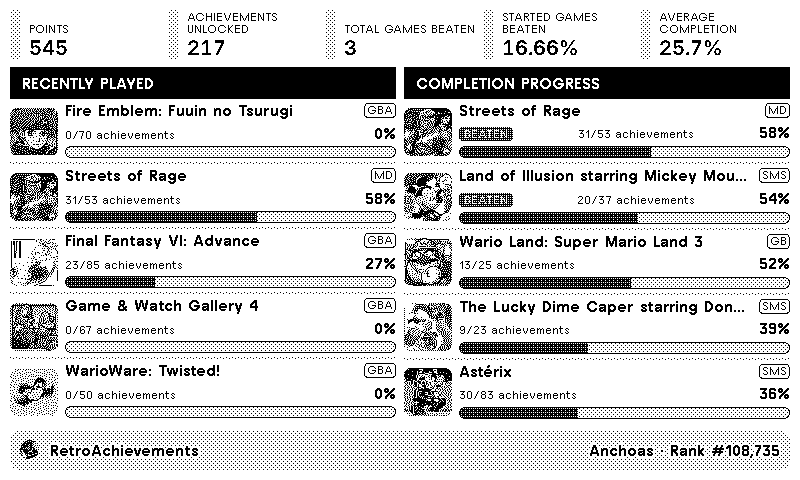
Depending on the selected TRMNL layout, the plugin may display:
- RetroAchievements username
- Profile avatar
- RetroAchievements rank
- Total RetroAchievements points
- Achievements unlocked
- Total games beaten
- Percentage of started games beaten
- Average game completion
- Recently played games
- Achievement progress for each game
- Game status, such as Beaten or Mastered
Compact layouts display fewer games and may focus primarily on completion progress.
Before installing the plugin, you will need:
- A RetroAchievements account
- Your exact RetroAchievements username
- Your RetroAchievements Web API Key
- A TRMNL account and compatible device
- Open the RetroArchTRMNL plugin page on TRMNL.
- Click Add to TRMNL.
- Enter your RetroAchievements username.
- Enter your RetroAchievements Web API Key.
- Configure the optional game filters.
- Save the plugin.
- Run Force Refresh from TRMNL to load your data.
The public installation link will be added here once the plugin is published.
- Sign in to RetroAchievements.
- Open your RetroAchievements Control Panel.
- Find the Keys section.
- Copy the value labelled Web API Key.
- Paste it into the Web API Key field when configuring RetroArchTRMNL.
Your Web API Key should be treated like a password. Do not publish it, include it in screenshots, or share it in a GitHub Issue.
More information is available in the official RetroAchievements API documentation.
Enter your RetroAchievements username exactly as it appears on your profile.
Do not enter:
- Your complete profile URL
- Your email address
- Additional spaces before or after the username
Enter the Web API Key found in the Keys section of your RetroAchievements Control Panel.
This is not:
- Your RetroAchievements password
- Your emulator connection key
- Your profile URL
Enable this option to remove mastered games from the Completion Progress list.
This is useful when you want the plugin to focus on games that still have achievements left to unlock.
Enable this option to remove games marked as beaten in either Hardcore or Softcore mode from the Completion Progress list.
When both options are enabled, the completion list focuses on games that have not yet been beaten or mastered.
If no games satisfy the selected filters, the plugin will display:
No games match the current filters.
The Full layout provides the most detailed overview, including profile statistics, recently played games, and completion progress.
The Half Horizontal layout displays a reduced selection of recently played games and completion progress.
The Half Vertical layout focuses on profile statistics and completion progress.
The Quadrant layout shows a compact summary with the most relevant statistics and a limited number of games.
The exact number of visible games may vary depending on the TRMNL device and screen size.
RetroArchTRMNL retrieves data from the RetroAchievements API whenever TRMNL refreshes the plugin.
New achievements or game progress may not appear immediately. Run Force Refresh in TRMNL after playing to request updated data.
A Force Refresh requests the information again, but temporary delays may still occur if RetroAchievements has not yet processed the latest activity.
Check the following:
- Confirm that your username is entered correctly.
- Confirm that you copied the Web API Key.
- Make sure you did not enter your password or emulator connection key.
- Remove spaces before or after the username and API key.
- Save the plugin configuration again.
- Run Force Refresh in TRMNL.
- Check whether RetroAchievements is temporarily unavailable.
Disable Hide Mastered Games, Hide Beaten Games, or both.
Save the configuration and run Force Refresh again.
RetroAchievements or TRMNL may still be displaying cached or previously processed data.
Wait briefly and use Force Refresh again.
Check whether your latest activity appears correctly on your RetroAchievements profile.
If the profile is also outdated, the information has not yet been processed by RetroAchievements.
The information displayed depends on the data returned by the RetroAchievements API.
Accounts with a large game history may have only a limited selection of completion records available in a single response. When this happens, some statistics may be based on the latest available games.
Game artwork and profile images are loaded from RetroAchievements.
Temporary image-loading problems may resolve automatically during a later TRMNL refresh.
RetroAchievements may be temporarily unavailable or rate-limited.
Wait briefly and run Force Refresh again.
Never include any of the following in a public GitHub Issue:
- RetroAchievements Web API Keys
- Passwords
- Authentication tokens
- TRMNL webhook URLs
- Screenshots containing private credentials
If you accidentally publish your Web API Key:
- Remove it from the public message or screenshot.
- Reset or regenerate it from your RetroAchievements Control Panel.
- Update the plugin configuration in TRMNL.
- Run Force Refresh.
Profile, game, progress, and achievement information is provided by RetroAchievements.
The availability, accuracy, and update frequency of the information depend on the RetroAchievements service and API.
Before reporting a problem:
- Confirm that the username is correct.
- Confirm that you are using the Web API Key.
- Save the plugin configuration again.
- Run Force Refresh.
- Remove all private credentials from screenshots.
When reporting an issue, include:
- Your TRMNL device
- The selected layout
- A description of the problem
- The steps needed to reproduce it
- A screenshot with all private information removed
- Whether the issue continues after using Force Refresh
Do not include your RetroAchievements Web API Key.