Features and Configuration
This page documents every player-facing feature and menu item in Andy's Smart Tool Swapper, in the order a player meets them. For the admin/operator menu and server console commands, see the Admin and Operator Guide.
Every personal setting starts on World default, meaning "whatever the world owner chose". Change one and it applies to you alone. If the world owner has switched Players may change their own settings off, this menu says so and changes nothing — personal preferences are then ignored entirely rather than half-applied.
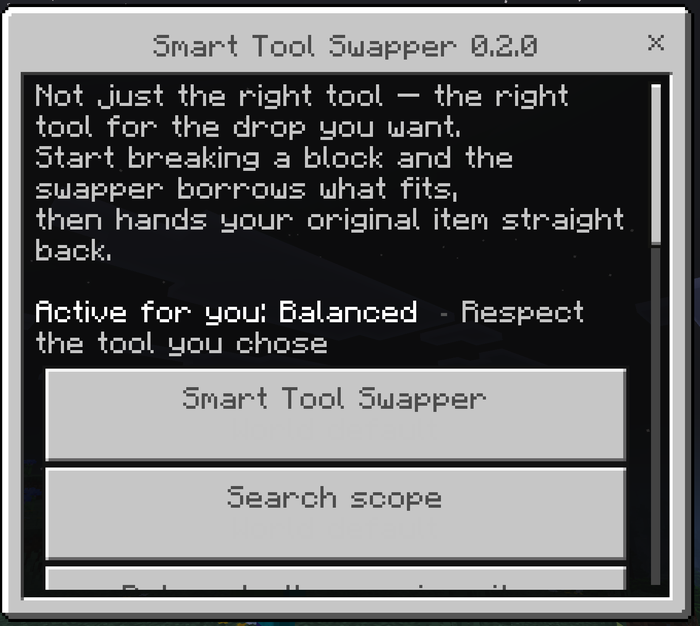
What it does: Watches for you actually starting to break a block, works out what that block needs, scores every eligible tool you are carrying, and puts the winner in your hand. Pickaxes, axes, shovels, hoes, shears and melee weapons are all first-class.
Why and when to use it: It is the core of the add-on and it is on by default. It matters most in mixed ground — a mineshaft, a cave floor, a ravine — where vanilla has you reaching for a different hotbar slot every few seconds.
Where to use it: Anywhere. Overworld, Nether and End; Survival and Adventure. Creative works; Spectator is skipped.
How to use it: Start breaking a block. That is the whole interaction. Swapping follows what you do, never what you look at, so glancing past a cow, a chest and a log on the way to the block you wanted changes nothing.
Suggested starting settings: Leave the defaults for your first session — Balanced selection, Respect-the-tool-you-chose enchantments, hotbar-only search, tools near breaking skipped.
Edge cases and limits: The blocks other switchers get wrong are covered explicitly:
| Block group | Asks for |
|---|---|
| Sculk, sculk veins, catalysts, shriekers, sensors | Hoe |
| Sponge and wet sponge | Hoe |
| Hay bales, dried kelp, nether wart blocks, shroomlight, target blocks | Hoe |
| Wool, carpet, leaves, vines | Shears |
| Cobweb | Shears, or a sword as a stand-in |
| Bamboo | Sword, or an axe as a stand-in |
| Muddy mangrove roots | Shovel |
| Mangrove roots | Axe |
| Nether stems and hyphae | Axe |
| Copper — cut, waxed, oxidized, grates, bulbs, doors | Pickaxe |
| Chains, bone blocks, lanterns, hoppers, anvils, bells | Pickaxe |
| Decorated pots, flower pots, beds, banners, candles | Nothing — no tool helps, and the wrong one can cost you the drop |
A block from another add-on that the engine does not recognise resolves to "no requirement", and your held item is left alone rather than guessed at.
What it does: Remembers what was in your hand when you started, and gives it back when you stop.
Why and when to use it: This is what makes the add-on feel like it is lending you a tool rather than taking over your hotbar. It matters most when building: place a run of blocks, notice one is wrong, break it, and your building stack is already back in your hand.
Where to use it: Anywhere the swapper is active.
How to use it: Automatic. The session closes after roughly half a second with no swings.
Suggested starting settings: On.
Edge cases and limits: If you moved either the borrowed tool or your original item during the swing, the restore does not fire — see Search scope below for why.
What it does: Decides how far the engine may reach for a tool.
Why and when to use it: Hotbar only moves the selected-slot cursor and never touches your inventory. Hotbar and inventory also reaches tools in rows 2 and 3, swapping the tool you need into your hand and your held item out to where it came from, then restoring the layout when the action ends.
Use whole-inventory if you carry spares in storage rows and hate reorganising mid-session. Stay on hotbar-only if you are particular about your hotbar.
Where to use it: Anywhere. Whole-inventory does slightly more work per material change, worth knowing on a busy server.
How to use it: SwapperControl → Search scope.
Suggested starting settings: Hotbar only. Move to Hotbar and inventory once you trust the restore.
Edge cases and limits: The restore checks that both slots still hold what it left there. If you rearrange your inventory during a swing it deliberately does nothing rather than shuffle slots you have since changed — so a borrowed tool can be left in the borrowed position. That is the safe failure, and it is exactly why hotbar-only exists.
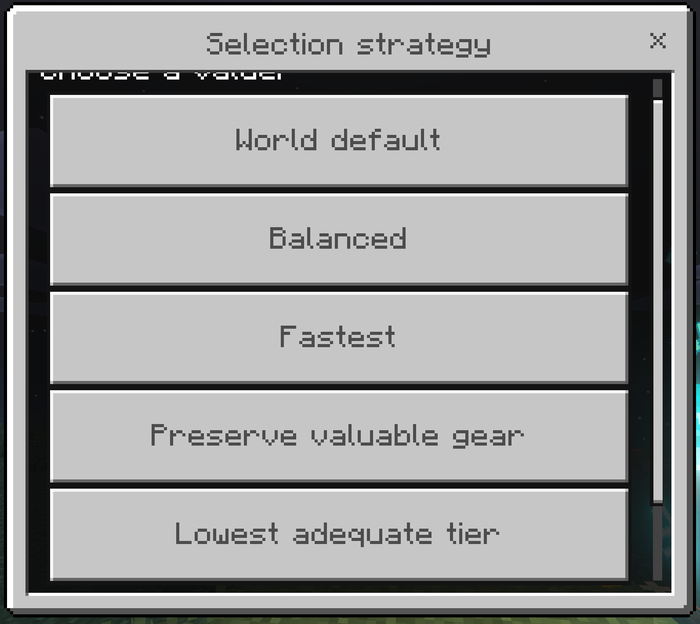
What it does: Tells the engine what "the best tool" means to you.
Why and when to use it: The worked example throughout: you own a stone pickaxe and an Efficiency V Netherite pickaxe, and you are mining ordinary stone.
| Strategy | On that stone | Use it when |
|---|---|---|
| Balanced | Netherite, but leans away from expensive gear when a fair alternative exists | General play |
| Fastest | Netherite, every time | Strip mining, where speed is all that matters |
| Preserve valuable gear | Stone pickaxe — the good one is saved | You wince when an enchanted pickaxe touches cobblestone |
| Lowest adequate tier | Stone pickaxe, always — cheapest tier that can legally harvest the block | Very frugal play |
Efficiency is read with the real formula (level² + 1 added to base speed), so an Efficiency V iron pickaxe genuinely outranks a bare Netherite one under Fastest. It really is faster.
Under Preserve valuable gear, enchantments and anvil names count heavily — a named enchanted tool is treated as far more precious than its materials alone suggest.
Where to use it: Anywhere.
How to use it: SwapperControl → Selection strategy.
Suggested starting settings: Balanced.
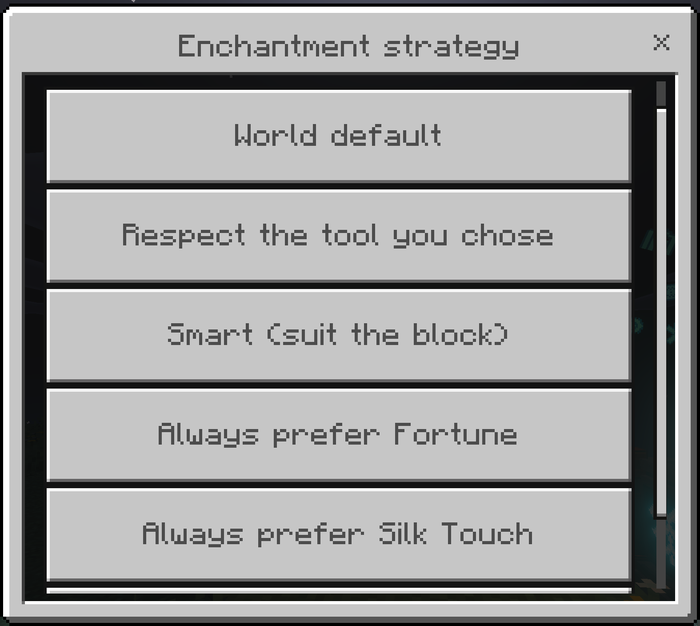
What it does: Decides whether the engine cares about Fortune and Silk Touch, and which one a block deserves.
Why and when to use it: This is the setting the whole add-on is built around. Fortune and Silk Touch are mutually exclusive, so a tool carrying either one is a decision about what the block should drop — and a switcher treating them as "two valid pickaxes" will eventually hand you the wrong drop from a block you cannot get back.
| Strategy | What it does |
|---|---|
| Respect the tool you chose (default) | If you hold a Fortune or Silk Touch tool that can do the job, nothing swaps it out — whatever else you carry, however much faster |
| Smart | Picks the enchantment each block deserves |
| Always Fortune | Prefers a Fortune tool on every block |
| Always Silk Touch | Prefers a Silk Touch tool on every block |
Smart's block knowledge:
| Block group | Wants |
|---|---|
| Ores of every kind, gravel, glowstone, sea lanterns, melons, mushroom blocks, amethyst clusters | Fortune |
| Glass, ice in all forms, grass blocks, mycelium, podzol, sculk in all forms, budding amethyst, turtle eggs, bookshelves, leaves, snow | Silk Touch |
| Spawners, trial spawners, vaults, end portal frames | Silk Touch |
| Everything else | No preference — whatever is fastest |
Where to use it: Anywhere. Smart earns its keep on a long mixed run.
How to use it: SwapperControl → Enchantment strategy.
Suggested starting settings: Respect the tool you chose. Switch to Smart once you want the best drop without thinking about it.
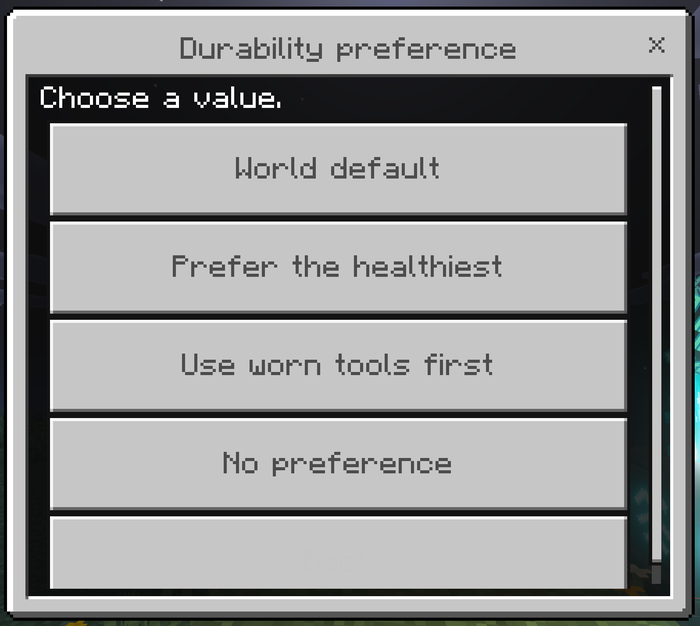
What it does: Decides which of two safe tools wins.
Why and when to use it: This is about spreading or concentrating wear. It is not the safety net — that is the world's low-durability avoidance, which refuses nearly-broken tools outright.
| Option | What it does | Use it when |
|---|---|---|
| Prefer the healthiest | Spreads wear across your spares | General play |
| Use worn tools first | Finishes off the most worn safe tool | Clearing a chest of half-dead pickaxes |
| No preference | Ignores condition entirely | You carry one of each |
Where to use it: Anywhere.
How to use it: SwapperControl → Durability preference.
Suggested starting settings: Prefer the healthiest.
Edge cases and limits: Condition is scored in exactly one place, so Use worn tools first genuinely reverses the preference rather than fighting your selection strategy.
What it does: Decides whether multi-block tools may be selected automatically.
Why and when to use it: A 3×3 Hammer is technically a pickaxe. Equipping one to fix a single misplaced block takes eight of its neighbours with it, which is not what "swap to the right tool" should ever mean.
| Option | What it does |
|---|---|
| Never auto-select (default) | Never chosen for you. You can still select one yourself |
| May be selected | Competes normally with everything else |
| Prefer area tools | Wins whenever one fits |
Hammers, Excavators, Tillers, Sickles, Scythes, Seeder Rakes and Pavers are recognised by name. Anything else can be registered — see Marking Tools and Custom Tools.
Where to use it: Anywhere, but Prefer is worth switching on deliberately when clearing rather than building.
How to use it: SwapperControl → Area-mining tools.
Suggested starting settings: Never auto-select. Change it for a dedicated clearing session, then change it back.
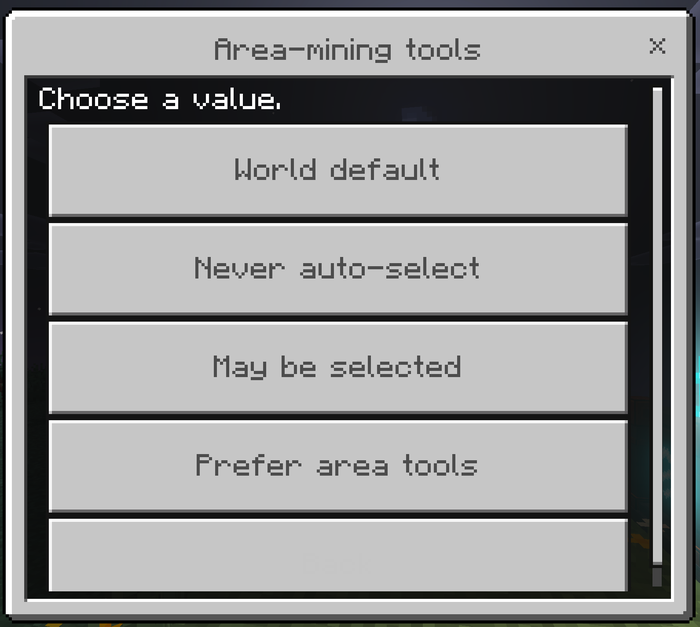
What it does: Optionally selects a melee weapon when a fight starts.
Why and when to use it: Weapon management is a matter of taste, so it is off by default.
| Option | What it does |
|---|---|
| Off (default) | Weapons are never touched |
| Your preferred weapon | Selects only a weapon you have explicitly marked Preferred — does nothing until you mark one |
| Best melee weapon | Scores base damage and Sharpness, takes the best you carry |
Combat is intent-based like mining: the weapon comes out when you start attacking, not when an entity enters your crosshair.
Where to use it: Anywhere you fight.
How to use it: SwapperControl → Combat swap.
Suggested starting settings: Off. Combat Lock, a separate world setting, is on by default and works whether or not combat swap is on — it is what stops a pickaxe appearing mid-swing because the wall behind a zombie drifted into your crosshair.
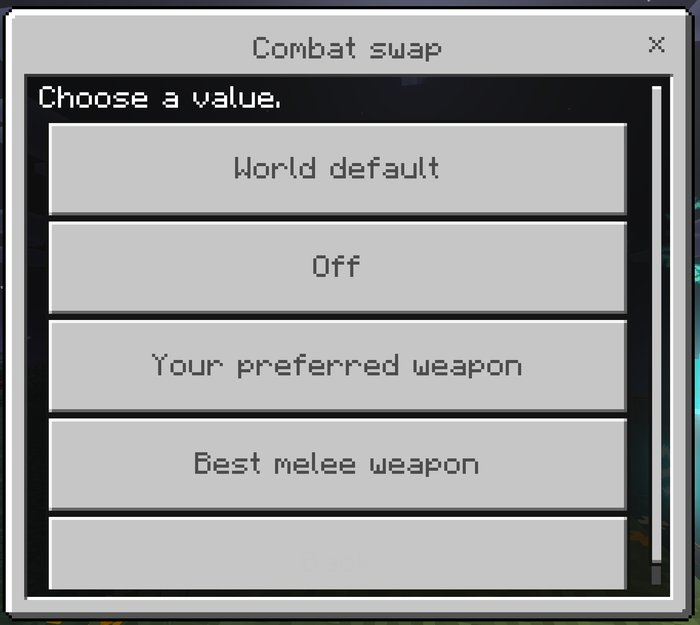
What it does: Holding sneak stops the swapper entirely. Releasing it resumes.
Why and when to use it: Your manual override, and the fastest one possible — no menu, no command, no delay. Use it when you want to break one specific block with one specific tool.
Where to use it: Anywhere.
How to use it: Hold sneak.
Suggested starting settings: On. Turn it off only if you sneak constantly while mining and find the pause disruptive.
What it does: Prints the chosen tool and the main reason it won just above your hotbar — Iron Pickaxe (has Fortune) — and names what you were returned to when the action ends.
Why and when to use it: Switch it on while tuning your strategy; it shows exactly what the engine is thinking in real time. Most people switch it off after the first hour.
Where to use it: Anywhere.
How to use it: SwapperControl → Action-bar note on every swap.
Suggested starting settings: On for the first session, off afterwards.
What it does: Runs the real engine against the block you are aiming at and prints the entire decision to chat.
Why and when to use it: An automatic selector that silently disagrees with you is the most frustrating kind of add-on to own, because there is nothing to look at. This is the answer, and it is the first thing to include in a bug report.
It reads back the block and the tool class and tier it needs; the drop intent; your active strategy, enchantment strategy and search scope; the safety floor and whether Durability Guard is raising it; every candidate in score order with its reasons; every tool skipped and why; and what it would equip.
Where to use it: Aim at a block within reach first.
How to use it: SwapperControl → Why did it pick that tool?. The menu closes so you can read the chat.
Both have their own page — see Marking Tools and Custom Tools. In short: any single tool can be marked Preferred or Never auto-select and the mark follows that exact item; and an operator can register a custom tool from another add-on that the engine cannot read on its own.
Andy's Smart Tool Swapper adds no custom items. Both menus open from a plain vanilla Stick renamed at an Anvil. There is no Crafting Table recipe to unlock and nothing new appears in the creative inventory.
Recipe type: Anvil rename — no Crafting Table recipe
- Obtain a Stick.
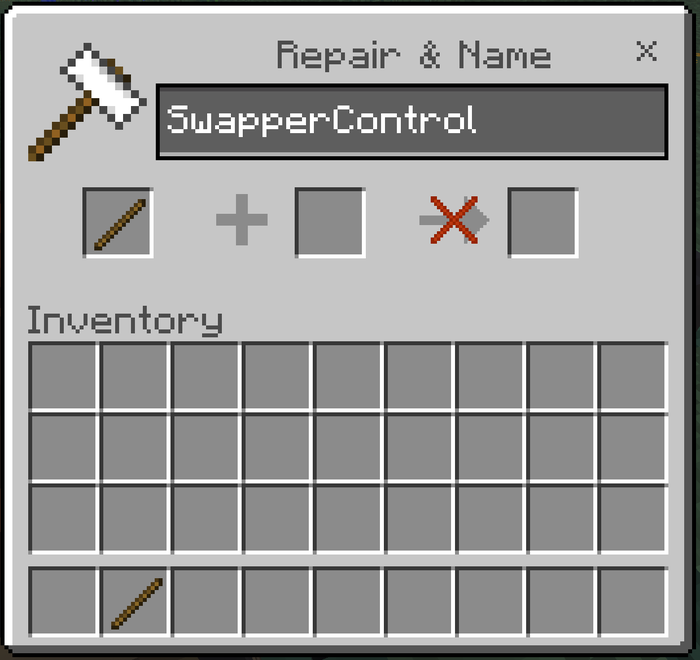
- Rename it at an Anvil to exactly:
SwapperControl - Use the renamed Stick.
Exact match required: Yes — matched exactly, including capital letters. swappercontrol and Swapper Control will not work. This is by far the most common mistake.
What it produces or unlocks: Your ten personal settings, the Mark-a-tool page, and the "Why did it pick that tool?" report.
Who can use it: Any player. No permission required, which is correct — these settings only affect the holder.
Recipe type: Anvil rename — no Crafting Table recipe
- Obtain a Stick.
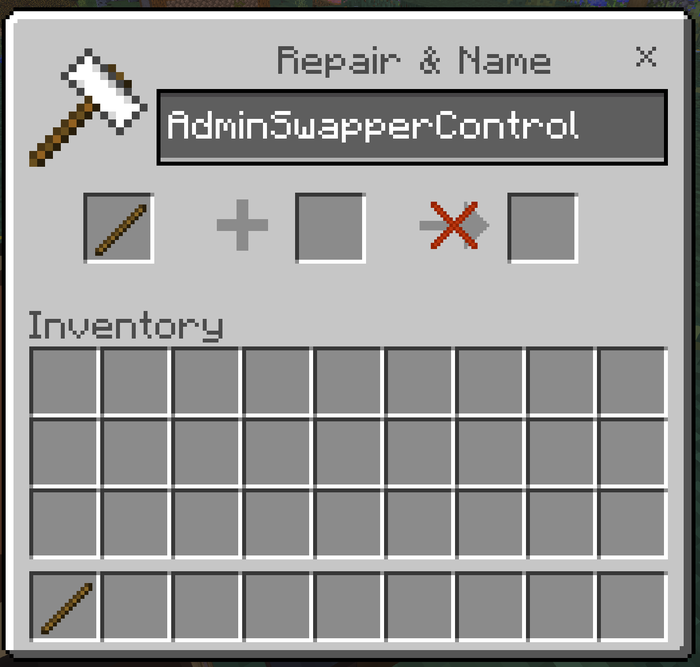
- Rename it at an Anvil to exactly:
AdminSwapperControl - Use the renamed Stick.
Exact match required: Yes, exactly as above.
What it produces or unlocks: The six world-setting pages, Teach Smart Tool Swapper, and the option to clear the operator override.
Who can use it: Operators only. Anyone can rename a Stick — renaming needs no permission — so the restriction is enforced in script when the menu opens. A non-operator is told in chat that only a world owner or operator can open the admin menu, rather than being left with an item that silently does nothing.
Every personal setting, for a player who just wants the numbers. All ten start on World default.
| Setting | Default | What it controls |
|---|---|---|
| Smart Tool Swapper | On | Whether the add-on does anything for you |
| Search scope | Hotbar only | Whether tools in rows 2–3 are reachable |
| Return to the previous item | On | Whether the add-on borrows or takes |
| Sneak pauses the swapper | On | Whether sneak suspends swapping |
| Selection strategy | Balanced | What "best tool" means |
| Enchantment strategy | Respect the tool you chose | Whether Fortune/Silk Touch is chosen for you |
| Durability preference | Prefer the healthiest | Which of two safe tools wins |
| Area-mining tools | Never auto-select | Whether Hammers and similar may be chosen |
| Combat swap | Off | Whether weapons are managed |
| Action-bar note on every swap | Off | Whether each swap is announced |
World-only settings — low-durability avoidance, the unsafe-points floor, Durability Guard awareness, builder protection, per-class tool switches, Combat Lock and its window, and the player-config lock — are on the Admin and Operator Guide.