Repository navigation
Guide Blender Render End to End
Goal: turn one equipment item into finished UO animation frames: from the canonical body, through the pack mapping
and your Fit Lab adjustments, to transparent PNGs, a UOFiddler .vd and an import package that pass validation.
Reference: Blender Build Pipeline (what each stage does) and Content Studio.
-
Installation done, including Blender 4.2 or newer (
SPRITEMOTION_BLENDERif it isn't found by itself) and Python 3.10+. -
The canonical body. Install UO_Model3D v13 (by Levy) once:
python tools/uo-content/pipeline.py setup --source <extracted-UO_Model3D-folder>
This copies the scene and its reviewed render, bind and VD tools into
workspace/ultima-online/canonical-model, keeping source hashes and attribution. Don't run it while builds are active. -
An item: a bundled CC0 starter, your own GLB/FBX/STL/BLEND, or a part from a mapped asset pack (Asset Packs).
-
Optional but recommended: the slot fitted with the Fit Lab guide.
| Canvas | 256 × 256 px, ground anchor at (128, 192), 36 px per metre |
| Directions | 5 stored (0–4); the client mirrors 5, 6, 7 from 3, 2, 1 |
| Actions | 35 UO actions |
| Timeline | UO frame i = scene frame 1 + 3i |
| Body | a holdout: it hides the item behind it but never appears in the item image |
| Preset | Content Studio | Fit Lab Render tab | Renders |
|---|---|---|---|
| Current animation | none | Current animation | 1 action × 5 directions |
| Preview | Preview · 5 actions | Preview: 5 animations | actions 0 walk, 4 idle, 9 one-handed slash, 22 death forward, 25 mounted idle |
| Full | Game export · all 35 | All 35 animations | 35 actions × 5 directions = 175 blocks, 1,050 frames |
Start with a preview; build full only when the preview is right.
From Content Studio (http://127.0.0.1:8772, launchers\editor\content-studio.bat or the workbench): pick a
starter or upload a model, choose the preset, click Build item. Jobs run one at a time.
From Fit Lab: select the item, open the Render tab, choose the coverage and click Build item. The build uses a snapshot of the saved fit.
From the command line:
python tools/uo-content/pipeline.py build --spec tools/uo-content/example-helmet.json
python tools/uo-content/pipeline.py build --spec <item-settings.json> --asset <item.glb>
The settings take mode (preview or full), fit (auto or preserve to keep your world coordinates), and
optional offset_x/y/z (metres), rotate_x/y/z (degrees) and scale. Pack jobs pick up the pack's
lab-adjustments.json by themselves; explicit snapshots in the job win.
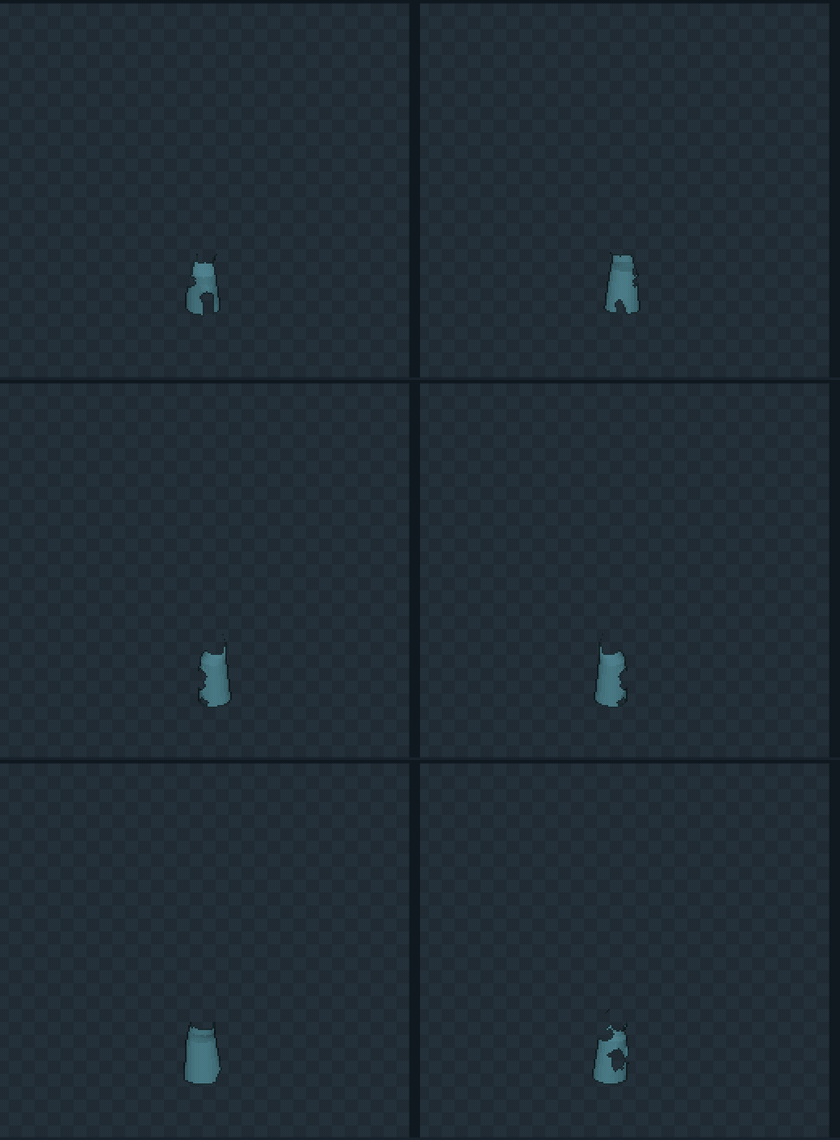
Open the job's Review in Content Studio: all 8 facings (three mirrored), play or scrub, and toggle the original body and the new item. In Fit Lab, the Blender render pane and its Sprite sheet show the same frames next to the live fit.
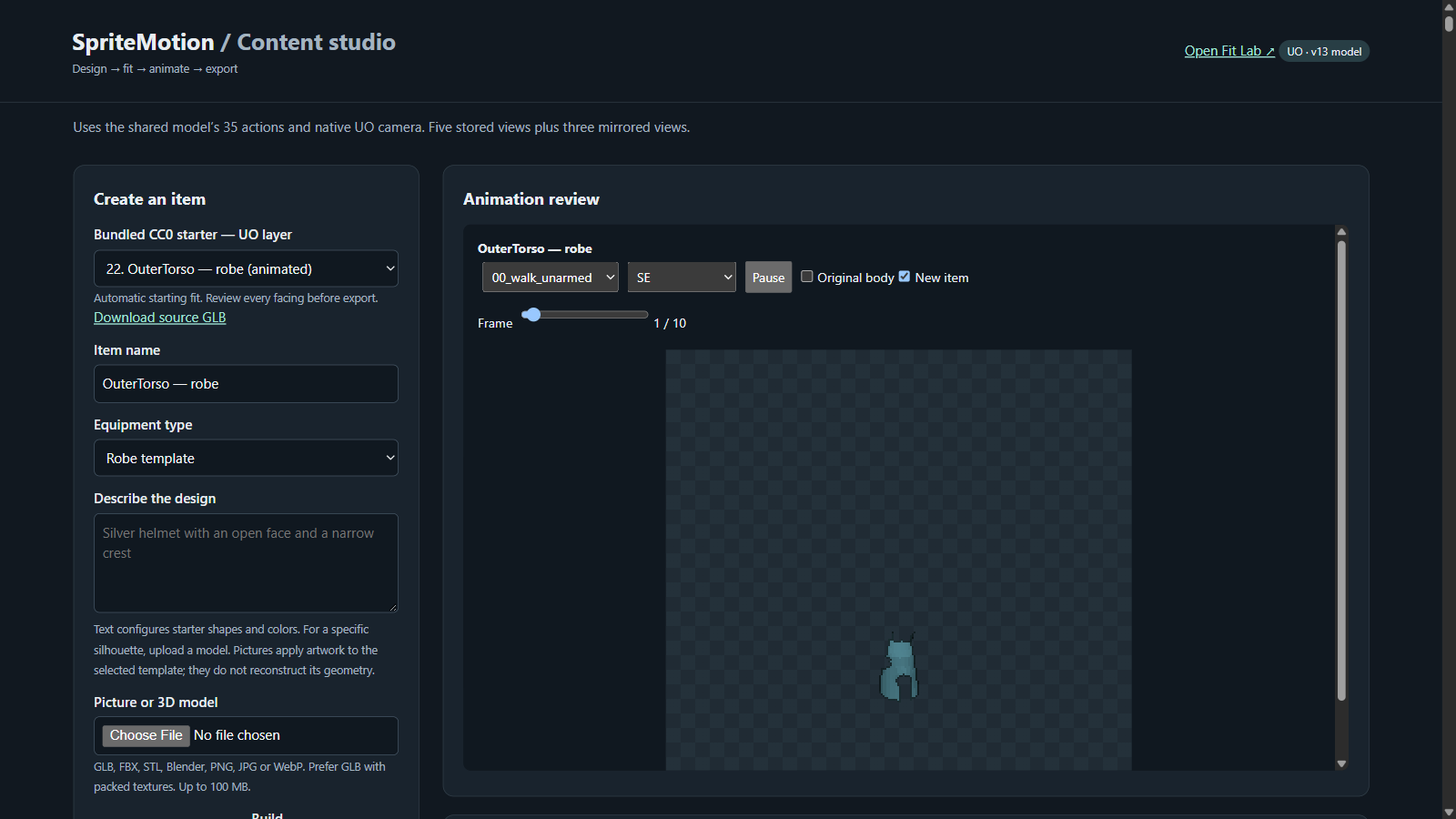
Look for clipping at the canvas edge, holes cut by body poke-through, the item floating off in some facings, and wrong front/back order.
After a fit change, re-render only the affected action/direction blocks:
python tools/uo-content/pipeline.py rebuild <job> --adjustments <lab-adjustments.json>Or use Rebuild changed blocks on Fit Lab's Render tab. A rebuild creates a new validated revision and leaves the source build untouched; unchanged VD blocks stay byte-identical. It refuses to mix versions when the model, renderer, source meshes or palette changed; build fresh then.
Each job folder, workspace/ultima-online/content-studio/jobs/<id>/, contains:
| File | Use |
|---|---|
item.blend |
the item on the rig, editable, images packed |
render/clothing/ |
transparent PNG frames and canvas metadata |
item.vd |
UOFiddler people/equipment animation |
review/ |
256 px atlases and a local animation viewer |
contact-sheet.png, inventory.png
|
overview and inventory art |
validation.json |
per-frame alpha and anchor checks from SpriteMotion's own decoder |
import-package.zip |
everything needed to import elsewhere |
Then import item.vd into an unused animation slot in UOFiddler, or stage patched copies of your client files:
Blender Build Pipeline: stage for a classic client.
-
Wrong Blender. The pipeline needs 4.2 or newer; the pose editor's female scene needs 5.2. Point
SPRITEMOTION_BLENDERat the right one. - Building full before the preview is right. A full build is 1,050 frames; fix the fit on a preview first.
- Expecting an old render to pick up a fit change. Renders freeze their fit. Rebuild changed blocks or build again.
- Editing the fit while a lab build runs. The build uses the fit saved when it started; later edits need another render.
- Reusing an occupied animation ID when staging. Staging refuses it; pick an unused body ID and art graphic.
- Treating clipping warnings as noise. Clipping and empty frames are reported, not hidden; check them in review.