Repository navigation
Quick Tour Workbench
The workbench launcher starts Content Studio and Fit Lab together. This tour takes a bundled CC0 starter item from "pick it" to "rendered sprites and an import package" in about ten steps.
Before you start: complete Installation: Python environment, SPRITEMOTION_UO_SOURCE,
the UO_Model3D v13 setup and Blender.
launchers\editor\workbench.bat cc0-startersh launchers/editor/workbench.sh cc0-starterWhat it does:
- Prepares the starter Fit Lab export from the bundled CC0 assets and your installed model if it does not exist yet (this runs Blender once and can take a while).
- Starts Content Studio on 8772 and Fit Lab on 8774, and opens Content Studio.
- Reuses services that are already running for the same pack. It refuses a port that is occupied by another pack or application instead of silently replacing it.
- Ctrl+C stops only the services it started. Finish saves and renders first.
Without an argument, SPRITEMOTION_FIT_PACK is used; otherwise the bundled starter is preferred, or the only
existing export. A private pack needs its own export first (see Asset Packs).
Both tools have Open Fit Lab / Open Content Studio links in their headers. They open a new tab, so unsaved work in the current tool stays where it is.
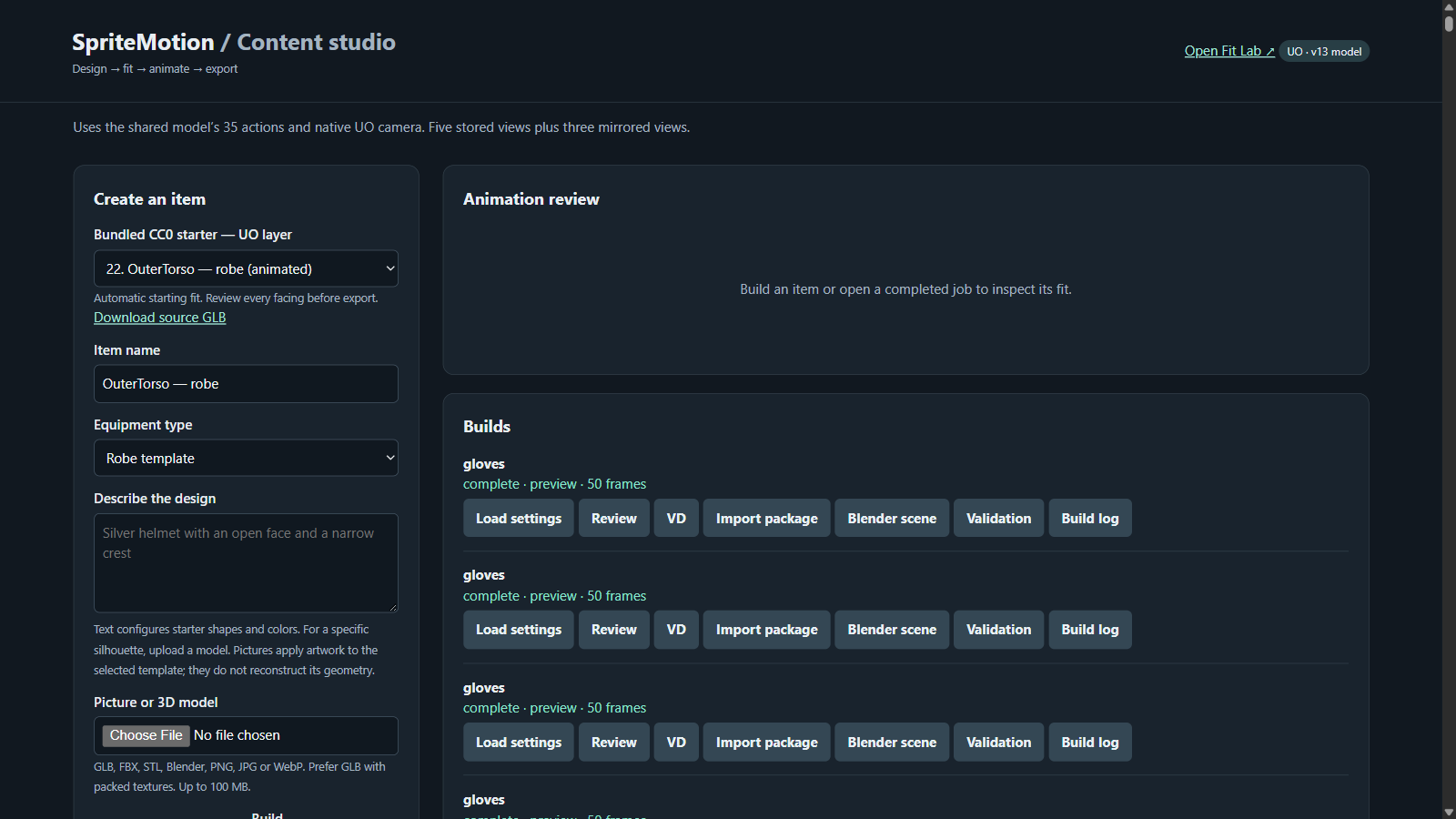
- In Create an item, open Bundled CC0 starter — UO layer and choose an entry, for example
22. OuterTorso — robe (animated). Download source GLB gives you the model itself. - Leave Build on Preview · 5 actions.
- Click Build item.
A preview build renders actions 0 (walk), 4 (idle), 9 (one-handed slash), 22 (death forward) and 25 (mounted idle) in the five stored directions. Jobs run one at a time. The finished job appears under Builds.
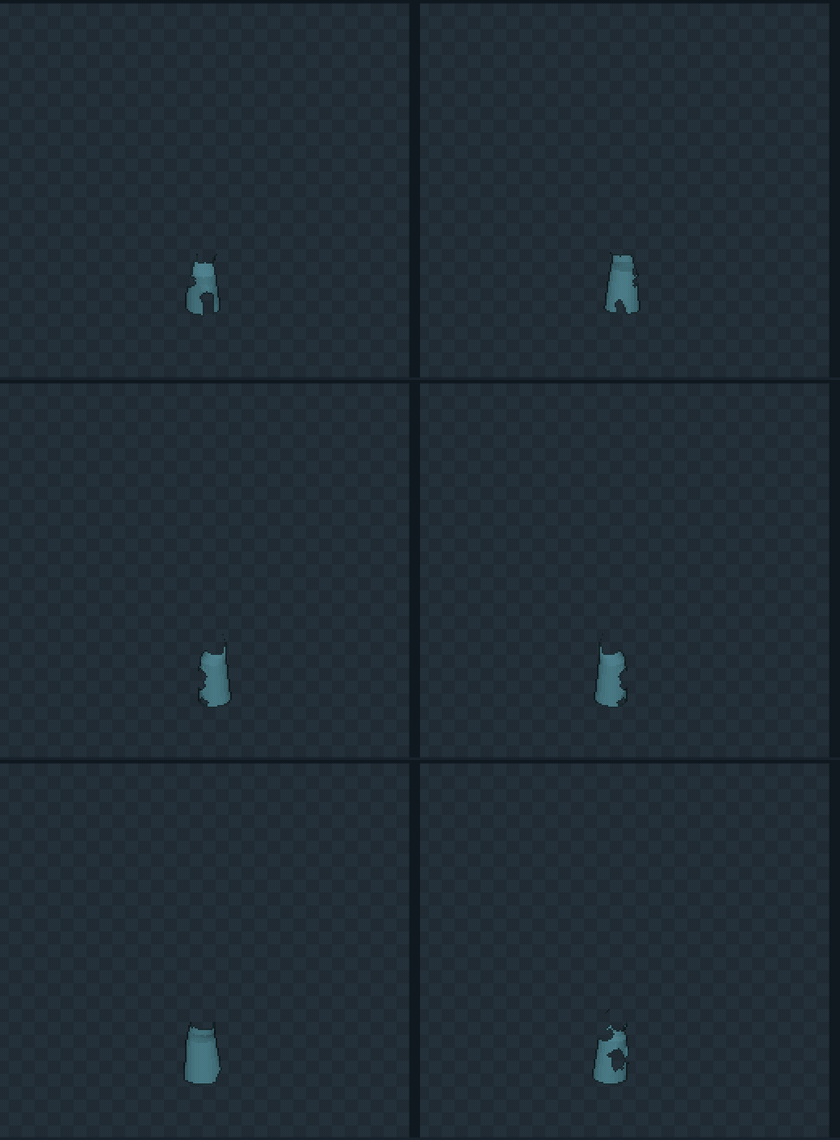
▶ Watch the Content Studio review (MP4)
Click Review on the job. Pick an action and a direction (all 8 facings: three are mirrored from stored views, as in the client), play or scrub, and toggle Original body and New item. Review playback speed is not authoritative game timing.
Look for: clipping at the canvas edge, body poking through, the item floating away from the body in some facings, or wrong front/back order.
Click Open Fit Lab and pick the same slot (OuterTorso) on the left.
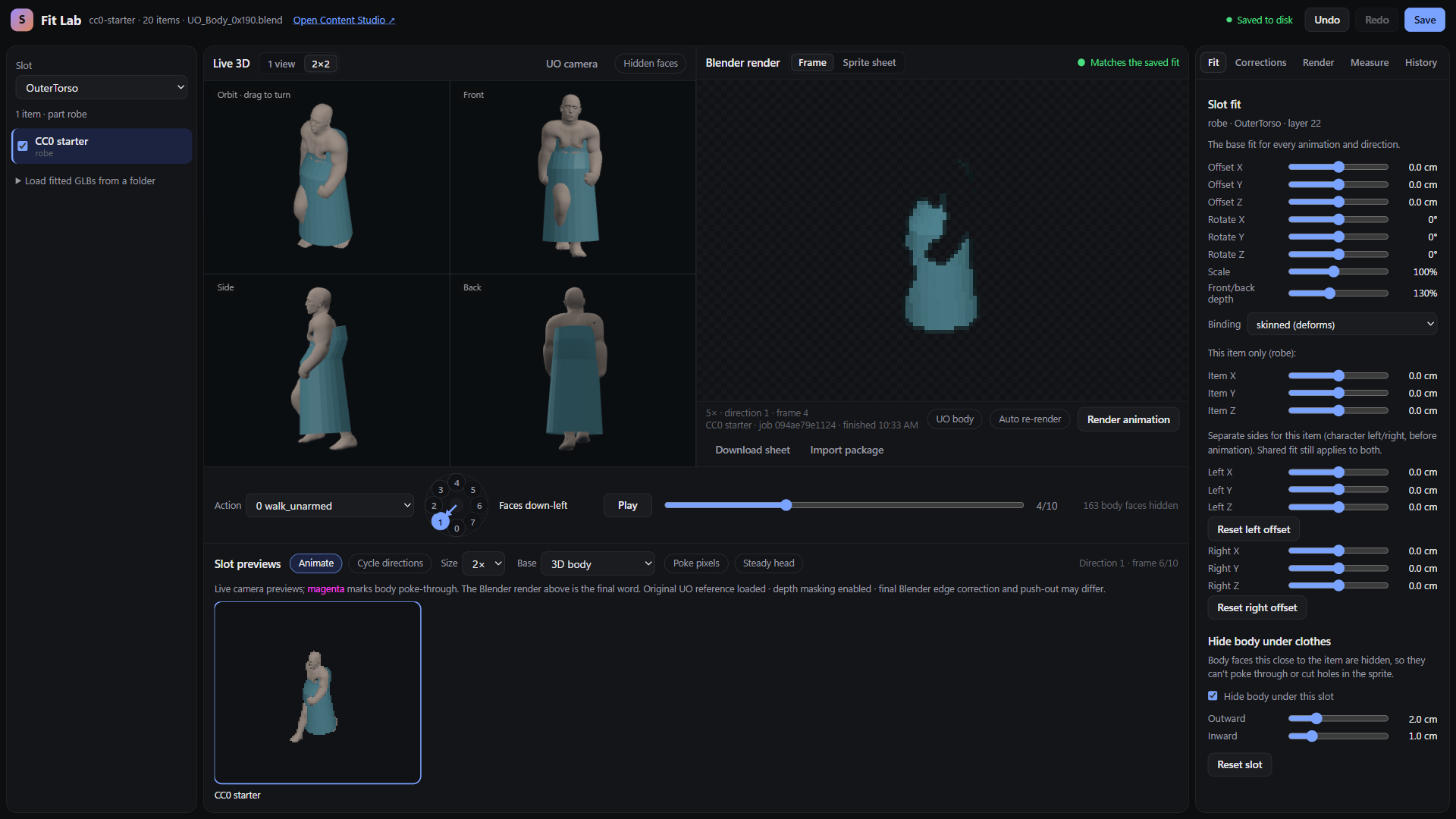
- Fit tab: change Offset X/Y/Z, Rotate X/Y/Z, Scale, Front/back depth and Binding (skinned or rigid). These are the base fit for every animation and direction.
- Hide body under clothes: keep it on for garments so body faces under the item cannot poke through.
- Use the action dropdown and the direction ring (0–7; dashed 5–7 are mirrored) and Play to check the fit in motion. The slot previews below can animate and cycle directions independently.
- Need a fix in only one pose? Use the Corrections tab with When set to a specific action and/or direction.
Saves happen automatically 800 ms after you stop editing; Ctrl+Z / Ctrl+Y undo and redo.
In the Blender render pane click Render animation (or use the Render tab to choose Current animation, Preview: 5 animations or All 35 animations). The pane shows the real Blender output locked to the main frame and direction. The status tells you whether the render Matches the saved fit or the Fit changed since this render.
Sprite sheet shows every frame of the 5 stored directions; Download sheet saves it as a PNG and Import package downloads the job's VD package.
When the preview is right, build the full animation (Coverage All 35 animations in the lab's Render tab, or Build Game export · all 35 in Content Studio). A full build is all 35 actions x 5 stored directions = 175 blocks, 1,050 frames.
Each job contains an editable item.blend, item.vd for UOFiddler, transparent PNGs, review atlases,
contact-sheet.png, validation.json and import-package.zip. See
Blender Build Pipeline for the layout and for staging into a copy of your client.
Live previews are approximate. The final rendered frames, and then the item equipped in a real client/server, are what count. Stage patched copies of your client files, never the originals; see Blender Build Pipeline: client staging.
If something looks wrong compared with original UO art, report it as a parity gap (see UO Parity Roadmap).