SQL Editor
Open as many connection workspaces as your workflow needs. Each connection owns an independent set of SQL and table tabs, its selected database and its active tab. Moving between servers restores that connection's exact context, which makes parallel local, staging and production work much safer and faster.
Tabs preserve unsaved SQL, cursor and scroll position. They return after a normal restart and from the most recent safe session after an unexpected shutdown; query results and credentials are intentionally excluded.
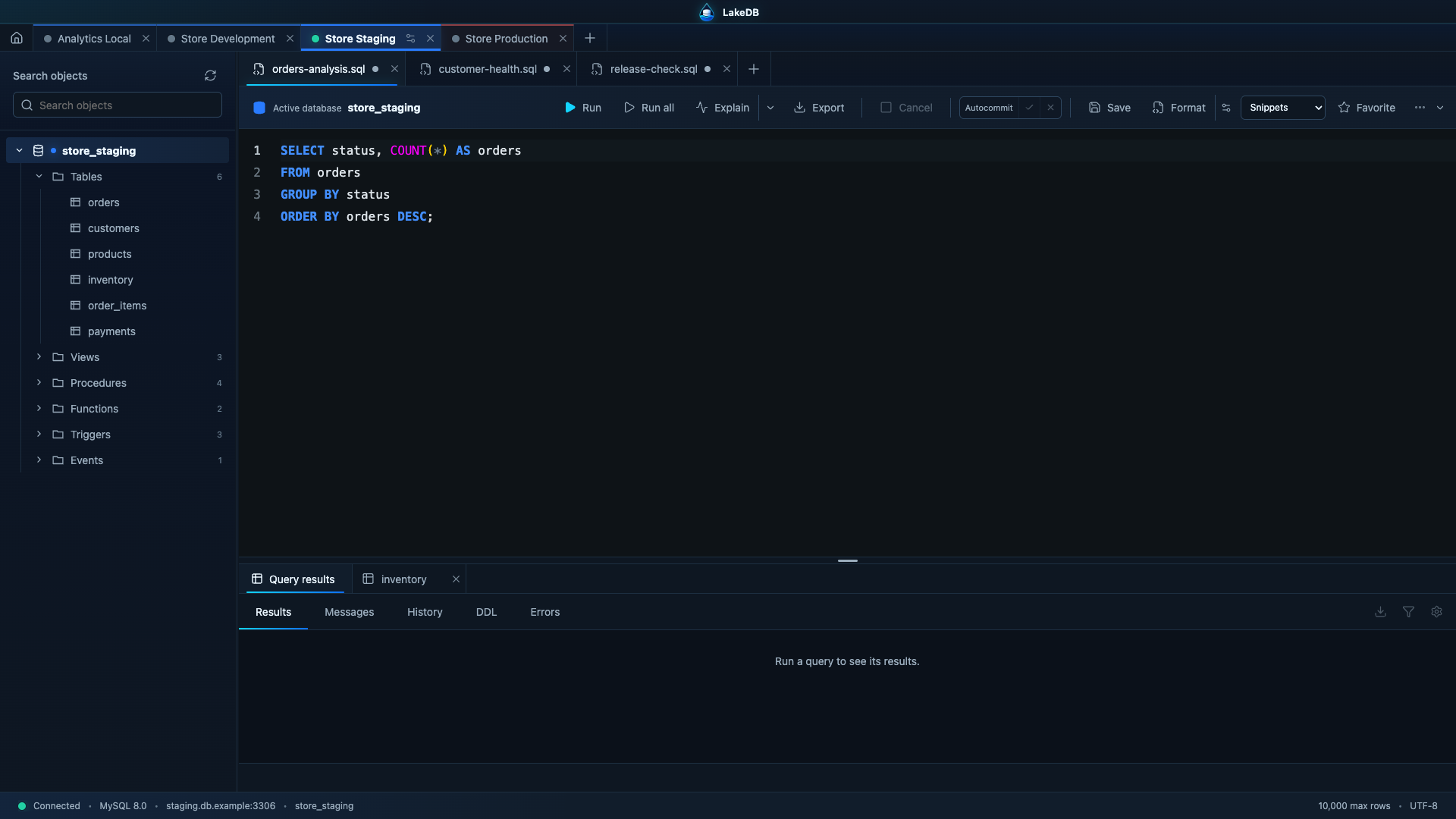
LakeDB uses Monaco Editor and supports multiple independent SQL tabs per connection. Query tabs stay above the editor while query results and open tables share a separate lower tab bar. Drag the divider to resize both areas continuously.
Changing SQL tabs keeps the current table visible below. The lower pane changes to query results only when you run SQL or select Query results explicitly.
When tabs no longer fit, use the compact previous/next controls or the all-tabs menu instead of a permanent horizontal scrollbar. The + button remains attached to the last visible tab, and LakeDB always keeps at least one SQL tab open.
- Type
database.to list matching tables and views; continue typing to filter and press Enter to accept. - Accepted tables receive a short unique alias automatically.
- Type
alias.to list columns with their data type, nullability, primary-key state and index membership. - Immediately after
WHERE, index suggestions can insert every column in a composite index as a ready-to-edit predicate. - Value placeholders are quoted and selected so they can be replaced immediately.
The object explorer complements completion: click a table once to open it below, or double-click deliberately to insert its quoted name at the current SQL cursor.
The Format button cycles between Compact and Expanded styles. Use the small settings control at the end of the button to choose and remember the starting style. Expanded formatting places stored-procedure parameters, inserted columns and VALUES expressions on separate lines. Both styles preserve strings, comments, quoted identifiers and commas inside function calls.
- Run selected text, the statement under the cursor, or the entire script.
- Cancel an active server query with
KILL QUERY. - Multi-statement scripts are split and run sequentially without enabling the driver's unsafe
multipleStatementsoption. - Use Explain for the current statement or selection. LakeDB highlights full scans, filesorts, temporary-table steps, estimated rows and indexed steps.
- Use Explain → Analyze with real execution only for a single read-only
SELECT. LakeDB validates this in both the interface and Main process because the server executes the query during analysis. - Switch autocommit per SQL tab and commit or roll back the tab-owned session from the compact transaction controls.
Successful execution opens Results automatically. A failed execution opens Errors, even when the lower panel was previously showing DDL, History or Messages.
Every result set gets its own tab. Copy cells or rows and generate INSERT/UPDATE snippets. A SELECT that returns zero rows still shows an empty grid with its column headers. Interactive results remain deliberately limited and are kept temporarily in memory rather than persisted in the session.
Use Export from the SQL toolbar, results panel or a table view to export the complete read-only query independently from the limited grid. LakeDB opens a review dialog containing the exact current editor selection, document or generated table query. You can edit that SQL, choose the format and destination, and set a per-export ceiling up to 50 million rows before starting.
Available formats and options:
- CSV: comma, semicolon, tab, pipe or a custom one-character separator; optional headers and UTF-8 BOM; LF or CRLF endings; custom NULL text; automatic or permanent quoting; and spreadsheet-formula protection.
- JSON: compact or pretty arrays, optional omission of NULL properties, parsing of JSON text values, and binary values represented as metadata, Base64 or hexadecimal.
- JSON Lines: one compact JSON object per physical line, ideal for streaming and data pipelines.
-
Excel-compatible: a self-contained
.xlstable for convenient opening in spreadsheet software, limited by the worksheet capacity to 1,048,575 data rows. -
SQL: batched
INSERT,INSERT IGNOREorREPLACEstatements against an explicit destination table, with optionalSET NAMES utf8mb4and transaction wrapping.
Any format can be written directly through GZIP. LakeDB remembers non-sensitive format preferences, but never remembers the reviewed query, destination path or SQL destination table.
Complete exports allow optional SET or USE statements followed by one read-only SELECT. Rows stream directly to disk with bounded memory, live row/size/time progress and cancellation. The separate export limit is configurable in Preferences up to 50 million rows; exceeding it fails visibly instead of silently truncating the file.
Press Cmd/Ctrl+P to search open connections, tabs, loaded database objects,
favorites, saved snippets and operational commands without leaving the editor.
Persistent snippets are managed separately from favorites and can be inserted
at the current cursor.
Open, save and save-as .sql files. LakeDB restores unsaved documents, cursor position and scroll state. Production connections are restored disconnected. History stores result, duration and row count according to your retention preferences; potentially sensitive statements can be excluded. Favorites support names, descriptions, connections, databases and tags.