Repository navigation
Getting Started
Open the demo and choose Enter demo for the owner workspace or Try customer booking for the customer page. Use fictional details. Demo changes remain in that browser profile; no account, password, real business submission or real route is involved.
An independently configured installation uses invited owner accounts. Ask its Administrator for an invitation or password-reset link, complete the intended account's setup, then sign in with your email and password. Wait for verification to complete before signing in. Do not share passwords or private setup links.
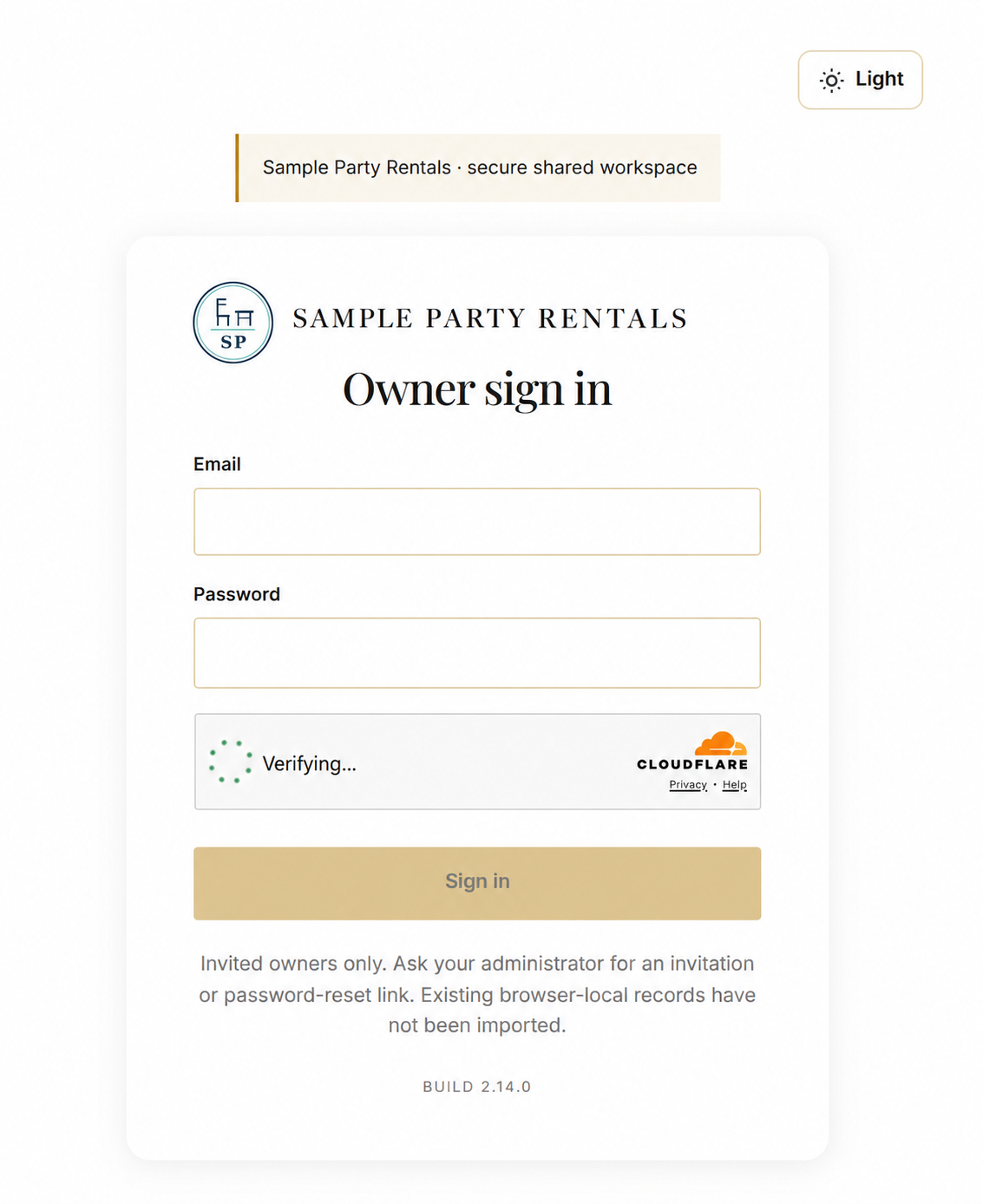
Edited illustration from the owner-supplied image: the business name and logo were rebranded. Verification is shown in progress, not completed. The public demo instead uses Enter demo.
- An Administrator opens Settings, enters the business and receipt identity, chooses relevant rental options and saves each section.
- Add or review offers in Inventory, then set actual quantities and prices. Add photos after saving an offer.
- If enabled, configure property units and monthly prices/policies before accepting those rentals.
- Review the Calendar and create a fictional test booking in your own test setup before using real records.
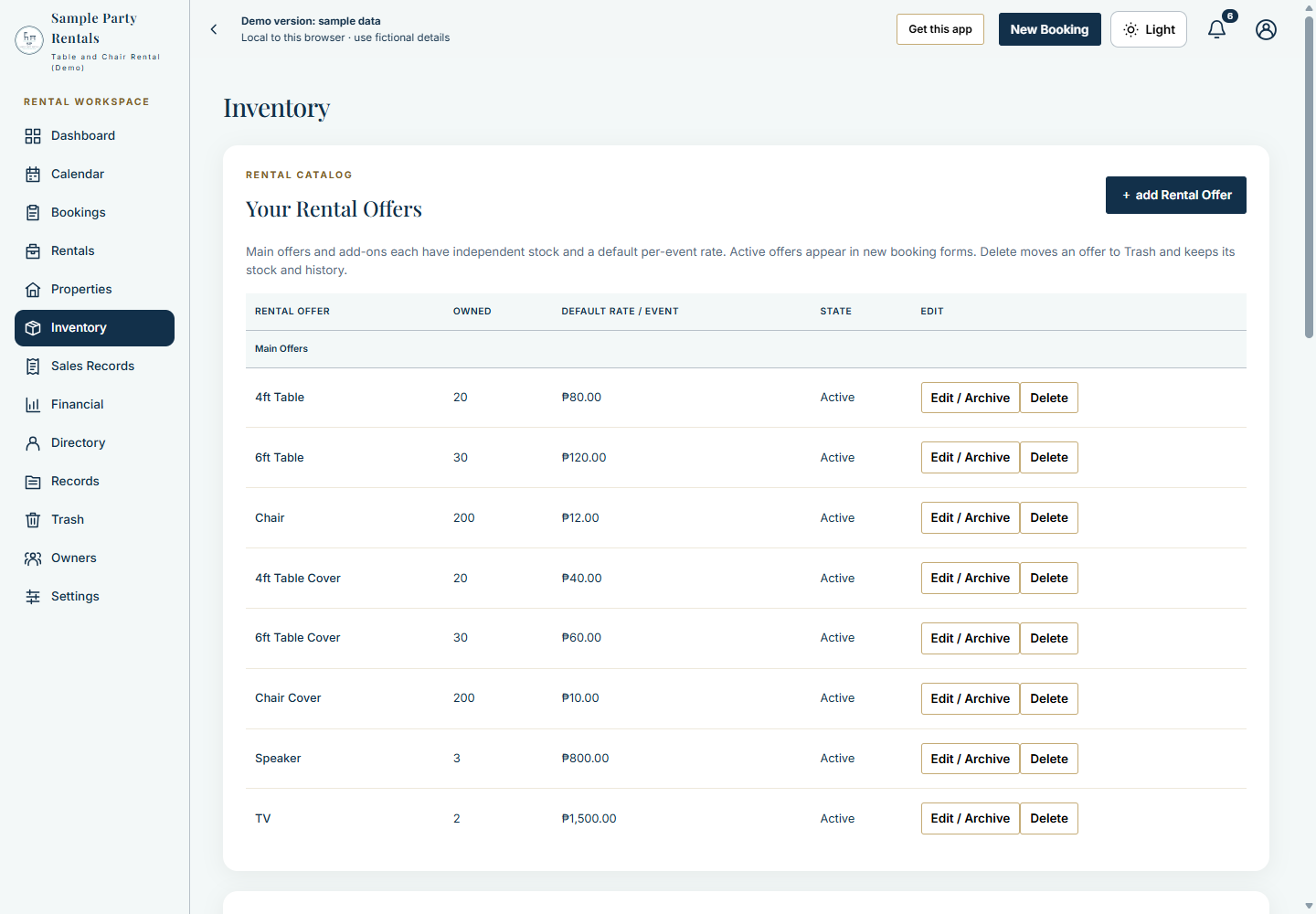
The pictured quantities and prices are demonstration values. New independent source installations start with unconfigured pricing and zero equipment stock.
| Screen | Use it to |
|---|---|
| Dashboard | Review recorded results, availability and upcoming work |
| Calendar and Bookings | Inspect dates and manage equipment bookings |
| Rentals and Properties | Manage enabled property/monthly workflows |
| Inventory | Maintain offers, quantities, rates and reference photos |
| Sales Records and Financial | Inspect documents, payments and recorded expenses |
| Directory, Records and Trash | Find history, export records and recover eligible deletions |
| Owners and Settings | Manage invited access and configuration, subject to role |
The mobile header offers scrollable navigation and More Pages for the remaining screens.
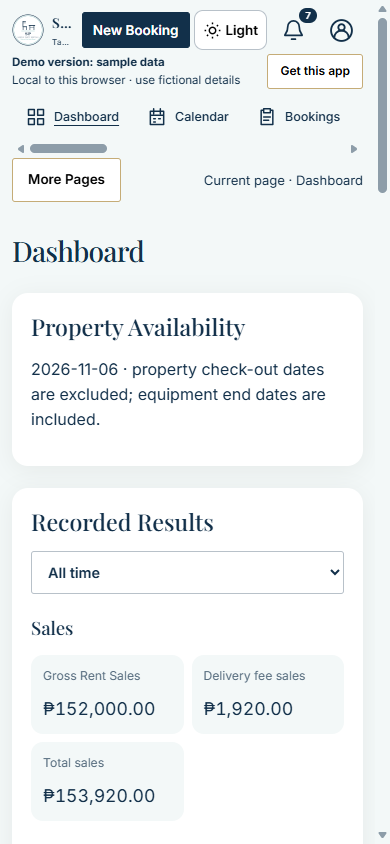
This is a browser screenshot rather than a guarantee for every phone. Read Rental Workflows next, or browse the Screenshot Tour.
Explore the Settings Showcase for identity, appearance, numbering, delivery, rental options and update cards. The Workspace Cards tour shows all thirteen tabs at a reduced scale, including cards below the first screen.