Repository navigation
Rental Workflows
- Open the business's public booking link and choose an enabled rental option.
- Use Book a Date or an available calendar date to open the form.
- Enter contact and venue details, choose items/quantities and pickup or delivery, then review Preview Estimate.
- Submit the request through the installation's verification flow and wait for the business to review it.
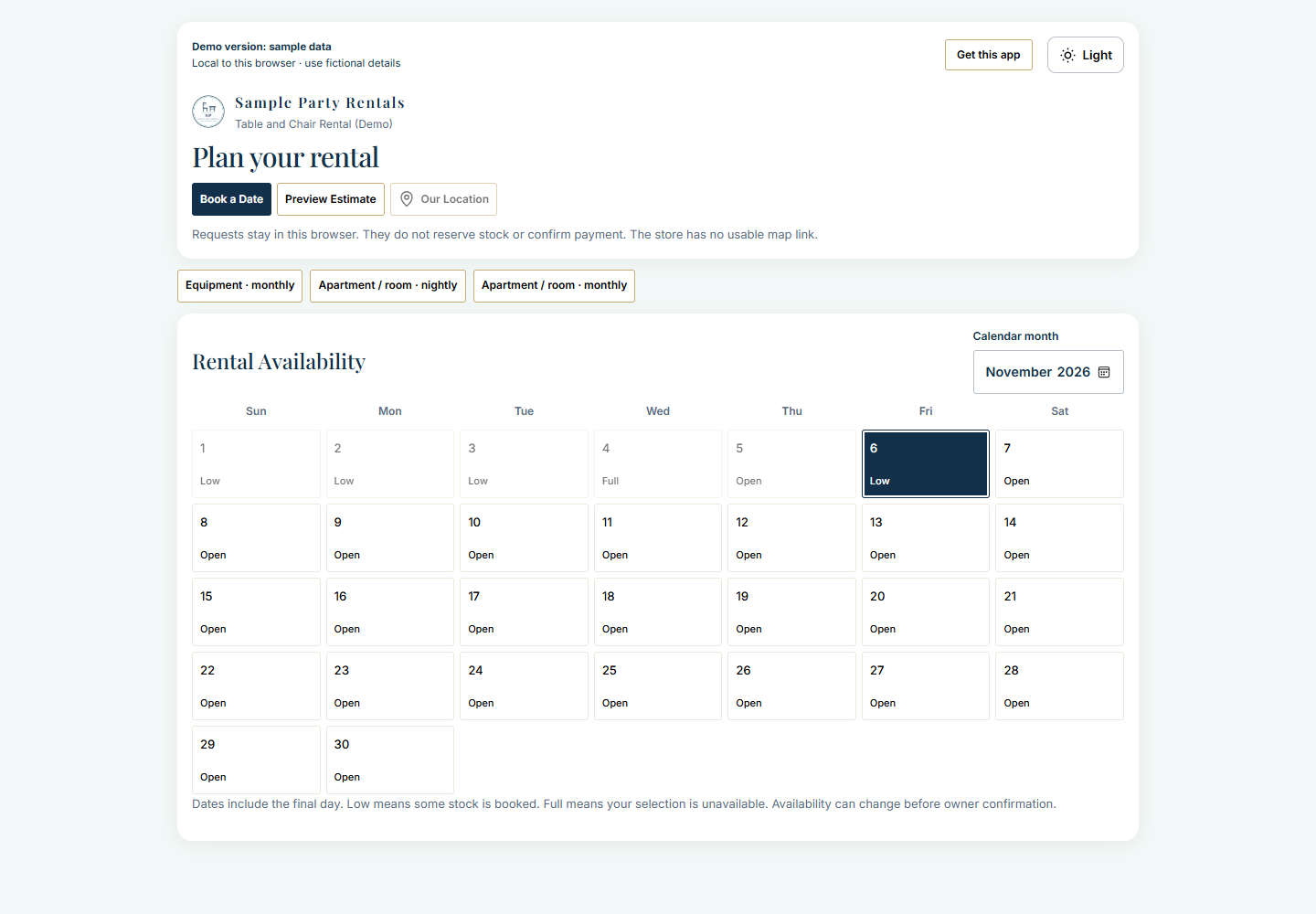
A request is not a confirmed booking. Pending requests reserve no stock or booking number. A Facebook URL is unverified contact information. In the browser-local demo, requests stay in that browser rather than reaching a real business.
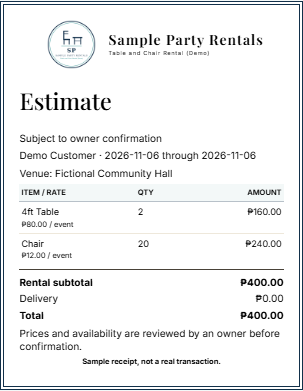
The example is a fictional pickup estimate. Previewing does not submit a request, collect payment or issue a receipt. Unknown delivery stays awaiting quotation until it can be established.
- Open New Booking, enter the customer and dates, then choose quantities and agreed prices.
- Enter the venue, choose pickup/delivery and review the total before saving.
- Follow the saved booking's actions to confirm it, track handoff/return and record payments.
- Review the transaction before issuing a document; retain the issued snapshot for later reprinting.
See the complete example booking form
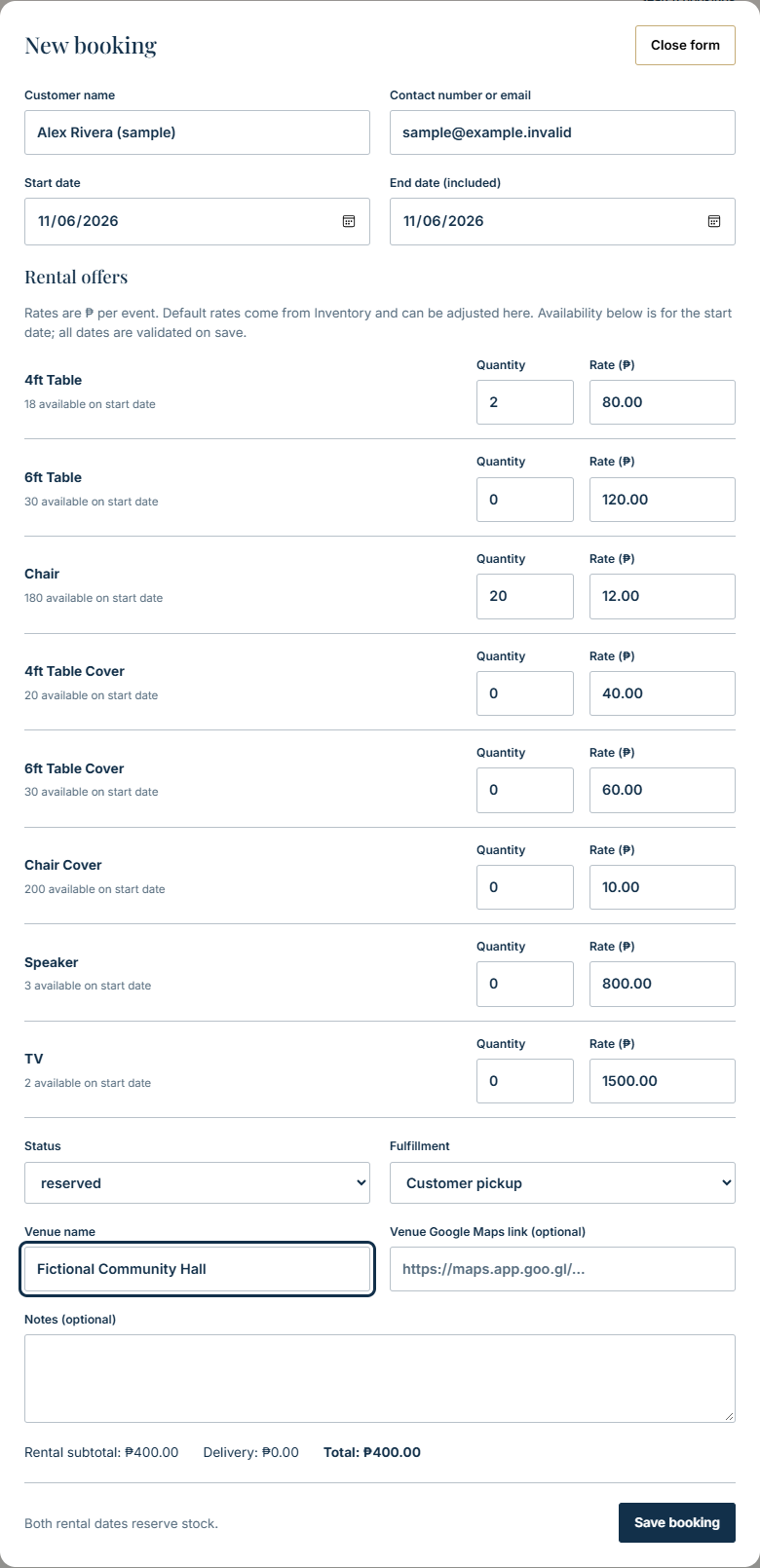
For equipment bookings, both rental dates reserve stock. Availability is checked when changes are saved. An estimate alone does not establish availability or payment.
Choose a day in Rental Calendar to inspect its bookings and availability. Use Previous, Today and Next to move between periods. Review the individual record before making an operational decision.
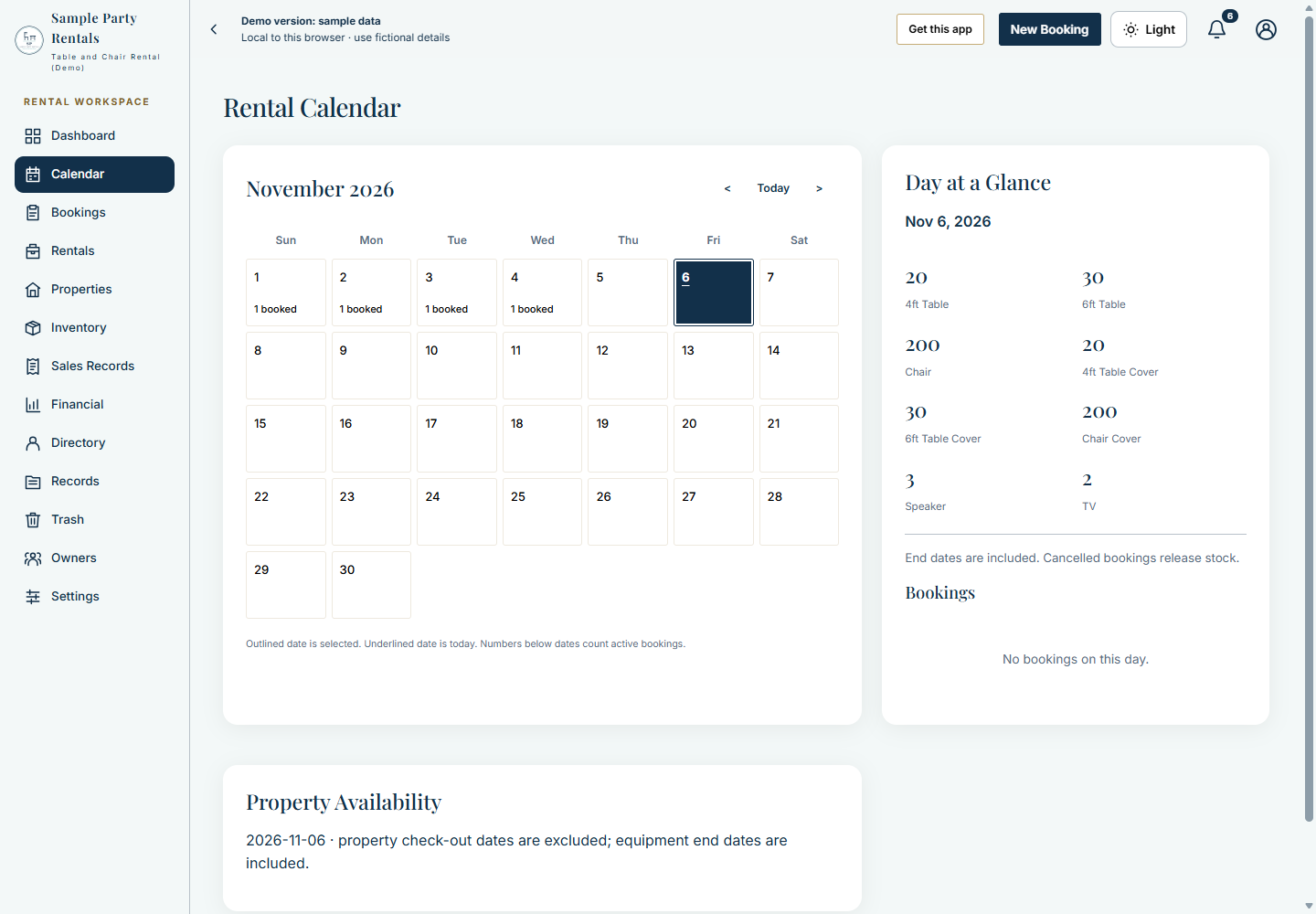
Future reservations and physical handoffs describe different things. A reserved quantity is not proof that equipment has been dispatched or returned. Property checkout rules differ from inclusive equipment booking dates.
Open Sales Records to find an issued document and use View / print. Check the current payment status separately from the original issued snapshot.
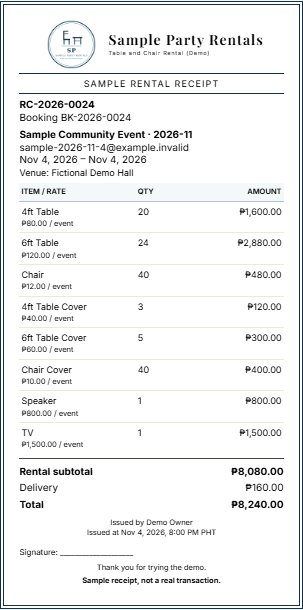
The screenshot shows fictional sample records. It is not a real transaction, proof of payment collection, tax certification or printer acceptance.
Choose the appropriate enabled property unit or equipment items, review the stay or billing periods and confirm the agreement. Use its actions to track occupancy, handoffs, payments, deposits and adjustments. Review balances before ending or renewing it. Screen availability follows the configured rental options.
Keep stock and prices current, review pending requests, check upcoming activity and record expenses. Use Records for history/export and Directory for customer history. Trash offers recovery where the record's physical and financial obligations allow deletion.
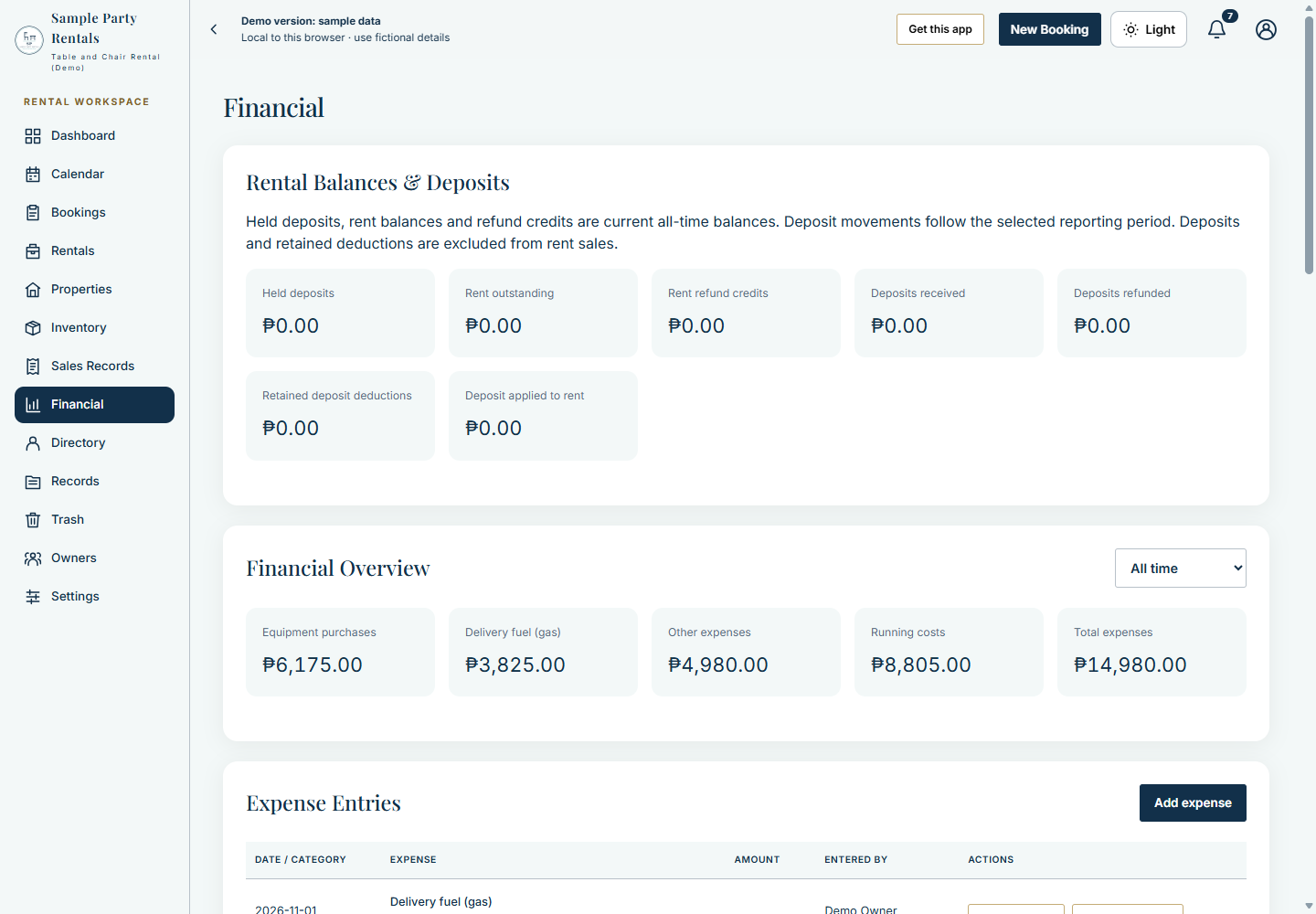
Deposits, running expenses and equipment purchases have distinct meanings. The displayed results are not a bank balance or audited profit. Administrators also manage invited access and service settings.
Continue with Features Overview, FAQ and Limitations or the full Screenshot Tour.