Repository navigation
Using the remapper
Open the Options Menu (hold L+R on a SNES/Super Famicom, B+Down on a NES/Famicom), then go to Advanced Options → Controller → Gamepad Remapping.
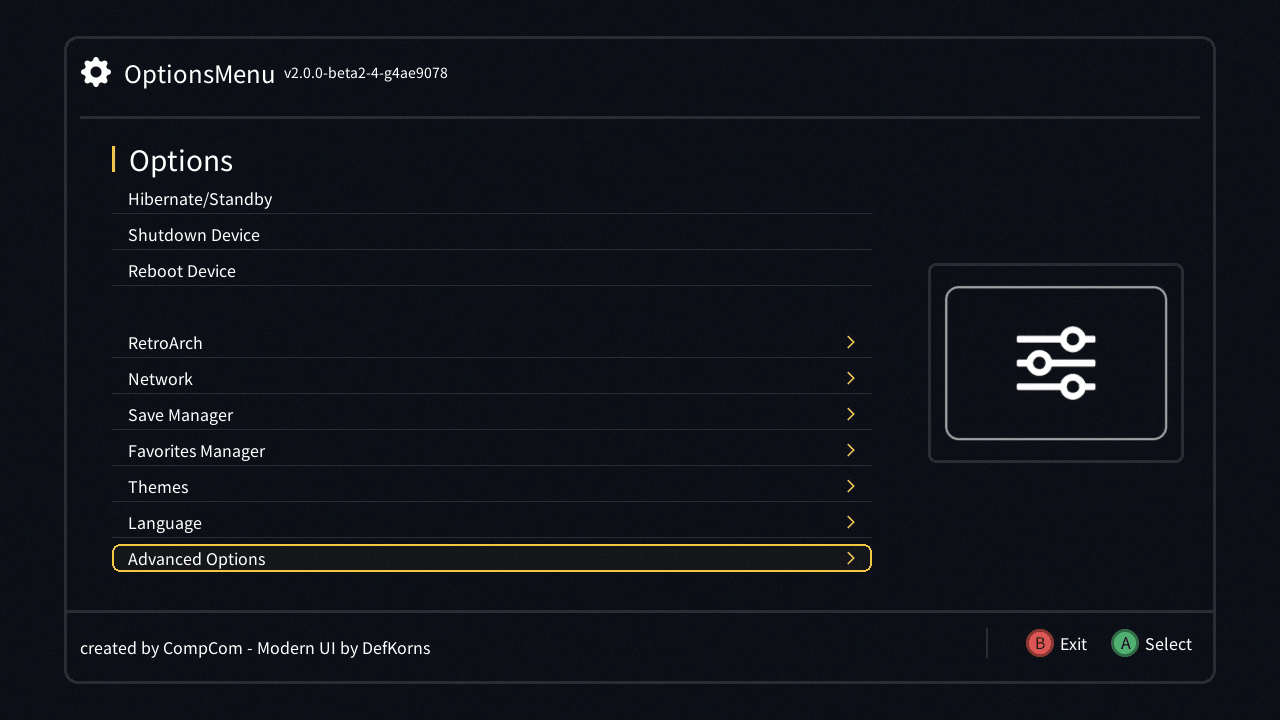
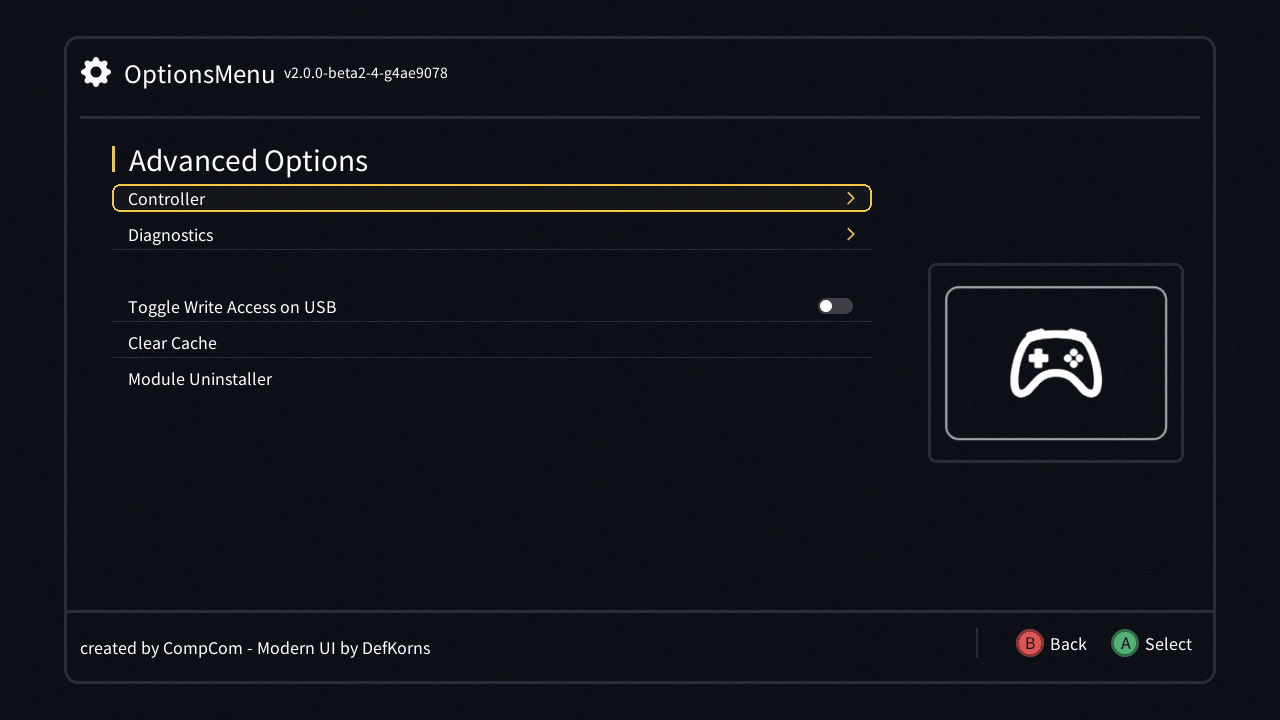
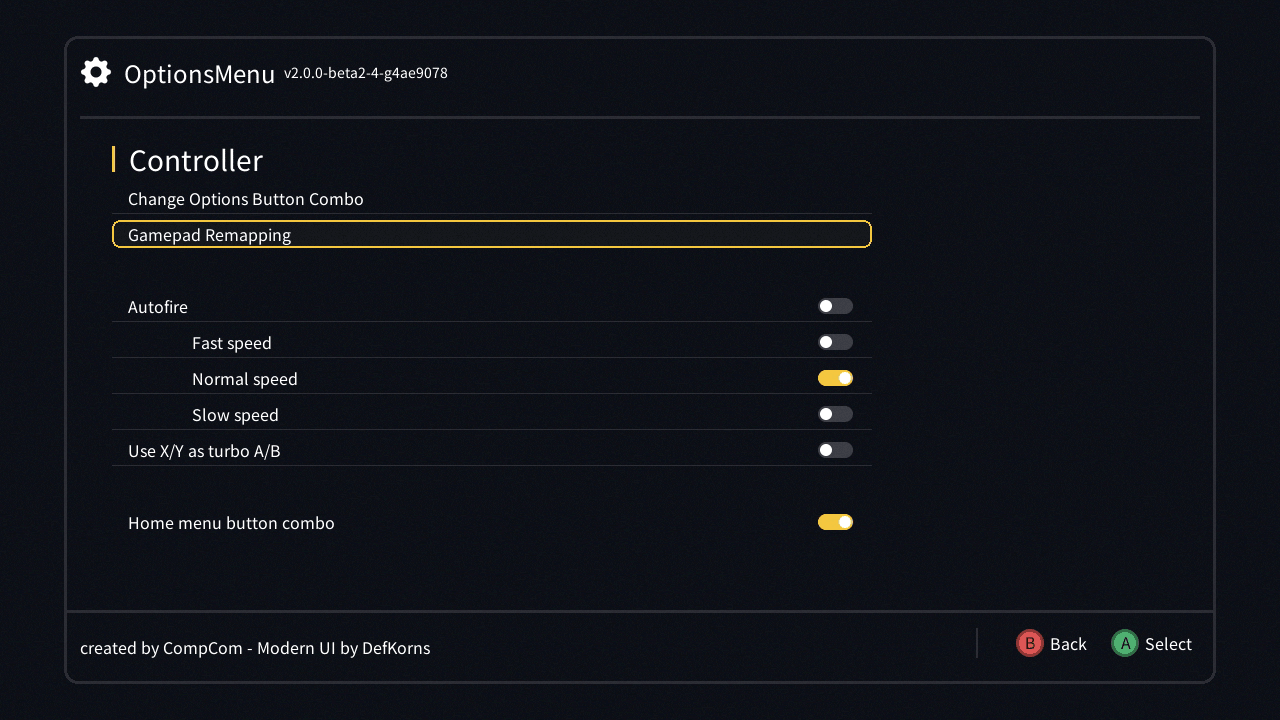
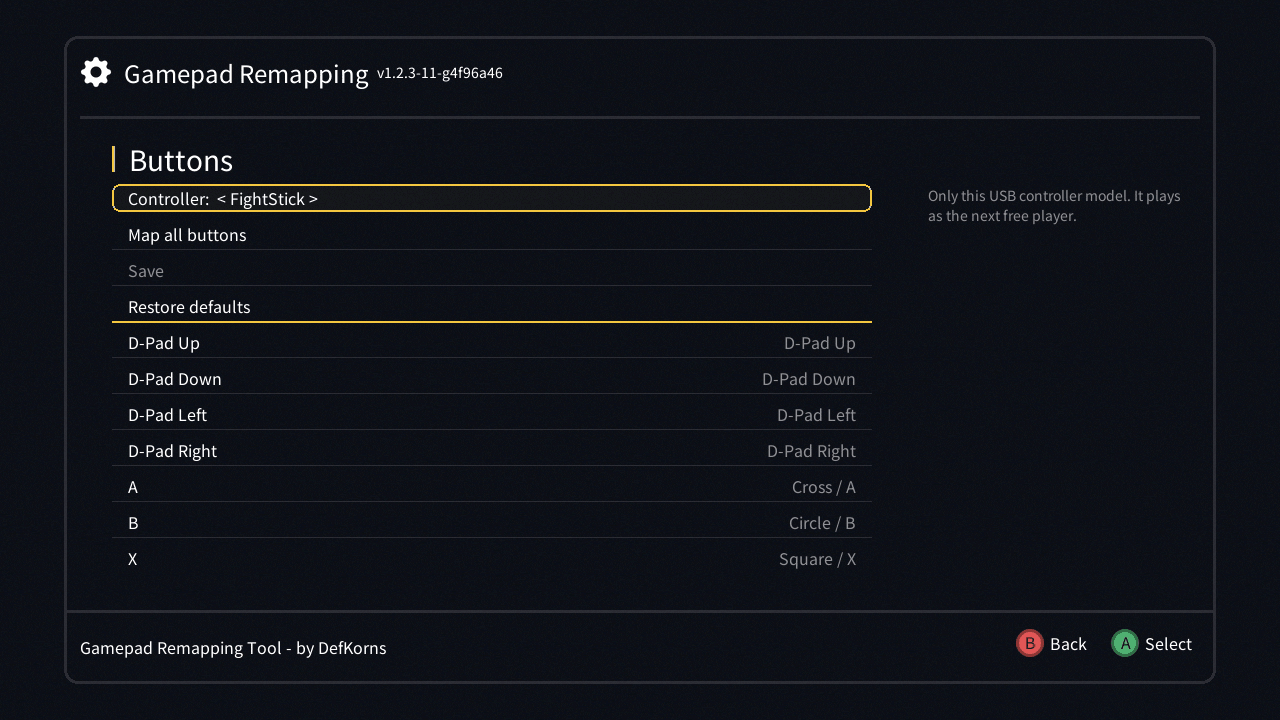
| Row | What it does |
|---|---|
| Controller | Left/right picks what you are remapping: the front ports, or a USB controller by its real name |
| Map all buttons | Walks through every button, one by one |
| Save | Applies the mapping. Greyed out until something changes |
| Restore defaults | Goes back to the original mapping (or the ready-made profile, for a USB controller) |
| Every button | What it is currently mapped to, on the right. Changed buttons are shown in yellow until you save |
Select its row and press A, then press the new button on the controller. Wait 5 seconds to keep the current one.
Select Map all buttons. It asks for each button in turn, with a progress bar, and then offers ZL, ZR, Home and the analog sticks.
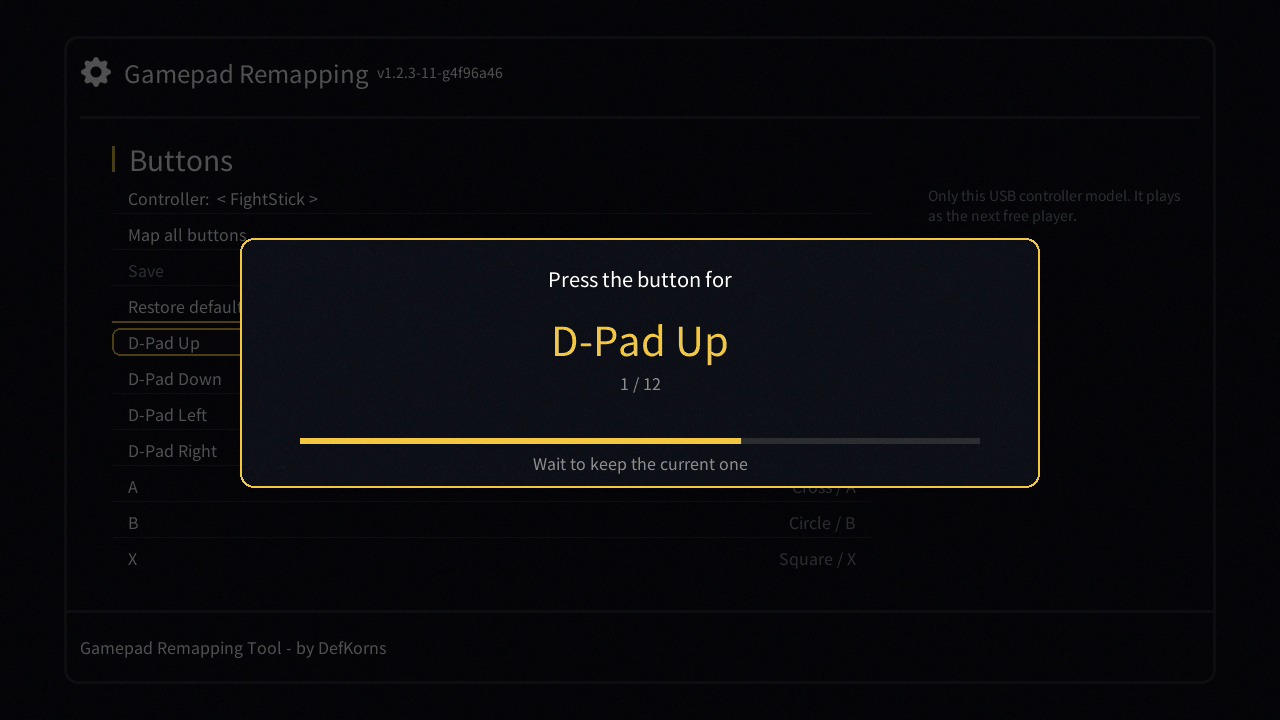
Save applies right away, no reboot: it takes effect on the next game you start. Leaving with unsaved changes asks if you want to discard them. Restore defaults undoes your mapping.
- Front ports: one mapping, shared by both ports and by any USB controller that has no mapping of its own. The console sees every front-port controller as the same SDL controller (same GUID), so they can't be told apart.
- USB controllers: each model (USB vendor and product) gets its own mapping, and the front ports stay as they are. A USB controller plays as the first free player: player 2 with a controller in port 1, player 1 when port 1 is empty.
- Plug the front controller in before the USB one. If you plug it in later, both stay as player 1: unplug the USB controller and plug it back in.
- If you remove the front controller later, the USB controller stays player 2: unplug the USB controller and plug it back in (or restart the console).
A USB controller keeps navigating the menu while you remap it. It only stops responding for a moment while a button is being captured, so the button you press doesn't also move the menu.
Down+Select (the Home combo) and the controller's own Home/PS button take you back to the menu on USB controllers too.