Repository navigation
Home

Packscope shows resource pack conflicts right in the resource pack screen, like the conflict view of Mod Organizer 2: which pack overrides which, which files win, and which packs have no effect at all any more. Minecraft 1.21.1, NeoForge, client only.
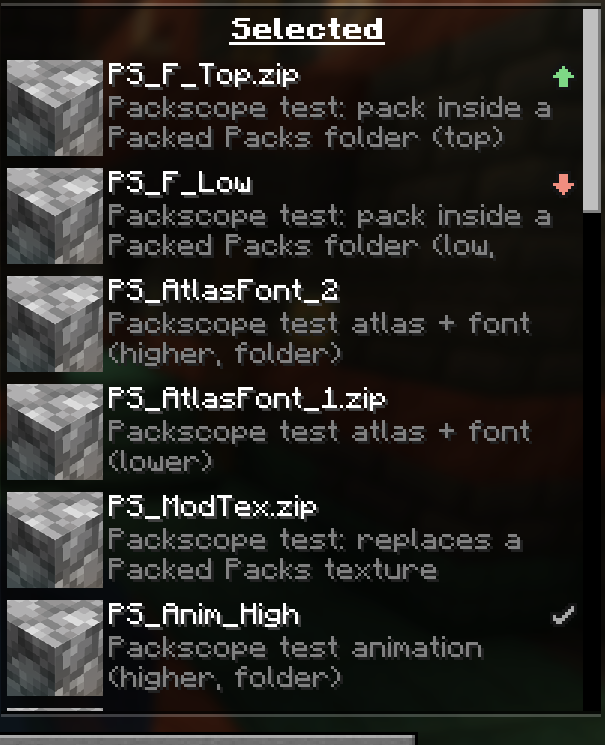
- An icon on every active pack in the resource pack screen: overrides other packs, is overridden, both, or a warning (completely covered, against marking, replaces sounds). See Status icons.
- A tooltip on the icon names the packs it overrides and the packs that override it, with numbers. See Pack screen.
- A detail window (click the icon) lists every file, language entry and sound event, grouped by pack, with a texture preview of every version side by side. See Detail window.
- Live: move a pack up or down and the icons update at once, before you press "Done".
- Intended conflicts: mark a pair once as "intended", its icon turns grey, and every new overlap stands out. If a marked pair ends up the wrong way round, Packscope warns. See Intended conflicts.
-
Reports as Markdown and JSON, from the detail window or with
/packscope report. See Reports and commands. - Read only: Packscope never changes packs, the pack order or files of other mods.
- Optional Packed Packs support: the same icons, tooltips and detail window in the Packed Packs screen, plus right-click menu items. See Packed Packs.
- Install NeoForge 21.1.265 or newer for Minecraft 1.21.1.
- Put the Packscope jar into the
modsfolder of your client. A server does not need it (if it is there, it does nothing). - Open Options → Resource Packs and look at the icons in the right list. See Getting started.
| Mod | Version | Needed |
|---|---|---|
| NeoForge | 21.1.265 or newer | yes |
| Packed Packs | 2.3 or newer (tested with 2.4.0) | no, optional |
Packscope only covers resource packs. Datapacks are not supported; the datapack screen stays as it is.
| Page | Content |
|---|---|
| Getting started | First look: icons, tooltip, detail window, live order, report |
| Status icons | Every icon, its meaning and when it appears |
| Pack screen | Icon, tooltip line by line, live evaluation, "Conflicts" button |
| Detail window | "This pack" and "All packs", sections, search, filter, texture preview |
| Intended conflicts | Marking pairs, "Against marking", packscope-intended.json
|
| Packed Packs | Icons, right-click menu, folders and profiles in Packed Packs |
| For pack makers | Sorting a modpack with Packscope and shipping the markings |
| Reports and commands |
/packscope report, /packscope rescan, report files |
| Configuration | All options of packscope-client.toml
|
| Conflict rules | What counts as a conflict, file type by file type |
| Compatibility | Packed Packs, KubeJS, built-in and dynamic packs |
| Known limitations | What Packscope cannot see or rates differently from the game |
| FAQ | Common questions |
| Credits | Idea, Packed Packs API, license |