Repository navigation
Pack Screen
What Packscope adds to the vanilla resource pack screen (Options → Resource Packs). For the Packed Packs screen see Packed Packs.
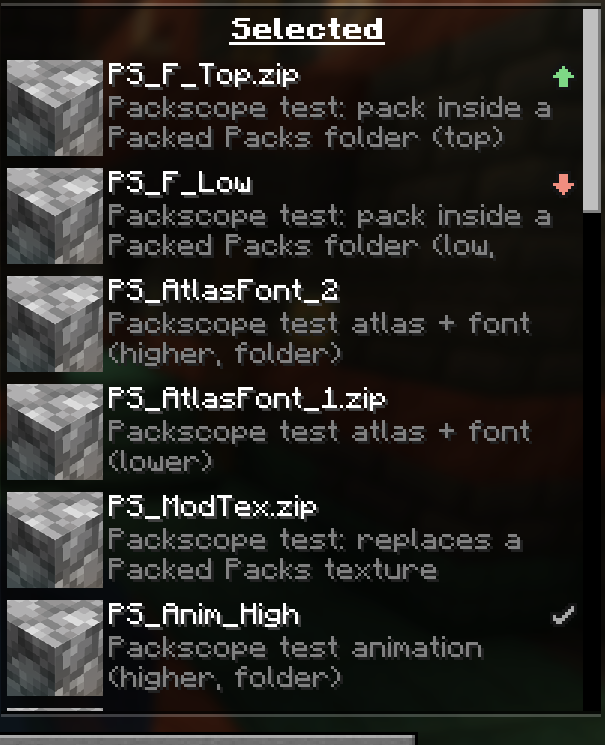
- Only in the right list (active packs), at the right end of the title row. The description below stays as it is.
- The title of every pack in the right list is shortened a little (by the width of the icon, with "..."), also when the pack has no icon. Otherwise the text would jump whenever the status changes.
- The arrows on the pack picture, selecting a row and right clicks work as before.
- Left click on the icon opens the detail window of this pack.
- Which icon means what: Status icons.
Hover over the icon. The tooltip is built from these lines, top to bottom; lines that do not apply are left out.
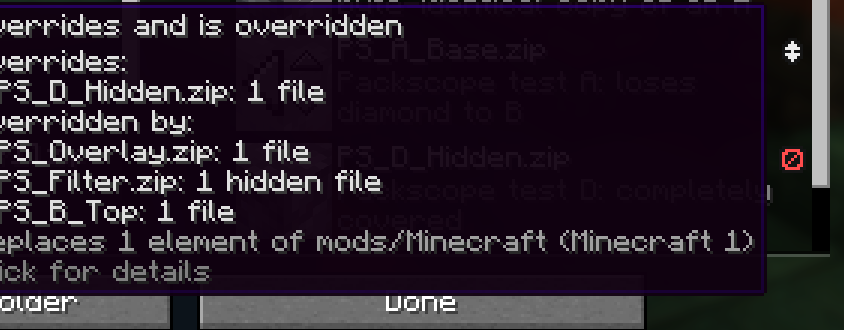
| Line | Example | Colour |
|---|---|---|
| Status | Overrides and is overridden |
colour of the status |
| Warning: completely covered | ⚠ Everything is overridden – this pack has no effect |
red |
| … or only copies | ⚠ Only copies of Texture Pack – this pack has no effect |
red |
| Warning: against marking (one per reversed pair) | ⚠ Against marking: Add-on should be above Texture Pack |
yellow |
| Warning: replaced sounds | ⚠ Replaces 2 sound events of lower packs (their sounds are muted) |
yellow |
| Header | Overrides: |
light grey |
| Up to three packs, biggest first | Texture Pack: 12 files, 3 language entries |
light grey |
| More packs | + 2 more packs |
grey |
| Header | Overridden by: |
light grey |
| Up to three packs | Icon Pack: 4 files |
light grey |
| Intended conflicts (up to three) |
Intended: overrides 40 files of Texture Pack or Intended: 5 files overridden by Add-on
|
grey |
| Mods and Minecraft | Replaces 37 elements of mods/Minecraft (Minecraft 30, Some Mod 7) |
grey |
| Pack below the mods | 3 elements overridden by mods |
grey |
| Hint | Click for details |
dark grey |
- The numbers are split by kind: files, language entries, sound events, hidden files (hidden by a filter) and
.mcmetawithout effect. They use the number format of your game language. - Pack names are cut after 40 characters. Packs without an entry in the screen get "(hidden)" or "(injected)" after the name (see Conflict rules).
- The two grey mod lines can be switched off with
showModOverridesInTooltip = false(see Configuration). - For a pack that holds other packs, the tooltip lists its children instead (see Status icons).
The icons always show the order in the screen, not only the applied one:
- After every change (arrows, activate, deactivate, a new pack in the folder) Packscope takes the new order and evaluates it in the background. Results are cached per order, so going back to an earlier order is instant.
- You see the result before you press "Done". Nothing is applied by Packscope; Minecraft applies the order on "Done" as usual.
- The short wait and the "Checking ..." icon are explained on Status icons.

In the top right corner of the screen. It opens the detail window in the "All packs" view. It never covers the title or the "Drag and drop" line: in a narrow window it becomes a low button next to the title, and if there is no room for that either, only an icon.
Packed Packs replaces this screen with its own by default. Its "Original Pack Screen" button brings back the vanilla screen; Packscope works there as described on this page. Packs hidden in the Packed Packs profile have no entry in the vanilla screen either, but they are still active and still evaluated (shown with "(hidden)").
The datapack screen uses the same vanilla class. Packscope recognises it and leaves it completely unchanged: no icons, no button. Datapacks are not supported.
showInVanillaScreen = false removes icons, tooltips and the "Conflicts" button from the vanilla screen (see
Configuration).