Repository navigation
Status Icons
Every active resource pack gets exactly one status. The icon sits at the right end of the title row (vanilla screen) or in the top right corner of the entry (Packed Packs). The status name is also the first line of the tooltip, written in the colour of the status.
Listed in order of importance: if several apply, the higher one wins.
| Icon | Name | Colour | Meaning | When it appears |
|---|---|---|---|---|
 |
Completely covered | red (warning) | Nothing of this pack reaches the game | Every file, language entry and sound event of the pack is overridden by higher packs, hidden by a filter of a higher pack, or only a byte-identical copy of a higher pack. Also when these conflicts are marked as intended |
 |
Against marking | yellow (warning) | A pair you marked as intended lies the other way round | You marked "A over B" and now B overrides A. Both packs get this status (unless one is completely covered) |
 |
Replaces sounds | yellow (warning) | The pack mutes sounds of lower packs | Its sounds.json replaces a sound event of a lower resource pack with "replace": true, and that pair is not marked as intended |
 |
Overrides and is overridden | neutral (light grey) | Both of the next two | At least one element wins over a lower pack and at least one is replaced by a higher pack |
 |
Overrides other packs | muted green | Some of its files win over lower resource packs | Files, language entries or sound events that lower packs also have; files a filter of this pack hides in lower packs count too |
 |
Is overridden | muted red (paler than the warning red) | Some of its files are replaced by higher packs | The opposite case; files hidden by a filter of a higher pack count too |
 |
Only intended conflicts | grey | Has conflicts, all of them marked as intended | Every conflict pair of the pack is marked (see Intended conflicts). With showIntendedSymbol = false there is no icon |
| (none) | No conflict | – | Only own files, or only files of mods and Minecraft replaced | No icon |
These three statuses are information only, like the conflict flags in Mod Organizer 2: in a sorted list most packs override something. Only the red and yellow ones need a look. Marked pairs do not count for "Overrides", "Is overridden", "Overrides and is overridden" or "Replaces sounds".
What exactly counts as overriding (per file, per language key, per sound event, filters, copies) is on Conflict rules.
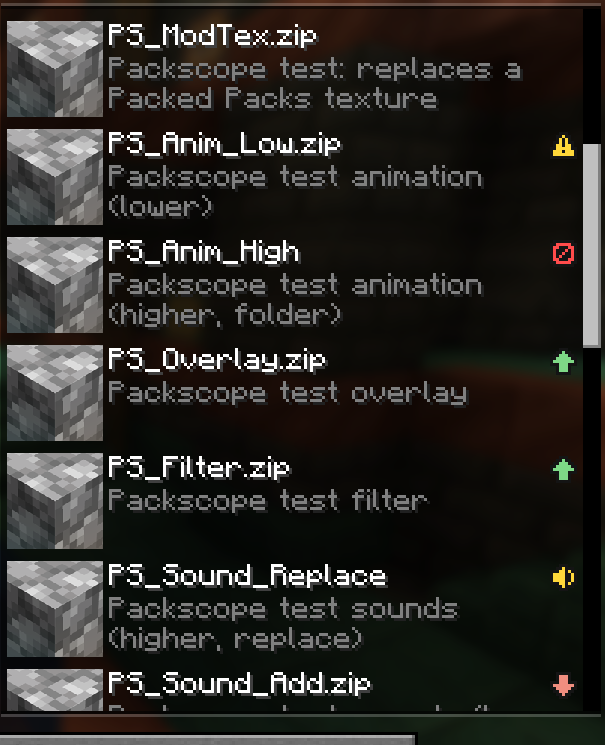
A marked pair moved the wrong way round: the pack that is on top now shows "Against marking". The other pack of the pair is completely covered by it, and that status has priority. Further down, a pack with "Replaces sounds".
| Icon | Name | Meaning |
|---|---|---|
 |
Checking ... | The order is being evaluated in the background |
- Scanning and evaluating run in the background, the screen never waits for them.
- After you move or (de)activate a pack, the old icons stay for up to 0.3 seconds; only if the new result takes longer, the hourglass appears. So the icons do not flicker on every arrow click.
- When you open the pack screen again, the result from the last time is shown at once while Packscope checks the packs again (for at most 5 seconds), because files may have changed in between.
- Packs in the left list (not active). Inactive packs are not evaluated.
- "Default" (the vanilla resources) and "Mod Resources". Overriding these is what resource packs are for, so it is only shown as grey info in the tooltip and the detail window, never as a warning.
- Packs with no conflict.
- Packs with only intended conflicts when
showIntendedSymbol = false(see Configuration). - In the datapack screen. Packscope only covers resource packs.
Some built-in packs of mods consist of several child packs with their own files. In the list they are one entry. This entry gets one combined icon:
- a warning of any child first (Completely covered, then Against marking, then Replaces sounds),
- otherwise "Overrides", "Is overridden" or both, from all children together,
- otherwise "Only intended conflicts", otherwise no icon.
The tooltip starts with this status, then "Contains N packs:" and every child with its own status. A click on the icon opens the child with the most conflicts in the detail window. (The children of "Mod Resources" are mods and never get an icon.)
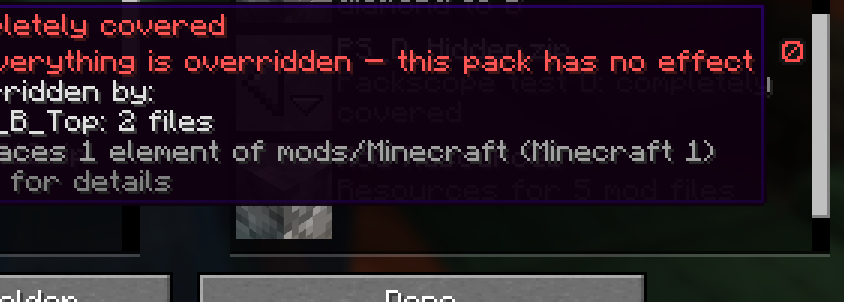
If the pack consists only of copies of a higher pack, the warning says "⚠ Only copies of pack – this pack has no effect" instead.