Repository navigation
Getting Started
A first walk through Packscope. Nothing to set up: install the jar on the client and open the resource pack screen.
Options → Resource Packs. Every pack in the right list (the active packs) can get a small icon at the right end of its title row. Packs without a conflict have no icon.
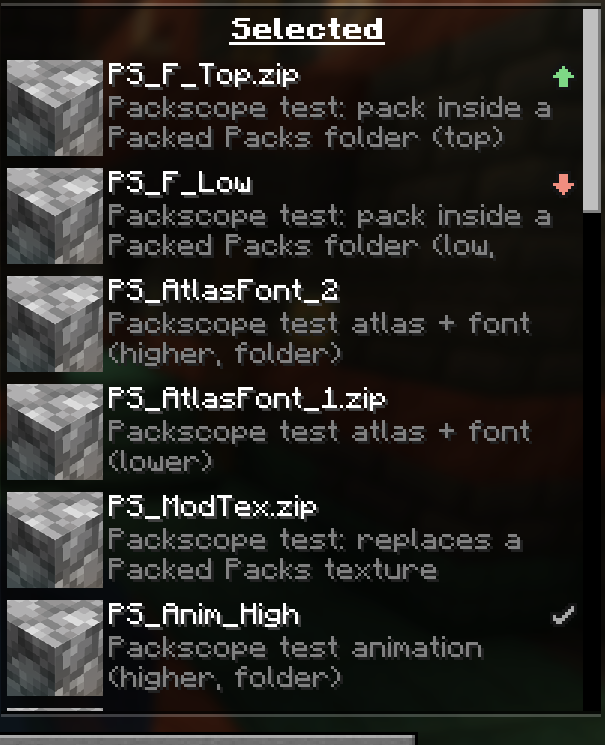
With Packed Packs installed, its own screen opens instead; the icons are there too.
| Icon | Name | In short |
|---|---|---|
 |
Overrides other packs | Some of its files win over lower packs |
 |
Is overridden | Some of its files are replaced by higher packs |
 |
Overrides and is overridden | Both |
 |
Completely covered | Nothing of this pack reaches the game |
 |
Against marking | A pair you marked as intended is the wrong way round |
 |
Replaces sounds | Mutes sounds of lower packs |
 |
Only intended conflicts | All its conflicts are marked as intended |
Overrides, overridden and both are only information (like in Mod Organizer 2, someone has to be on top). The red and yellow icons are the ones to look at. All details: Status icons.
The tooltip names the packs this pack overrides and the packs that override it, with the number of files, language entries and sound events, plus warnings and a grey info line about mod and Minecraft files.
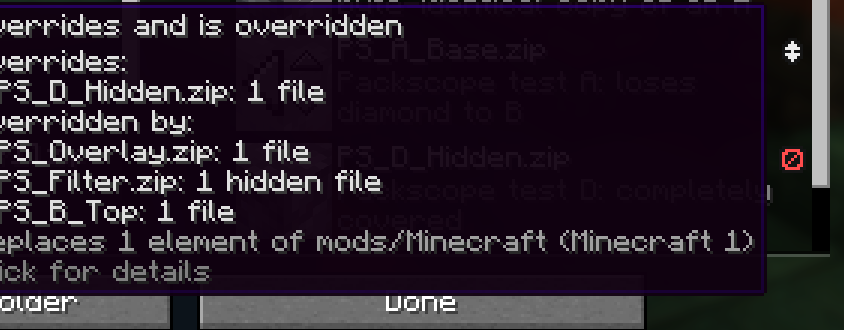
Line by line: Pack screen.
A left click on the icon opens the detail window for this pack: every conflict grouped by the other pack, the file paths, language keys and sound events, and a texture preview when you click a texture row. "Done" (or Esc) takes you back to the pack screen exactly as you left it. See Detail window.
The "Conflicts" button in the top right corner of the pack screen opens the detail window in the "All packs" view: every active pack with its status, every pack pair, completely covered packs and your markings.
Move packs with the arrows (or drag them in Packed Packs), activate or deactivate them. The icons follow at once, also before you press "Done". Packscope only looks; the order is applied by Minecraft when you press "Done", as always.
Most conflicts in a sorted list are wanted: an add-on over its base pack, an icon pack over a texture pack. In the detail window, press "Mark as intended" next to a pack pair. The icon turns grey, and from then on only new or reversed conflicts stand out. See Intended conflicts.
"Export report" at the bottom of the detail window writes packscope/reports/packscope-report.md and .json in the
game folder, for the order shown in the screen. In a world, /packscope report does the same for the applied order.
See Reports and commands.