Settings
Open Meta Hunter and click Settings at the bottom of the expansion sidebar.
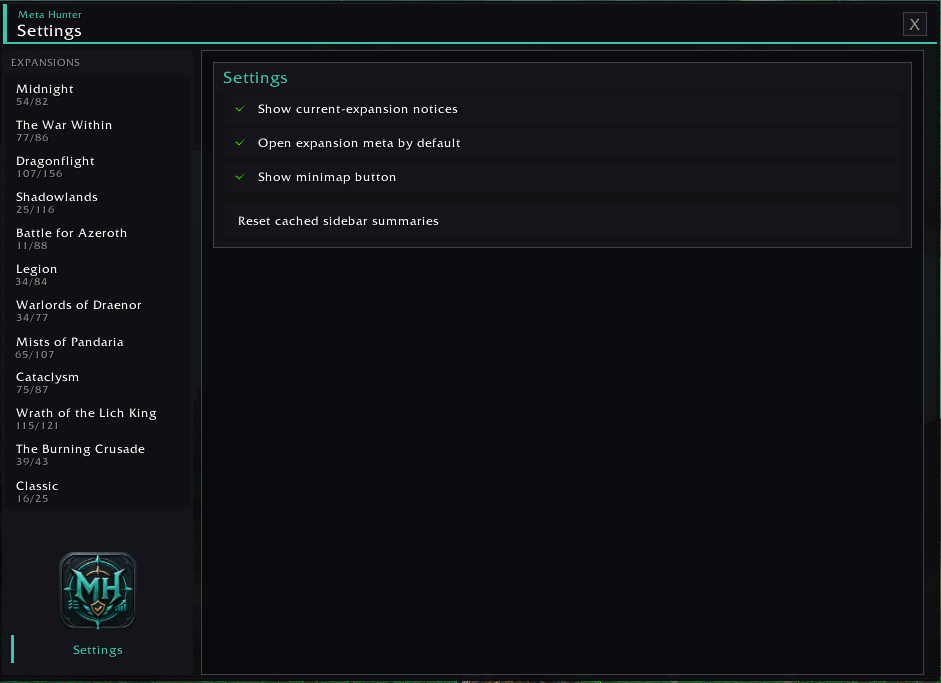
Meta Hunter's Settings page, including expansion notices, default expansion behaviour, minimap-button visibility and cached sidebar summary controls.
Meta Hunter remembers your display preferences between sessions.
Default: On
Controls whether Meta Hunter displays information notices for selected expansions.
These notices may contain useful information about the achievement coverage for that expansion.
For example:
- Midnight may explain that its final expansion-wide meta is still being established.
- Older expansions may explain why Meta Hunter focuses on notable expansion, dungeon, raid, or Pathfinder achievements rather than a single expansion-wide meta.
Turn this option off if you prefer not to display these notices below the achievement list.
Default: On
Controls whether the main expansion meta achievement is automatically expanded when you open an expansion.
When enabled, Meta Hunter opens the primary expansion-meta achievement so you can immediately see the achievements beneath it.
When disabled, the achievement starts collapsed instead.
Changing this option refreshes the current achievement view so the new preference takes effect.
Default: On
Controls whether the Meta Hunter minimap button is displayed.
When enabled:
- Left-click the button to open Meta Hunter.
- Drag the button to reposition it around the minimap.
Turning the minimap button off does not disable Meta Hunter.
You can still open the addon using:
/mh/metahunter- the Addon Compartment
This is a reset action rather than an on/off setting.
Meta Hunter remembers progress summaries for expansions you have previously viewed. This allows the sidebar to display useful progress information without needing to load every expansion module each time you open the addon.
Select Reset cached sidebar summaries to clear this stored progress information.
Meta Hunter will confirm the reset in chat.
The summaries will automatically be rebuilt as you open the different expansions again.
This does not reset your other Meta Hunter settings.
Meta Hunter does not currently provide separate user settings for sorting or appearance.
Expansion order and achievement category order are managed automatically by the addon.
Additional display options may be added in future versions as Meta Hunter develops.
For most users, there is no need to manually manage Meta Hunter's saved data.
Meta Hunter stores its settings in World of Warcraft's SavedVariables system under:
MetaHunterDB
This includes preferences such as:
- expansion notice visibility;
- whether the main expansion meta opens automatically;
- minimap button visibility and position.
Cached expansion progress summaries are also stored so Meta Hunter can remember sidebar progress between sessions.
If you are troubleshooting a problem, see FAQ & Troubleshooting before manually changing or deleting any SavedVariables files.