Using Meta Hunter
Meta Hunter opens in a movable window with an expansion sidebar on the left and achievement information on the right.
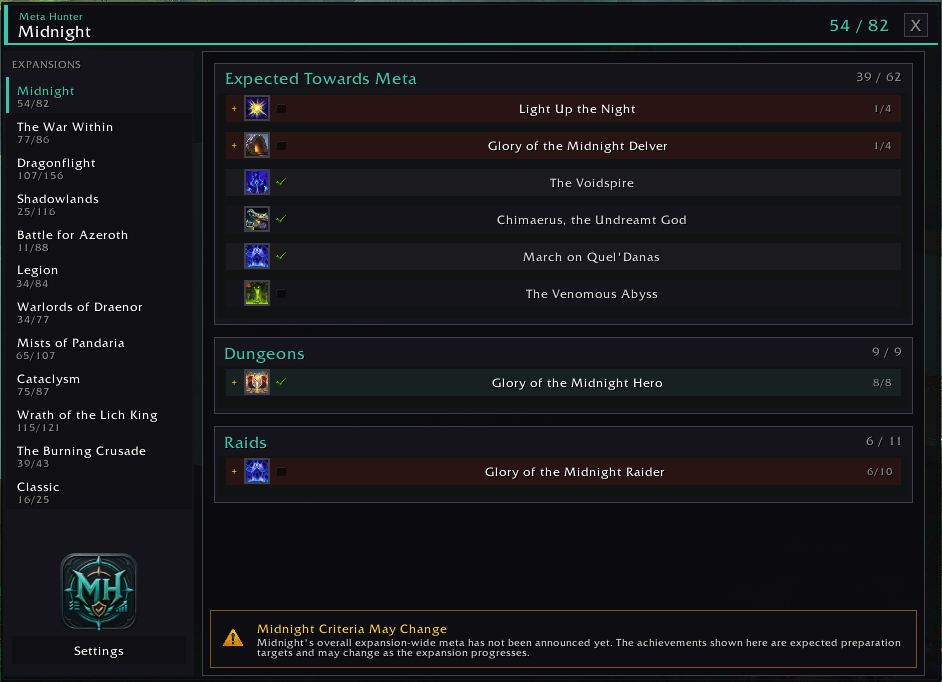
Meta Hunter displaying Midnight achievement progress, categories and expansion summaries.
At the top of the window, Meta Hunter shows the selected expansion along with an overall progress summary once that expansion's data has been loaded.
For example:
45 / 60
The left sidebar lists supported expansions from newest to oldest.
A Settings button is available at the bottom of the sidebar.
The main area on the right displays the achievement categories and achievement trees for the selected expansion.
If there is more content than will fit in the window, you can scroll using the mouse wheel or the scrollbar.
Click an expansion in the sidebar to view its achievements.
When you select an expansion, Meta Hunter automatically:
- highlights the selected expansion;
- loads its achievement data if required;
- updates the progress information shown in the sidebar and header;
- displays any relevant expansion notice;
- shows the available achievement categories.
Expansion data is loaded only when needed, so you do not need to manually enable or load individual expansion modules.
If an expansion cannot be loaded, Meta Hunter will display a message in chat explaining that the module could not be loaded.
Some expansions display an information notice at the bottom of the achievement list.
For example, Midnight currently displays a notice explaining that its final expansion-wide meta achievement has not yet been confirmed and that the achievements shown are expected preparation targets.
Older expansions may also include information explaining why Meta Hunter focuses on notable expansion, dungeon, raid, or Pathfinder achievements instead of a single expansion-wide meta.
These notices can be turned off from the Settings page.
Achievements are organised into categories to make large expansion achievement lists easier to browse.
Depending on the expansion, these may include:
- Expansion Meta
- Expected Towards Meta
- Notable Achievements
- Exploration
- Dungeons
- Raids
- Seasons
- Pathfinder
- Delves
- Zones
- PvP
- Miscellaneous
Not every expansion uses every category.
The most important expansion-wide achievements are shown towards the top, followed by other relevant achievement groups.
Each achievement row may contain:
- an expand/collapse button;
- the achievement icon;
- completion status;
- the achievement name;
- progress information.
Achievements with additional requirements beneath them can be expanded using the + button.
Use the - button to collapse them again.
The expanded or collapsed state is remembered while the Meta Hunter window remains open, but is not permanently saved between sessions.
Where supported, the main expansion meta can automatically open expanded. This behaviour can be changed in Settings.
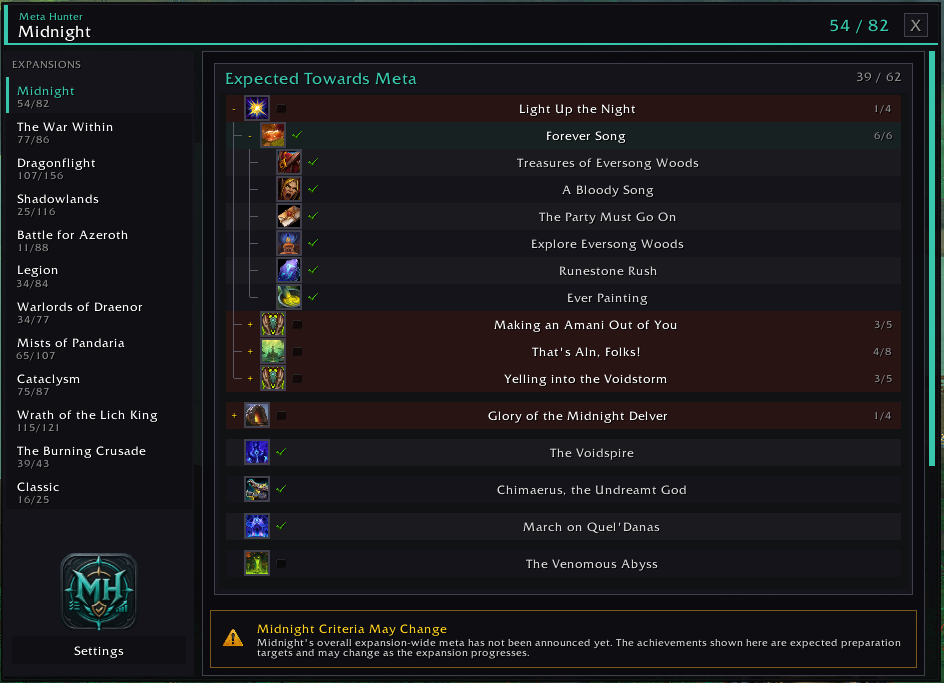
An expanded Meta Hunter achievement tree showing completed requirements, incomplete requirements and progress towards parent achievements.
Meta Hunter uses World of Warcraft's achievement information to show whether achievements have been completed.
You may see:
- Green check — completed
- Empty checkbox — incomplete
- No status icon — achievement information could not currently be resolved
Parent achievements can also show progress based on the achievements beneath them.
For example:
6 / 8
The larger expansion progress summary may include more of the achievement tree than the progress shown on an individual parent row.
Left-click an achievement row to open that achievement directly in Blizzard's Achievement UI.
This is useful when you want to view Blizzard's full achievement description, criteria, rewards, or related information.
For more information about interacting with achievements, see Tracking Achievements.
Some achievements include additional guidance supplied by Meta Hunter.
Hover over a supported achievement row to display this information in a tooltip.
Not every achievement has additional guide text, so some rows will behave like normal achievement entries without an extra tooltip.
To move the Meta Hunter window, left-click and drag the window to your preferred position.
Use the X button in the header to close it.
You can reopen Meta Hunter at any time using /mh, /metahunter, the minimap button, or the Addon Compartment.