Effects
Simple Mouse Cursor includes three optional visual effects:
- Main Ring Pulse
- Main Ring Rotation
- Cursor Trail
These are entirely optional and can be used to make your cursor more noticeable or give it a more personalised appearance.
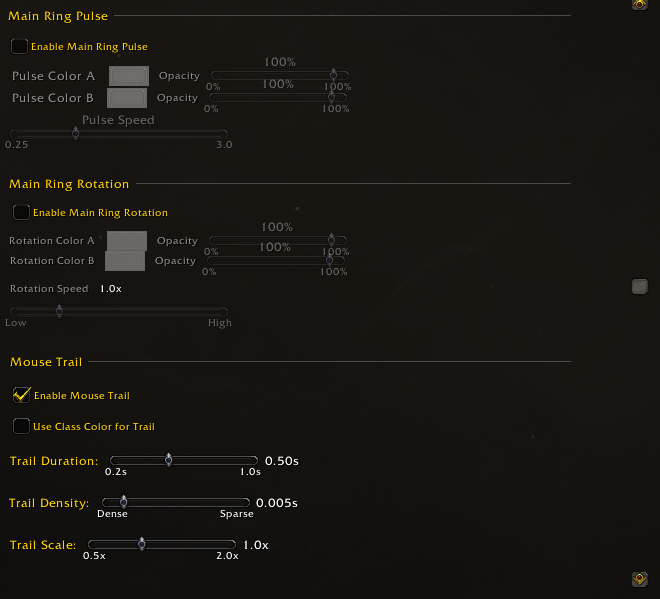
Simple Mouse Cursor's visual effect controls for Main Ring Pulse, Main Ring Rotation, and Mouse Trail.
Main Ring Pulse makes the Main Ring smoothly transition between two colours.
Enable:
Enable Main Ring Pulse
You can then choose:
- Pulse Color A — the first colour
- Pulse Color B — the second colour
- Opacity — how visible each colour is
- Pulse Speed — how quickly the ring moves between the two colours
The effect continuously transitions:
Color A → Color B → Color A
Range: 0.25 to 3.0 Default: 1.0
Lower values create a slower, more subtle pulse.
Higher values make the colour change more quickly.
Each pulse colour has its own opacity control.
Range: 0% to 100% Default: 100%
Reducing the opacity of one or both colours can create a softer pulse or an effect where the ring appears to fade in and out.
When Main Ring Pulse is enabled, the pulse colours control the Main Ring.
Because of this, Use Class Color for Main Ring is disabled while the Pulse effect is active.
Main Ring Pulse and Main Ring Rotation also cannot be used at the same time.
Enabling Pulse disables Rotation.
Main Ring Rotation adds a rotating two-colour effect to the Main Ring.
Enable:
Enable Main Ring Rotation
You can configure:
- the first rotation colour;
- the second rotation colour;
- the opacity of each colour;
- rotation speed.
The two colours create a gradient around the ring, which rotates around the cursor.
Range: 0.1 to 5.0 Default: 1.0
Lower values create a slower rotation.
Higher values make the effect rotate more quickly.
Each rotation colour has its own opacity control.
Range: 0% to 100% Default: 100%
Changing the opacity allows you to make one side of the rotating gradient more or less visible.
When Main Ring Rotation is enabled, its chosen colours control the Main Ring.
This means Use Class Color for Main Ring is disabled while Rotation is active.
Main Ring Rotation and Main Ring Pulse are mutually exclusive.
Enabling Rotation disables Pulse.
Enable Mouse Trail to add a fading trail that follows your cursor as it moves.
The trail is useful if you regularly lose sight of your cursor during rapid movement or visually busy encounters.
Enable Use Class Color for Trail to tint the trail using your character's class colour.
When disabled, the trail is white.
Controls how long each part of the trail remains visible before fading away.
Range: 0.2 to 1.0 seconds Default: 0.5 seconds
A longer duration produces a longer-lasting trail.
A shorter duration makes the trail disappear more quickly.
Controls how frequently trail elements appear as your cursor moves.
Range: 0.004 to 0.020 seconds Default: 0.005 seconds
This setting works slightly differently from what the word "density" might suggest:
- Lower values create more trail points and therefore a denser trail.
- Higher values create fewer trail points and therefore a sparser trail.
If the trail feels too busy, increase this value slightly.
If it looks too broken up, reduce it.
Controls the size of the individual trail elements.
Range: 0.5x to 2.0x Default: 1.0x
Increase the value for a more noticeable trail or reduce it for a subtler effect.
The cursor trail follows the same general visibility state as the rest of Simple Mouse Cursor.
If the cursor graphics are hidden by your visibility settings, the trail is hidden as well.
For example, if Show Only in Combat is enabled, the trail will normally only be visible while the cursor display itself is active.
For more information about visibility behaviour, see Visibility & Modifier Keys.
You do not need to enable any of these effects for Simple Mouse Cursor to work.
A few possible approaches are:
- Subtle: Static Main Ring with no additional effects.
- Easy to spot: Slow Pulse with contrasting colours.
- Animated: Main Ring Rotation.
- Movement-focused: Cursor Trail.
- Minimal but noticeable: Main Ring plus a lightly coloured trail.
Because changes are applied immediately, the easiest way to choose is simply to experiment until the cursor is noticeable without becoming distracting.