Getting Started
Simple Mouse Cursor works automatically once it is installed and enabled.
By default, it adds a reticle and several useful indicators around your mouse cursor. You can then customise the appearance and behaviour from World of Warcraft's addon settings.
The easiest way to install Simple Mouse Cursor is through your preferred addon manager.
For a manual installation, place the SimpleMouseCursor folder inside:
World of Warcraft/_retail_/Interface/AddOns/
Simple Mouse Cursor is designed for the current Retail version of World of Warcraft.
If you install or update the addon while World of Warcraft is already running, use /reload or restart the game before continuing.
Open World of Warcraft's Settings menu and select Simple Mouse Cursor from the AddOns section.
All of the addon's configuration options are available from this page.
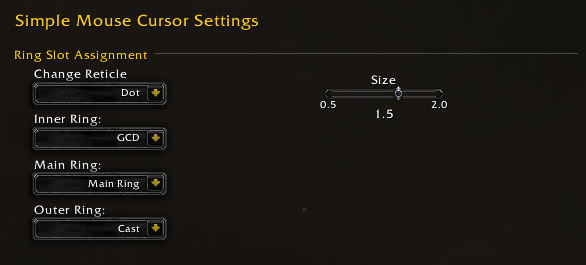
The default Simple Mouse Cursor setup: Dot reticle, GCD on the Inner Ring, Main Ring in the middle, and Cast on the Outer Ring.
Simple Mouse Cursor is ready to use immediately after installation.
The default configuration is:
- Reticle: Dot
- Inner Ring: GCD
- Main Ring: Main Ring
- Outer Ring: Cast
- Cursor Trail: Off
- Class Colours: Off
- Combat-Only Visibility: Off
This gives you a visible central cursor marker, your global cooldown on the inner ring, and cast or channel progress on the outer ring.
You can change any of these options to suit your own UI and playstyle.
If this is your first time using Simple Mouse Cursor:
- Open Simple Mouse Cursor from World of Warcraft's addon settings.
- Choose the reticle style you prefer and adjust its size.
- Decide what you want displayed in the Inner Ring, Main Ring, and Outer Ring.
- Adjust the overall Cursor Ring Scale if the graphics feel too large or too small.
- Adjust Transparency if you want the cursor graphics to be more or less prominent.
- Try the class-colour options if you want parts of the cursor to match your character's class.
- Once you are comfortable with the basic setup, explore the optional pulse, rotation, trail, and modifier-key effects.
Changes are applied as you adjust the settings, so you can experiment and immediately see how they look.
Simple Mouse Cursor does not currently use any slash commands.
All configuration is handled through World of Warcraft's addon settings.
For more detail about each part of the cursor:
- Rings & Indicators explains the three ring positions and the information they can display.
- Reticle & Appearance covers reticles, colours, scale, transparency, and layering.
- Effects covers pulse, rotation, and the cursor trail.
- Visibility & Modifier Keys covers combat visibility and Shift, Ctrl, and Alt actions.