Translations
If you'd like to translate the app to another language, you can follow these instructions.
Table of Contents
There have been a number of changes on how translations are handled in v2 now.
(If you're looking to create translations for v1, you can look here.)
Translations are no longer in the *.xml file format, instead they're stored as *.json files. One for each language.
The file format changed entirely as the app now uses the i18next framework.
-
Look up the ISO code for your language (e.g. "en" is English): http://www.lingoes.net/en/translator/langcode.htm
-
Open the
languagesfolder which is located inC:\Users\<your name>\AppData\Local\Fallout 76 Quick Configuration\(on Windows) or~/.config/Fallout 76 Quick Configuration/(on Linux)- (Tip: You can open it via "Browse" → "App translations folder")
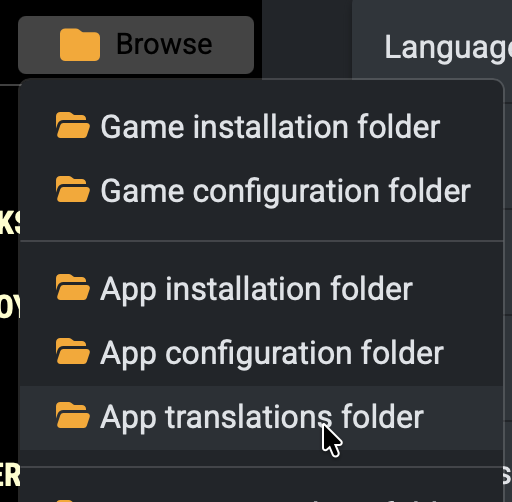
- (Tip: You can open it via "Browse" → "App translations folder")
-
If there are old xml files like
de-DE.xml, or old folders likede-DE, ignore them (or delete them if they bother you). Those are from v1 of Quick Configuration. -
Create a new
jsonfile named after your language's ISO code (e.g.de.json) in the folder. (You can, for example, create a new text document and rename it. But you also need to change the file extension too.) -
Open the newly created
jsonfile and write/copy the following:{ "name": "Deutsch", "author": "My user name", "translation": {} }Replace "Deutsch" with your language and add your user name.
(If you add
"author": "your name goes here"then your name will be shown when the language is selected) -
In the app, go to "Settings" and under languages click on "Show more".
-
Click on "Reload translations from disk", then select your translation from the list.
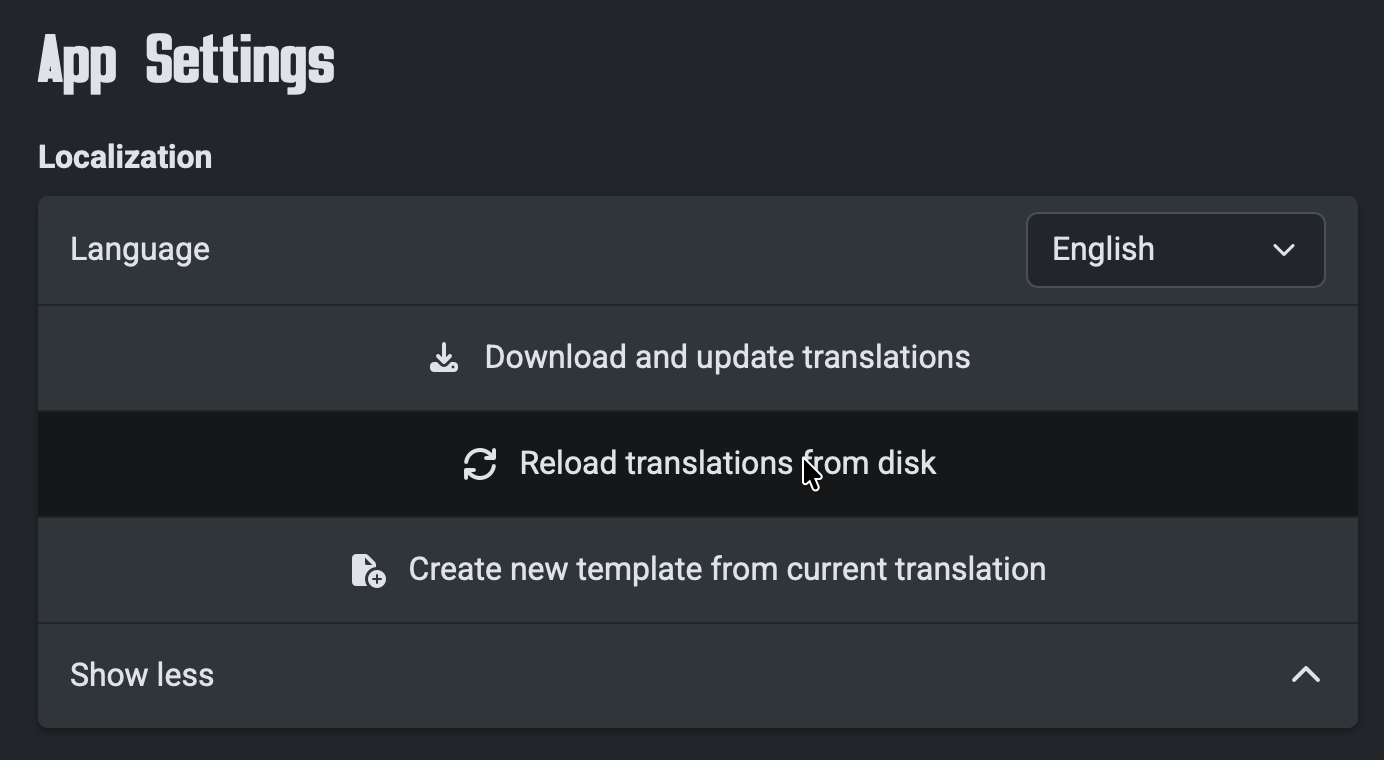
-
Once your new translation is selected (in the screenshot, "English" is selected),
click on "Create new template from current translation".
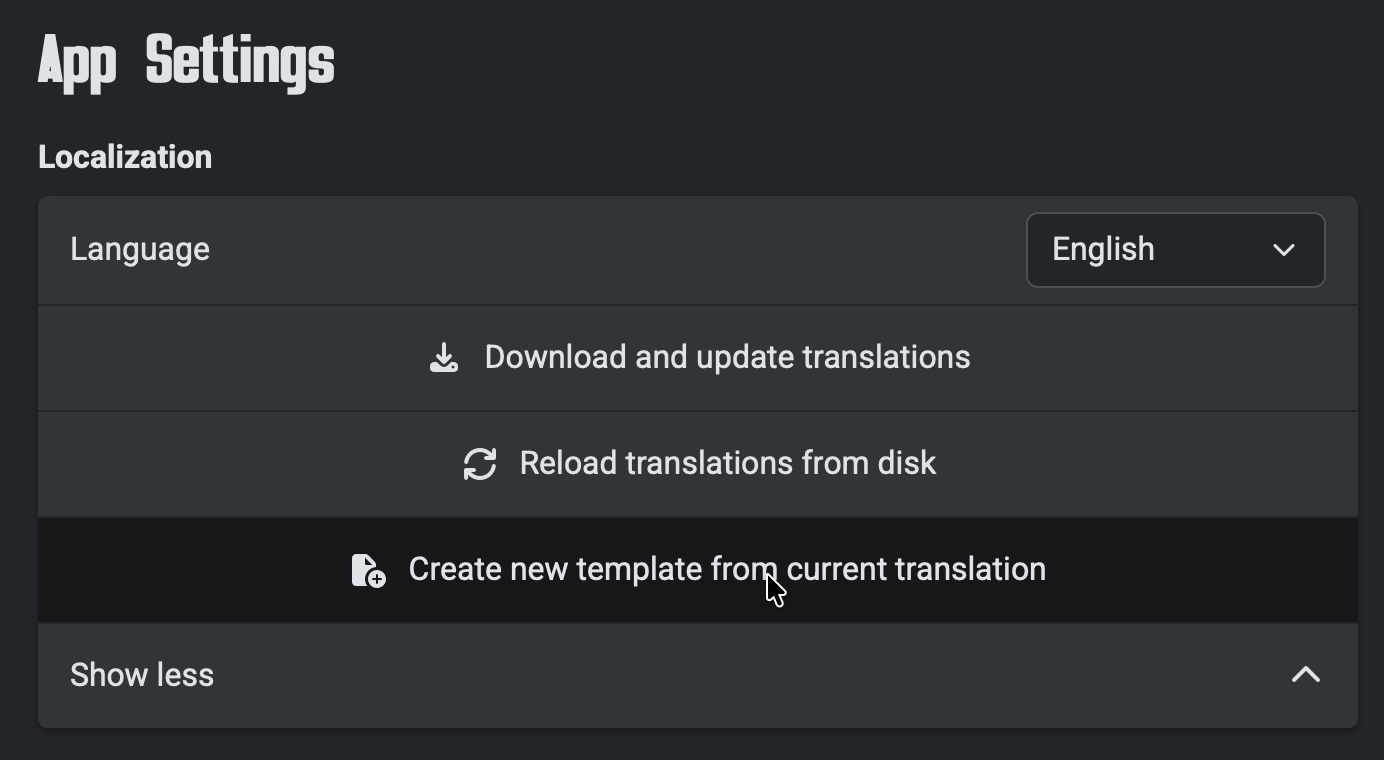
This will create a
*.template.jsonfile next to your own file in the languages folder (e.g. if your translation isde.json, it will createde.template.json).
Thetranslationkey will be filled with all texts used in the app. -
From here, you can either delete
de.jsonand renamede.template.jsontode.json, or you can copy individual keys over, whatever works best for you. (Using "de" as an example here.) -
Start translating. :)
-
Tip: JSON files can be opened in any text editor, although I recommend Visual Studio Code.
-
Tip: You can start by uploading your translation file to https://translate.i18next.com/ and translate strings automatically. It's like Google Translate but for i18next.
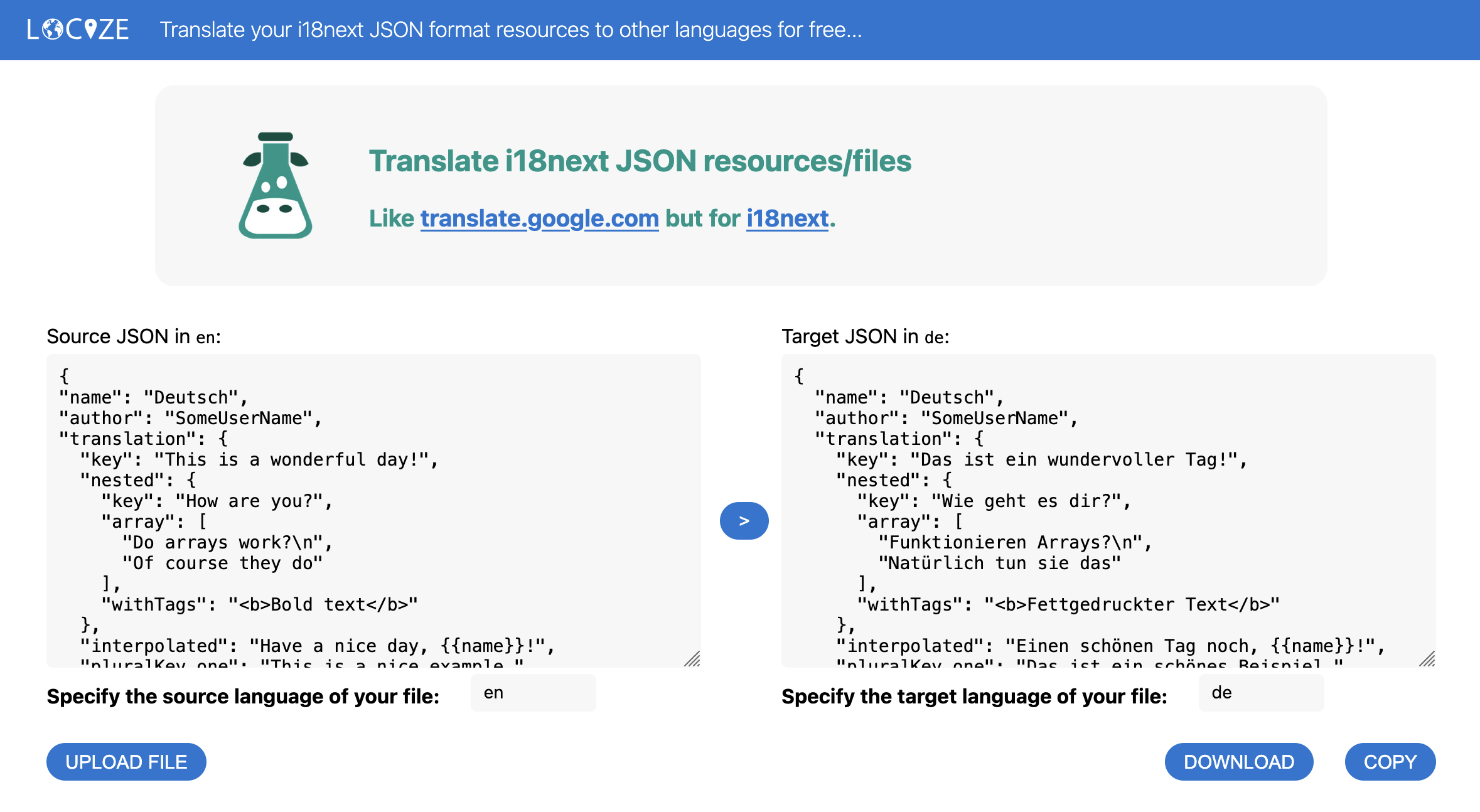
But please check the results of the machine translation before submitting it.
-
-
When you're done, you can create a Pull Request on GitHub (if you know how) or send me a private message (PM) on NexusMods and attach the file. I'll add your translation to the GitHub repo, so people can easily download it through the app. Feel free to use dropbox, Google Drive or any other file sharing service.
- Open the app, go to "Settings", then select the language you want to update.
Example:
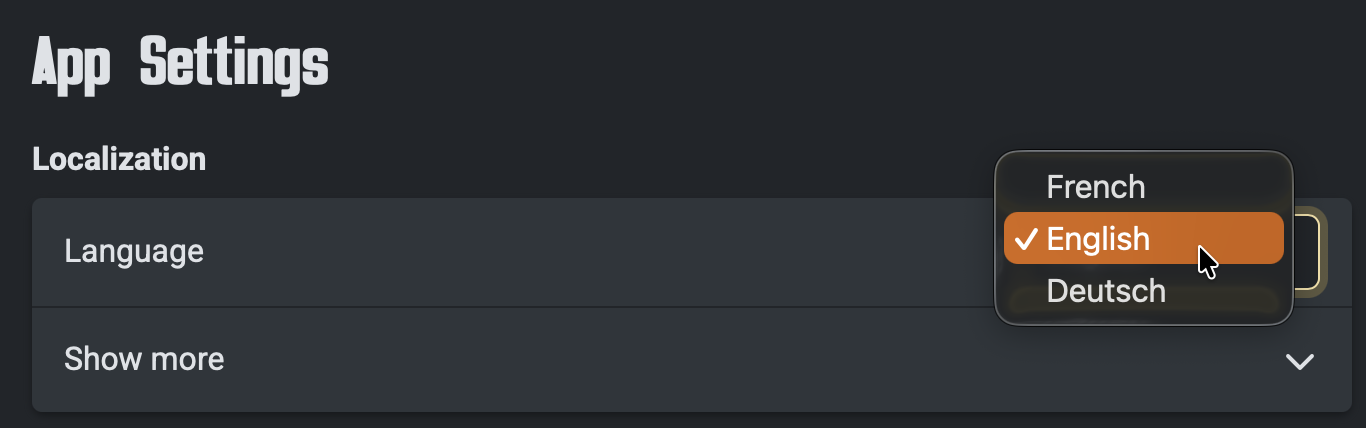
- Under the languages, click on "Show more".
- Now click on "Create new template from current translation". This will create a
de.template.jsonfile next to your own file in the languages folder. It will fill the "translation" key with all missing strings used in the app. - Start translating the added texts just like mentioned above.
- When you're done, you can create a Pull Request on GitHub (if you know how) or send me a private message (PM) on NexusMods and attach the file. I'll add your translation to the GitHub repo as usual.
Please, make sure that you don't change any of the keys (e.g. "title": ).
Otherwise the app won't recognize it.
Because of this, be especially careful with bulk replacing texts in a text editor. Don't do this, unless you know what you're doing:
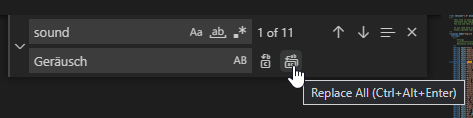
To add a newline in a "text": "<your text goes here>", you need to write \n.
For example, "text": "This is line 1\nThis is line 2"
will produce:
This is line 1
This is line 2
Also, sometimes languages diffentiate zero/one/many items grammatically. You can add _zero, _one, and _other to keys like this:
      "statusbar": {
        "deploymentNecessary": "Deployment necessary",
        "modsEnabled": "All mods enabled",
        "modsDisabled": "All mods disabled",
        "modsInstalled_zero": "No mod installed",
        "modsInstalled_one": "{{count}} mod installed",
        "modsInstalled_other": "{{count}} mods installed",
        "modsEnabled_zero": "No mod enabled",
        "modsEnabled_one": "{{count}} mod enabled",
        "modsEnabled_other": "{{count}} mods enabled"
      },
And the {{count}} will be filled in with a number by the app.
If you want to know more about JSON, you can lookup the documentation from i18next and other sources:
- https://www.i18next.com/misc/json-format
- https://docs.weblate.org/en/latest/formats/i18next.html
- https://support.phrase.com/hc/de/articles/7278275219612--JSON-i18next-i18nextV4-Strings
You don't need to restart the app everytime you want to see the changes you made.
Just click on the reload button in the App Settings:
This will also load any newly added translations to the dropdown list.